
SVG to PNG with Transparent Background - Complete Guide
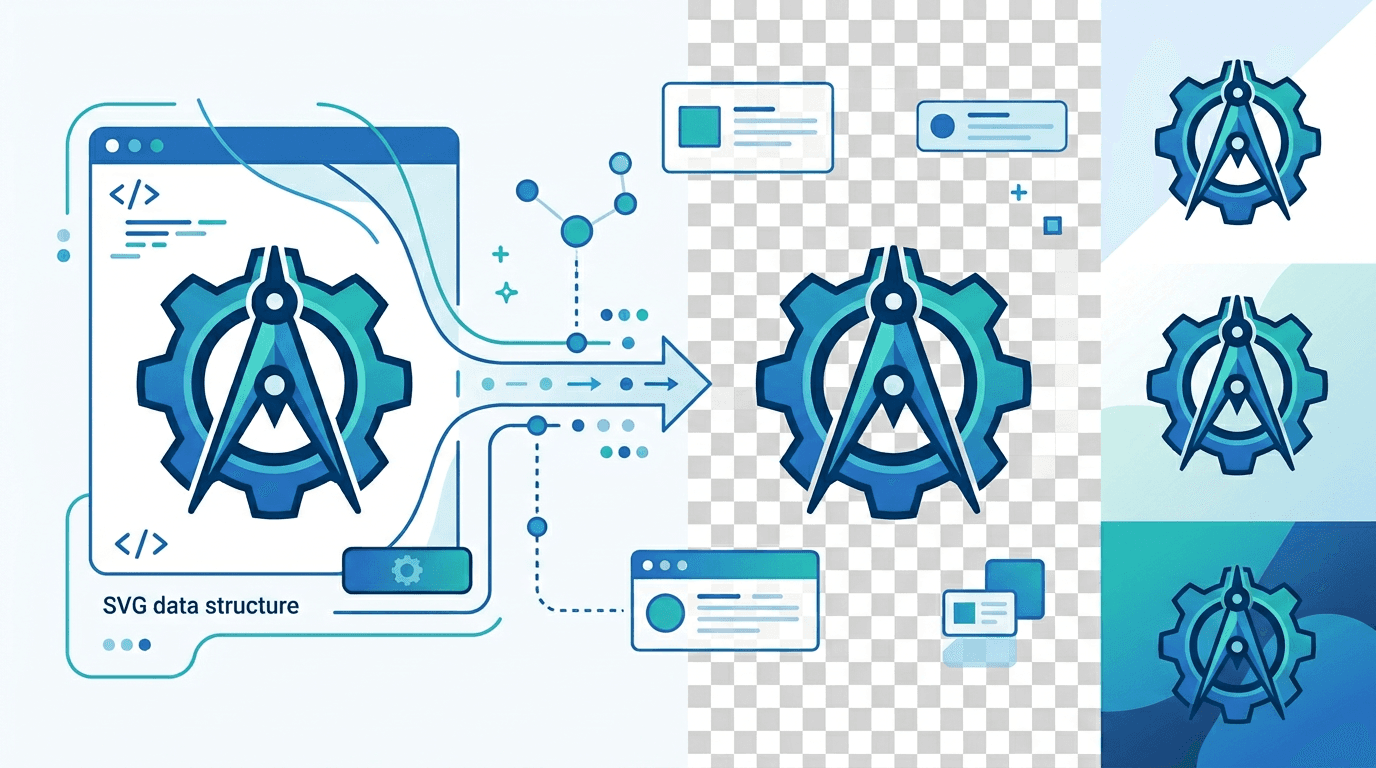
Converting SVG to PNG with a transparent background is essential for logos, icons, and graphics that need to work on any background. This guide shows you how to preserve transparency during conversion.
Why Transparent PNG?
Transparent PNGs are essential for:
- Logo placement - Works on any colored background
- Icon sets - Consistent appearance anywhere
- Overlays - Layers in designs and compositions
- Web graphics - Flexible placement without white boxes
- App assets - UI elements that adapt to themes
SVG and Transparency
How SVG Handles Transparency
SVG supports transparency natively:
- No background by default (transparent)
- RGBA colors for semi-transparent fills
- Opacity attributes for elements
- Blend modes for complex effects
Preserving in PNG
PNG-24 supports full alpha channel:
- 256 levels of transparency (8-bit)
- Smooth anti-aliased edges
- Semi-transparent gradients
- Perfect for SVG conversion
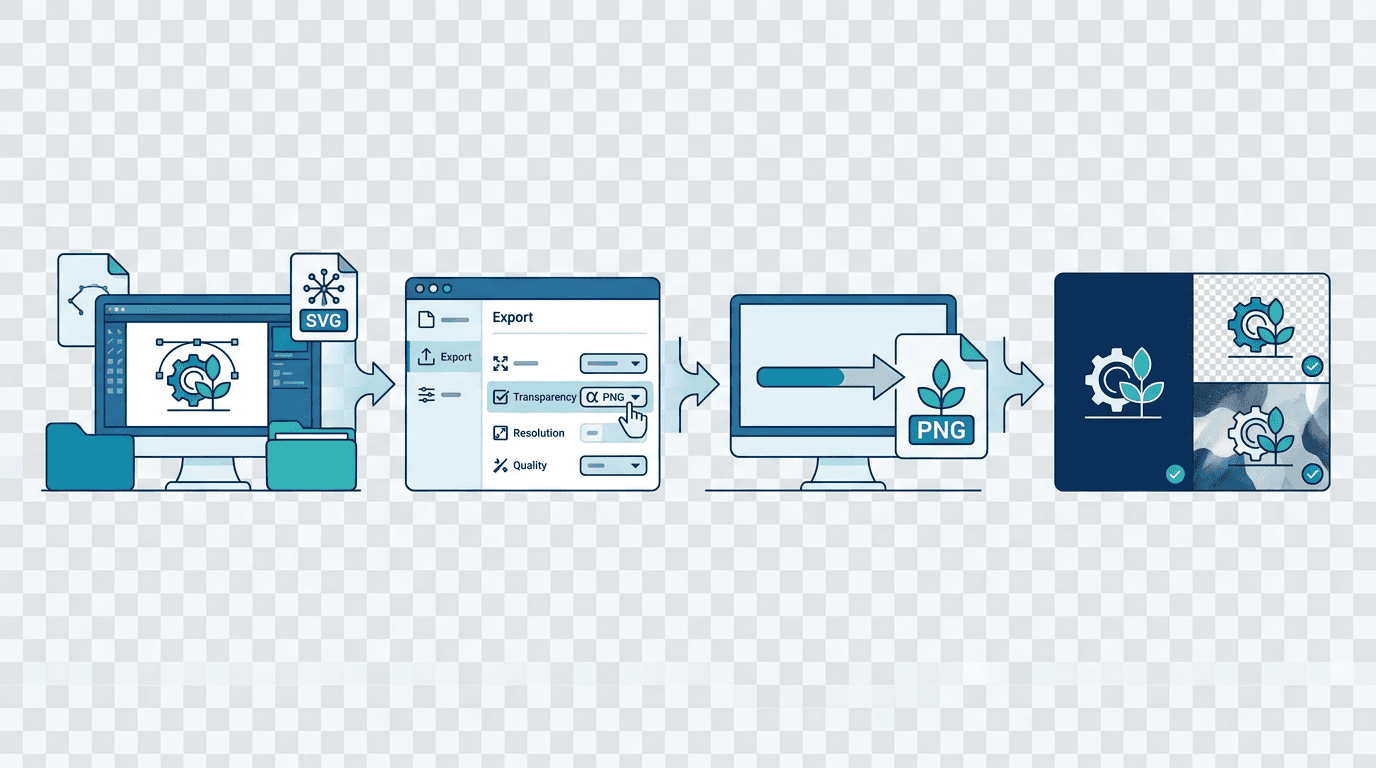
How to Convert SVG to Transparent PNG
Using Our Converter
- Visit our SVG to PNG converter
- Upload your SVG file
- Enable "Preserve transparency" option
- Set output dimensions
- Download transparent PNG
Verifying Transparency
After conversion, check:
- Background is checkered (indicates transparency) in editors
- PNG works on different colored backgrounds
- Edges are smooth without white halos
Common Transparency Issues
White Background Instead of Transparent
Cause: SVG has a background element
Solutions:
- Remove
<rect>background in SVG - Use converter option to ignore background
- Edit SVG to remove fill on background elements
White Halo Around Edges
Cause: Anti-aliasing against white background
Solutions:
- Use SVG with transparent background
- Enable proper alpha channel in converter
- Post-process in image editor
Semi-Transparency Not Working
Cause: Using PNG-8 instead of PNG-24
Solutions:
- Ensure PNG-24 output
- Check for "alpha channel" option
- Verify converter supports full transparency
Best Practices
Preparing SVG for Conversion
- Remove backgrounds - Delete any solid background rectangles
- Check fill colors - Ensure no white fills that look transparent
- Verify opacity - Confirm transparency effects are intentional
Choosing PNG Format
| Format | Transparency | Use Case |
|---|---|---|
| PNG-24 | Full alpha | Complex graphics, photos |
| PNG-8 | Limited | Simple icons (if possible) |
| PNG-32 | Full alpha | Same as PNG-24, naming varies |
Always use PNG-24/32 for SVG conversion with transparency.
Use Cases
Logo Conversion
For logo files:
- Remove any background in SVG
- Export at multiple sizes
- Verify on light and dark backgrounds
- Include transparent and white-background versions
Icon Sets
For app or web icons:
- Standardize dimensions (e.g., 512x512)
- Maintain consistent padding
- Export all with transparency
- Test at actual use sizes
Web Graphics
For website elements:
- Export at appropriate resolution
- Consider retina versions (2x)
- Verify file size is reasonable
- Test overlay on different backgrounds
Testing Transparency
Quick Test Method
- Open PNG in image editor
- Look for checkered background (transparency)
- Add colored layer behind
- Verify graphic looks correct
Browser Test
<div style="background: linear-gradient(45deg, #333, #666)">
  <img src="your-graphic.png" alt="Transparency test">
</div>
View to ensure no white box appears.
Optimizing Transparent PNGs
File Size Reduction
Transparent PNGs can be large. Reduce by:
- Using appropriate dimensions
- Applying PNG compression
- Reducing color palette if possible
- Using tools like pngquant
Quality vs Size Trade-offs
| Optimization | Size Reduction | Quality Impact |
|---|---|---|
| PNG compression | 20-50% | None |
| Color reduction | 40-80% | Possible banding |
| Dimension reduction | Varies | Resolution loss |
Batch Converting with Transparency
For multiple SVGs:
- Upload all files
- Set transparency option globally
- Configure consistent dimensions
- Export all at once
Edge Cases
SVG with Embedded Raster Images
If SVG contains raster images:
- Raster parts maintain their original transparency
- Vector parts convert normally
- Verify embedded images have transparency
Complex Transparency Effects
For SVGs with:
- Blur effects
- Drop shadows
- Blend modes
These may convert differently. Test and adjust as needed.
Semi-Transparent Elements
SVG with opacity values:
- Fully preserved in PNG-24
- May increase file size
- Verify visual accuracy after conversion
Frequently Asked Questions
Why does my PNG have a white background?
Your SVG likely has a background element. Edit the SVG to remove it, or use converter options to ignore backgrounds.
Can PNG-8 support transparency?
PNG-8 supports only binary transparency (on/off), not partial transparency. Use PNG-24 for smooth edges.
Why are my edges jagged?
Either the resolution is too low or anti-aliasing isn't working properly. Increase dimensions or check converter settings.
How do I make part of my graphic semi-transparent?
Use RGBA colors or opacity in your SVG. These convert directly to PNG alpha channel.
Should I use PNG or WebP for transparent graphics?
PNG has universal support. WebP is smaller but has slightly less browser support. Use PNG for maximum compatibility.
Conclusion
Converting SVG to PNG with transparent background is straightforward when you use the right settings. Ensure your SVG has no background, use PNG-24 output, and verify on multiple backgrounds.
Try our SVG to PNG converter for perfect transparent conversions.
Convert SVG to Transparent PNG →
Related tools: PNG Optimizer | Background Remover | Image Resizer