
Upload your image, then drag a rectangle over the detail you want to pixelate. Add areas for other details, adjust their shared strength and generate the result. The image is not cropped.
Pixelate Image Online
Pixelate selected parts of one photo or screenshot. Draw multiple rectangles, adjust their shared strength and generate a PNG, JPG or WebP at the original resolution.
You may also need:Image Cropper·Image Metadata Remover·Watermark Maker·Compress Image·Browse all tools
Pixelate Parts of an Image Before Sharing
Use this free online image pixelator to pixelate parts of a photo or screenshot. Draw rectangles over names, faces or license plates, adjust the pixel blocks and download a PNG, JPG or WebP at the original resolution.
Work on up to 30 areas in one image, with one shared strength setting. Selecting your image uploads it; the browser shows a preview, and Generate Image processes the uploaded original on the server. To remove an unwanted edge altogether, use Image Cropper.
How to Pixelate Part of an Image Online
1
Upload a photo or screenshot
Choose or drop one static JPG, PNG or WebP up to 20 MB. Wait for the upload and preview to finish.
2
Select the details to pixelate
Drag a rectangle around each detail. Move or resize existing areas; click Add area to start a new rectangle inside an existing selection.
3
Adjust strength and output
Increase strength for larger blocks. Use Show original to check coverage, then choose PNG, JPG or WebP.
4
Generate, inspect and download
Click Generate Image, download the result and inspect every selected area at its actual size before sharing.
See Two Selected Areas Before and After Pixelation
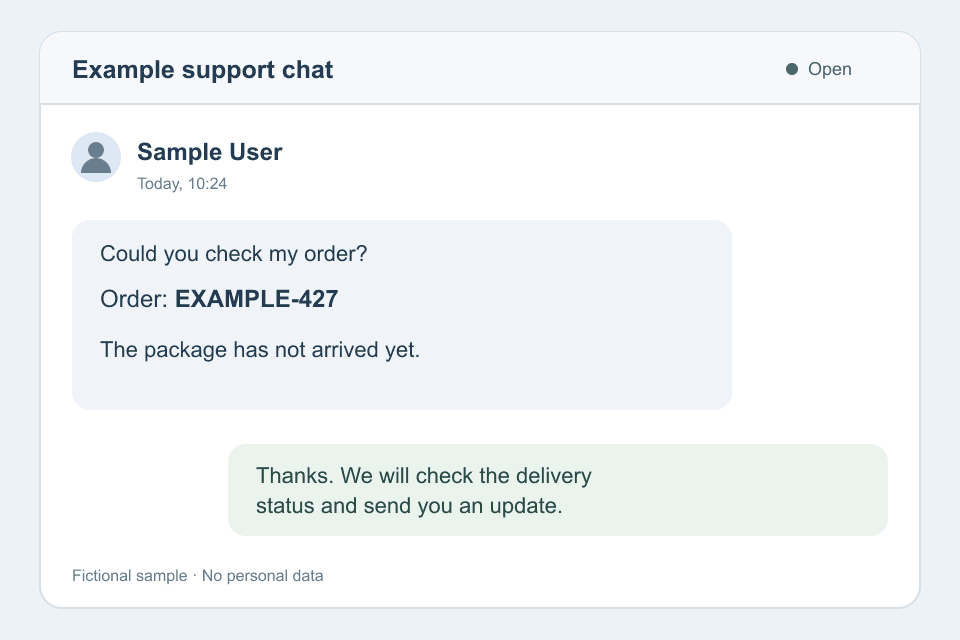
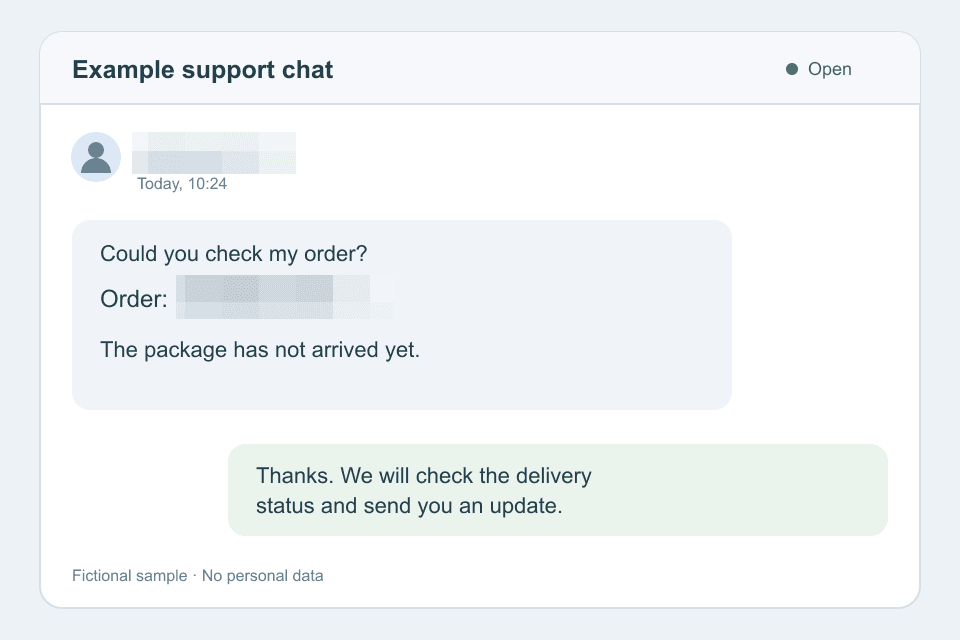
This fictional English support chat shows how a name and an order reference can be pixelated while the surrounding conversation stays visible.
Original example
Two areas pixelated
Pixelate Faces, Text and License Plates
Use manual selections when you know which details need a visual mask.
Pixelate text in a screenshot
Frame the entire name, address or order reference, including the edges of each character. Check for the same information repeated elsewhere in the screenshot.
Pixelate a face in a photo
Draw and resize a rectangle to cover the face. Add separate areas for other people, including small faces in the background; there is no automatic face detection.
Pixelate a license plate
Cover the full plate with a little margin around its edges. Check the downloaded picture for other visible plates or identifying labels before posting.
Pixelation is a visual effect, not a guarantee of anonymity or secure removal. For information that must be fully removed, use a tool with solid redaction or crop it out.
Choose Coverage and Pixelation Strength
Strength ranges from 1 to 100 and starts at 30. Higher values make larger blocks; the right visual result depends on the image and the detail you select.
Cover the whole detail
Leave a little margin around text, faces or plates. Increasing strength will not fix a character or edge left outside the rectangle.
Compare before generating
Increase strength until the preview has the block size you want. Switch to Show original to check the area boundaries and look for missed details.
Inspect the downloaded file
The smaller preview is approximate. Check the exported image at its actual size; no slider value guarantees that information is unrecognizable or unrecoverable.
Adjust Multiple Areas in One Picture
Keep useful context visible while editing the details you selected.
Up to 30 rectangles
Select separate names, faces or plates in one picture. Click Add area when a new rectangle needs to overlap an existing one.
Move, resize or remove
Drag an area to move it, use its corners to resize it, or delete it. Clear areas starts the selection again.
Undo selection edits
Undo reverses recent changes to your rectangles. Strength is shared by all areas and is not part of the selection undo history.
Choose PNG, JPG or WebP
Choose a format for the destination. PNG is the default; JPG and WebP start at High quality (recommended).
- PNG
- A useful choice for screenshots and graphics, with transparency support and no lossy quality setting.
- JPG
- Useful for photos and sites requiring JPEG. Transparent areas become white; quality presets control lossy compression.
- WebP
- Supports transparency and lossy quality presets. Check that the destination accepts WebP.
Output keeps the original pixel dimensions after orientation correction. JPG and WebP re-encode the whole picture, so details outside your selections may also change. File size depends on the content and format; it may be larger than the original.
Exports do not keep the original EXIF metadata. For a metadata-only task, use Image Metadata Remover. For palette-based pixel artwork, try Image to Pixel Art.
Questions About Image Pixelation
Select each face manually. Draw and resize a rectangle around it; there is no automatic face or license plate detection.
Pixelation creates square blocks; smooth blur softens edges. This tool applies rectangular pixelation, with no smooth blur, brush or solid-fill mode.
Each task uses one image with up to 30 rectangular areas. All areas share one strength setting. Batch processing and separate strength settings per area are not supported.
Use a static JPG/JPEG, PNG or WebP up to 20 MB, 8,192 pixels per side and 16,777,216 pixels total. GIF, APNG and animated WebP are unsupported.
Selecting a valid file uploads it to the server. Selection previews run in your browser; final generation runs on the server. Result links expire, so download your file promptly.
Use Undo to reverse selection edits in the current editor. Downloaded files have no editable selection layers, and this tool cannot remove pixelation. Keep your original; pixelation does not guarantee that hidden information cannot be inferred.
Output keeps the original pixel dimensions after orientation correction. PNG and WebP support transparency; JPG fills it with white. JPG and WebP re-encode the whole image, including unselected areas. File size is not guaranteed to be smaller.
Pixelate Image Online for Free
Choose a picture, select the details and check the result before sharing.