
Lossless Image Compression - How to Reduce File Size Without Losing Quality
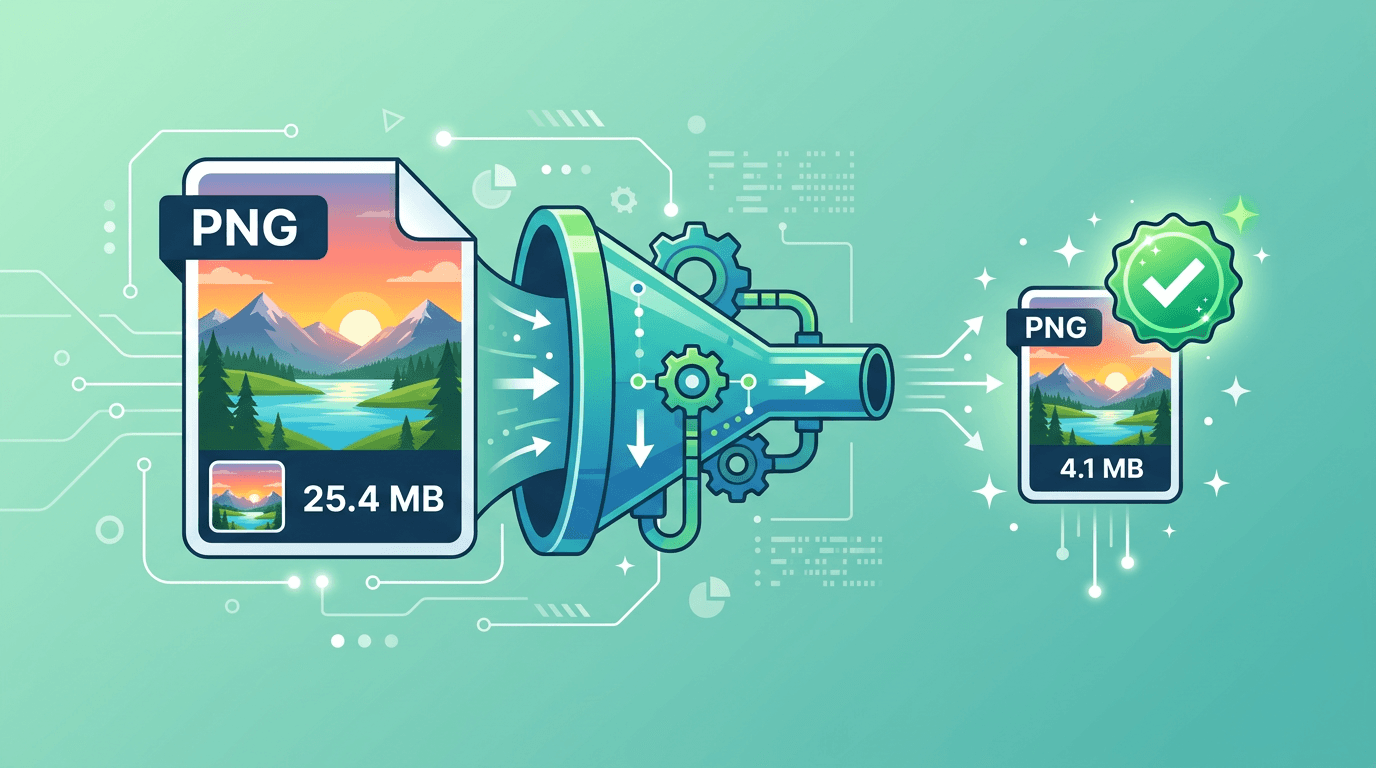
Lossless optimization can make an existing image file more compact while preserving its image information. This guide explains the difference from high-quality lossy compression, shows local PNG and JPG examples, and helps you choose a workflow for either pixel preservation or everyday sharing.
Understanding Compression Types

Lossless compression
Lossless encoding reconstructs the pixels supplied to the encoder exactly. PNG and the lossless modes of some other formats can do this. That does not guarantee that a conversion also preserves source metadata, color depth or edits made before encoding.
Lossy compression
Lossy encoding trades some image information for a smaller file. JPG uses this approach even at the highest quality preset.
Visually lossless
This describes a lossy result whose differences you cannot see under particular viewing conditions. It is a judgment about that result, not a guarantee attached to a preset.
Methods That Preserve Quality
Metadata and color
Removing optional EXIF fields or thumbnails can reduce a file without changing its stored pixels. Savings depend on what is present. Color profiles and orientation information affect interpretation, so do not remove them blindly; keep an original copy.
Palettes and bit depth
Removing unused palette entries can be lossless. Reducing the number of colors or bit depth can change pixels and must not be described as universally lossless.
PNG encoding
Changing PNG compression effort can change encoding time and file size without changing the pixels supplied to the PNG encoder. This is different from resizing or quantizing colors.
How to Compress
Optimize a static PNG locally
Install OptiPNG first. In a terminal opened in the image folder, replace the input filename and choose a new output filename:
optipng -nx -out "optimized.png" "input.png"
The -nx option keeps bit depth, color type and palette unchanged while OptiPNG optimizes PNG compression. This example is for a static PNG. See the option reference.
Optimize an existing JPG locally
With jpegtran from libjpeg-turbo installed, run:
jpegtran -copy all -optimize -outfile "optimized.jpg" "input.jpg"
This optimizes JPEG coding without another lossy re-encoding step. -copy all retains extra metadata markers; the new output path leaves the source in place. See the jpegtran documentation. Use output names that do not already exist and keep whichever file is smaller after verification. Neither method repairs earlier image damage.
Compress a copy for everyday sharing
If a smaller delivery file matters more than identical pixels, open Image Compression, upload one image and start with Balanced (recommended). Compare the downloaded result, then move toward stronger compression or higher quality as needed.
The online compression form has no dedicated Lossless switch. Its quality presets can change detail or colors, including in PNG/GIF output; use the local methods above when preserving existing image information is the priority.
Format-Specific Tips
- JPG: Start from the original. High quality may reduce visible artifacts, but re-encoding is still lossy.
- PNG: Separate lossless compression effort from palette reduction, resizing and other edits. A smaller result is not guaranteed.
- WebP: The format has distinct lossy and lossless modes. A high quality preset is not equivalent to enabling lossless mode; check the controls of the specific converter.
Compare Your Results

There is no fixed saving for metadata removal, PNG optimization or a named quality preset. Results depend on the source, dimensions and existing compression. The illustration is a guide to comparison, not a measured benchmark.
Record the original and output file sizes, then inspect text edges, gradients and fine textures. Keep the smaller result only if it meets your visual requirements.
When Quality Truly Matters
For archives, professional masters or any workflow that needs original information, keep the source file separately. A visually similar export is not a substitute for original metadata, color information or editable layers.
Use a compressed copy for delivery, and check the destination requirements for format, dimensions and color.
Avoiding Quality Loss
Start each export from the original or an editable master. Repeated lossy re-encoding can accumulate artifacts; merely copying a file does not.
Resize only when the destination needs different dimensions. Resizing changes pixels independently of compression quality. Check the final image at its intended display size as well as at full resolution.
Verification
Check the image and metadata
Open the source and output in the same viewer at 100% zoom. Check dimensions, orientation, transparency and fine details. Check metadata separately if you need it.
A visual comparison is useful for sharing copies, but proving pixel equality requires comparing decoded pixels with the same decoder and settings. A changed file hash alone does not imply changed pixels: optimized encoding changes the file’s bytes.
Check file size
Compare the actual byte counts. If optimization yields little or no saving, the source may already be efficiently encoded. Keep the original instead of reducing dimensions or colors when your goal is lossless optimization.
Batch Processing
The current compression form accepts one image per submission. Repeat the process for a small collection; for a folder or a large batch, use external software with explicit batch support.
Even with one preset, images can produce different sizes and visible artifacts. Test representative photos, text and graphics before applying a setting widely, and check the outputs individually.
Common Mistakes
Over-Compression
Problem: Visible artifacts
Solution: Use higher quality settings
Wrong Format
Problem: Poor compression ratio
Solution: Match the format to the content type
Multiple Compressions
Problem: Cumulative quality loss
Solution: Always compress from the original
Best Practices
- Keep the original and create a delivery copy.
- Decide the required dimensions before choosing compression.
- Start with Balanced (recommended) for everyday sharing; try a higher quality preset if details look damaged.
- Compare the output, then record the chosen preset and actual file size.
For archives, retaining the original matters more than choosing a preset called Highest quality. For printing, also verify resolution, color and the printer’s requirements.
FAQ
Does high quality mean lossless?
No. It is a quality preset, not a lossless mode or a percentage of retained detail.
Can a JPG file become smaller without changing its decoded pixels?
Specialized tools can remove metadata or optimize JPEG coding without lossy re-encoding. The current ImgConvert compression workflow re-encodes JPG, so it does not offer that guarantee.
Is every PNG operation lossless?
PNG encoding is lossless for its input pixels, but resizing, color reduction or conversion before encoding can change them.
How much space will I save?
Measure the output. There is no fixed reduction for a preset or format, and an already optimized file may not shrink.
Should I always choose lossless?
Choose according to the delivery requirements. Keep the original and compare a compressed copy before deciding.
Summary
For an existing PNG or JPG that must retain its image information, start with the local optimization examples above and verify the result. For everyday sharing, create a delivery copy and choose a quality preset that meets your size and detail needs.
Compare compression settings →
Related tools: Image Resizer | JPG to WebP | JPG to PNG
More tools for your next image task
Explore ImgConvert tools for conversion, PDF files, and GIFs.
- Image converters
- PDF tools
- GIF tools