
How to Batch Convert TIFF to JPG - Process Multiple Files
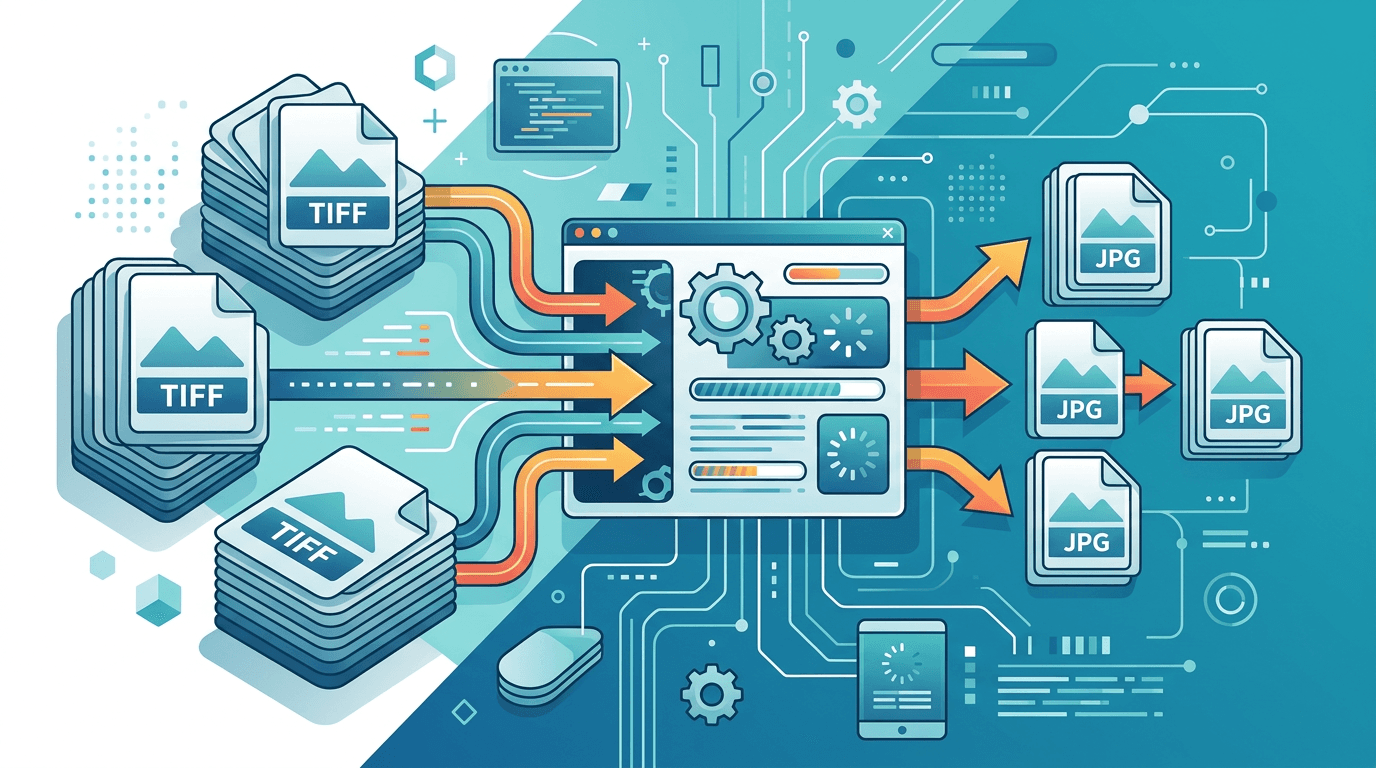
For a folder of TIFF scans or photos, a batch workflow saves repeated setup and keeps output files organized. This guide shows a desktop method with XnConvert, plus the ImgConvert option for converting one file at a time. Start with a few representative files, choose your quality settings and then process the collection.
Why Batch Convert TIFF to JPG?
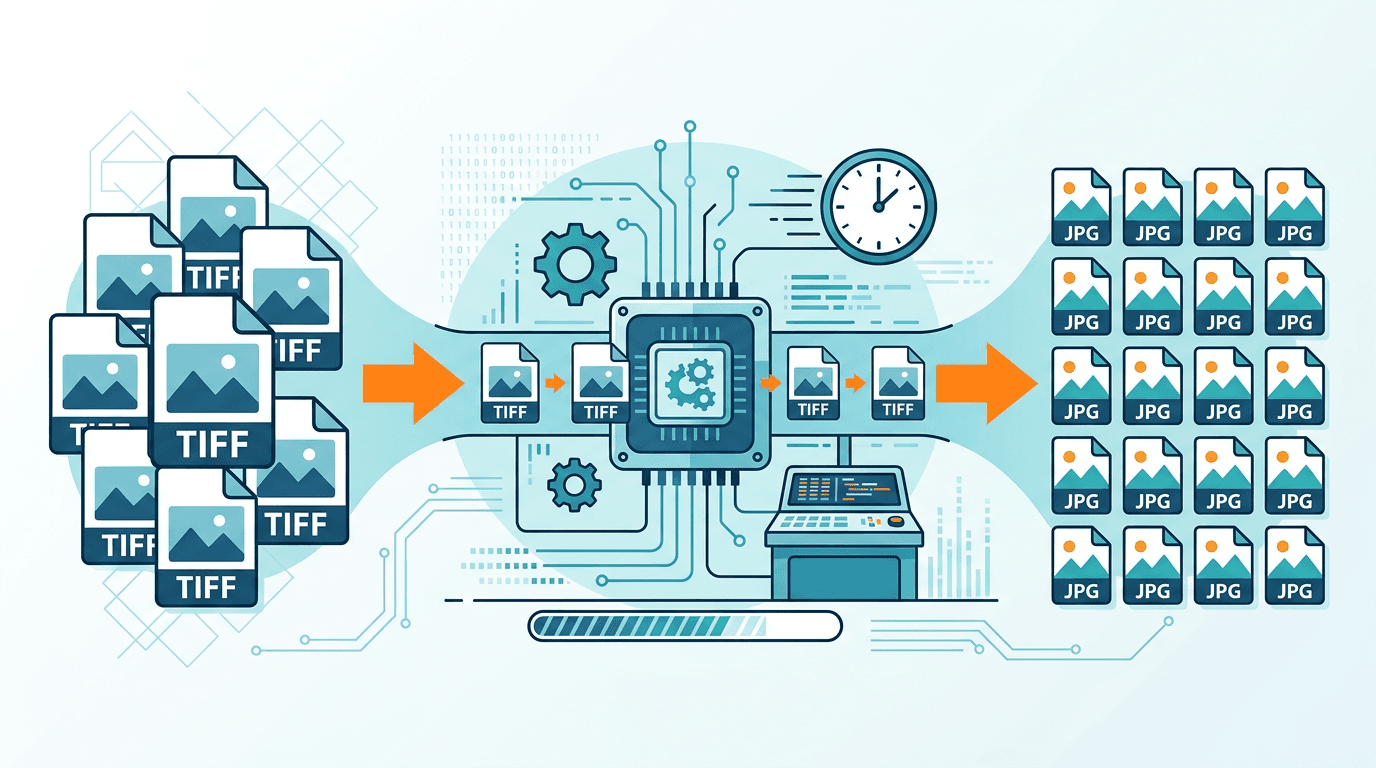
Batch-capable desktop software or scripts can reduce repeated setup for photo collections, scans and print-to-web copies. Processing time depends on dimensions, page count, settings and the machine or service used. Measure a small sample before estimating the full collection; there is no fixed time per hundred files.
How to Batch Convert
Batch conversion with XnConvert
Install the desktop XnConvert application, then follow this workflow for single-page TIFF files:
- Under Input, use Add files or Add folder to select the TIFFs.
- Leave Actions empty if you only need a format change.
- Under Output, choose JPG/JPEG and a separate destination folder. Give files from different folders distinct output names.
- Open the format Settings and test a few files with the default JPEG quality before adjusting it.
- Click Convert, then check Status and the saved JPGs before processing the rest.
These controls belong to the desktop software. See the official batch conversion guide. For multi-page TIFFs, check the page-handling section below.
Convert one file with ImgConvert
- Open TIFF to JPG and select one TIFF.
- Start with the default JPG quality of 85. Leave dimensions blank to keep the source dimensions.
- Convert, download and inspect the JPG. Repeat for the next file.
Preparing TIFF Files
Before Conversion
Organize files:
- Consistent naming
- Folder structure
- Remove duplicates
- Check file integrity
File Requirements
Ensure:
- Valid TIFF format
- Accessible files
- Sufficient disk space
- No corrupt files
Handling Multi-Page TIFFs
The current online converter creates one JPG from the first page of a TIFF. It does not split every page into separate files. If you need all pages, use a workflow that explicitly supports TIFF page extraction, then verify the page count and order. Keep the original multi-page TIFF.
Quality Settings
The JPG quality field accepts whole numbers from 1 to 100, with 85 as the default. The value controls encoder quality, not a percentage of file-size reduction or detail retained. Even quality 100 uses lossy JPEG encoding.
| Goal | Starting point | Check |
|---|---|---|
| General sharing | 85 (default) | File size and visible detail |
| Smaller previews | Lower quality values | Text, edges and gradients |
| Detailed photos or scans | Higher values, up to 100 | Fine texture and small lettering |
| Archiving or later editing | Keep the original TIFF | Metadata and original precision |
Reusing a quality setting does not guarantee identical file sizes or visible quality across different images.
File Management
These organization suggestions apply to external batch software. Naming and folder behavior depend on that software; the online converter does not process a directory tree.
Naming Convention
Automatic naming:
original-name.jpg- Or sequential:
image-001.jpg
Folder Organization
After conversion:
- Keep organized structure
- Mirror source folders
- Clear naming system
Performance Considerations
For external batch workflows, process manageable groups and record failures. Pixel dimensions, page count, image content and settings matter more than the original file size alone. A large TIFF does not imply a predictable JPG size.
For the online form, follow its current upload limits and compare the downloaded file with the original. Test small text, gradients and orientation before using the output.
Common Issues
Conversion Errors
Cause: Corrupt or unsupported files
Solution: Skip problematic files, convert rest
Mixed Results
Cause: Inconsistent source quality
Solution: Group by type, use appropriate settings
Missing Files
Cause: Upload issues
Solution: Verify file count, re-upload if needed
Automation Tips
Once a sample batch looks right, save your XnConvert settings as a preset for future collections. Use a descriptive name such as “TIFF scans for web” and check the destination folder before reusing it.
For unattended jobs, move to an external script or folder-watching workflow after checking file naming, page selection and error reporting. Keep a log of failures so you can retry only the affected files.
Verifying Results
Quality Check
After batch conversion:
- Sample check
- Verify file count
- Check file sizes
- Test opening files
Quick Verification
Random sample:
- Open 5-10 random files
- Check quality
- Verify dimensions
- Confirm usability
Frequently Asked Questions
How many files can I submit here?
One TIFF per submission. For a folder or many files at once, use external batch-capable software.
Does one quality setting guarantee identical quality?
No. Content, source damage and dimensions vary. Compare representative outputs and keep the originals.
What happens to a multi-page TIFF?
This page converts the first page only. Use a page-extraction workflow when all pages are needed.
Are folders or ZIP downloads included?
Do not assume those features from a batch tutorial. This online form converts individual files; external software has its own output options.
How long will a collection take?
Measure a small sample under your actual conditions. No fixed time is guaranteed for a given file count.
Conclusion
Use ImgConvert for individual TIFF to JPG conversions and external software when you need a true batch workflow. Choose a quality value, compare the output and retain the TIFF originals.
Related tools: Compress Image | Image Resizer | JPG to PNG
More tools for your next image task
Explore ImgConvert tools for conversion, PDF files, and GIFs.
- Image converters
- PDF tools
- GIF tools