
How to Migrate Your Website Images to AVIF Format - Complete Guide
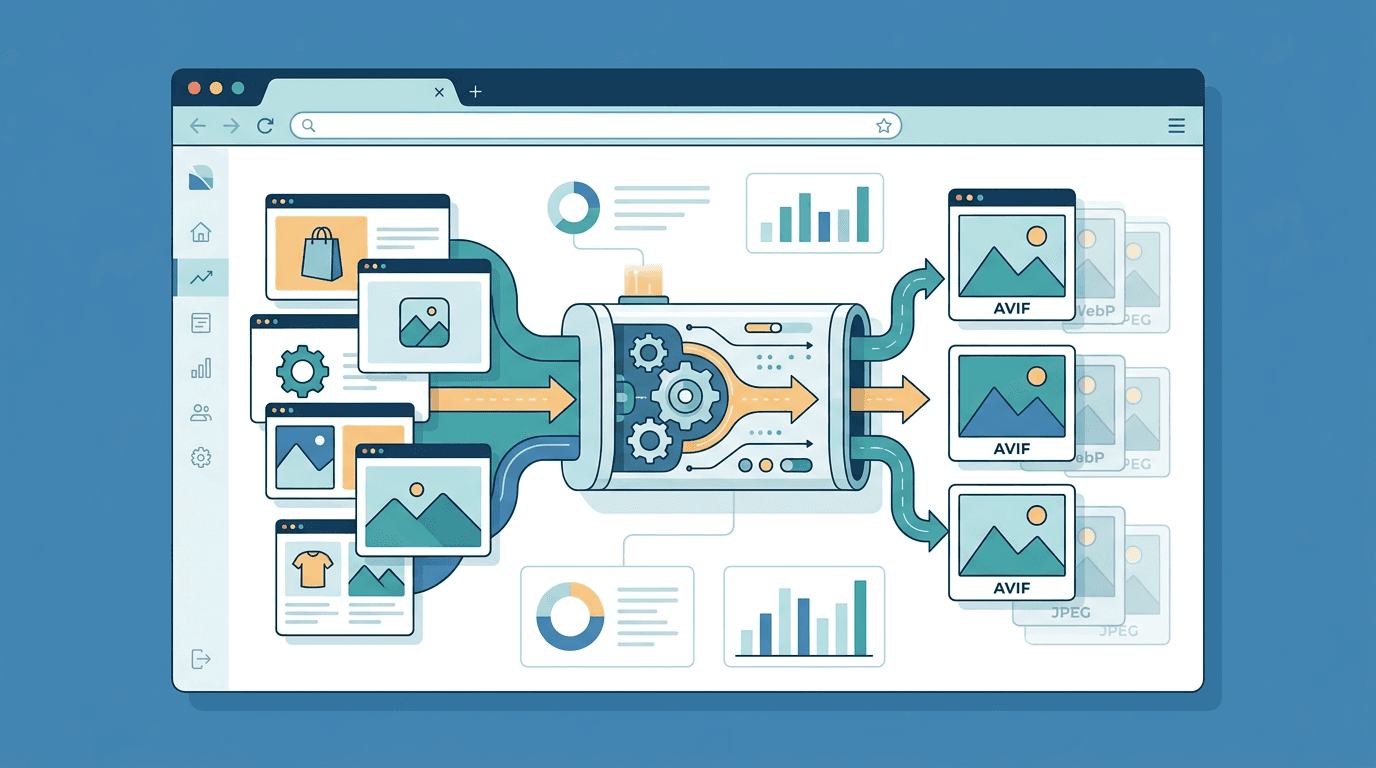
Switching your website images to AVIF is one of the highest-ROI performance optimizations available today. Done correctly, it reduces your total image payload by 75-85%, dramatically improves Core Web Vitals, and lowers your CDN and hosting costs — all without any visible quality degradation for users. This guide walks you through every step of a safe, effective AVIF migration.
Why Migrate to AVIF?
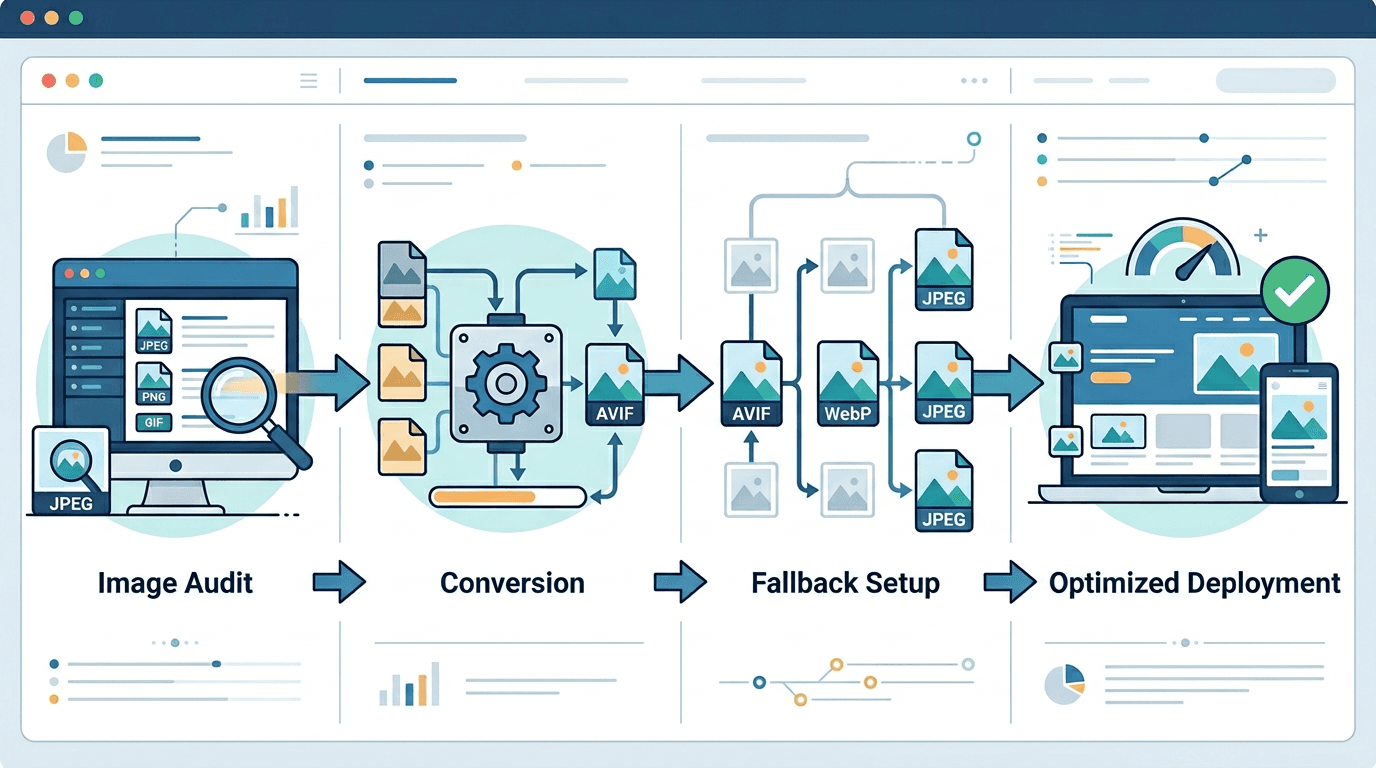
The performance case for AVIF is compelling:
| Metric | Before (PNG/JPG) | After (AVIF) | Improvement |
|---|---|---|---|
| File sizes | 100% | 15-25% | 75-85% smaller |
| Page load | Baseline | 2-3× faster | Significant |
| Bandwidth | 100% | 15-25% | 75-85% savings |
| Core Web Vitals | Varies | Improved | Better SEO |
Beyond raw numbers, AVIF delivers better visual quality than JPEG at smaller file sizes — users on modern browsers get a genuinely better experience.
Pre-Migration Assessment
Before touching a single file, spend time understanding your current situation.
Step 1: Audit Your Current Images
Catalog what you're working with:
- Total number of images
- Current formats (PNG, JPG, WebP)
- Total image payload (in MB)
- Which images appear above the fold (highest priority)
- Traffic patterns to identify high-impact pages
Use browser DevTools or a tool like WebPageTest to measure your current total image payload and load times — you'll want these baseline numbers to measure improvement.
Step 2: Analyze Your Browser Analytics
Your audience's browser distribution determines how many users need fallbacks:
- Percentage using Chrome 85+ (AVIF-capable)
- Percentage using Firefox 93+ (AVIF-capable)
- Percentage using Safari 16+ (AVIF-capable)
- Percentage needing fallbacks (typically 5-10% for most sites)
If your analytics show high usage of older Safari, WebP becomes more critical as your secondary format.
Step 3: Evaluate Your Infrastructure
Your technical setup determines the best migration approach:
- Static site: Manual conversion works well
- CMS (WordPress, etc.): Plugin-based automation is easiest
- Custom application: Build pipeline integration or CDN conversion
- CDN with image optimization: May already support AVIF automatically
Migration Strategy Options
Option 1: Manual Conversion (Small Sites)
Best for sites with fewer than 100 images:
- Use our PNG to AVIF converter to convert images
- Upload AVIF files alongside originals
- Update HTML to use
<picture>elements - Test and deploy
Pros: Full control, no infrastructure changes needed Cons: Time-intensive for large image libraries
Option 2: Build Pipeline Integration
Best for modern web applications:
// Next.js configuration (built-in AVIF support)
/** @type {import('next').NextConfig} */
const nextConfig = {
  images: {
    formats: ['image/avif', 'image/webp'],
    minimumCacheTTL: 60,
  },
}

module.exports = nextConfig
For custom build pipelines using Sharp:
const sharp = require('sharp');
const fs = require('fs');
const path = require('path');

async function convertImageToAvif(inputPath) {
  const outputPath = inputPath.replace(/\.(jpg|jpeg|png|webp)$/i, '.avif');

  await sharp(inputPath)
    .avif({
      quality: 65,   // Good balance of quality and size
      effort: 6,     // Higher effort = better compression
    })
    .toFile(outputPath);

  console.log(`Converted: ${inputPath} → ${outputPath}`);
}
Option 3: CDN-Based Conversion
Best for large sites or sites with user-uploaded content:
- Cloudflare Images: Automatically serves AVIF to supported browsers
- Imgix: On-demand AVIF conversion with
fm=avifparameter - Cloudinary: Automatic format selection with
f_auto - AWS CloudFront + Lambda@Edge: Custom conversion logic
Option 4: CMS Plugins
Best for WordPress and other CMS platforms:
- ShortPixel: Automatic AVIF generation on upload
- Imagify: Bulk conversion with AVIF support
- EWWW Image Optimizer: AVIF output with WebP fallbacks
Step-by-Step Migration Process
Phase 1: Backup
Before any conversion:
📁 images/
   📁 original/     ← Keep ALL source files here (never delete)
   📁 avif/         ← New AVIF versions
   📁 webp/         ← WebP fallbacks
   📁 legacy/       ← JPG/PNG for maximum compatibility
Always keep your original, uncompressed source files. You'll need them if quality issues arise or if you want to regenerate at different settings.
Phase 2: Prioritized Conversion
Convert in order of impact:
- Hero images and banners — Largest files, first to load
- Product images — Critical for e-commerce conversion rates
- Featured blog images — High-traffic content
- Repeat-appearing UI elements — Icons, thumbnails used everywhere
Use our PNG to AVIF converter for individual files, or a batch tool for multiple files.
Phase 3: Implement Fallbacks
For every AVIF file, implement the <picture> fallback pattern:
<picture>
  <!-- AVIF: Best compression, 93% browser support -->
  <source srcset="product-image.avif" type="image/avif">
  <!-- WebP: Good compression, 97% browser support -->
  <source srcset="product-image.webp" type="image/webp">
  <!-- JPG/PNG: Universal fallback -->
  <img
    src="product-image.jpg"
    alt="Product description"
    loading="lazy"
    width="800"
    height="600"
  >
</picture>
For responsive images with multiple sizes:
<picture>
  <source
    type="image/avif"
    srcset="image-400.avif 400w, image-800.avif 800w, image-1200.avif 1200w"
    sizes="(max-width: 400px) 400px, (max-width: 800px) 800px, 1200px"
  >
  <source
    type="image/webp"
    srcset="image-400.webp 400w, image-800.webp 800w, image-1200.webp 1200w"
    sizes="(max-width: 400px) 400px, (max-width: 800px) 800px, 1200px"
  >
  <img
    src="image-800.jpg"
    alt="Description"
    loading="lazy"
    width="800"
    height="600"
  >
</picture>
Phase 4: CSS Background Images
For CSS backgrounds, use feature detection:
/* Default fallback */
.hero-section {
  background-image: url('hero.jpg');
}

/* Progressive enhancement for AVIF support */
@supports (background-image: url('test.avif')) {
  .hero-section {
    background-image: url('hero.avif');
  }
}
Or use JavaScript detection for more complex cases:
function supportsAvif() {
  return new Promise((resolve) => {
    const img = new Image();
    img.onload = () => resolve(true);
    img.onerror = () => resolve(false);
    img.src = 'data:image/avif;base64,AAAAIGZ0eXBhdmlmAAAAAGF2aWZtaWYxbWlhZk1BMUIAAADybWV0YQ==';
  });
}

supportsAvif().then(supported => {
  document.documentElement.classList.add(supported ? 'avif' : 'no-avif');
});
.avif .hero { background-image: url('hero.avif'); }
.no-avif .hero { background-image: url('hero.jpg'); }
Phase 5: Configure Server MIME Types
Ensure your server serves AVIF files with the correct MIME type:
Apache (.htaccess):
AddType image/avif .avif
AddType image/avif-sequence .avifs

# Optional: Enable compression header (AVIF is already compressed)
<IfModule mod_headers.c>
  <FilesMatch "\.(avif|avifs)$">
    Header set Cache-Control "max-age=31536000, public"
  </FilesMatch>
</IfModule>
Nginx:
types {
  image/avif avif;
  image/avif-sequence avifs;
}
Phase 6: Testing
Before going live, test thoroughly:
Browser matrix:
- Chrome (desktop and mobile)
- Firefox (desktop and mobile)
- Safari macOS (16+ for AVIF)
- Safari iOS (16+ for AVIF)
- Edge
- Samsung Internet
What to verify:
- AVIF images display correctly in supported browsers
- Fallback images display correctly in unsupported browsers
- Images don't appear distorted or with color shifts
- File sizes are actually smaller (check Network tab in DevTools)
- No broken images (404s)
- Loading performance improvement is measurable
Quality Settings by Image Type
Converting from PNG
| PNG Content | Recommended AVIF Quality | Expected File Size |
|---|---|---|
| Photography | 75-80% | ~5% of PNG size |
| Illustrations | 80-85% | ~8% of PNG size |
| Screenshots | 85-90% | ~10% of PNG size |
| Icons/Logos | 90-95% | ~12% of PNG size |
Converting from JPEG
The challenge with JPEG-to-AVIF is that JPEG source files have already been compressed. Avoid double-compression by matching quality appropriately:
| JPEG Quality | AVIF Quality | Notes |
|---|---|---|
| 90-100% | 75-80% | Near-lossless match |
| 80-90% | 70-75% | Similar quality |
| 70-80% | 65-70% | Maintain the level |
Best practice: If you have the original uncompressed sources, use those instead of re-encoding from JPEG.
Converting from WebP
| WebP Quality | AVIF Quality | Size Savings |
|---|---|---|
| 85% | 70-75% | 20-35% smaller |
| 80% | 65-70% | 25-40% smaller |
| 75% | 60-65% | 30-45% smaller |
Handling Different Image Types
Product Photography (E-commerce)
Settings:
- Quality: 80-85%
- Resolution: Match your largest display size
- Fallback: WebP then JPEG
The slight quality investment is worth it for product images — accurate color representation affects purchase decisions.
Blog and Editorial Images
Settings:
- Quality: 75-80%
- Maximum width: 1200px (beyond this, visual improvement is minimal)
- Fallback: WebP then JPEG
UI Elements and Icons
Settings:
- Quality: 85-90%
- Consider lossless for icons with sharp edges and flat colors
- Fallback: PNG for maximum compatibility
Background Images
Settings:
- Quality: 70-75% (decorative, less scrutinized)
- Resolution: Match viewport width
- Fallback: WebP then JPEG
Performance Monitoring
Pre-Migration Baseline
Record these metrics before starting:
- PageSpeed Insights score (Core Web Vitals)
- Total page weight (from Network tab)
- LCP (Largest Contentful Paint) value
- Image transfer sizes
Post-Migration Measurement
Verify improvement using:
- PageSpeed Insights: Check LCP, TBT, and overall score
- WebPageTest: Before/after waterfall comparison
- Chrome DevTools: Network tab, filter by "img" to see image sizes
- Google Search Console: Monitor Core Web Vitals over time
Target Metrics
| Metric | Before | Target After |
|---|---|---|
| LCP | > 2.5s | < 2.5s |
| Page image weight | Baseline | 50-70% reduction |
| Image load time | Baseline | 60%+ improvement |
| Bandwidth (monthly) | Baseline | 70%+ savings |
Common Migration Challenges and Solutions
Challenge 1: Large Image Libraries (1000+ images)
Problem: Manual conversion is impractical at scale.
Solutions:
- Prioritize by traffic — convert your top 20% of images first (they likely drive 80% of traffic)
- Use automated batch processing tools
- Implement CDN-level automatic conversion (best for dynamic content)
- Stage the migration over weeks/months rather than doing it all at once
Challenge 2: Dynamic/User-Generated Content
Problem: Users upload JPEGs and PNGs that need real-time conversion.
Solutions:
- Process at upload time (convert and store AVIF version)
- Use CDN-based on-demand conversion
- Background job queue for conversion
Challenge 3: CMS Limitations
Problem: Your CMS only outputs standard <img> tags, not <picture>.
Solutions:
- Plugin-based conversion (handles the markup automatically)
- CDN layer that performs content negotiation based on
Acceptheader - Custom theme/template modification to output
<picture>tags
Challenge 4: Older Safari Users
Problem: Your site has significant traffic from Safari versions below 16.4.
Solution: Make WebP (not just JPEG) your secondary fallback. Safari 14-15 supports WebP but not AVIF. The <picture> fallback chain handles this automatically.
Rollback Plan
Always have a way to revert:
- Keep all original files in their original locations
- Version control your templates so you can revert the
<picture>tag changes - Monitor error rates after deployment (watch for broken image 404s)
- Have a fast rollback prepared — for CDN-based solutions, just disable the AVIF conversion setting
AVIF Migration Checklist
Before migration:
- Baseline metrics recorded (page weight, LCP, load times)
- All original images backed up
- Browser analytics reviewed
- Fallback strategy determined
During migration:
- Images converted in priority order
-
<picture>elements implemented for all converted images - CSS background images updated
- Server MIME types configured
After migration:
- Tested in Chrome, Firefox, Safari (both 15 and 16), Edge
- No broken images
- WebP fallbacks working in older Safari
- Performance metrics measured and improved
- Monitoring set up for ongoing quality checks
Frequently Asked Questions
How long does an AVIF migration take?
Depends entirely on site size. A small site (< 100 images): 1-2 days including testing. A medium site (100-1000 images): 1-2 weeks. A large site (1000+ images): Phase it over weeks or months using a CDN-based approach.
Should I delete the original files after migrating?
Never delete originals. Keep them for future re-encoding at different quality levels, for use in non-web contexts, and as insurance against conversion issues.
What if AVIF quality isn't good enough?
Increase the quality setting by 5-10 points. Some images (especially those with sharp geometric edges or pure text) may look better with lossless AVIF or even PNG. There's no requirement to convert every image to AVIF.
Do I need both WebP and AVIF, or just AVIF?
For maximum compatibility, use AVIF → WebP → JPEG/PNG fallback chain. AVIF handles 93% of browsers, WebP adds coverage for Safari 14-15 and some older browsers, and JPEG/PNG covers everything else.
Will AVIF migration break existing URLs?
Not if implemented correctly. The <picture> element serves AVIF to capable browsers while keeping the original <img> URL working. Your original image URLs remain valid — they're just no longer the primary served format.
Summary
Migrating to AVIF is one of the best investments you can make in your website's performance. A typical migration delivers:
- 75-85% reduction in image file sizes
- 2-3× faster page load times
- Significantly improved Core Web Vitals scores
- 70-80% lower bandwidth and CDN costs
- Better visual quality for users on modern browsers
The key to a successful migration is planning the fallback strategy first, converting in priority order, and verifying results at each stage.
Start your migration today:
- Audit your current images
- Convert PNG to AVIF starting with your highest-traffic images
- Implement
<picture>fallbacks - Measure and celebrate the improvements
Related articles: AVIF Compression Guide | AVIF Animation Guide
Related tools: PNG to WebP | JPG to AVIF | Image Compressor