
WebP to PNG Keep Transparency - Preserve Alpha Channel
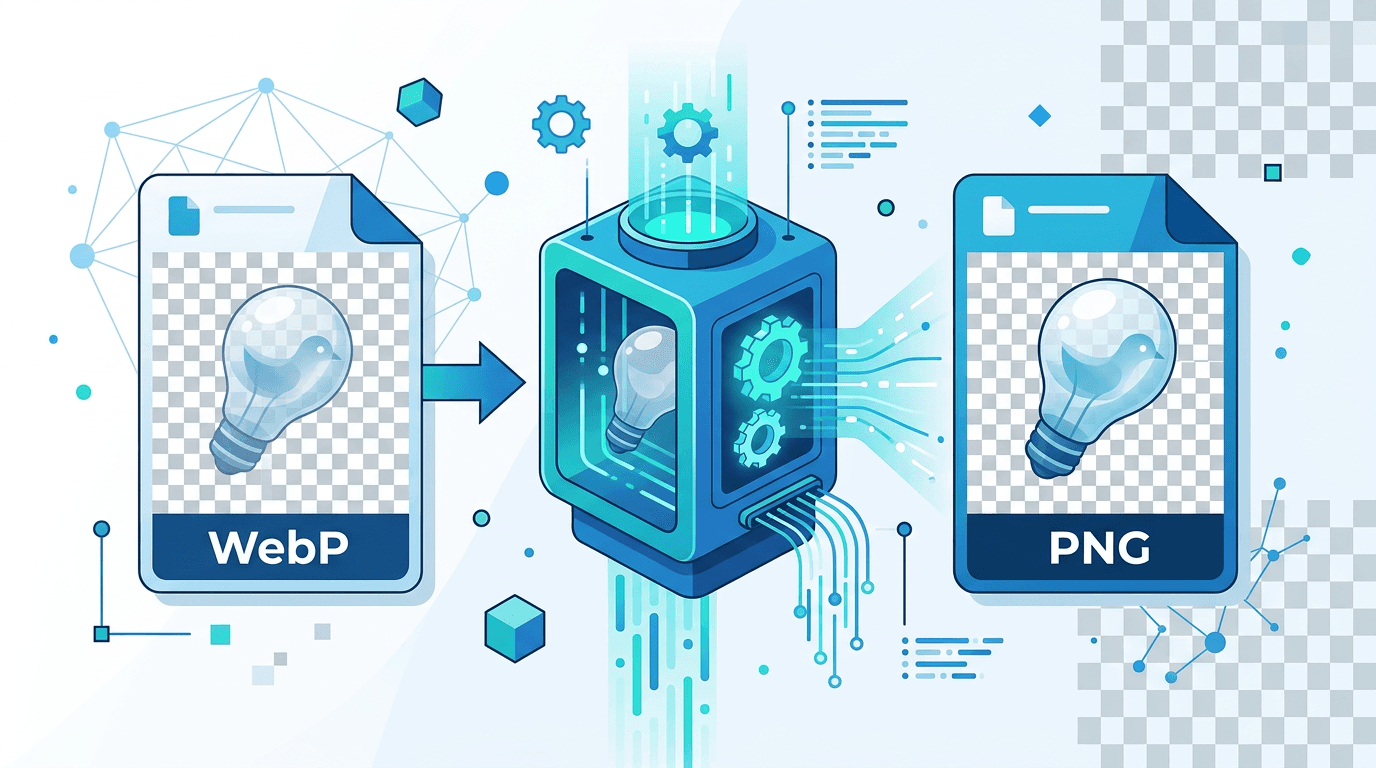
Converting WebP images to PNG while keeping transparency requires the right approach. This guide ensures your transparent backgrounds and alpha channels are perfectly preserved during conversion.
Understanding Transparency in WebP and PNG
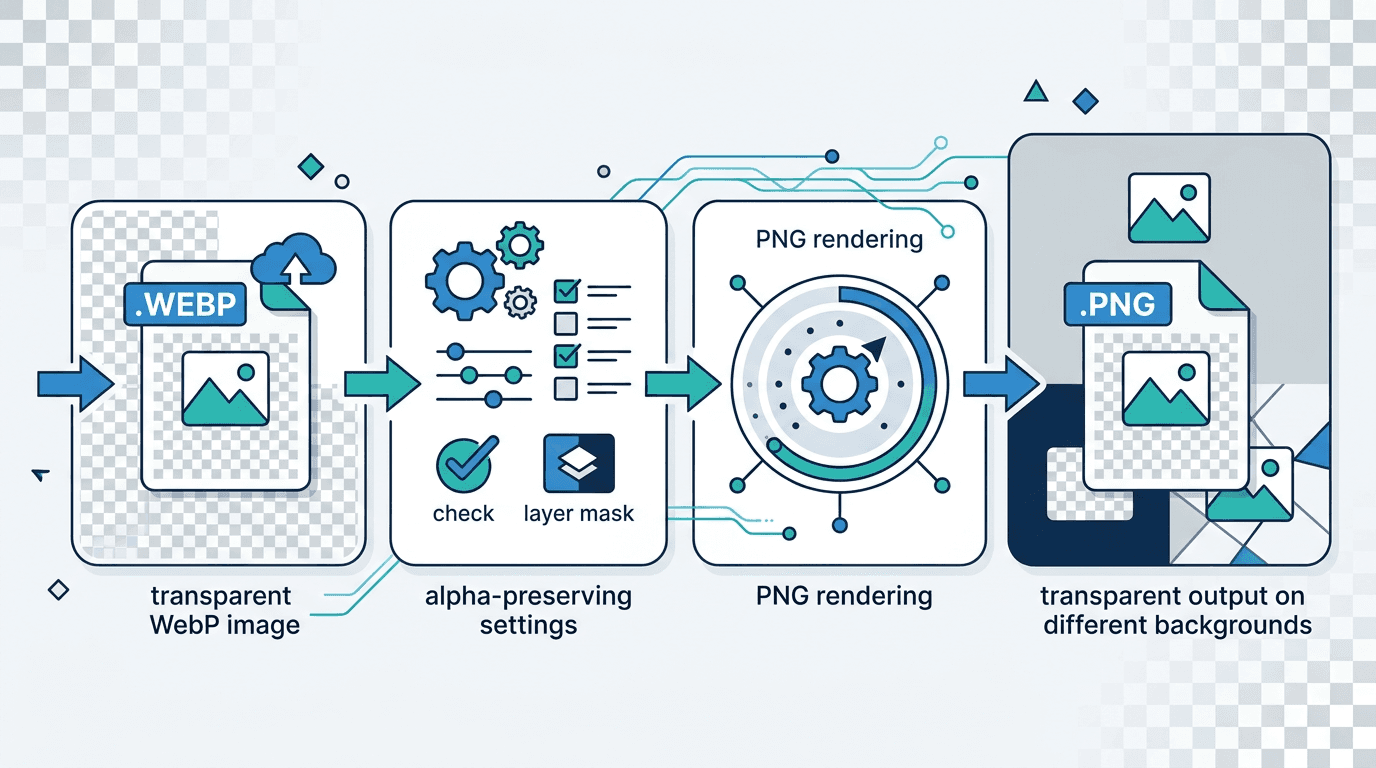
Both formats support full alpha channel transparency:
| Feature | WebP | PNG |
|---|---|---|
| Transparency | Yes | Yes |
| Alpha channel | 8-bit | 8-bit |
| Partial transparency | Yes | Yes |
| Quality | Lossy/Lossless | Lossless |
Good news: Converting WebP to PNG preserves all transparency.
Converting WebP to PNG with Transparency
Using Our Converter
- Visit our WebP to PNG converter
- Upload your transparent WebP file
- Convert automatically
- Download PNG with transparency intact
The conversion preserves:
- Full alpha channel
- Semi-transparent areas
- Transparent backgrounds
- Edge anti-aliasing
Why Transparency Matters
Use Cases Requiring Transparency
| Application | Why Transparency Needed |
|---|---|
| Logos | Overlay on any background |
| Icons | Match any theme |
| Product images | E-commerce displays |
| Graphics | Design composition |
| Stickers | Messaging apps |
Verifying Transparency Is Preserved
Visual Check
After conversion:
- Open PNG in image viewer
- Look for checkered background (indicates transparency)
- Place over colored background
- Verify edges look correct
Technical Check
In image editing software:
- Open the Channels panel
- Look for Alpha channel
- Check channel shows transparency data
- Verify transparency levels
Common Transparency Issues
Problem 1: White Background Instead of Transparent
Cause: Converter didn't preserve alpha channel.
Solution: Use a converter that supports transparency, like our WebP to PNG converter.
Problem 2: Jagged Edges
Cause: Anti-aliasing transparency not preserved.
Solution:
- Use lossless conversion
- Verify source has anti-aliasing
- Check PNG-24/32 output
Problem 3: Semi-Transparency Lost
Cause: Conversion reduced to 1-bit transparency.
Solution:
- Ensure PNG-32 output (8-bit alpha)
- Avoid indexed color PNG
- Use proper converter
Problem 4: Dark Halos Around Objects
Cause: Pre-multiplied alpha not handled correctly.
Solution:
- Use converter that handles pre-multiplied alpha
- Check source file settings
Technical Details
Alpha Channel Depth
For full transparency support:
| PNG Type | Alpha | Transparency Level |
|---|---|---|
| PNG-8 | 1-bit | On/off only |
| PNG-24 | 8-bit | 256 levels |
| PNG-32 | 8-bit | 256 levels |
Recommendation: Use PNG-24 or PNG-32 for smooth transparency.
Color Modes
| Mode | Transparency Support |
|---|---|
| RGB | Full alpha channel |
| RGBA | Full alpha channel |
| Indexed | Limited (1-bit) |
| Grayscale | Full alpha |
Best Practices
1. Verify Source Transparency
Before converting:
- Confirm WebP has transparency
- Check alpha channel exists
- Note transparency type
2. Use Lossless Conversion
For best results:
- No additional compression
- Exact pixel preservation
- Perfect edge quality
3. Check Output File
After conversion:
- Open in editor with transparency support
- Verify checkered background shows
- Test on different backgrounds
4. Save Properly
When saving further:
- Maintain PNG format
- Don't convert to JPG
- Keep alpha channel setting
File Size Considerations
PNG with transparency may be larger:
| Content Type | WebP Size | PNG Size |
|---|---|---|
| Simple logo | 15 KB | 25 KB |
| Icon with gradient | 30 KB | 55 KB |
| Complex graphic | 100 KB | 200 KB |
PNG is larger because it's lossless, but transparency is perfect.
Use Cases in Detail
Logo Conversion
For logos with transparent backgrounds:
- Convert WebP logo to PNG
- Verify background is transparent
- Test on light and dark backgrounds
- Check edge quality
Product Photography
For product images:
- Convert product cutout
- Verify edge transparency
- Check for white fringing
- Test overlay on backgrounds
UI/UX Assets
For interface elements:
- Convert icons and buttons
- Preserve shadow transparency
- Maintain hover state variations
- Verify all states converted
Stickers and Emojis
For messaging applications:
- Convert sticker pack
- Preserve all transparency
- Check border quality
- Test in messaging app
Software Compatibility
PNG transparency works with:
| Software | Transparency Support |
|---|---|
| Photoshop | Full |
| Illustrator | Full |
| Figma | Full |
| Canva | Full |
| PowerPoint | Full |
| Word | Partial |
| Web browsers | Full |
Batch Converting Transparent WebP
For multiple files:
- Upload all transparent WebP files to converter
- Convert in batch
- Verify sample from each batch
- Download all PNG files
Troubleshooting Checklist
If transparency isn't preserved:
- Source WebP actually has transparency
- Using converter that supports alpha
- Output format is PNG (not JPG)
- PNG type supports transparency (PNG-24/32)
- Not opening in software that strips alpha
Frequently Asked Questions
Will my transparent background be preserved?
Yes. Converting WebP to PNG with our converter preserves all transparency, including the alpha channel.
Why does my PNG have a white background?
Either the source WebP wasn't transparent, or the conversion didn't preserve alpha. Verify source transparency first.
Can I convert semi-transparent WebP to PNG?
Yes. PNG supports 256 levels of transparency per pixel, preserving gradients and soft edges.
Is PNG or WebP better for transparency?
Both support full transparency. WebP is smaller, PNG is more compatible. Convert to PNG when compatibility is needed.
Will the edges look as good after conversion?
Yes. Lossless conversion preserves anti-aliasing and edge quality perfectly.
Conclusion
Converting WebP to PNG while keeping transparency is straightforward with the right tools. Our converter ensures your alpha channel, semi-transparency, and edge quality are perfectly preserved.
Related tools: PNG to WebP | WebP to JPG | Image Compressor