
How to Convert WebP to ICO - Step-by-Step Guide
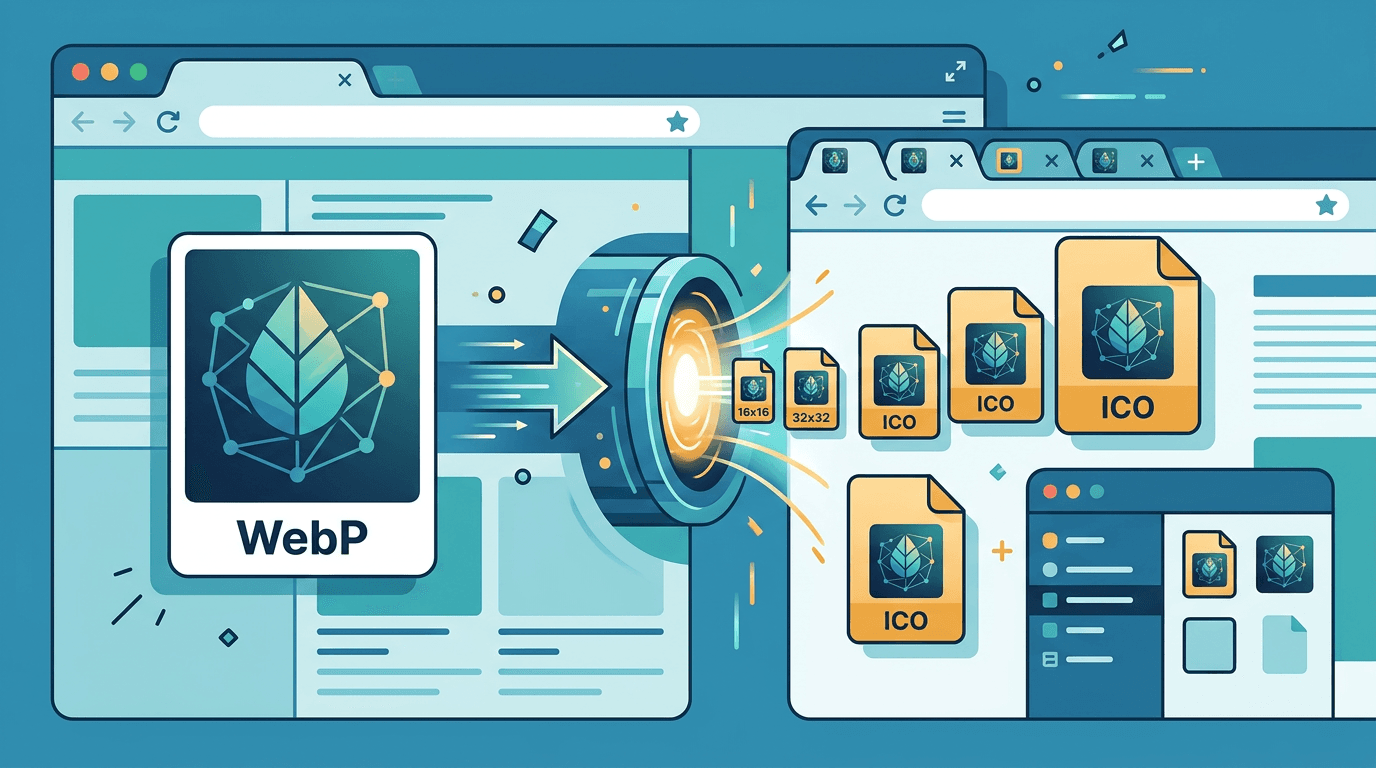
Have a WebP image you want to use as a favicon? Converting WebP to ICO creates browser icons that work across all platforms. This guide shows you exactly how to do it.
Why Convert WebP to ICO?
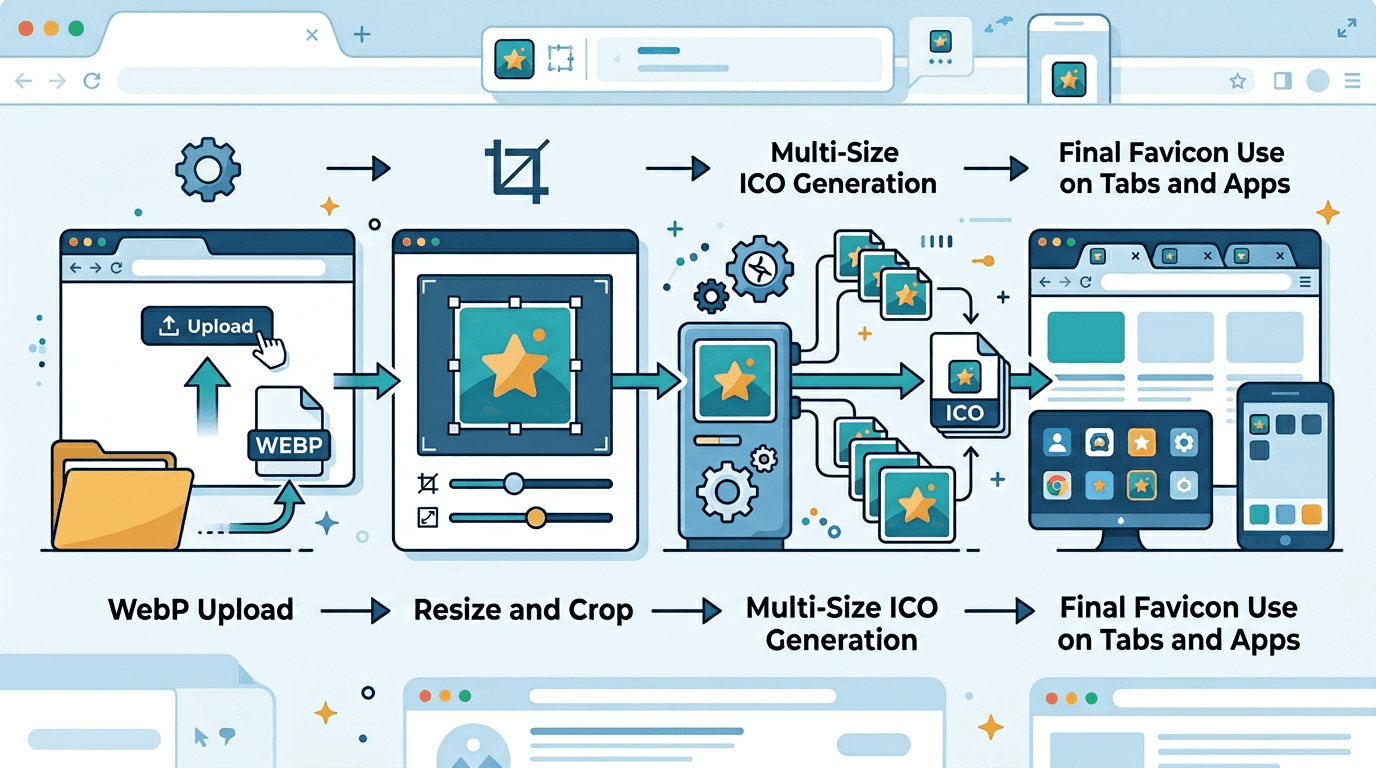
ICO format is essential for favicons:
| Aspect | WebP | ICO |
|---|---|---|
| Favicon use | Limited | Universal |
| Multiple sizes | No | Yes |
| Browser support | Varies | 100% |
| Windows taskbar | No | Yes |
Steps to Convert WebP to ICO
Step 1: Prepare Your WebP Image
Before converting:
- Ensure the image is square (or crop it)
- Use high resolution (512×512 recommended)
- Simplify complex images for small sizes
Step 2: Convert Using an Online Tool
Use our WebP to ICO converter:
- Upload your WebP image
- Select ICO sizes (16×16, 32×32, 48×48)
- Convert and download
Step 3: Implement on Your Website
Add the favicon to your website:
<link rel="icon" href="/favicon.ico">
Understanding the ICO Format
Multiple Sizes in One File
ICO files contain multiple sizes:
| Size | Use |
|---|---|
| 16×16 | Browser tab |
| 32×32 | Browser tab (retina) |
| 48×48 | Windows taskbar |
| 256×256 | Windows high DPI |
What Makes ICO Unique
Unlike single-resolution formats:
- Contains multiple images
- Browser selects the best size
- One file serves all purposes
Best Practices for WebP to ICO
1. Start with High Resolution
Your WebP should be at least 512×512 pixels:
- Allows high-quality downscaling
- Prevents pixelation
- Better detail at larger sizes
2. Use a Square Image
Favicons must be square:
- Requires a 1:1 aspect ratio
- Crop before converting
- Center important content
3. Simplify the Design
At 16×16 pixels, detail is lost:
- Use simple shapes
- Increase contrast
- Bold, recognizable icons
4. Test at All Sizes
After converting:
- View at 16×16 (tab)
- View at 32×32 (retina)
- Check on different backgrounds
Handling Transparency
If WebP Has Transparency
Transparency is preserved in ICO:
- Alpha channel converts correctly
- Transparent background works
- Test on both light and dark themes
If WebP Has a Solid Background
Consider:
- Keep solid background
- Use consistent background color
- Test visibility on browser themes
Complete Favicon Implementation
Modern Multi-Format Approach
<head>
  <!-- Standard ICO favicon -->
  <link rel="icon" href="/favicon.ico" sizes="any">

  <!-- PNG versions for modern browsers -->
  <link rel="icon" type="image/png" sizes="32x32" href="/favicon-32x32.png">
  <link rel="icon" type="image/png" sizes="16x16" href="/favicon-16x16.png">

  <!-- Apple Touch Icon -->
  <link rel="apple-touch-icon" sizes="180x180" href="/apple-touch-icon.png">

  <!-- Web manifest for Android -->
  <link rel="manifest" href="/site.webmanifest">
</head>
File Structure
Organize favicon files:
/
├── favicon.ico (converted from WebP)
├── favicon-16x16.png
├── favicon-32x32.png
├── apple-touch-icon.png
└── site.webmanifest
Quality Considerations
WebP Quality Impact
| Source WebP | ICO Result |
|---|---|
| High quality | Excellent |
| Medium quality | Good |
| Low quality / compressed | May show artifacts |
Optimizing Output
For best results:
- Use a high-quality WebP source
- Convert at the highest quality
- Let the converter handle size optimization
Common Problems and Solutions
Problem: Icon Looks Blurry
Cause: Source is too small or low quality.
Solution: Use higher-resolution WebP (512×512+).
Problem: Icon Doesn't Show
Cause: Wrong file location or path.
Solution: Place in root directory, verify path.
Problem: Transparency Issues
Cause: Conversion or browser handling.
Solution: Verify WebP transparency, test ICO in different browsers.
Problem: Wrong Size Displaying
Cause: Missing sizes in ICO.
Solution: Generate multi-size ICO (16, 32, 48).
Advanced: Command-Line Conversion
For developers using ImageMagick:
# Convert WebP to multi-size ICO
magick input.webp -resize 256x256 -define icon:auto-resize="256,128,64,48,32,16" favicon.ico
Testing Your Favicon
Browser Testing
Test in all major browsers:
- Chrome
- Firefox
- Safari
- Edge
Testing Tools
- Favicon Checker – Validate online
- Browser DevTools – Network tab
- Incognito mode – Fresh cache test
Alternative Approaches
WebP as Direct Favicon
Some modern browsers accept WebP favicons:
<link rel="icon" type="image/webp" href="/favicon.webp">
Limitation: Not universal. Needs ICO fallback.
SVG Favicon
For scalable icons:
<link rel="icon" type="image/svg+xml" href="/favicon.svg">
Best combined with: ICO fallback for older browsers.
Frequently Asked Questions
Can I use WebP directly as a favicon?
Some browsers support it, but ICO ensures universal compatibility. Convert to ICO for best results.
What size should my WebP be before converting?
At least 512×512 pixels. This ensures quality for all ICO sizes.
Will transparency be preserved?
Yes. WebP transparency converts correctly to ICO.
Can I include multiple sizes?
Yes. ICO format supports multiple sizes in one file, which is its main advantage.
Why does my icon look blurry?
The source image may be too small. Use a high-resolution WebP and let the converter create smaller sizes.
Do I need both ICO and PNG favicons?
For maximum compatibility, yes. ICO works everywhere including older browsers; PNG with explicit sizes is preferred by modern browsers. Providing both covers all cases.
How do I update my favicon if users have it cached?
Favicons can be heavily cached. To force an update, rename the favicon file and update the reference in your HTML, or append a version query string like ?v=2.
What is the site.webmanifest file?
It is a JSON file that provides metadata about your web app for Android devices, including icons in various sizes. It allows your site to be added to the Android home screen with a proper icon.
Conclusion
Converting WebP to ICO creates a universal favicon for your website. Start with a high-quality square WebP image and use our converter to generate a multi-size ICO file.
Related tools: PNG to ICO | JPG to ICO | Favicon Generator