
WebM to Animated GIF - Complete Tutorial
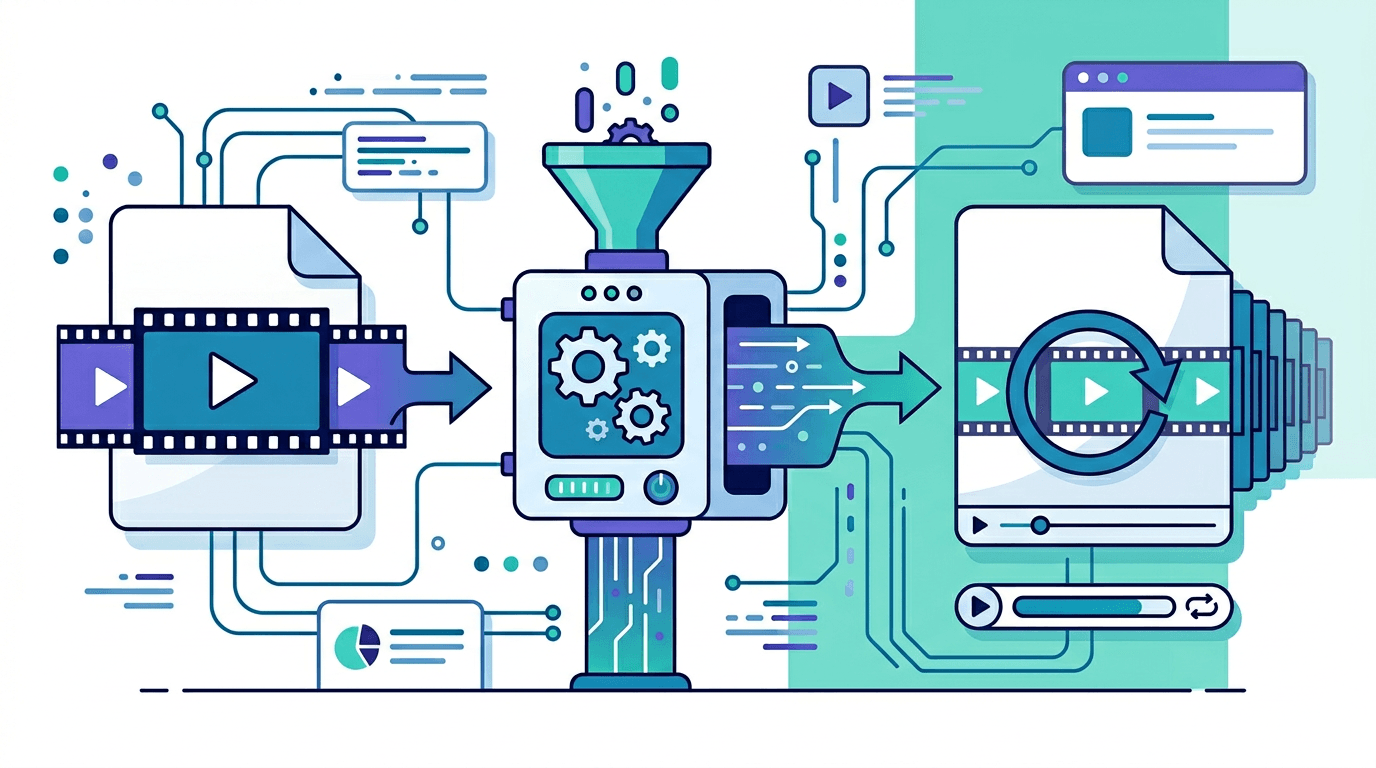
WebM is a popular web video format, but sometimes you need an animated GIF instead. This guide shows you how to convert WebM video to animated GIF using our WebM to GIF converter.
What Is WebM?

WebM is an open video format designed for the web:
| Feature | WebM |
|---|---|
| Developer | |
| Compression | VP8/VP9 |
| File Size | Small |
| Quality | High |
| Browser Support | Widespread |
Where You Encounter WebM Files
Common sources:
- Downloaded web videos
- Screen recordings
- Discord / Slack clips
- Browser-captured content
- Video editing exports
Why Convert WebM to Animated GIF?
| WebM | Animated GIF |
|---|---|
| Requires a player | Plays automatically |
| Limited compatibility | Universal support |
| Better for long videos | Better for short clips |
| Smaller file size | Larger but more compatible |
Best Use Cases for GIF
Convert WebM to GIF when you need:
- Universal playback without a player
- Auto-looping on websites
- Easy sharing on platforms with limited video support
- Email-friendly animation
- Memes and reaction content
How to Convert WebM to Animated GIF
Step 1: Prepare Your WebM File
Before converting:
- Locate your WebM file
- Check the file size and duration
- Consider trimming if it is too long
Step 2: Upload to the Converter
- Visit our WebM to GIF converter
- Click upload or drag your WebM file
- Wait for the upload to complete
Step 3: Choose Animation Settings
Configure your output:
| Setting | Recommendation |
|---|---|
| Start time | Where the animation begins |
| End time | Where the animation ends |
| Frame rate | 10–15 fps for smooth playback |
| Width | 480–720px |
Step 4: Generate the GIF
- Click "Convert to GIF"
- Wait for processing
- Preview the animation
- Download if satisfied
Understanding Animated GIF Settings
Frame Rate
Controls smoothness and file size:
| FPS | Smoothness | File Size |
|---|---|---|
| 5 | Choppy | Small |
| 10 | Acceptable | Medium |
| 15 | Smooth | Larger |
| 24 | Very smooth | Large |
Recommendation: 10–15 fps balances quality and size.
Resolution
Width affects quality and size:
| Width | Best For |
|---|---|
| 320px | Thumbnails, small size |
| 480px | Standard web |
| 640px | High-quality display |
| 720px | High quality |
Duration
Keep GIFs short for best results:
| Duration | File Size | Use Case |
|---|---|---|
| 1–3 sec | Small | Reactions |
| 3–6 sec | Medium | Tutorials |
| 6–10 sec | Large | Demos |
| 10+ sec | Very large | Consider video instead |
Optimizing WebM to GIF Conversion
Getting Smaller File Size
- Trim duration – Shorter = smaller
- Lower resolution – 480px is usually enough
- Reduce frame rate – 10 fps works well
- Crop to content – Remove empty areas
Getting Better Quality
- Start with good source – Good WebM = good GIF
- Appropriate resolution – Match intended display
- Sufficient frame rate – At least 10 fps
- Correct aspect ratio – Avoid stretching
Common WebM Sources
Discord
Discord uses WebM for:
- Screen sharing
- Recorded clips
- Downloaded stickers
Convert these for wider sharing.
Browser Downloads
Many websites provide WebM:
- Video downloads
- Media capture
- Saved content
Screen Recording Software
Popular tools that export WebM:
- OBS Studio
- ShareX
- Browser extensions
Comparing WebM and GIF
| Aspect | WebM | GIF |
|---|---|---|
| Colors | Millions | Up to 256 |
| Audio | Supported | None |
| File size | Smaller | Larger |
| Auto-play | Depends | Yes |
| Compatibility | Modern browsers | Universal |
| Loop control | Full | Simple |
When to Keep WebM
Keep WebM format when:
- Long video (over 30 seconds)
- Audio is needed
- File size is critical
- Target audience supports WebM
When to Convert to GIF
Convert to GIF when:
- Universal playback is needed
- Sharing on older platforms
- Creating memes / reactions
- Email compatibility is required
Troubleshooting
"File Too Large" Error
Solutions:
- Trim video length
- Use lower resolution
- Reduce frame rate
- Choose a shorter segment
Poor GIF Quality
Causes and fixes:
- Low source quality → Use a better WebM
- Over-compression → Increase quality
- Wrong resolution → Match source aspect ratio
- Too few frames → Increase frame rate
Colors Look Wrong
Cause: GIF's 256-color limit Solutions:
- Accept some color variation
- Use simpler content
- Solid colors retain original colors best
Animation Too Fast / Too Slow
Solutions:
- Adjust frame rate
- Check source video speed
- Use correct delay settings
Platform Sharing Tips
Social Media
| Platform | Max Size | Recommendation |
|---|---|---|
| 15MB | 480px, 10fps | |
| Discord | 8MB | 400px, 10fps |
| 20MB | 640px, 12fps | |
| Slack | 20MB | 480px, 10fps |
- Keep under 1MB
- Use lower resolution (400px)
- Short duration (3–5 seconds)
Website
- Consider file size impact
- Use lazy loading for multiple GIFs
- Balance quality and performance
Frequently Asked Questions
Will converting lose quality?
Some quality loss is normal due to GIF's 256-color limit. Simple graphics convert better than complex videos.
Can I convert with audio?
No, the GIF format does not support audio. Visual content converts without sound.
What is the best frame rate?
10–15 fps provides a good balance between smoothness and file size.
How long can my GIF be?
Technically unlimited, but keep it under 10 seconds for reasonable file size.
Why is my GIF so large?
Long duration, high resolution, and high frame rate all increase size. Reduce any of these to shrink the file.
Can I batch convert multiple WebM files?
Our tool converts one file at a time for the best quality control. Process each file separately.
Does the converter support all WebM codecs?
Our converter supports both VP8 and VP9 encoded WebM files, which covers the vast majority of WebM files you will encounter.
Conclusion
Converting WebM to animated GIF is straightforward with our WebM to GIF converter. While you lose some features (audio, full color), you gain universal compatibility and auto-play looping.
Key takeaways:
- WebM is best for web, GIF is universal
- Keep animations short for best results
- Balance quality settings with file size
- 10–15 fps works for most content
Related tools: MOV to GIF | Video to GIF | GIF Maker