
SVG vs WebP - Which Format Should You Use

Choosing between SVG and WebP depends on your specific use case. This comprehensive comparison helps you understand when to use each format for optimal results.
Quick Comparison
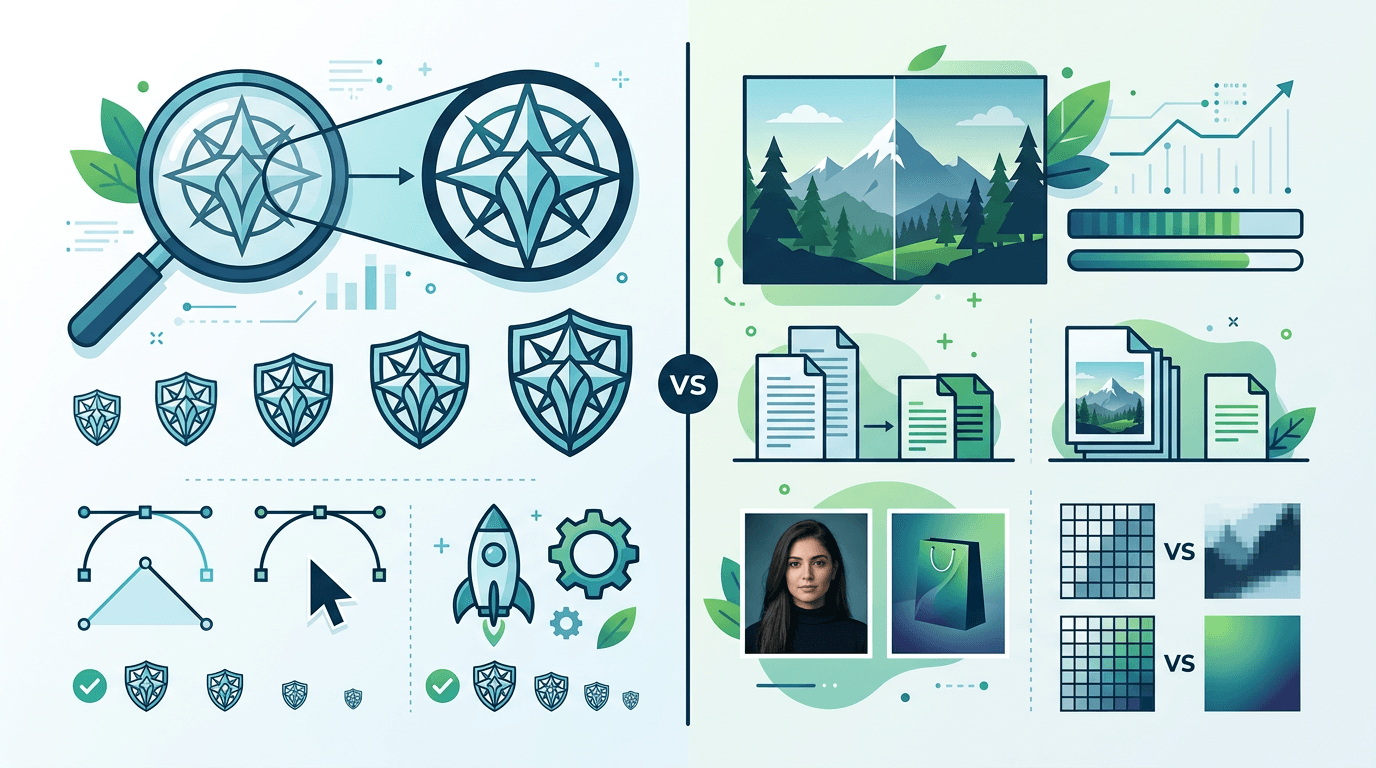
| Feature | SVG | WebP |
|---|---|---|
| Type | Vector | Raster |
| Scalability | Infinite | Fixed |
| Animation | CSS/SMIL | Native |
| Transparency | Yes | Yes |
| Browser Support | 98%+ | 97%+ |
| Best For | Icons, logos | Photos, complex graphics |
Understanding the Formats
SVG (Scalable Vector Graphics)
SVG is XML-based vector format:
- Mathematical descriptions of shapes
- Resolution-independent
- Editable with text editors
- Can be styled with CSS
- Supports interactivity
WebP
WebP is Google's raster format:
- Pixel-based images
- Excellent compression
- Fixed resolution
- Supports animation
- Lossy and lossless modes
File Size Comparison
File sizes vary dramatically based on content:
Simple Graphics (Logo, Icon)
| Graphic | SVG | WebP (512px) |
|---|---|---|
| Simple logo | 2-5 KB | 15-30 KB |
| Icon | 0.5-2 KB | 5-15 KB |
| Simple illustration | 5-20 KB | 25-60 KB |
Winner: SVG for simple graphics
Complex Graphics (Detailed Illustration)
| Graphic | SVG | WebP (1600px) |
|---|---|---|
| Detailed illustration | 200-800 KB | 50-150 KB |
| Photo-realistic | 500KB-2MB | 80-200 KB |
| Complex infographic | 300KB-1MB | 100-300 KB |
Winner: WebP for complex graphics
Use Case Recommendations
Use SVG For:
| Use Case | Why SVG |
|---|---|
| Logos | Infinite scaling, small file |
| Icons | Consistent at any size |
| UI elements | CSS styling, theming |
| Simple illustrations | Editable, scalable |
| Interactive graphics | Event handling, animation |
| Responsive images | One file, all sizes |
Use WebP For:
| Use Case | Why WebP |
|---|---|
| Photographs | Excellent compression |
| Complex illustrations | Smaller than large SVG |
| Consistent rendering | Same everywhere |
| Image galleries | Efficient compression |
| Backgrounds | Good quality/size ratio |
| Social media | Universal format |
Quality Comparison
At Different Scales
SVG:
- 100%: Perfect
- 200%: Perfect
- 500%: Perfect (always sharp)
WebP:
- 100%: Perfect
- 200%: Slight blur (unless 2x exported)
- 500%: Pixelated
Color Handling
| Aspect | SVG | WebP |
|---|---|---|
| Color depth | Unlimited | Up to 24-bit |
| Gradients | Native, scalable | Rasterized |
| Color profiles | sRGB default | sRGB |
Performance Comparison
Loading Speed
| Factor | SVG | WebP |
|---|---|---|
| Parse time | Higher (XML) | Lower (binary) |
| Decode time | Higher (render) | Lower (bitmap) |
| Cache efficiency | Good | Excellent |
Memory Usage
- SVG: Higher for complex graphics (render calculations)
- WebP: Predictable (width × height × 4 bytes)
Rendering
- SVG: CPU-intensive for complex paths
- WebP: GPU-accelerated in browsers
Browser Support
SVG Support
- Chrome: Full
- Firefox: Full
- Safari: Full
- Edge: Full
- IE 9+: Partial
WebP Support
- Chrome: Full
- Firefox: Full (65+)
- Safari: Full (14+)
- Edge: Full (18+)
- IE: None (use fallback)
Animation Capabilities
SVG Animation
Methods:
- CSS animations
- SMIL (deprecated in Chrome)
- JavaScript (GSAP, etc.)
Pros:
- Smooth, scalable
- Interactive
- Scriptable
Cons:
- Complex implementation
- Performance varies
WebP Animation
Method:
- Native animation (like GIF)
Pros:
- Simple to create
- Consistent playback
- Good compression
Cons:
- Not scalable
- Not interactive
- Fixed size
Accessibility
SVG Accessibility
- Title and description elements
- ARIA attributes
- Screen reader compatible
- Focusable elements
WebP Accessibility
- Alt text only
- No internal structure
- Simpler implementation
Development Workflow
SVG Workflow
- Create in vector tool (Illustrator, Figma)
- Export/optimize SVG
- May need code cleanup
- Can be inlined in HTML
WebP Workflow
- Create in any image tool
- Export to WebP
- Simple file deployment
- Use in img or picture tags
Hybrid Approach
Best practice often combines both:
<!-- Logo: SVG -->
<img src="logo.svg" alt="Company Logo">

<!-- Photo: WebP with fallback -->
<picture>
  <source srcset="photo.webp" type="image/webp">
  <img src="photo.jpg" alt="Description">
</picture>

<!-- Complex illustration: WebP -->
<img src="illustration.webp" alt="Description">
Decision Framework
Choose SVG When:
- ✅ Need infinite scalability
- ✅ Simple graphics (< 50KB as SVG)
- ✅ Need CSS styling/theming
- ✅ Interactive elements needed
- ✅ Multiple sizes from one file
- ✅ Text-based content (charts, diagrams)
Choose WebP When:
- ✅ Photographs or photo-like content
- ✅ Complex graphics (SVG would be > 100KB)
- ✅ Consistent cross-browser rendering
- ✅ Fixed display size
- ✅ Image processing pipeline
- ✅ Animation without interaction
Converting Between Formats
SVG to WebP
Use our SVG to WebP converter when:
- SVG is complex/large
- Need fixed-size raster
- Consistent rendering needed
When to Keep Original
- Keep SVG source files always
- Generate WebP for specific uses
- Maintain both for different needs
Frequently Asked Questions
Which is better for websites?
Neither is universally better. Use SVG for logos/icons, WebP for photos and complex graphics.
Can I use both on the same site?
Yes, and you should! Use each format where it excels.
Which loads faster?
Depends on complexity. Simple SVG loads faster, complex graphics load faster as WebP.
Which is better for mobile?
Both work well. SVG for resolution-independent assets, WebP for bandwidth efficiency.
Should I convert all SVGs to WebP?
No. Keep simple graphics as SVG. Convert only complex illustrations where WebP would be smaller.
Conclusion
The best format depends on your content:
- SVG: Logos, icons, simple illustrations, interactive graphics
- WebP: Photos, complex illustrations, fixed-size graphics
Use both formats strategically for optimal website performance.
Need to convert? Try our SVG to WebP converter.
Related tools: SVG to PNG | WebP to PNG | Image Optimizer