
SVG to High-Resolution PNG: Calculate the Pixel Dimensions

To create a larger PNG from an SVG, start with the required pixel dimensions. Our SVG to PNG converter accepts pixel width and height; it does not have inch, centimeter or DPI fields. Each entered dimension must be from 1 to 8192 pixels.
Why High-Resolution PNG?
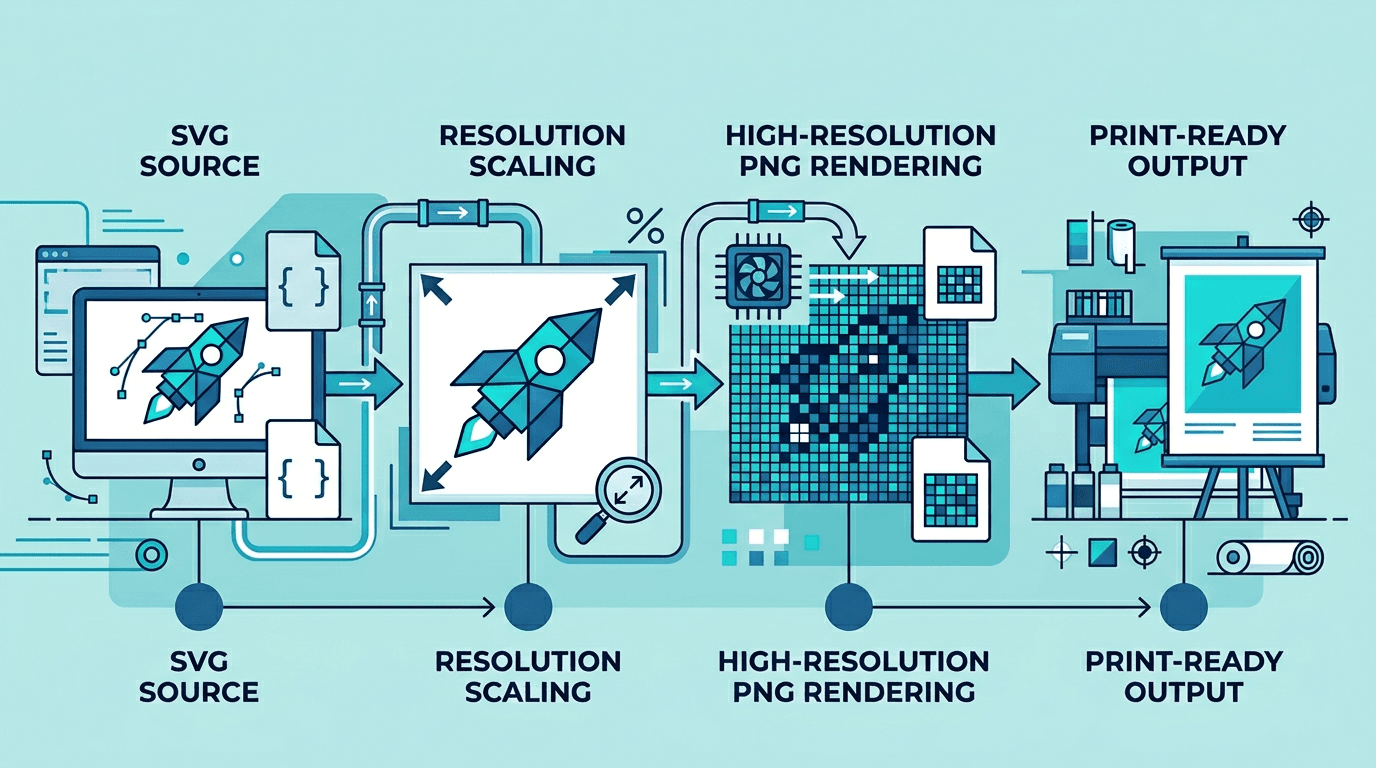
High-resolution exports are essential for:
- Professional printing - Brochures, posters, packaging
- Large displays - Billboards, trade show graphics
- Retina screens - 2x and 3x pixel density
- Detailed editing - More pixels to work with
Calculate pixels for the intended use
For print planning, PPI means image pixels per inch; a printer’s DPI describes its dots. Ask the print service for its required image resolution, physical size and accepted format.
pixels = inches × target PPI
inches = centimeters ÷ 2.54

Example: 8 × 10 inches at 300 PPI
width  = 8 × 300 = 2400 pixels
height = 10 × 300 = 3000 pixels
This calculation is a planning example, not a 300-DPI export setting. The converter does not provide a resolution-metadata control. Set the intended physical placement size in your layout or print application.
For a screen graphic displayed at 400 × 200 CSS pixels, an 800 × 400 image can provide a 2× asset. Check the actual layout rather than assigning a print DPI to a web image.
Common Print Specifications
These are pixel calculations for example physical sizes at 300 PPI. They do not set DPI metadata in this converter. Ask the print service for its actual trim size, bleed and color requirements; add bleed to the source artwork in a design editor before conversion.
Standard Print Sizes
| Document | Size (inches) | 300 PPI (pixels) |
|---|---|---|
| Business card | 3.5 x 2 | 1050 x 600 |
| A4 | 8.27 x 11.69 | 2481 x 3507 |
| Letter | 8.5 x 11 | 2550 x 3300 |
| Tabloid | 11 x 17 | 3300 x 5100 |
| Poster | 18 x 24 | 5400 x 7200 |
Adding Bleed
For professional printing, add bleed (usually 0.125"):
| Original Size | With Bleed | 300 PPI |
|---|---|---|
| 8.5 x 11" | 8.75 x 11.25" | 2625 x 3375 px |
| 11 x 17" | 11.25 x 17.25" | 3375 x 5175 px |
Step 1: Prepare SVG
Before export:
- Text converted to paths
- No linked images
- Clean, optimized paths
- Correct artboard size
Export with the available controls
- Select one SVG up to 20 MB. Prepare the source with the intended proportions and canvas size.
- Enter optional pixel width and height. One dimension scales the other proportionally; two dimensions form a bounding box that the image fits inside without stretching.
- Choose a PNG compression preset. Compression changes file size and processing effort without being a lossy quality slider.
- Submit and download the PNG, then check its actual dimensions and appearance at the intended size.
If a square SVG is placed in a 2400 × 3000 box, the result is 2400 × 2400. It does not become an 8:10 crop. Change the SVG canvas or crop separately when an exact different ratio is required.
The page processes one SVG per task. There are no batch, CMYK, bleed, DPI or transparency-switch controls. Existing transparent areas can remain transparent; a background drawn into the SVG remains part of the picture.
More pixels do not guarantee more detail
An SVG can contain embedded raster images, small text, filters and external references. Enlarging an embedded bitmap cannot recreate missing detail. Font availability and unsupported effects can also alter the output.
The converter offers output resizing without a separate SVG rendering-density setting. Inspect enlarged edges instead of assuming any requested size will be perfectly sharp. If enlargement looks soft, prepare the SVG at the desired canvas dimensions in its source editor or use that editor’s vector export controls.
Troubleshooting
Adjust source artwork in its design editor when you need to change raster assets, anti-aliasing or color management. The online converter exposes pixel dimensions and PNG compression only. Judge file size from the actual download; dimensions alone do not predict megabytes.
Blurry Output
Causes:
- Dimensions too small
- Embedded raster images
- Anti-aliasing issues
Solutions:
- Increase pixel dimensions
- Replace raster images with vectors
- Check edge rendering in the source editor
Huge File Size
Causes:
- Very high dimensions
- Complex graphics
- No compression
Solutions:
- Use pixel dimensions suited to the intended display or print size
- Simplify if possible
- Enable PNG compression
Color Shifts
Causes:
- Color profile mismatch
- RGB to CMYK conversion
Solutions:
- Use consistent color profiles
- Convert in professional software for print
Check the result before delivery
- Inspect small lettering and diagonal edges at 100% view.
- Compare colors and backgrounds with the intended design.
- Check the file’s actual dimensions and size; no fixed megabyte estimate applies to all graphics.
- Confirm the print service accepts PNG. Color profiles, bleed and print placement must be handled in a suitable design workflow.
For an unexpectedly solid background, see SVG transparency troubleshooting. For the basic conversion workflow, see SVG to transparent PNG.
Frequently asked questions
Can I export at any resolution?
No. The form accepts up to 8192 pixels per side, and very complex files can still fail to process. Choose dimensions required by the destination.
Does stronger PNG compression reduce visual quality?
The available compression presets are lossless PNG encoding settings. They do not restore source detail or change the resizing operation.
More tools for your next image task
Explore ImgConvert tools for conversion, PDF files, and GIFs.
- Image converters
- PDF tools
- GIF tools