
SVG to JPG Conversion - With Background Color Options
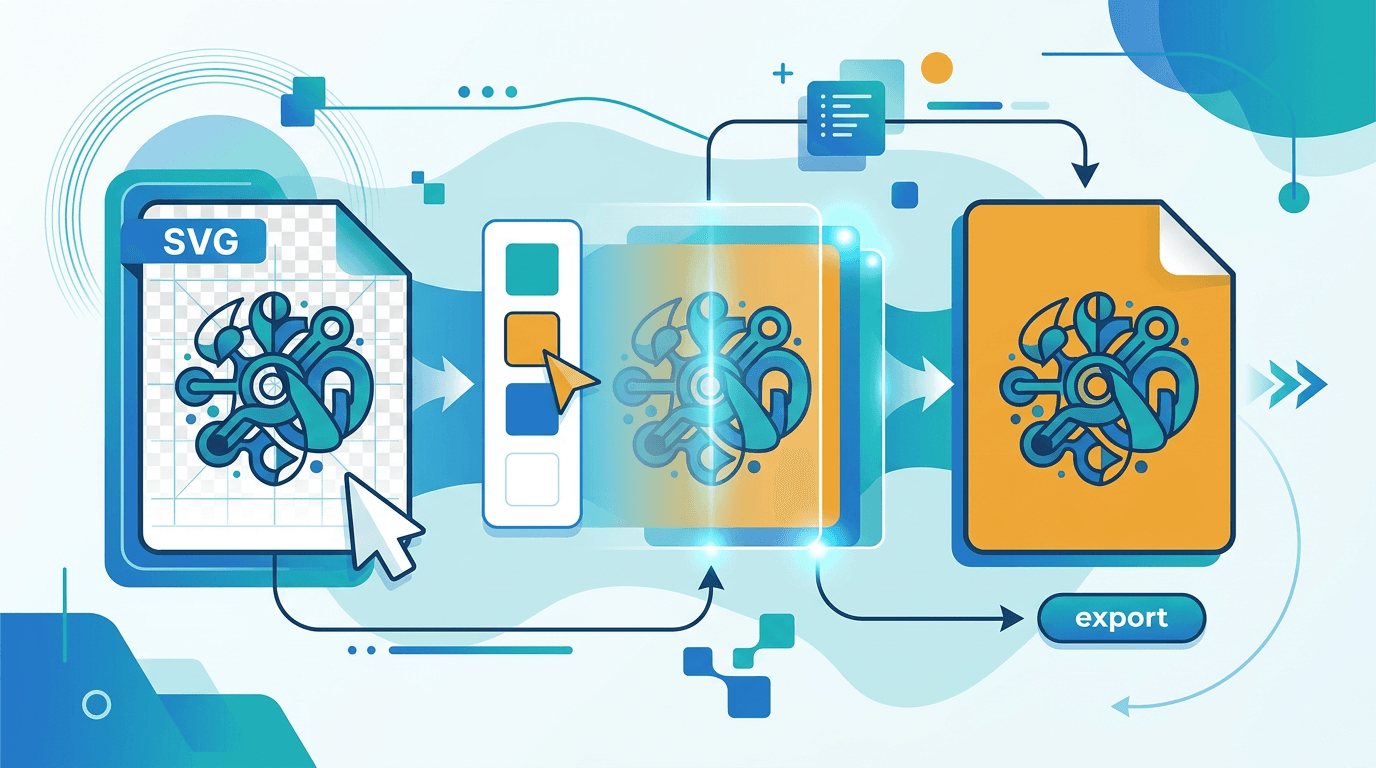
Converting SVG to JPG requires handling transparency since JPG doesn't support it. This guide covers how to convert with appropriate backgrounds.
SVG vs JPG

Key Differences
| Feature | SVG | JPG |
|---|---|---|
| Transparency | Supported | Not supported |
| Scaling | Lossless | Pixelated |
| File type | Vector | Raster |
| Compression | N/A | Lossy |
Why Convert?
Reasons to convert:
- Broader compatibility
- Photo-like images
- Smaller file sizes
- Platform requirements
How to Convert
Using Our Tool
- Visit SVG to JPG
- Upload SVG file
- Choose background color
- Set dimensions and quality
- Download JPG
Background Options
Since JPG has no transparency:
- White (default)
- Black
- Custom color
- Match brand colors
Handling Transparency
The Challenge
SVG often has:
- Transparent backgrounds
- Semi-transparent elements
- Alpha channels
Solution
During conversion:
- Transparency becomes background color
- Semi-transparent blends with background
- Choose appropriate color
Color Selection Tips
Choose background that:
- Matches intended use
- Complements design
- Works with content
Quality Settings
JPG Compression
Balance quality and size:
| Quality | Use Case | File Size |
|---|---|---|
| 100% | Archive, print | Large |
| 80-90% | General use | Medium |
| 60-75% | Web, sharing | Small |
Recommended
For most uses: 80-85% quality
- Good balance
- Minimal visible loss
- Reasonable size
Setting Dimensions
Output Size
Choose based on use:
| Purpose | Size |
|---|---|
| Web graphics | 800-1200px |
| Social media | Platform-specific |
| 300 DPI | |
| Thumbnails | 150-300px |
From Vector Advantage
SVG conversion allows:
- Any output size
- No source limitation
- Perfect scaling
Common Use Cases
Social Media Posts
For platforms:
- Facebook requires images
- Some don't support SVG
- JPG widely compatible
Email Marketing
In emails:
- SVG support limited
- JPG universal
- Reliable display
Website Images
When needed:
- Fallbacks for older browsers
- Photo-heavy contexts
- CMS requirements
Print Materials
Physical output:
- Press requirements
- Standard format
- Known behavior
Best Practices
Prepare the SVG
Before converting:
- Set correct viewBox
- Remove hidden elements
- Optimize paths
Choose Right Background
Consider:
- Where image will be used
- Surrounding content
- Brand requirements
Test Output
After converting:
- Check for issues
- Verify colors
- Confirm dimensions
SVG Elements to Consider
Text
In conversion:
- Rasterized
- Font embedded or converted
- Check rendering
Filters and Effects
Complex elements:
- Should render correctly
- May need verification
- Some effects may differ
External References
Watch for:
- Linked images
- External stylesheets
- Missing resources
Batch Conversion
Multiple Files
For many SVGs:
- Convert one by one
- Use batch tools
- Consistent settings
Automation
If needed frequently:
- Scripting options
- Build tool integration
- Automated workflows
After Conversion
Optimization
Further reduce size:
- JPG optimizers
- Quality adjustment
- Appropriate dimensions
Quality Check
Verify results:
- Visual inspection
- File size appropriate
- Colors accurate
Frequently Asked Questions
Why can't JPG have transparency?
JPG format specification doesn't include alpha channel support.
What's the best background color?
Depends on use. White is safest default.
Will I lose quality?
JPG is lossy. Use higher quality settings for important images.
Can I convert back to SVG?
No, raster to vector requires tracing with varying results.
What about animated SVGs?
JPG is static. Animation lost in conversion.
Conclusion
Converting SVG to JPG is simple when you handle transparency appropriately. Choose background colors that work with your design and use quality settings that balance file size with visual quality.
Convert your SVGs with our SVG to JPG converter.
Related tools: SVG to PNG | JPG Optimizer | Image Converter