
SVG to PDF Preserving Vector - Keeping Scalable Graphics

When converting SVG to PDF, preserving vector properties is critical for maintaining quality at any scale. This guide explains how to keep the true vector nature of your graphics inside the PDF format.
Why Preserve Vectors in PDF?
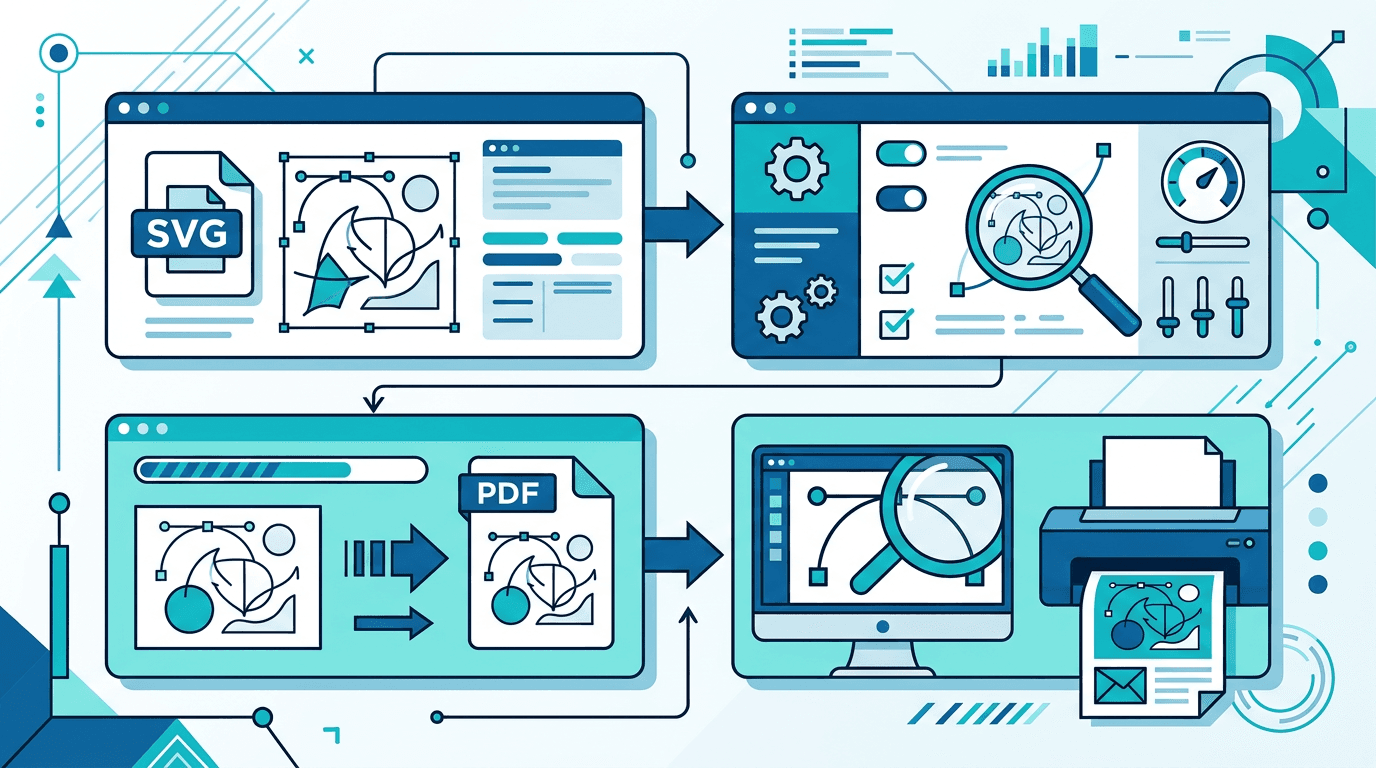
Vector graphics inside PDF offer significant advantages:
| Advantage | Description |
|---|---|
| Infinite scaling | No quality loss at any size |
| Small file size | Efficient for simple graphics |
| Editability | Can be modified in vector software |
| Crisp output | Sharp edges on any device |
| Print quality | Suitable for professional printing |
Vector PDF vs Rasterized PDF
Understanding the difference is critical:
Vector PDF
- Graphics stored as mathematical paths
- Scales without quality loss
- Smaller file size for illustrations
- Editable in vector software
- Suitable for logos, icons, illustrations
Rasterized PDF
- Graphics stored as a pixel grid
- Fixed resolution
- Quality degrades when scaled
- Cannot be edited as vectors
- File may be larger
How to Convert SVG to Vector PDF
Using Our Tool
Our SVG to PDF tool preserves vectors by default:
- Upload your SVG file
- Vectors are preserved automatically
- Configure page settings
- Download the vector PDF
Ensuring Vector Preservation
To guarantee vector output:
Do:
- Use clean SVG code
- Convert fonts to outlines
- Use standard SVG elements
- Check output in vector software
Don't:
- Apply raster effects within the SVG
- Use overly complex filters
- Include embedded raster images
- Apply bitmap transformations
SVG Elements That Stay Vector
These SVG elements convert to vector PDF:
| Element | PDF Result |
|---|---|
<path> | Vector path |
<rect> | Vector rectangle |
<circle> | Vector circle |
<ellipse> | Vector ellipse |
<line> | Vector line |
<polygon> | Vector polygon |
<polyline> | Vector polyline |
<text> | Vector text (if outlined) |
Elements That May Get Rasterized
Some elements need special handling:
| Element | Issue | Solution |
|---|---|---|
<filter> | May rasterize | Remove or simplify |
<image> | Already raster | Keep at high resolution |
| Complex gradients | May flatten | Simplify gradients |
| Masks | May rasterize | Convert to paths |
| Blend modes | Limited support | Test output |
Preparing SVG for Vector PDF
Step 1: Clean Up the SVG
Remove unnecessary elements:
- Delete hidden layers
- Remove unused definitions
- Clean up empty groups
- Optimize path data
Step 2: Convert Text to Outlines
Prevent font issues:
- Select all text
- Convert to paths / outlines
- Verify appearance is unchanged
- Save as a new file
Step 3: Simplify Complex Effects
Replace problematic elements:
- Convert filters to paths where possible
- Simplify complex gradients
- Use solid colors where appropriate
- Remove unnecessary effects
Step 4: Validate SVG Code
Check for clean structure:
- Valid SVG markup
- Correct viewBox definition
- No unsupported elements
- Optimized path data
Testing Vector Preservation
Quick Test
Verify vectors after conversion:
- Zoom test: Zoom to 1000%+ – edges should remain sharp
- Edit test: Open in Illustrator – paths should be selectable
- Scale test: Scale the PDF – no pixelation should appear
- File size test: Vector PDFs are typically smaller
Professional Verification
For critical projects:
- Open the PDF in Adobe Illustrator
- Select all objects
- Check that paths are editable
- Verify no embedded images
- Scale to various sizes and check quality
Common Conversion Issues
Issue: Text Becomes Raster
Cause: Fonts not outlined Solution: Convert all text to paths before exporting
Issue: Gradients Look Different
Cause: Complex SVG gradients Solution: Simplify gradients to linear/radial only
Issue: Effects Disappear
Cause: SVG filters not supported Solution: Flatten effects or rebuild them as vectors
Issue: File Is Too Large
Cause: Complex paths or embedded images Solution: Optimize SVG, simplify paths, remove raster elements
Optimizing Vector PDF Quality
Path Optimization
Reduce complexity while preserving appearance:
- Merge overlapping paths
- Reduce anchor points
- Simplify curves
- Remove redundant points
Color Optimization
Ensure consistent colors:
- Use a defined color palette
- Convert RGB to CMYK for print
- Verify gradient definitions
- Check transparency settings
Structure Optimization
Organize for efficiency:
- Group related elements
- Name layers appropriately
- Remove empty groups
- Flatten unnecessary nesting
Vector PDF Use Cases
Logo Files
Ideal for brand assets:
- Scalable for any application
- Maintains consistency
- Easy to edit later
- Professional output
Technical Illustrations
Great for diagrams:
- Precise lines and shapes
- Crisp at any size
- Easy revision editing
- Small file size
Icon Sets
For UI elements:
- Crisp at any resolution
- Easy to customize
- Consistent styling
- Efficient delivery
Print Design
Essential for high-quality output:
- Suitable for any print size
- Accurate colors
- Sharp details
- Professional result
Software Compatibility
Vector PDF Stays Vector In:
| Software | Support Level |
|---|---|
| Adobe Illustrator | Full |
| CorelDRAW | Full |
| Inkscape | Full |
| Affinity Designer | Full |
| Adobe Acrobat Pro | View / Basic editing |
Limited Vector Support:
| Software | Limitation |
|---|---|
| Preview (Mac) | View only |
| Adobe Reader | View only |
| Web browsers | May rasterize |
| Microsoft Word | May convert to image |
Best Practices Summary
Before Converting
- Clean up SVG code
- Outline all text
- Simplify effects
- Remove raster elements
- Verify viewBox
During Conversion
- Use a converter that preserves vectors
- Check settings
- Avoid rasterization options
- Choose appropriate page size
After Converting
- Test scaling quality
- Validate in vector software
- Check file size
- Archive the original SVG
Frequently Asked Questions
Will all SVG elements stay vector?
Basic shapes and paths stay vector. Complex filters may rasterize — simplify them before converting.
How can I tell if a PDF is vector?
Zoom in significantly (1000%+). Vector graphics remain sharp; raster graphics become pixelated.
Can I edit the vectors in the PDF later?
Yes. Open in vector software like Illustrator or Inkscape to directly edit the paths.
Why is my vector PDF file large?
Complex paths or embedded images increase size. Optimize paths and remove raster elements.
Does text stay editable?
If not converted to outlines, text may remain editable but can cause font issues. Outlining ensures consistent display.
What is the best page size for SVG to PDF conversion?
Choose a page size that matches your SVG's intended use. For print, use A4 or Letter. For custom dimensions, match the SVG's viewBox.
Can I batch convert SVG to vector PDF?
Yes. Upload multiple SVG files to our tool and convert them all to vector PDF at once.
Conclusion
Preserving vector quality when converting SVG to PDF ensures your graphics remain scalable and professional. Follow the best practices in this guide for optimal results.
Ready to create a vector PDF?
Related tools: SVG to PNG | SVG to JPG | Image to PDF