
Batch Convert SVG to JPG - Process Multiple Files at Once
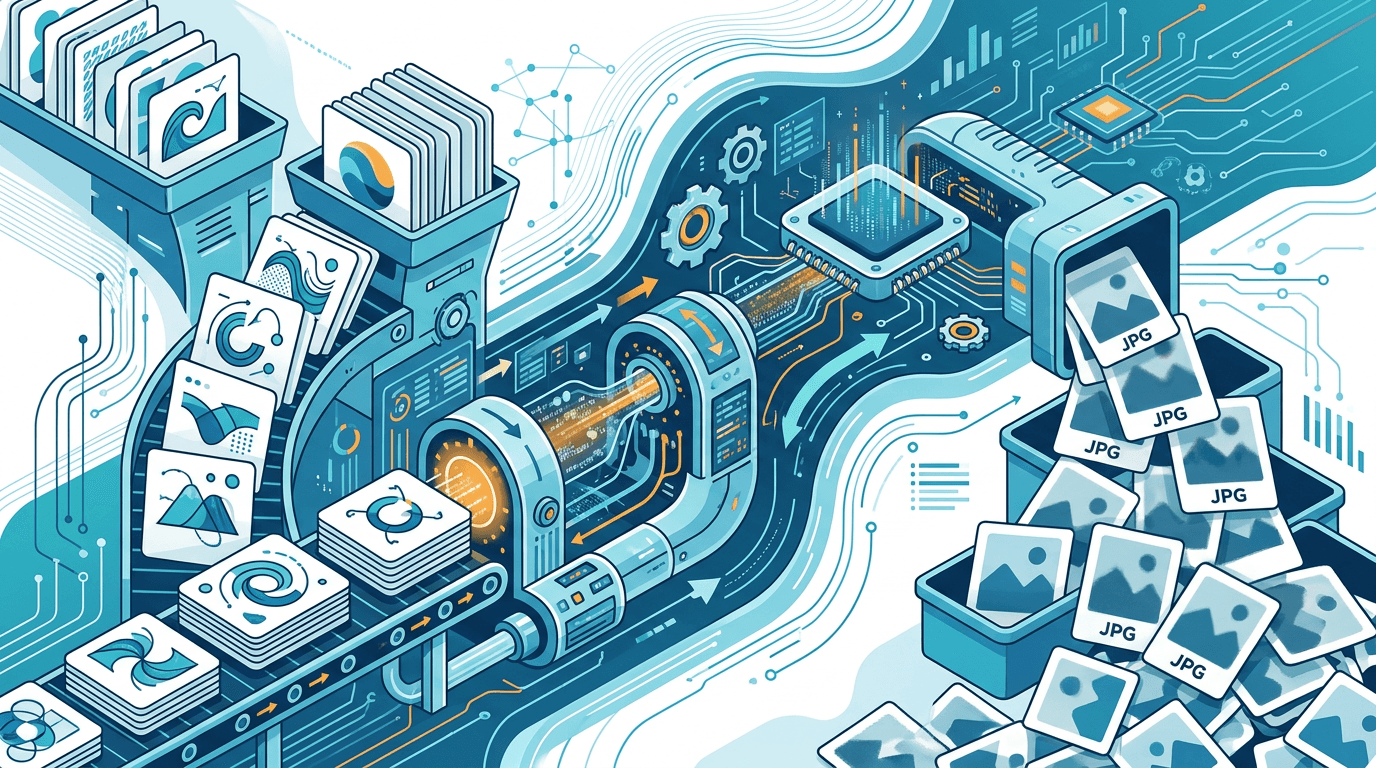
Need to convert many SVG files to JPG? Batch conversion saves hours compared to converting one file at a time. This guide shows you how to process multiple SVG files efficiently while maintaining quality.
Why Batch Convert SVG Files?
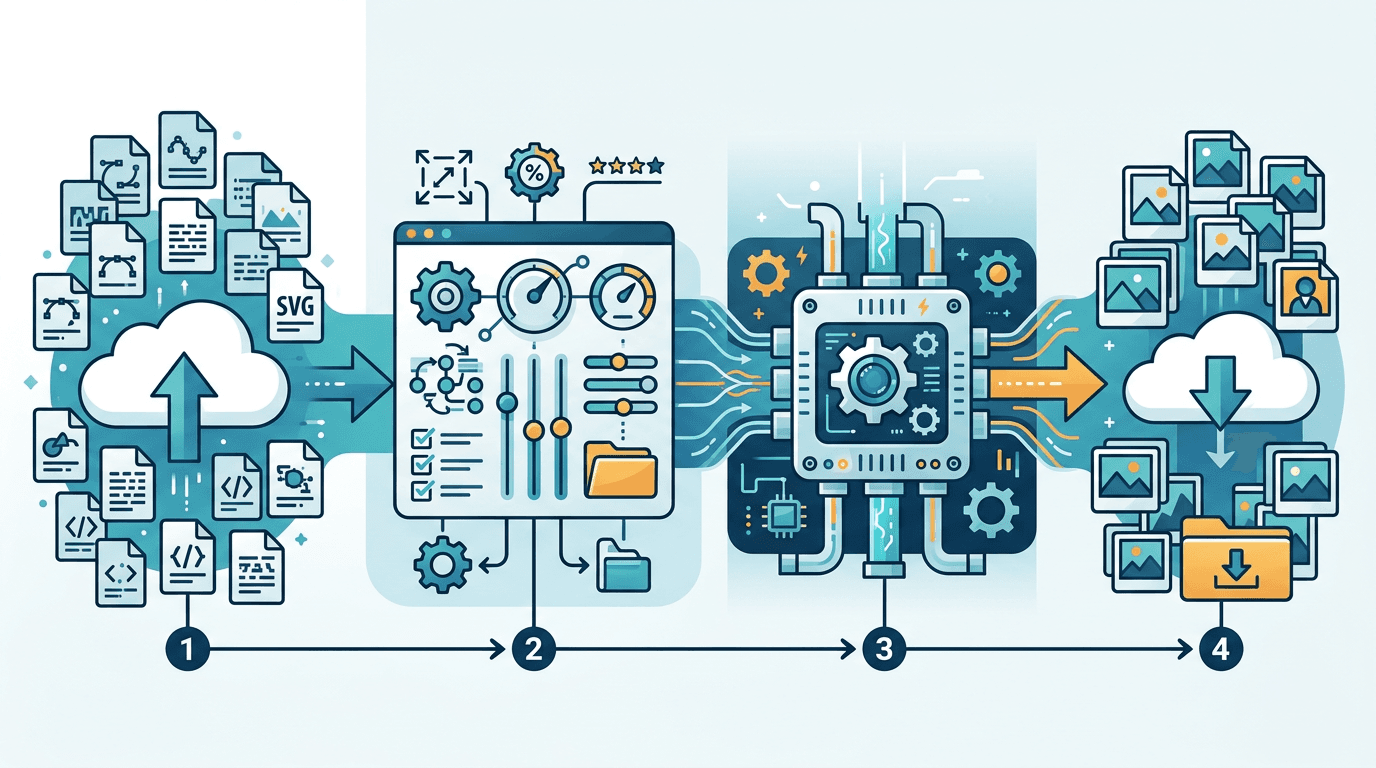
Benefits of batch conversion:
- Save time – Convert hundreds of files in minutes
- Consistency – Same settings applied to all files
- Efficiency – No repetitive manual work
- Organization – Process entire folders at once
- Quality control – Uniform output for all files
How to Batch Convert SVG to JPG
Using an Online Tool
- Visit our SVG to JPG converter
- Upload multiple SVG files (drag and drop or file selector)
- Configure shared settings
- Convert all files
- Download individually or as a ZIP
Batch Upload Methods
| Method | Best For |
|---|---|
| Drag and drop | Quick file selection |
| File picker | Selecting specific files |
| Folder upload | Processing entire directories |
Configuring Batch Settings
Global Settings
Apply to all files:
- Output dimensions (width/height)
- Quality level (e.g., 85)
- Background color
- Naming convention
Per-File Settings
Override for specific files:
- Individual dimensions
- Custom quality
- Different output name
Common Batch Scenarios
Icon Set Conversion
Converting an icon library:
Settings:
- Dimensions: 512×512 px
- Quality: 90
- Background: White
- Naming:
icon_[original]_512.jpg
Website Asset Conversion
Converting web graphics:
Settings:
- Dimensions: 1200 px width (auto height)
- Quality: 80
- Background: Transparent → White
- Naming:
web_[original].jpg
Print Preparation
Converting for printing:
Settings:
- Dimensions: Based on 300 DPI for physical size
- Quality: 100
- Background: White
- Naming:
print_[original]_300dpi.jpg
Best Practices
Organize Before Converting
- Group similar files – Same dimensions together
- Create output folder – Organize destination
- Document settings – Record the parameters used
Quality Control
After batch conversion:
- Spot-check random samples
- Verify dimensions are correct
- Check quality levels
- Confirm all files converted
Naming Conventions
| Convention | Example | Use Case |
|---|---|---|
| Original name | logo.jpg | Simple conversion |
| Size suffix | logo_512.jpg | Multi-size exports |
| Date prefix | 2024-01_logo.jpg | Version tracking |
| Sequential | image_001.jpg | Ordered collections |
Handling Different SVG Types
Simple Icons
- Small output size (256–512 px)
- High quality (90+)
- Consistent dimensions
Complex Illustrations
- Larger output size (1000+ px)
- High quality (85–95)
- Preserve aspect ratio
Text-Heavy SVGs
- Ensure text is converted to paths
- Higher quality to maintain text clarity
- Appropriate size for readability
Batch Processing Tips
Optimize Your Workflow
- Test with a sample – Run one file first
- Verify settings – Check output meets expectations
- Process in batches – 50–100 files at a time for stability
Error Handling
Common issues and solutions:
| Issue | Cause | Solution |
|---|---|---|
| File skipped | Corrupted SVG | Fix source file |
| Wrong dimensions | No viewBox | Specify dimensions |
| Missing elements | External references | Embed all assets |
File Size Estimates
Approximate output sizes for batch planning:
| SVG Complexity | JPG Size (1000px, Q85) |
|---|---|
| Simple icons | 20–50 KB |
| Medium graphics | 50–150 KB |
| Complex illustrations | 150–400 KB |
100 files: roughly 2–40 MB total
Download Options
Individual Downloads
- Click each file to download
- Good for selective use
- Slower with many files
ZIP Archive
- All files in one download
- Faster for large batches
- Preserves folder structure
Automation Considerations
When to Use Batch Tools
- Regular conversion needs
- Large file collections
- Consistent output requirements
- Time-sensitive projects
When to Convert Individually
- Files need unique settings
- Per-file quality review required
- Special processing needed
- Small number of files
Frequently Asked Questions
How many files can I batch convert?
Our tool supports up to 100 files per batch. For larger collections, process in multiple batches.
Will all files have the same quality?
Yes, batch conversion applies the same quality settings to all files unless individually overridden.
Can I convert to different sizes in one batch?
Our tool applies one size setting per batch. For multiple sizes, run separate batches or use individual settings.
What if one file fails?
Other files continue processing. Failed files are flagged for review so you can fix and retry them.
Can I preserve folder structure?
Yes, enabling "Preserve Structure" maintains the original folder organization in the output.
What SVG features are supported in batch mode?
All standard SVG elements including paths, shapes, text, gradients, and most filters are supported in batch mode.
How long does batch conversion take?
Conversion time depends on file count and complexity. Simple icons convert quickly; complex illustrations take longer. Typically, 100 icons convert in under a minute.
Can I set different quality for each file?
Yes, you can override global settings per file after uploading. This lets you fine-tune specific files while using batch settings for the rest.
Conclusion
Batch converting SVG to JPG is essential for efficient workflows. Use consistent settings, organize files before processing, and verify output quality for the best results.
Try batch conversion with our SVG to JPG converter.
Related tools: Image Resizer | Batch Image Converter | SVG to PNG