
PNG to PDF for Printing - Create Print-Ready Documents
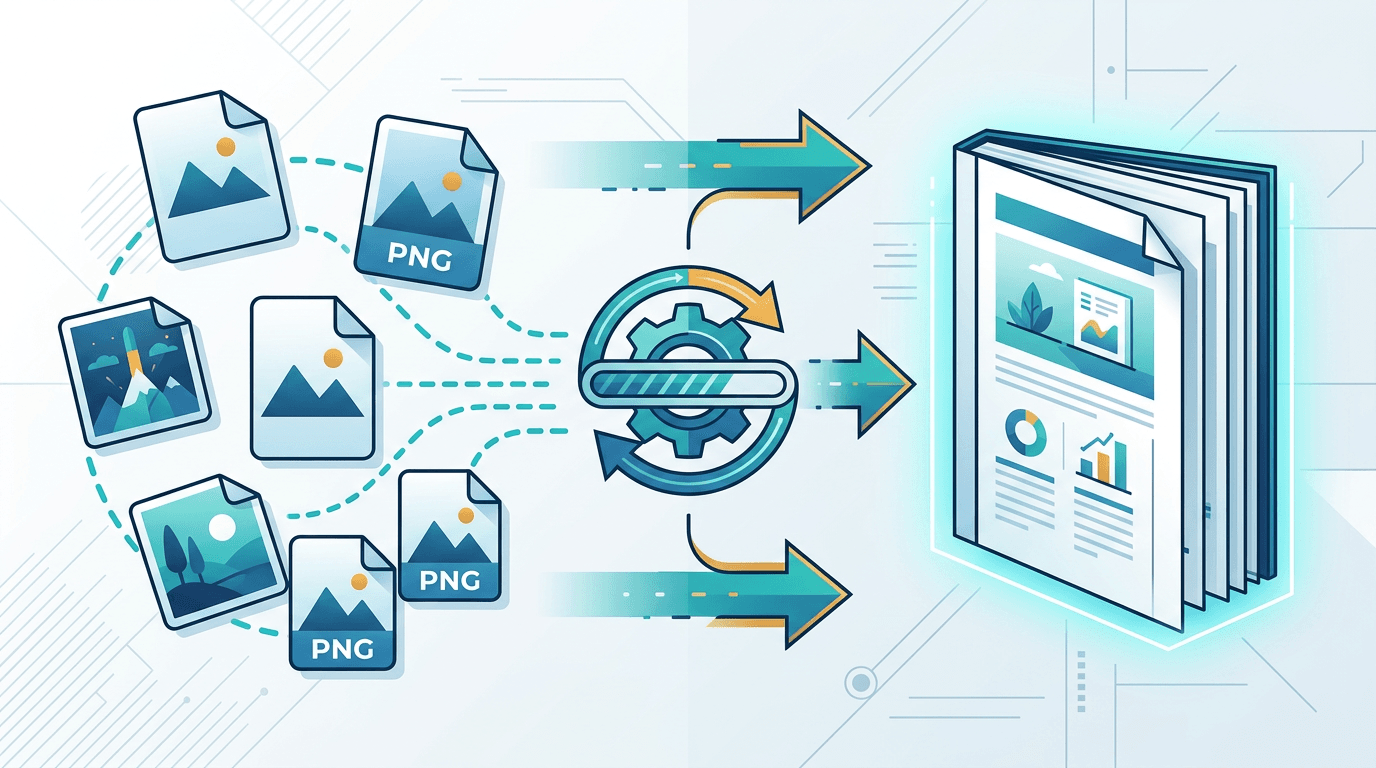
Converting PNG images to PDF for printing requires attention to quality settings and resolution. This guide shows you how to create print-ready PDFs from your PNG images that look professional and sharp.
Understanding Print Requirements

Resolution Basics
Print quality depends on DPI (dots per inch):
| DPI | Quality | Best For |
|---|---|---|
| 72 | Screen only | Web viewing |
| 150 | Acceptable | Draft prints |
| 300 | Professional | Most printing |
| 600 | Archival | Fine art, photos |
Checking Your PNG Resolution
Before converting, verify your PNG has adequate resolution:
Required pixels for 300 DPI printing:
| Print Size | Required Pixels |
|---|---|
| 4×6 inch | 1200×1800 |
| 5×7 inch | 1500×2100 |
| 8×10 inch | 2400×3000 |
| A4 | 2480×3508 |
| Letter | 2550×3300 |
Creating Print-Ready PDFs
Step 1: Prepare Your PNG
Ensure your image is print-ready:
- Verify resolution (minimum 300 DPI at print size)
- Check color mode (CMYK preferred for professional printing)
- Review image quality for any artifacts
Step 2: Convert with Maximum Quality
Use our PNG to PDF converter:
- Upload your high-resolution PNG
- Select Maximum Quality setting
- Choose appropriate page size for printing
- Generate PDF
Step 3: Verify PDF Quality
Open the PDF and check:
- Zoom to 100% to check sharpness
- Print a test page if possible
- Verify colors appear as expected
Quality Settings for Different Print Types
Home/Office Printing
For standard inkjet or laser printers:
| Setting | Recommendation |
|---|---|
| Quality | High |
| Color | RGB |
| Resolution | 150-300 DPI |
| Paper Size | Match printer |
Professional Printing
For commercial print shops:
| Setting | Recommendation |
|---|---|
| Quality | Maximum |
| Color | CMYK (if available) |
| Resolution | 300+ DPI |
| Bleed | Add 3mm if required |
Photo Lab Printing
For photo prints:
| Setting | Recommendation |
|---|---|
| Quality | Maximum |
| Color | sRGB or Adobe RGB |
| Resolution | 300-600 DPI |
| Size | Match photo size exactly |
Page Size Settings
Standard Paper Sizes
| Size | Dimensions (mm) | Dimensions (inches) |
|---|---|---|
| A4 | 210×297 | 8.27×11.69 |
| Letter | 216×279 | 8.5×11 |
| A3 | 297×420 | 11.69×16.54 |
| Legal | 216×356 | 8.5×14 |
Photo Sizes
| Size | Dimensions (inches) | Dimensions (mm) |
|---|---|---|
| 4×6 | 4×6 | 102×152 |
| 5×7 | 5×7 | 127×178 |
| 8×10 | 8×10 | 203×254 |
| 11×14 | 11×14 | 279×356 |
Custom Sizes
For non-standard prints:
- Measure your target size carefully
- Add margins as needed
- Consider bleed for edge-to-edge printing
Color Considerations
RGB vs CMYK
RGB (Red, Green, Blue):
- Used for screens
- Wider color range
- Standard for home printing
CMYK (Cyan, Magenta, Yellow, Black):
- Used for commercial printing
- Narrower color range
- More accurate print colors
Color Accuracy Tips
- Calibrate your monitor - Ensures what you see matches print
- Use soft proofing - Preview how colors will print
- Order test prints - Verify colors before large runs
- Embed color profile - Include sRGB or appropriate profile
Handling Multiple Images
Creating Multi-Page Print Documents
Combine multiple PNGs for printing:
- Upload all images to PNG to PDF converter
- Arrange in desired order
- Set consistent page size
- Generate single PDF
Consistent Quality Across Pages
Ensure all source images:
- Have same or similar resolution
- Use consistent color space
- Are properly prepared
Margins and Bleed
Standard Margins
For documents with text or important content near edges:
| Margin Type | Size |
|---|---|
| Minimum | 6mm (0.25") |
| Standard | 12mm (0.5") |
| Comfortable | 19mm (0.75") |
Bleed for Edge-to-Edge Printing
If printing to the edge:
- Add 3mm (0.125") bleed on all sides
- Extend image beyond trim line
- Mark trim lines if required
Print-Ready Checklist
Before sending to print:
- Resolution is 300 DPI or higher
- File size supports print dimensions
- Colors are checked for accuracy
- PDF quality is set to Maximum
- Page size matches print size
- Margins are appropriate
- Bleed added if needed
- Test print reviewed
Common Printing Issues
Issue: Print appears pixelated
Cause: Source PNG too low resolution.
Solution: Use higher resolution source, or print at smaller size.
Issue: Colors look different than screen
Cause: Monitor not calibrated, or RGB/CMYK mismatch.
Solution: Calibrate monitor, request proof from printer, adjust colors.
Issue: Edges cut off
Cause: No margins or bleed, or wrong page size.
Solution: Add appropriate margins, or add bleed for edge-to-edge.
Issue: File too large for printer
Cause: Maximum quality with large image.
Solution: Use High instead of Maximum, or resize image slightly.
Tips for Best Print Quality
1. Start with Quality Sources
Garbage in, garbage out:
- Use high-resolution original images
- Avoid heavily compressed sources
- Don't enlarge low-resolution images
2. Match Resolution to Print Size
Calculate needed resolution:
Pixels needed = Print size (inches) × DPI
Example: 8" × 300 DPI = 2400 pixels
3. Consider Paper Type
Different papers need different approaches:
- Glossy: Shows more detail, more vibrant colors
- Matte: Softer look, less reflection
- Canvas: Texture affects detail visibility
4. Test Before Large Runs
Always print a sample:
- Check colors on actual paper
- Verify size is correct
- Review detail and sharpness
Frequently Asked Questions
What DPI should I use for printing?
300 DPI is the standard for professional quality. 150 DPI is acceptable for draft prints or viewing from distance.
Can I enlarge a small PNG for printing?
Not recommended. Enlarging adds pixels by interpolation, resulting in softness or pixelation. Use original high-resolution images.
Should I use CMYK for my home printer?
Most home printers work fine with RGB. CMYK is mainly needed for commercial offset printing.
How do I know if my PNG is high enough quality?
Divide your PNG's pixels by 300 to get maximum print size in inches at professional quality. Example: 3000 pixels ÷ 300 = 10 inches.
Why does my print look darker than my screen?
Monitors emit light (additive color) while prints reflect light (subtractive). Prints often appear darker. Calibrate your monitor and use print preview.
Conclusion
Creating print-ready PDFs from PNG images requires attention to resolution, color, and quality settings. Use our PNG to PDF converter with Maximum quality settings for professional print results.
Related tools: Image to PDF | Image Resizer | Image Compressor