
How to Convert PNG to JPG - Complete Guide

Converting PNG to JPG is one of the most common image conversion tasks. Whether you need smaller files for the web, email attachments, or compatibility purposes, this guide teaches you how to convert while maintaining quality.
Why Convert PNG to JPG?
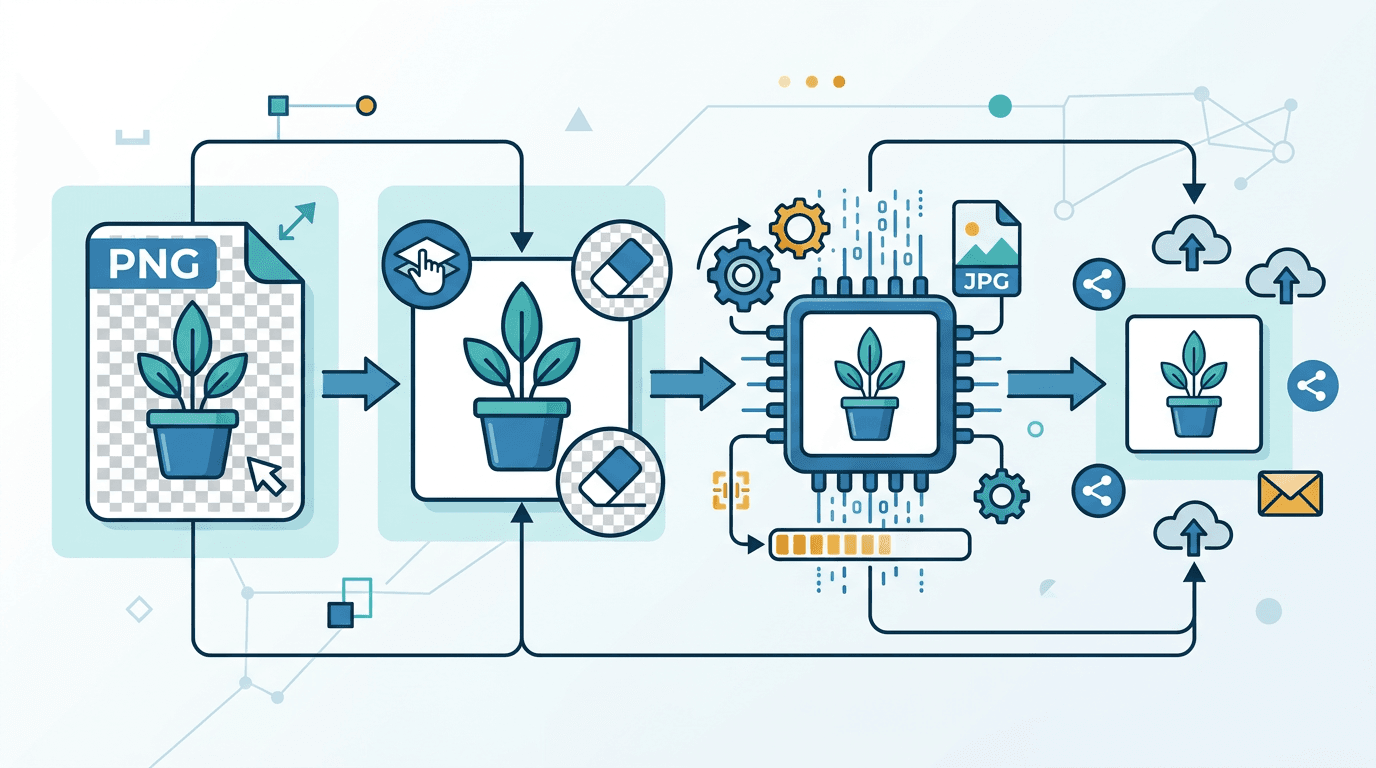
Benefits of JPG
- Smaller files – Typically 50–80% smaller than PNG
- Universal support – Works everywhere
- Email-friendly – Stays within attachment limits
- Web-optimized – Faster page loading
- Storage efficient – Saves disk space
When to Convert
| Scenario | Convert? |
|---|---|
| Photographs | Yes – JPG excels here |
| Screenshots | Maybe – depends on content |
| Graphics with text | Carefully – quality loss |
| Images with transparency | Consider carefully |
| Web photos | Yes – faster loading |
How to Convert PNG to JPG
Using Our Converter
- Visit our PNG to JPG converter
- Upload your PNG file
- Select quality settings
- Download the converted JPG
Quality Setting Guide
| Quality | File Size | Use Case |
|---|---|---|
| 100 | Largest | Archiving, printing |
| 85–95 | Large | High-quality display |
| 70–80 | Medium | Web images |
| 50–65 | Small | Thumbnails, previews |
Most web use cases benefit from 75–85 quality as the sweet spot.
Understanding the Conversion
What Changes
When converting PNG to JPG:
- Transparency becomes a solid color (usually white)
- Lossless becomes lossy
- File size typically decreases
- Color mode may change (RGBA to RGB)
What Is Lost
- Transparency – Alpha channel is removed
- Some quality – Lossy compression artifacts
- Sharp edges – Edges may soften slightly
- Lossless data – Cannot recover the original
Handling Transparency
Default Background
Transparent areas become:
- White (default)
- Or a color of your choice
Choosing a Background Color
For images with transparency:
- Select the background color option
- Choose an appropriate color
- Preview before converting
Best Practices
| Original Content | Background Choice |
|---|---|
| Logo on white website | White |
| Dark theme graphic | Dark |
| Product photo | Neutral / White |
| Mixed use | White (safest) |
Quality vs File Size
Compression Examples
Original PNG: 2.5 MB
| JPG Quality | File Size | Reduction |
|---|---|---|
| 100 | 1.8 MB | 28% |
| 90 | 450 KB | 82% |
| 80 | 250 KB | 90% |
| 70 | 180 KB | 93% |
Finding the Sweet Spot
- Quality 100: Pointless (just use PNG)
- Quality 90–95: Archiving
- Quality 75–85: Best for web
- Below 65: Visible artifacts
Batch Conversion
Processing multiple files:
- Upload all PNG files
- Set a uniform quality level
- Convert all at once
- Download as ZIP
Use Cases
- Website migration
- Photo collection conversion
- Email preparation
- Storage optimization
Use Cases
Web
Recommended settings:
- Quality: 75–85
- Resize to display dimensions
- Consider WebP instead
Email Attachments
Recommended settings:
- Quality: 70–80
- Resize if needed
- Target under 5 MB total
Printing
Recommended settings:
- Quality: 90–100
- Preserve original resolution
- Consider keeping PNG for graphics
Social Media
Recommended settings:
- Quality: 80–85
- Match platform dimensions
- Platforms will recompress anyway
Common Issues
White Background Appears on Transparent Areas
Expected behavior – JPG does not support transparency.
Solution: Choose a background color before converting.
Visible Quality Loss
Cause: Quality setting is too low.
Solution: Increase to 80+ for important images.
File Size Did Not Decrease
Cause: Already compressed PNG or quality set too high.
Solution: Lower the quality setting or keep the PNG.
Colors Look Different
Cause: Color profile conversion.
Solution: Use sRGB and check monitor calibration.
When NOT to Convert
Keep as PNG:
- Images that need transparency
- Graphics with sharp text
- Logos and icons
- Screenshots with text
- Images needing further editing
- When lossless quality is required
Convert to JPG:
- Photographs
- Complex images
- Web delivery
- Email attachments
- Storage savings
Alternative Formats
Consider WebP
WebP offers:
- Better compression than JPG
- Supports transparency
- Good browser support (97%+)
Consider AVIF
AVIF offers:
- Best compression
- Transparency support
- Growing browser support
Further Optimization
After Converting
Additional optimization:
- Use a JPG optimizer tool
- Remove metadata (EXIF)
- Resize to the actual display dimensions
Progressive JPG
Enable progressive for:
- Faster perceived loading
- Large images
- Web use
Frequently Asked Questions
Will converting PNG to JPG lose quality?
Lossy compression inevitably causes some quality loss. At quality 85+, it is usually imperceptible.
What happens to transparency?
Transparent areas become a solid color (white by default). Choose your background color before converting.
What quality setting should I use?
Use 75–85 for web use, 90+ for archiving. Test to find the acceptable quality level for your content.
Can I convert back to PNG?
Yes, but lost quality cannot be recovered. The PNG would just be a lossless version of the compressed JPG.
Are JPG and JPEG different?
No, they are the same format with different file extensions.
How do I convert a batch of PNGs at once?
Upload all your PNG files to our converter, set a quality level, and download the converted files as a ZIP archive.
Which is better for photos: JPG or WebP?
WebP generally produces smaller files at comparable quality. However, JPG has nearly universal support, making it the safer choice for broad compatibility.
Can I keep the EXIF metadata?
Our converter preserves metadata by default. You can choose to strip it to reduce file size further.
Conclusion
PNG to JPG conversion is straightforward, but it requires understanding the trade-offs. Use appropriate quality settings, handle transparency correctly, and consider whether JPG is the right choice for your specific needs.
Try our PNG to JPG converter for simple, high-quality conversion.
Related tools: Image Compressor | PNG Optimizer | WebP Converter