
PNG to GIF Maker - Create Animated GIFs from PNG Images
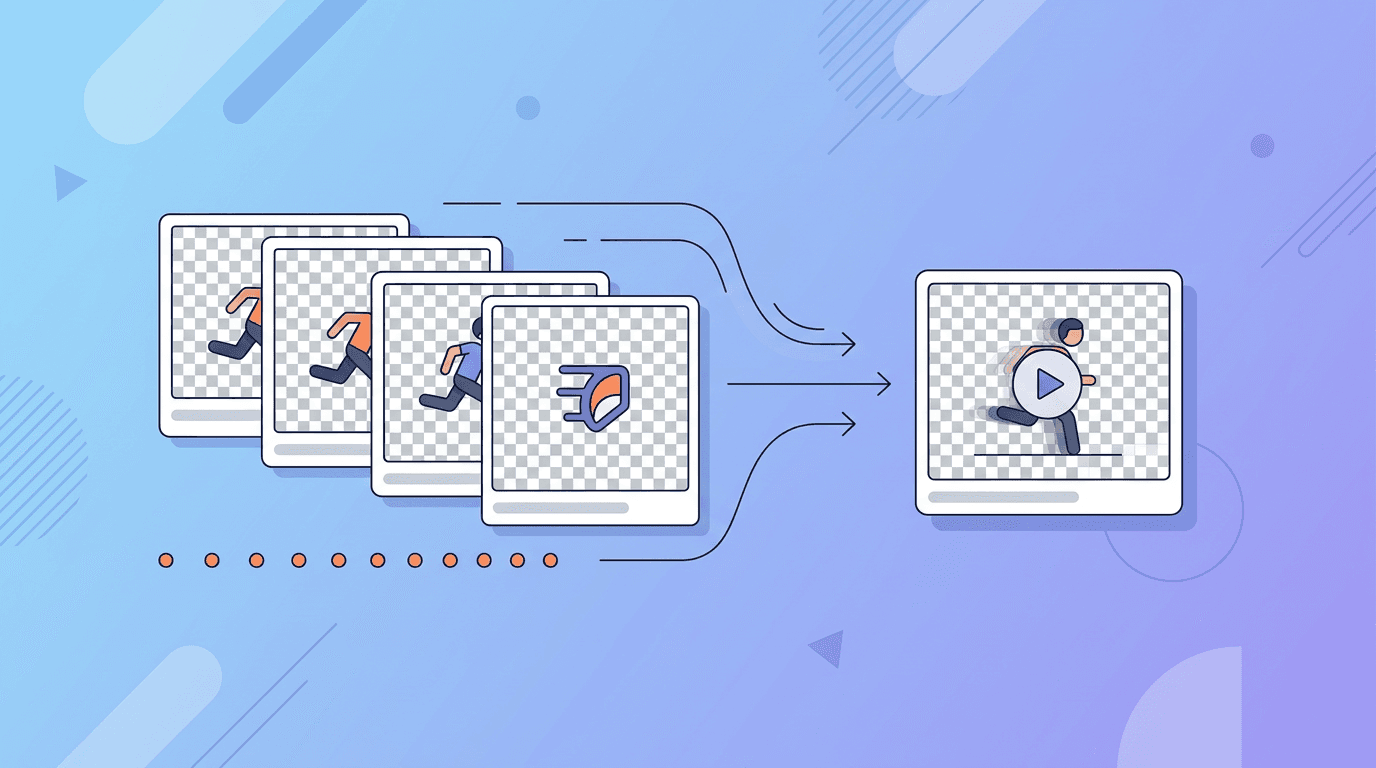
Converting PNG images to animated GIFs is perfect for creating animations with transparent backgrounds. Whether you're building app animations, website graphics, or creative content, our free GIF maker makes the process simple.
Why Use PNGs for GIF Creation?
PNGs have clear advantages over JPGs when creating GIFs:
| Feature | PNG | JPG |
|---|---|---|
| Transparency | ✅ Supported | ❌ Not supported |
| Quality | Lossless | Lossy |
| Edge sharpness | Crisp | May blur |
| Best for | Graphics, logos, text | Photos |
When to Use PNG to GIF
- Creating animations with transparent backgrounds
- Converting digital artwork or illustrations
- Animating logos
- Building UI/UX animations
- Creating text-based graphics
How to Convert PNG to GIF Online
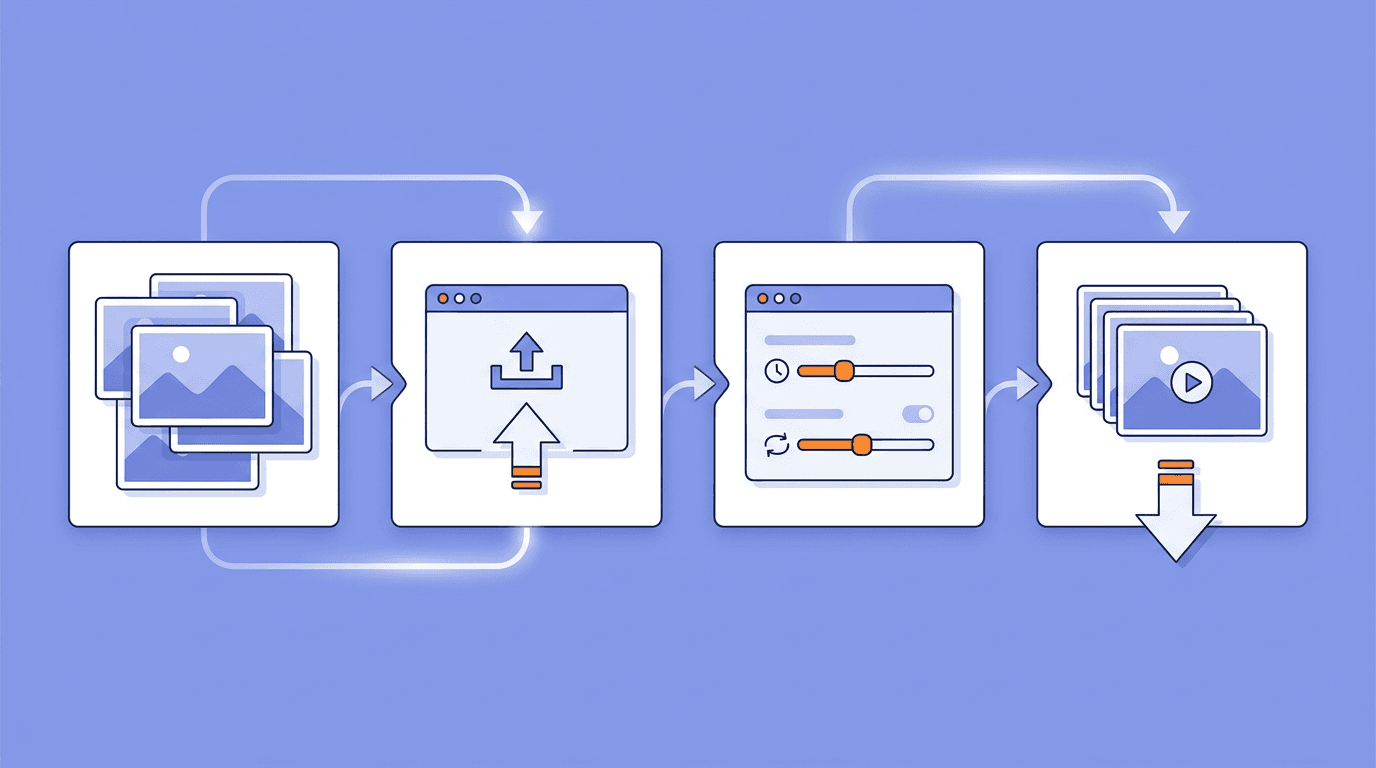
Use our GIF maker to create animated GIFs from PNG images:
Step 1: Prepare Your PNG Files
Get your PNG images ready:
- Make sure all images have consistent dimensions
- Preserve transparency if needed
- Name files in sequence (frame-01.png, frame-02.png)
- Verify all frames are properly aligned
Step 2: Upload Your PNGs
- Go to our GIF maker
- Upload all your PNG files at once
- Files appear in upload order
- Drag to rearrange if needed
Step 3: Configure the Animation
Set your animation parameters:
| Setting | Options | Recommendation |
|---|---|---|
| Frame delay | 50–2000ms | 100–200ms for smooth animation |
| Loop count | 1 to infinite | Infinite for most uses |
| Quality | Low to High | High for graphics |
Step 4: Generate and Download
- Click "Create GIF"
- Preview the animation
- Download your finished GIF
Preserving Transparency in GIFs
How GIF Transparency Works
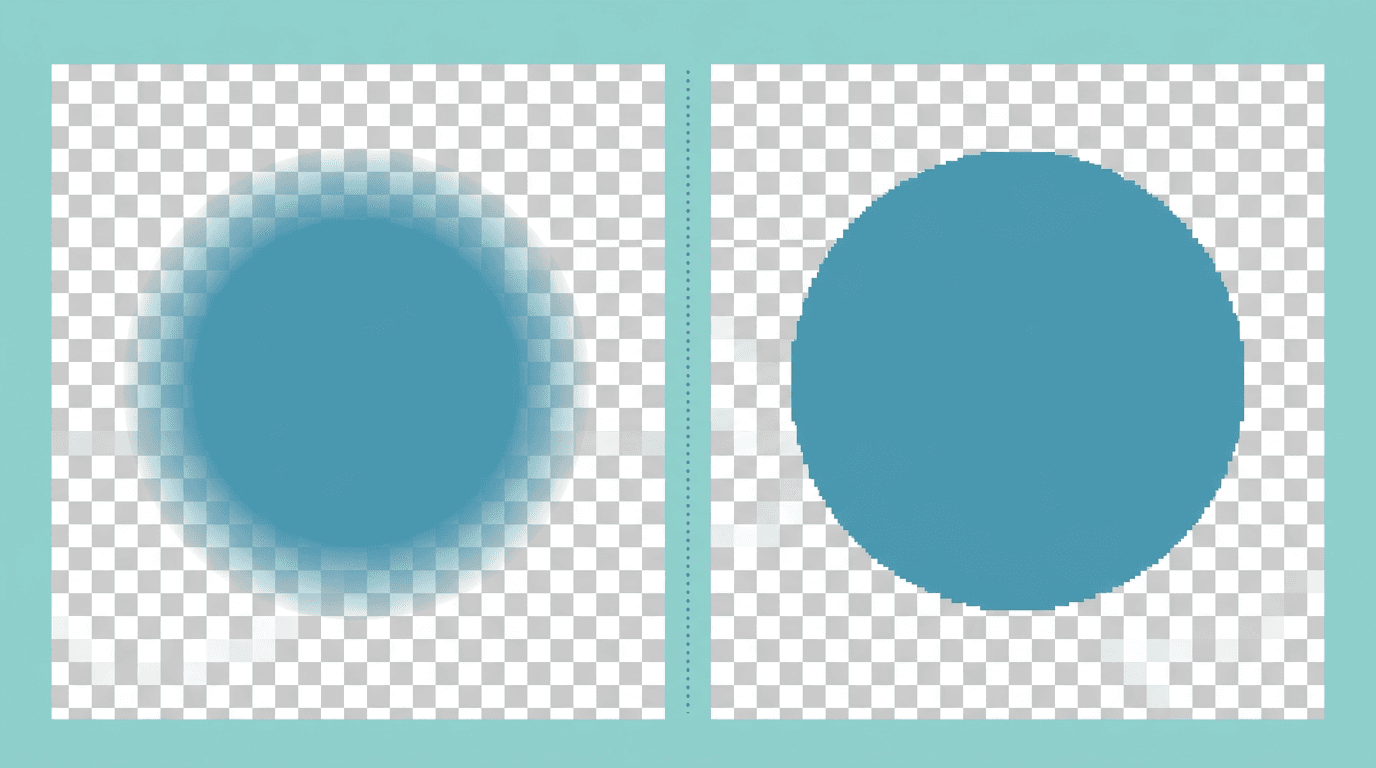
GIFs support binary transparency (fully transparent or fully opaque), unlike PNGs which support partial transparency (alpha channel).
| Transparency Type | PNG | GIF |
|---|---|---|
| Full transparency | ✅ | ✅ |
| Partial transparency | ✅ | ❌ |
| Alpha gradients | ✅ | ❌ |
Best Practices for Transparent GIFs
- Use solid backgrounds in source PNGs – Avoid semi-transparent areas
- Clean edges – Anti-aliasing can cause edge issues
- Test on different backgrounds – Make sure transparency looks correct
- Consider a matte color – For semi-transparent areas
Handling Semi-Transparency
If your PNGs have partial transparency:
- Convert to solid colors before making the GIF
- Use a background color that matches the display context
- Accept some edge imperfections
Optimal PNG Settings for GIFs
Resolution Guidelines
| Use Case | Recommended Size |
|---|---|
| Web graphics | 400–800px |
| Social media | 500–600px |
| App icons/UI | 100–300px |
| 400–500px |
Color Considerations
GIFs are limited to 256 colors. For the best results:
- Use PNG-8 (256 colors) if possible
- Limit the color palette in your designs
- Avoid complex gradients
- Use solid colors for the cleanest output
Creative Uses for PNG to GIF
Logo Animation
Create animated versions of your logo:
- Fade-in effects
- Element reveals
- Subtle motion
- Loading states
UI/UX Animation
Design interface animations:
- Button hover states
- Loading indicators
- Transition effects
- Micro-interactions
Digital Art Animation
Bring artwork to life:
- Character animation
- Scene transitions
- Effect overlays
- Parallax movement
Icon Animation
Animate icons for:
- App interfaces
- Websites
- Presentations
- Documentation
Frame Rate Guide
Choose the right frame rate for your animation:
| Animation Type | Frames | Delay | Effect |
|---|---|---|---|
| Smooth motion | 24–30 | 33–42ms | Cinematic quality |
| Standard animation | 12–15 | 67–83ms | Good quality |
| Simple animation | 8–10 | 100–125ms | Acceptable |
| Slow transitions | 5–8 | 150–300ms | Deliberate |
Calculating Frame Delay
Frame delay (ms) = 1000 / desired FPS

Examples:
30 FPS = 1000/30 = 33ms delay
15 FPS = 1000/15 = 67ms delay
10 FPS = 1000/10 = 100ms delay
Optimizing PNG-to-GIF Output
Reducing File Size
| Technique | Size Impact | Quality Impact |
|---|---|---|
| Fewer frames | Major reduction | Less smooth motion |
| Smaller dimensions | Major reduction | Smaller display |
| Fewer colors | Moderate reduction | Some banding |
| Optimize PNGs first | Slight reduction | None |
Compression Tips
- Remove unnecessary frames – Keep only what's essential
- Resize before converting – Use smaller PNGs
- Simplify colors – Use fewer, flatter colors
- Crop to content – Remove empty space
Troubleshooting Common Issues
White Fringe Around Edges
Problem: Transparent areas show a white halo Cause: Anti-aliasing on the original PNGs Solution:
- Use hard edges in source files
- Match the background color to the display context
- Clean up edges in an image editor
Colors Look Wrong
Problem: Color shifts or differences Cause: GIF's 256-color limit Solution:
- Simplify the color palette
- Accept some color variation
- Use PNG-8 source files
Choppy Animation
Problem: GIF playback is not smooth Cause: Inconsistent frame sizes or timing Solution:
- Ensure all frames are the same size
- Use consistent frame delays
- Check for corrupted frames
Transparency Not Working
Problem: Background is not transparent Cause: Semi-transparent pixels or format issues Solution:
- Ensure source files are fully transparent
- Remove partial transparency
- Re-export PNGs with the correct settings
PNG vs Other Formats for GIF Creation
PNG vs JPG for GIFs
| Aspect | PNG Source | JPG Source |
|---|---|---|
| Transparency | Preserved | Not available |
| Edge quality | Crisp | May have artifacts |
| Best for | Graphics, UI | Photos |
| File size | Larger source | Smaller source |
When to Choose PNG
- Graphics that need transparency
- Text-heavy content
- Logos and icons
- Digital illustrations
- Screenshots
Platform Compatibility
Your PNG-to-GIF creations work everywhere:
| Platform | Transparency | Notes |
|---|---|---|
| Web | ✅ Full support | Most compatible |
| iOS | ✅ Full support | Native display |
| Android | ✅ Full support | Native display |
| ⚠️ Varies | Test across clients | |
| Social | ✅ Most platforms | May convert to video |
FAQ
Will transparency be preserved?
Yes, GIFs support transparency. However, partial transparency (alpha) will be converted to fully transparent or fully opaque.
What's the best frame delay for smooth animation?
For smooth animation, use a 50–100ms delay (10–20 FPS). For most purposes, 100ms works well.
How many PNG files can I convert?
Our GIF maker can handle dozens of files. We recommend 5–50 frames for the best results.
Can I add effects to the GIF?
Our basic converter does not add effects. Add effects to your PNG files before uploading.
Why does my GIF look different from the PNGs?
GIFs are limited to 256 colors, so some color variation is normal, especially with complex images.
What resolution should the PNGs be?
Match your target display size. For the web, 400–800px wide is usually sufficient.
Summary
Converting PNG images to animated GIFs preserves transparency and maintains crisp edges, making it ideal for graphics, logos, and UI animations. Our GIF maker handles the conversion seamlessly.
Key takeaways:
- PNGs are ideal for graphics that need transparency
- GIFs only support binary (on/off) transparency
- Keep colors simple for the best results
- Optimize file size for your target platform
Related tools: GIF Maker | Image Compression | PNG to WebP