
PNG vs JPG - Which Image Format Should You Use?
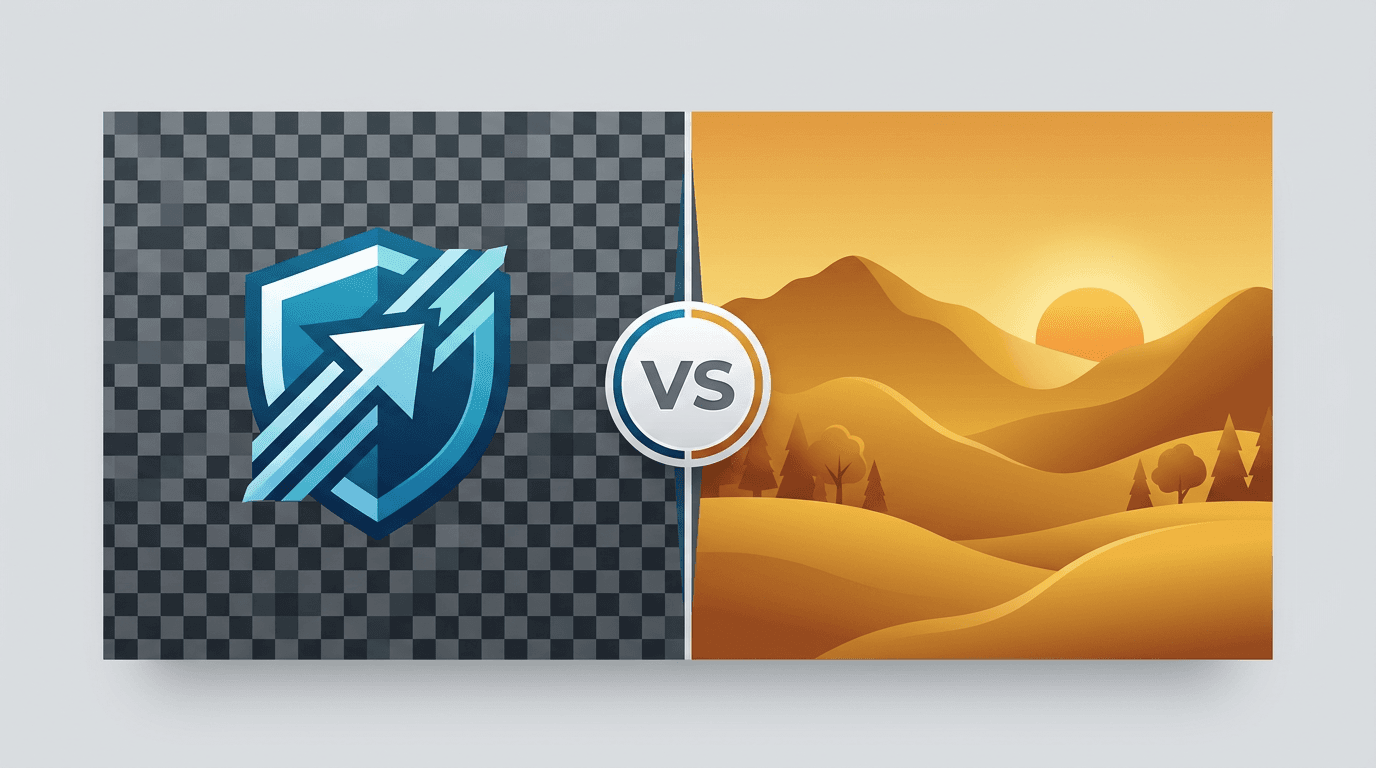
When working with images, choosing between PNG and JPG is one of the most common decisions you'll face. Each format has strengths and weaknesses, and using the wrong one can lead to bloated file sizes or quality issues. This guide helps you make the right choice every time.
PNG vs JPG: Quick Comparison
| Feature | PNG | JPG |
|---|---|---|
| Encoding | Lossless for input pixels | Lossy in this converter |
| File size | Can be large for photos | Often smaller for photos |
| Transparency | Supported | Not supported |
| Typical uses | Graphics, text, screenshots | Photos and sharing |
Start with the content: use PNG for transparent graphics and sharp text; try JPG for a photograph that needs a compact delivery copy. The following sections explain when each choice helps.
Understanding PNG
PNG uses lossless encoding for the pixels supplied to it and supports transparency. It is useful for text, logos and screenshots where sharp edges matter.
Lossless encoding does not undo earlier JPEG damage, recover removed metadata or prevent changes made by resizing and color conversion. Photographs can produce large PNG files; measure the result instead of assuming one format is always smaller.
Understanding JPG
JPG commonly produces compact photos by discarding some image information. Its quality settings trade file size against visible detail; they do not state a compression percentage or a percentage of detail retained.
JPG has no transparency, and even quality 100 in this tool is lossy. Repeated lossy re-encoding can accumulate artifacts, so create new exports from the original rather than a previously compressed copy.
File Size Comparison
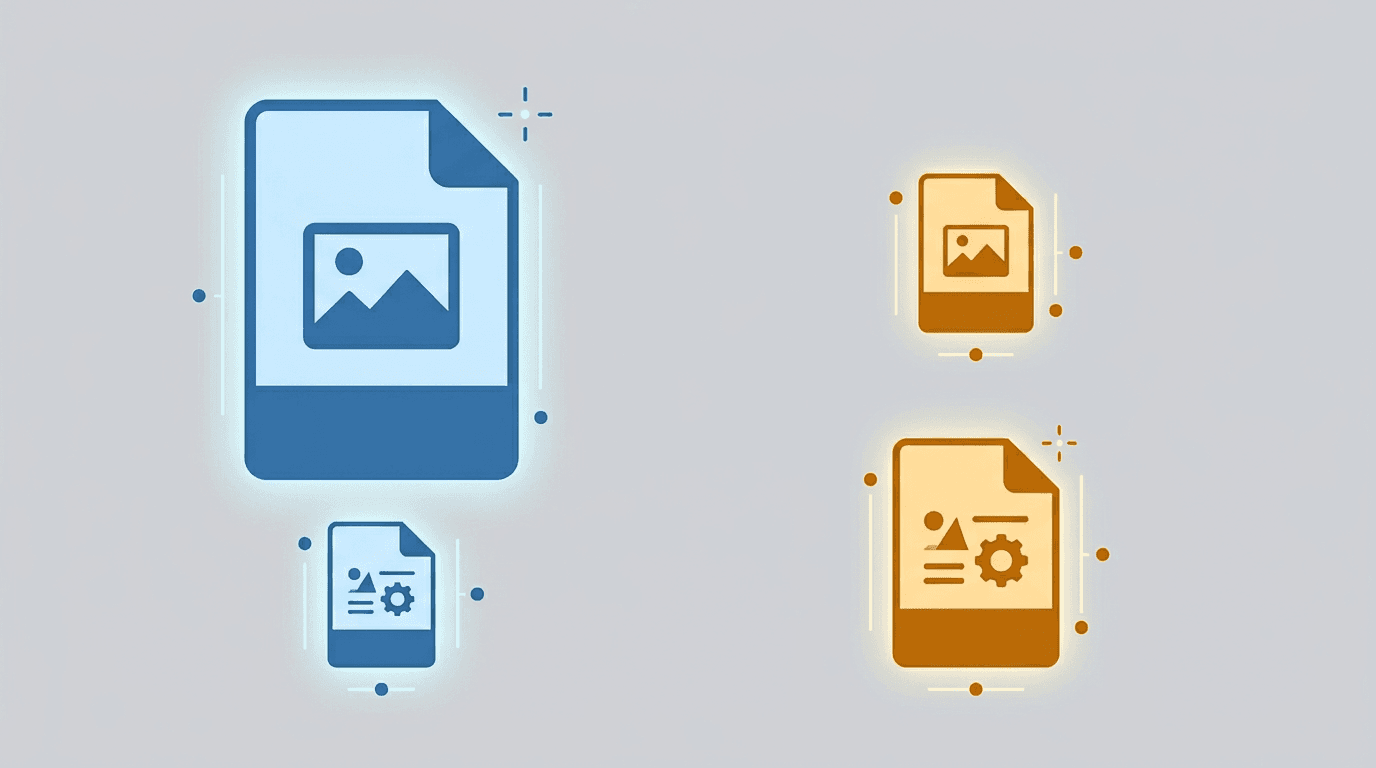
There is no fixed PNG-to-JPG size ratio. Source content, dimensions and encoding settings all matter. The illustration shows a general comparison, not measured results for your image.
| Content | What to try | What to inspect |
|---|---|---|
| Natural photo | JPG at quality 85 | Fine texture and smooth gradients |
| Text or flat-color graphic | PNG and a JPG sample | Edge halos, small text and actual size |
Use the same dimensions for a fair comparison. Record actual file sizes instead of treating a quality value as a size target.
When to Use PNG
Transparency, text and graphics
PNG is a common choice for logos, overlays, screenshots and diagrams. It supports transparent pixels, while JPG does not; WebP is another option when the destination supports it.
<!-- Logo with transparent background -->
<img src="logo.png" alt="Company Logo">
Editing copies
A PNG export avoids another lossy encoding step, but it does not preserve editable layers or all source metadata. Keep the original project file and check any resizing, color changes or other edits separately.
When to Use JPG
JPG is useful for photos on websites, in email and for sharing when transparency is unnecessary. Check the destination’s format and file-size requirements.
<!-- Web product photo -->
<img src="product.jpg" alt="Product Name" loading="lazy">
Start with JPG quality 85 for ordinary web photos. Increase the value if fine detail is damaged, or lower it when file size matters more. Printing also depends on resolution, color and the print provider’s requirements, not just the quality value.
How to Choose JPG Quality Settings
| JPG quality setting | Priority | What to check |
|---|---|---|
| Lower quality values | Smaller files | Text edges, texture loss and banding |
| 85 (default) | A starting point for sharing | Whether size and detail meet your needs |
| Higher values, up to 100 | More detail | Whether the extra file size is worthwhile |
These are tendencies, not fixed outcomes. A quality value does not state a percentage of detail preserved, and quality 100 is still lossy. Compare at 100% zoom and at the intended display size.
Converting Between Formats
PNG to JPG
Convert PNG to JPG for a photo or a destination that needs JPG. Start with 85 (default) and compare. The current tool fills transparent areas with white; check the background and edges before using the output.
JPG to PNG
Convert JPG to PNG when you need a PNG copy. Conversion does not remove the background, add meaningful transparency or restore detail lost in JPG. PNG compression presets control encoding effort and file size, not a quality percentage.
Best Practices
- Web assets: Use PNG when transparency or crisp text matters; compare JPG for photos. Check format support at the destination before choosing WebP or AVIF.
- Photography: Keep the camera original and editable master. Export a JPG copy with a quality value and inspect it before delivery.
- Design: Keep the source project for layers and edits. A flattened PNG or JPG is a delivery copy, not a replacement for that project.
- Printing: Follow the print provider’s resolution and color requirements and check a proof when needed.
Common Mistakes to Avoid
- Choosing by extension alone: A PNG may contain already damaged pixels, and a JPG may look suitable for its intended use. Compare the actual image.
- Treating quality as a compression ratio: A quality value cannot guarantee a target file size. Download and measure.
- Replacing the original with an export: Keep source files so a later version does not require re-encoding a lossy copy.
- Expecting conversion to remove a background: JPG to PNG changes the format; background removal is a separate operation.
Decision Flowchart
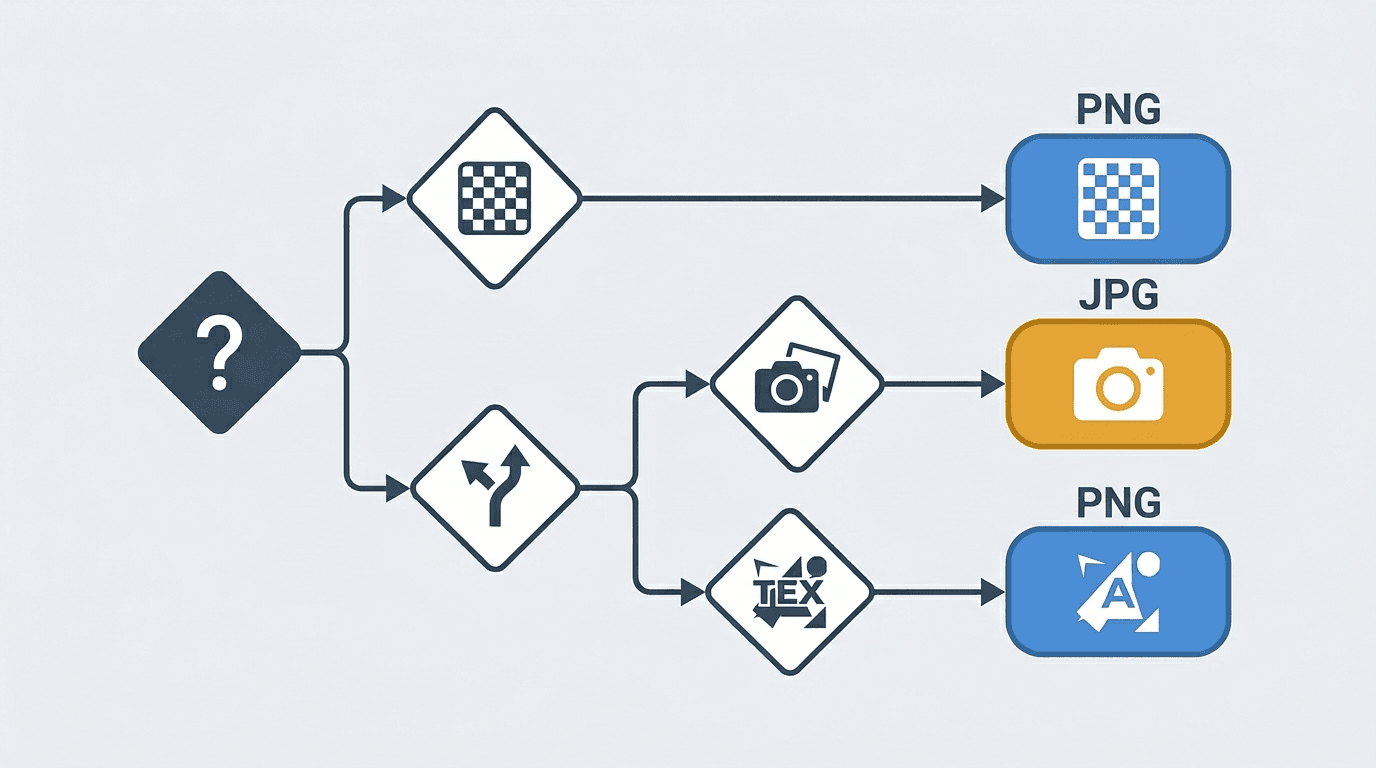
Need transparency?
├── Yes → Use PNG
└── No → Is it a photo?
    ├── Yes → Use JPG
    └── No → Has text or sharp edges?
        ├── Yes → Use PNG
        └── No → Use JPG
Modern Alternatives
WebP and AVIF are also options for web photos and transparent graphics. Before switching formats, check whether the destination accepts them, then compare a representative sample at the same dimensions.
Try PNG to WebP for an asset that needs transparency. For HEIC photo libraries, keep the original and export a format your recipient can open.
FAQ
Is PNG always higher quality?
PNG encodes its input pixels losslessly, but the source may already have lost detail. Compare the actual output; a format name does not measure quality.
Does JPG to PNG improve detail?
No. It does not recover information lost in JPG or automatically remove the background.
Which JPG quality setting should I start with?
The JPG quality field accepts whole numbers from 1 to 100, with 85 as the default. The value controls encoder quality, not a percentage of file-size reduction or detail retained. Even quality 100 uses lossy JPEG encoding.
Why is my PNG larger?
Lossless encoding can be less compact for photos. Actual size depends on the image, dimensions and settings; compare a JPG copy if transparency is unnecessary.
Does JPG support transparency?
No. The current PNG to JPG tool fills transparent areas with white. Use PNG or another compatible format if you need transparency.
Conclusion
The PNG vs JPG decision is straightforward:
- PNG: Graphics, screenshots, transparency, text
- JPG: Photos, size-sensitive images
When in doubt, ask yourself: "Does this image have sharp edges, text, or need transparency?" If yes, use PNG. If it's a natural photograph, use JPG.
Convert PNG to JPG → | Convert JPG to PNG →
Related tools: Compress Image | Image Resizer | PNG to WebP
More tools for your next image task
Explore ImgConvert tools for conversion, PDF files, and GIFs.
- Image converters
- PDF tools
- GIF tools