
How to Batch Convert PNG to JPG: Convert Multiple Images at Once

This guide separates two workflows: converting one PNG at a time on ImgConvert, and processing multiple files with a desktop or command-line tool that supports batch conversion. The current ImgConvert upload field accepts one file per submission; it does not upload a folder or convert a multi-file selection in one task.
Why Batch Convert PNG to JPG?
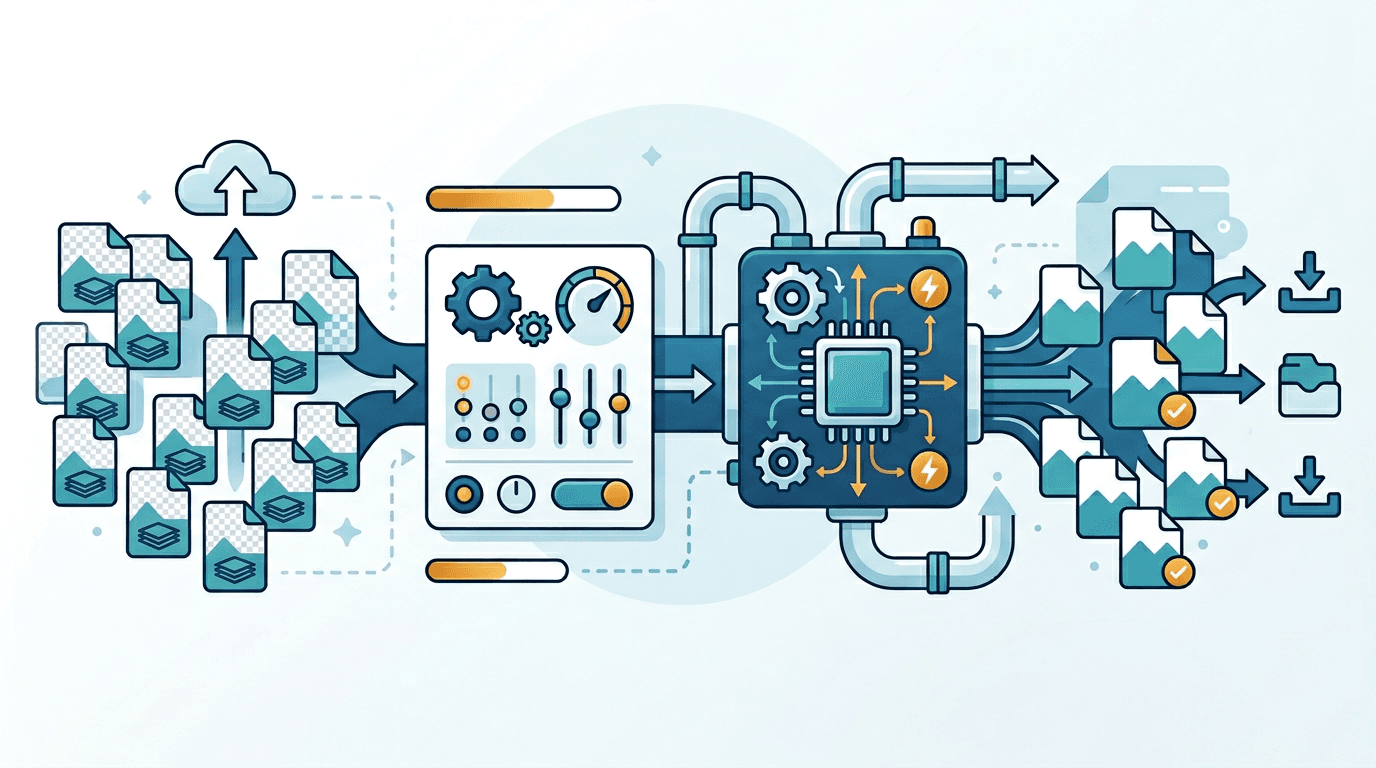
Batch conversion can reduce repeated setup when you have many images, provided the chosen software supports it. It can help prepare photographs for sharing, standardize output formats, or create smaller web copies.
JPG may be smaller than PNG for photographic content, but the result depends on the image, dimensions, and quality setting. Keep PNG originals, especially when they contain transparency, text, or graphics.
Method 1: Convert One PNG at a Time on ImgConvert
Step 1: Upload one image
Open the PNG to JPG converter and select or drag in one PNG. The field does not support selecting several images at once.
Step 2: Choose the settings
The JPG quality field accepts whole numbers from 1 to 100, with 85 as the default. The value controls encoder quality, not a percentage of file-size reduction or detail retained. Even quality 100 uses lossy JPEG encoding. Optionally change the output width and height.
Step 3: Convert, check, and download
Submit the conversion and download the JPG from the results when processing finishes. Repeat the upload and submission for each additional image. Existing results are a history of separate tasks, not a batch-upload feature.
The tool is free, with file and request-rate limits. If a limit is reached, follow the page message. For an automated multi-file workflow, use a batch-capable desktop or command-line tool such as those described below.
Method 2: Mac Preview (No Extra Software for Mac Users)
Mac's built-in Preview app supports batch export:
- In Finder, select all the PNG files you want to convert
- Right-click → Open With → Preview
- Open the images in one Preview window, then select all thumbnails in its sidebar (Cmd+A).
- File → Export Selected Images
- Choose JPEG, adjust its quality if needed, and select the output location.
- Confirm the export and wait for it to finish.
Advantage: No software to install, works entirely within macOS Apple’s guide confirms JPEG quality is adjustable.
Method 3: Windows Paint (Simple but Limited)
For Windows users with a small number of files:
- Open a PNG in Paint
- File → Save As → JPEG picture
- Repeat for each file
Advantage: Built into Windows, no installation needed Limitation: No batch functionality — this is a one-at-a-time process
For a batch, use an external tool such as ImageMagick below; it requires a separate installation.
Method 4: Command Line with ImageMagick (Best for Large Batches)
The examples below use ImageMagick 7 in Bash. Run them in a working folder containing lowercase .png files and no existing same-name JPG outputs. The JPGs are written beside the inputs.
# Convert PNGs with JPEG encoder quality 85 (not a compression percentage)
for file in ./*.png; do [ -f "$file" ] || continue; magick "$file" -quality 85 "${file%.png}.jpg"; done
Or as a single-line command using mogrify:
# Convert all PNGs in current folder (creates JPGs alongside originals)
magick mogrify -format jpg -quality 85 ./*.png
For processing recursively through subdirectories:
# Convert all PNGs in this folder and all subfolders
find . -name "*.png" -exec magick {} -quality 85 {}.jpg \;
Advantages: Extremely fast for large batches; fully scriptable; integrates into automated pipelines Disadvantages: Requires installation; needs command-line familiarity
Optimal Quality Settings for Batch Conversion
Test representative samples before processing a collection. Start with the default JPG quality of 85 and compare the output with the original at its intended display size.
| Available setting | What to check |
|---|---|
| Lower quality values | Smaller sharing copies may show more compression artifacts |
| 85 (default) | Default starting point for comparing size and detail |
| Higher values, up to 100 | More detail may be retained, at the cost of larger files |
These are the online tool’s quality settings. Other encoders may expose different values or scales. A quality number is not a percentage of detail retained, and identical settings do not guarantee identical visual quality across different images.
File Size Comparison: PNG vs JPG
There is no fixed PNG-to-JPG reduction ratio or guaranteed output size. A photo, a screenshot, and a flat-color graphic can behave very differently.
- Convert a few representative images.
- Record each original and output size.
- Inspect fine text, edges, and gradients.
- Adjust the available quality value or output dimensions if needed.
Use those measured results to estimate your own collection rather than assuming a fixed KB, MB, or percentage saving.
Organizing Your Batch Conversion Workflow
Keep original PNGs and converted JPGs in separate folders. When using external batch software, check that its output naming will not overwrite source files.
Start with a small sample and record the chosen settings. Reusing a setting simplifies the workflow, but individual images can still differ in size and visible quality. Check failures and review representative results before expanding the batch. Preserve originals for future editing or conversion.
When NOT to Batch Convert PNG to JPG
Some PNG files should stay as PNG:
Images with Transparency
JPG doesn't support transparency. Any transparent areas in your PNG will be filled with a solid color (usually white or black) when converted. If you need transparency, convert to WebP or keep as PNG.
Screenshots with Text
Text in screenshots looks crisp in PNG but develops visible compression artifacts in JPG — especially at lower quality settings. The blockiness around letter edges is particularly noticeable in UI screenshots.
Graphics, Icons, and Logos
PNG excels at content with sharp edges, flat colors, and geometric shapes. JPG compression was designed for photographs and creates visible artifacts around the hard edges common in graphics.
Source Files for Future Editing
If you'll need to edit or re-export these images in the future, keep them as PNG. Editing a JPG repeatedly causes compounding quality loss. PNG is the correct format for working files.
Real-World Batch Conversion Scenarios
- Product photographs: test representative textures and labels before processing the collection in external batch software.
- Screenshots and archives: retain PNG when text or lossless source preservation matters; a smaller JPG is not an equivalent archival original.
- Email and web copies: choose dimensions for the destination, then measure the resulting file size against its limits.
These are workflow examples, not guaranteed savings or claims that ImgConvert accepts a multi-file upload.
Troubleshooting Common Issues
Some images look worse than others
Text and sharp edges can reveal JPG artifacts. Try a higher quality value, avoid unnecessary resizing, or keep those images as PNG.
Files are still too large
Try a lower quality value or reduce output dimensions, then inspect the result. A specific file size is not guaranteed.
Transparency turned into a solid background
JPG does not support transparency. Keep the PNG or use PNG to WebP when transparency is needed.
A conversion fails
Follow the page's error message and check the file format and limits. For external batch jobs, isolate failed files and retry them separately.
Frequently Asked Questions
How many PNG files can I convert at once on ImgConvert?
The current upload field accepts one PNG per submission. To convert more, upload and submit each file separately. Use external batch-capable software for a multi-file job.
Does using one setting guarantee consistent quality?
No. The same setting can produce different visible results and file sizes depending on image content. Test representative files first.
Can I convert PNG to JPG without quality loss?
JPG uses lossy compression. Higher quality values can reduce visible artifacts but do not guarantee an identical image. Preserve the original PNG.
Which quality setting should I choose?
The JPG quality field accepts whole numbers from 1 to 100, with 85 as the default. The value controls encoder quality, not a percentage of file-size reduction or detail retained. Even quality 100 uses lossy JPEG encoding.
Is batch conversion always faster?
External batch tools can reduce repeated manual work, but processing time depends on the files, software, and hardware. ImgConvert does not offer a parallel multi-file upload in this converter.
Should I delete the originals?
Keep originals when you may need transparency, further editing, or a different conversion later. Review outputs before making any storage decision.
Summary
Use the PNG to JPG converter for individual files and sample comparisons. For repeated multi-file processing, choose a desktop or command-line workflow that explicitly supports batches.
Keep the originals, verify the available settings, and assess both output quality and size before processing the rest.
Related tools: PNG to WebP | Image Compressor | Image Resizer
More tools for your next image task
Explore ImgConvert tools for conversion, PDF files, and GIFs.
- Image converters
- PDF tools
- GIF tools