
How to Scan QR Codes on iPhone and Android: The Complete Guide
QR codes are everywhere now — on restaurant menus, product packaging, event tickets, business cards, and even billboards. Every modern smartphone can scan them, but the exact method differs by device, operating system, and which version of software you're running.
This guide covers all the methods for scanning QR codes on iPhone and Android, troubleshooting when it doesn't work, and tips for getting better scans.
Scanning QR Codes on iPhone
Method 1: Built-In Camera App (iOS 11 and Later)
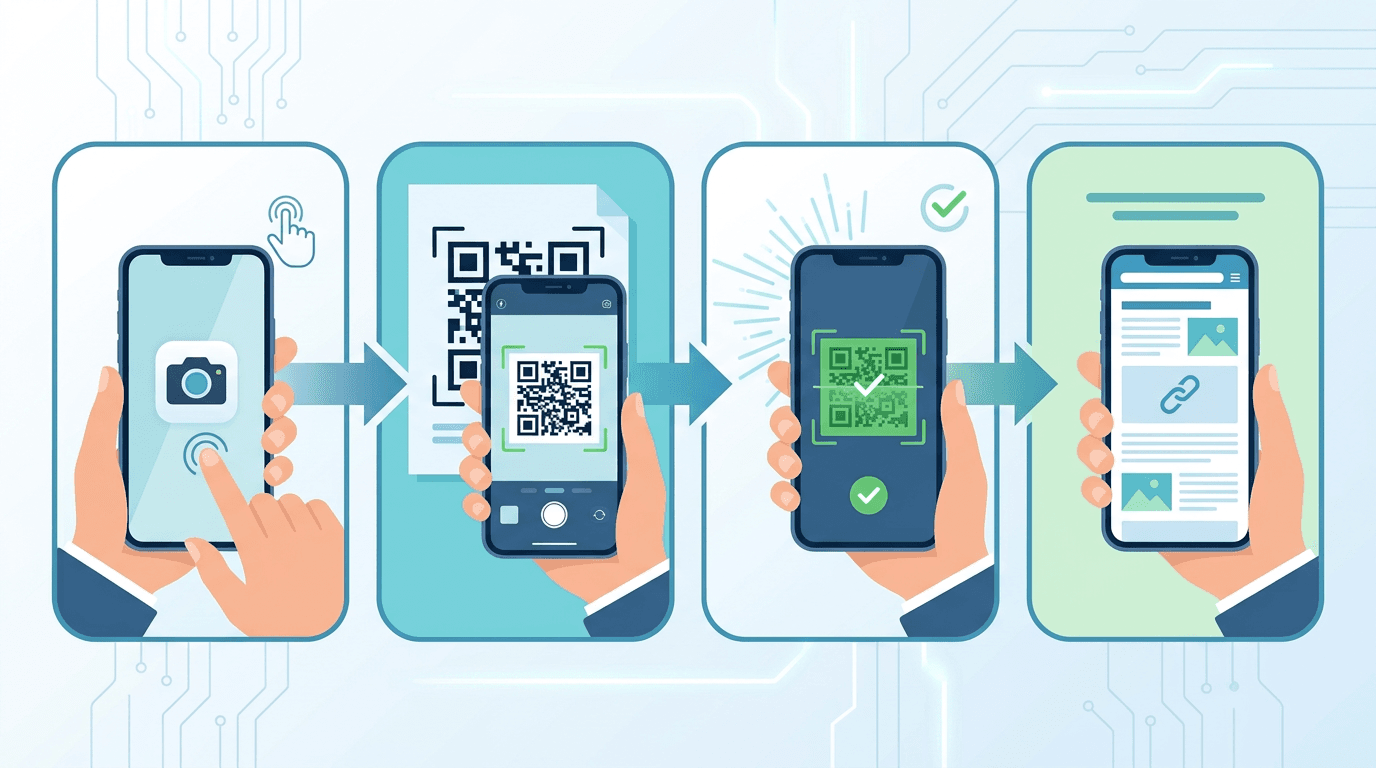
The easiest method for most iPhone users:
- Open the Camera app (tap the Camera icon from the Home Screen or swipe left from the Lock Screen)
- Point your camera at the QR code — no need to take a photo
- Wait for the recognized link to appear on screen
- Tap the link to open the content
This works automatically on all iPhones running iOS 11 or later (which includes iPhone 6s and newer models). No photo is taken — the camera simply processes what it sees in real time.
Method 2: Control Center Quick Access
For even faster access without unlocking your phone:
- Swipe down from the top-right corner (or up from the bottom on older iPhones) to open Control Center
- Tap the QR code scan button (if it's been added to your Control Center)
- Point the camera at the QR code
- Tap the link that appears
To add the scanner on current iOS versions: Open Control Center, touch and hold its background, tap Add a Control, then select Scan Code. Tap the Scan Code control to open the scanner. Apple
Method 3: Scan a Saved Photo in Photos
If you have a photo of a QR code saved to your iPhone:
- Open the Photos app
- Select the photo containing the QR code
- On iOS 15 and later, long-press on the QR code in the photo — a menu will appear with an option to open the link
- Alternatively, use Live Text to interact with QR codes in photos
If you use Live Text, you need an iPhone XS, iPhone XR or later with iOS 15 or later. If the photo does not offer a recognized action, use the online image-scanning method below. Apple
Enable QR Code Scanning if It's Not Working
If your iPhone camera doesn't automatically detect QR codes:
- Open Settings
- Tap Camera
- Toggle on Scan QR Codes
Scanning QR Codes on Android
Android phones vary more than iPhones because different manufacturers customize their Android software. Here are the methods for common devices:
Method 1: Google Lens (All Android Phones)
Google Lens is available on virtually all Android phones and is the most universal method:
- Open the Google app or Google Search
- Tap the Lens icon (looks like a camera/lens symbol) in the search bar
- Point your camera at the QR code
- Tap the link or action that appears
Alternatively, open your camera app and look for a Lens icon or shortcut within it.
Method 2: Built-In Camera App
Many modern Android phones can scan QR codes directly with the camera:
Samsung Galaxy:
- Open the Camera app
- Point it at a QR code — it should auto-detect
- If not, go to Camera Settings and enable "Scan QR codes"
- Tap the notification that appears
Google Pixel:
- Open the Camera app
- Point it at a QR code
- A small link chip appears at the bottom — tap it to open
OnePlus, Xiaomi, Oppo, and other brands:
- Open the Camera app
- Look for a QR code icon or mode selector
- If not present, use Google Lens instead
Method 3: Quick Settings Tile
Some Android devices add a QR code scanner to the Quick Settings panel:
- Swipe down to open the notification shade
- Swipe down again to see the full Quick Settings tiles
- Look for a QR code icon
- Tap it to open the scanner
- Point at the QR code
If you don't see it, you can often add it by editing your Quick Settings tiles (tap the pencil/edit icon).
Method 4: Google Assistant
On any Android phone with Google Assistant:
- Long press the home button (or use "Hey Google")
- Ask: "Scan a QR code"
- Google Lens will open automatically
Using Dedicated QR Code Scanner Apps
When built-in options aren't available or don't meet your needs:
Choose a Scanning Method
For a physical QR code, try your phone’s built-in camera when it supports scanning. For a saved image, use the browser-based scanner described below. If you need a separate app, check its developer, supported devices and current store listing before installing.
When to Use a Dedicated App
- Built-in scanning doesn't work on your device
- You want a history of all scanned codes
- You need security verification of URLs before opening
- You frequently scan barcodes, not just QR codes
Scanning QR Codes Online from Images
If you have a QR code saved as an image (screenshot, downloaded photo, etc.) rather than a physical code to scan with a camera:
- Visit our online QR code scanner
- Choose the image containing the QR code. It is decoded in your browser without uploading it to the server.
- After successful recognition, review the decoded content — no camera needed
This works for:
- Screenshots of QR codes received via messaging
- QR codes from PDF documents, after taking a screenshot or exporting the page as an image. PDF files cannot be uploaded directly to this scanner.
- QR codes embedded in images you can't scan with a camera
Scan QR Code from Image Online →
Troubleshooting QR Scanning Problems
QR Code Won't Scan at All
Work through these common issues systematically:
| Problem | Solution |
|---|---|
| Too little light | Move to better lighting or use your phone's flashlight |
| Camera too close | Back away to 15-25cm from the code |
| Camera too far | Move closer — QR code should fill most of the viewfinder |
| QR code damaged | Try different angles; damaged codes may still be readable |
| Blurry image | Wait for camera to focus; clean your lens |
| Low contrast | Increase screen brightness if scanning from a screen |
| Camera disabled | Enable QR scanning in camera settings |
Camera Won't Recognize the QR Code
- Clean the camera lens — a fingerprint smudge significantly reduces scan reliability
- Ensure adequate lighting — even, bright light works best; avoid direct backlighting
- Hold steady — camera shake causes focus issues, especially at close distances
- Check camera focus — tap the screen to force focus on the QR code
- Restart the camera app — sometimes the app needs a fresh start
Scanning QR Codes from Screens
Scanning QR codes displayed on another device (computer monitor, another phone, TV):
- Maximize screen brightness on the display device
- Minimize glare and reflections — tilt the screen or change your angle
- Try different scanning angles to reduce reflections
- If camera scanning fails, take a screenshot and select it in our online scanner.
Tips for Better QR Code Scans
Optimal Scanning Distance
| QR Code Size | Recommended Distance |
|---|---|
| Small (2cm / 0.8 inch) | 5–10cm (2–4 inches) |
| Medium (5cm / 2 inches) | 15–25cm (6–10 inches) |
| Large (10cm+ / 4+ inches) | 30–50cm (12–20 inches) |
Best Practices
- Keep steady — movement blurs the image, especially at close range
- Adequate lighting — no shadows falling across the QR code
- Fill the viewfinder — the QR code should occupy 50-70% of the frame
- Scan directly — face the QR code straight on rather than at an angle
- Clean your lens — a quick wipe with a microfiber cloth can dramatically improve scan reliability
Types of QR Codes Your Phone Can Scan
QR codes can encode many different types of information. Here's what your phone can do with each:
| QR Code Type | Content | What Happens |
|---|---|---|
| URL | Website link | Opens in browser |
| vCard | Contact information | Adds to Contacts |
| SMS | Pre-filled text message | Opens Messages app with text ready |
| Pre-filled email | Opens Mail with recipient/subject | |
| Wi-Fi | Network name and password | Asks to connect to the Wi-Fi network |
| Phone | Phone number | Offers to call the number |
| Calendar event | Event details | Prompts to add to Calendar |
| Location | GPS coordinates | Opens in Maps app |
| App Store/Play Store | App link | Opens the App Store/Play Store listing |
| Payment | Payment information | Opens payment app |
QR Code Security
QR codes can link to malicious content just like any URL. Here are the key safety practices:
Before Tapping a Scanned Link
- Preview the URL — most QR scanners show the destination URL before you open it. Read it carefully.
- Look for HTTPS — legitimate websites use secure connections
- Verify the source — does the QR code come from a trusted location?
- Watch for stickers — scammers sometimes place sticker-over QR codes on legitimate signs
- Recognize legitimate domains — be suspicious of URLs that don't match what you'd expect
Warning Signs
- URL looks similar to but not exactly matching a known brand (phishing)
- URL shorteners (bit.ly, tinyurl) that hide the actual destination
- QR code sticker placed over an original printed code
- QR code in an unexpected location for its claimed purpose
Scanning QR Codes from Saved Photos
iPhone
- Open the Photos app
- Select the photo with the QR code
- Long-press on the QR code in the image (iOS 15+) — a contextual menu appears
- Select the action (Open in Safari, Add to Contacts, etc.)
Android
- Open Google Photos
- Select the photo with the QR code
- Tap the Google Lens icon (looks like a viewfinder)
- The QR code is automatically decoded and the action is shown
Platform-Specific Features
iPhone Features
- App Clips: Some QR codes open mini-apps (App Clips) directly — no App Store visit needed
- Wallet: QR codes can add boarding passes, loyalty cards, and tickets to Apple Wallet
- Safari integration: URLs open directly in Safari with full browser features
Android Features
- Google Pay: Android supports payment QR codes through Google Pay
- Nearby Share: QR codes can be used to pair devices or share files
- Google Translate: Google Lens can translate text found within QR code results
Accessibility Options
For Users with Visual Impairments
iPhone:
- VoiceOver reads out QR code content after scanning
- Magnifier app provides a live magnification view for positioning the camera
Android:
- TalkBack reads QR code scan results
- Magnification gestures can help position the camera over small codes
For Users with Motor Difficulties
- Use voice commands to trigger the camera ("Hey Siri, scan a QR code")
- Use a phone stand or tripod to stabilize the device for scanning
- Some dedicated QR apps have simplified, larger-target interfaces
Frequently Asked Questions
Do I need an app to scan QR codes?
No — most modern smartphones (iPhone running iOS 11+, and most Android phones from 2018 onward) have built-in QR scanning in the default camera app. You only need a dedicated app if your built-in option doesn't work or you want extra features.
Why won't my phone scan a QR code?
The most common causes are insufficient lighting, camera not focused, lens dirty, or QR scanning disabled in camera settings. Work through the troubleshooting steps above.
Can I scan a QR code from a screenshot?
Yes. On Android, use Google Lens on the photo. On iPhone (iOS 15+), long-press the QR code in the Photos app. Or select the screenshot in our online QR scanner for local decoding in your browser.
Is it safe to scan random QR codes?
Exercise caution. Always preview the URL before tapping, verify the source of the QR code, and be suspicious of codes that appear to have been modified or placed over original codes.
How do I scan a Wi-Fi QR code?
Scan it normally with your camera or QR scanner. Your phone will display a prompt asking if you want to join the Wi-Fi network — just tap to connect. You don't need to enter the password manually.
Can I scan a damaged QR code?
QR codes can recover some damaged data. The often-quoted 7%, 15%, 25% and 30% levels describe approximate restoration rates for codewords, not the proportion of image area that can safely be covered. Whether a damaged code scans depends on its correction level and which parts are damaged. Try better lighting and a clearer copy. DENSO WAVE
Summary
Scanning QR codes on a smartphone is simple once you know the right method for your device. Most modern phones handle it through the default camera app — just point and wait for the response.
Need to scan a QR code from an image or screenshot? Use our free online tool.
Related tools: QR Code Generator | Online QR Scanner
More tools for your next image task
Explore ImgConvert tools for conversion, PDF files, and GIFs.
- Image converters
- PDF tools
- GIF tools