
Convert PDF to High Resolution PNG - Quality Guide
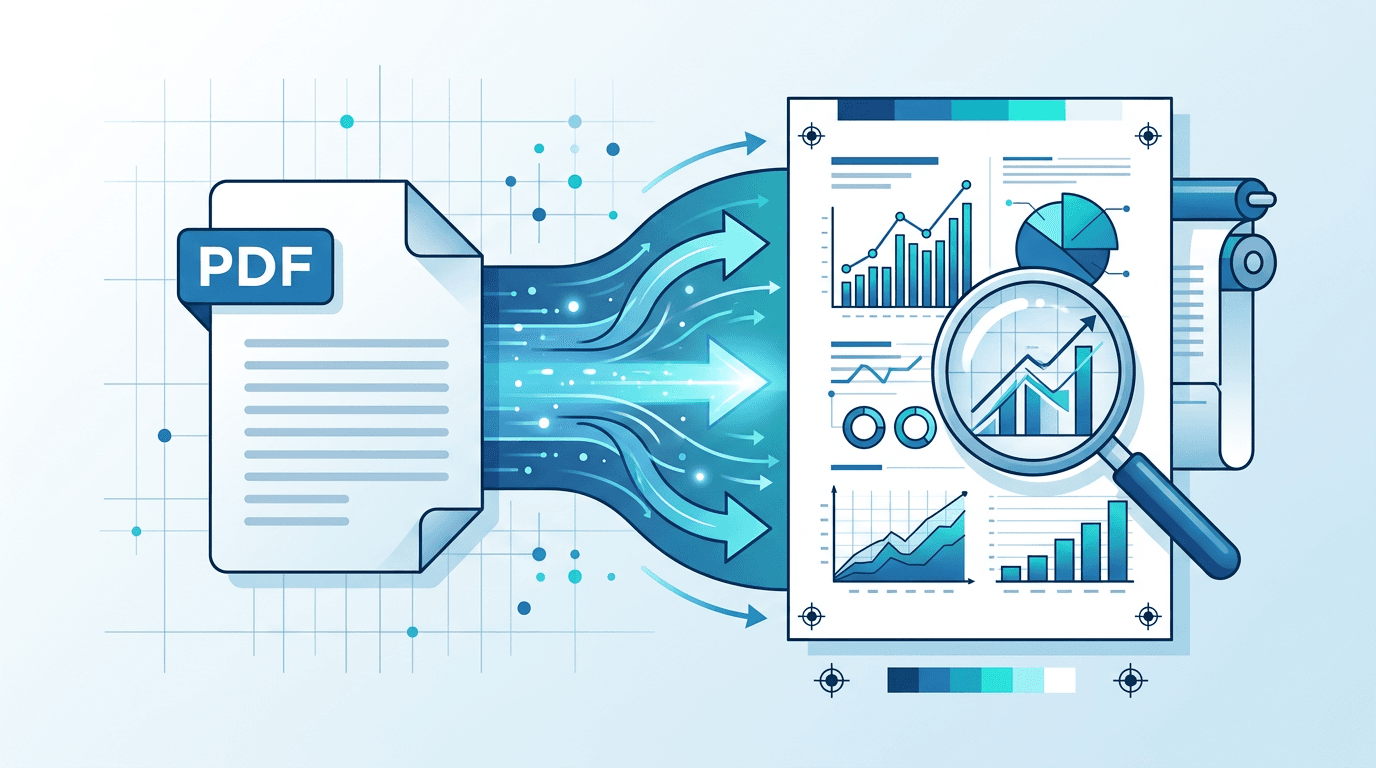
Need high resolution PNG images from your PDF documents? Whether for printing, professional presentations, or archiving, this guide shows you how to extract maximum quality PNG images from PDFs.
Understanding Resolution and DPI
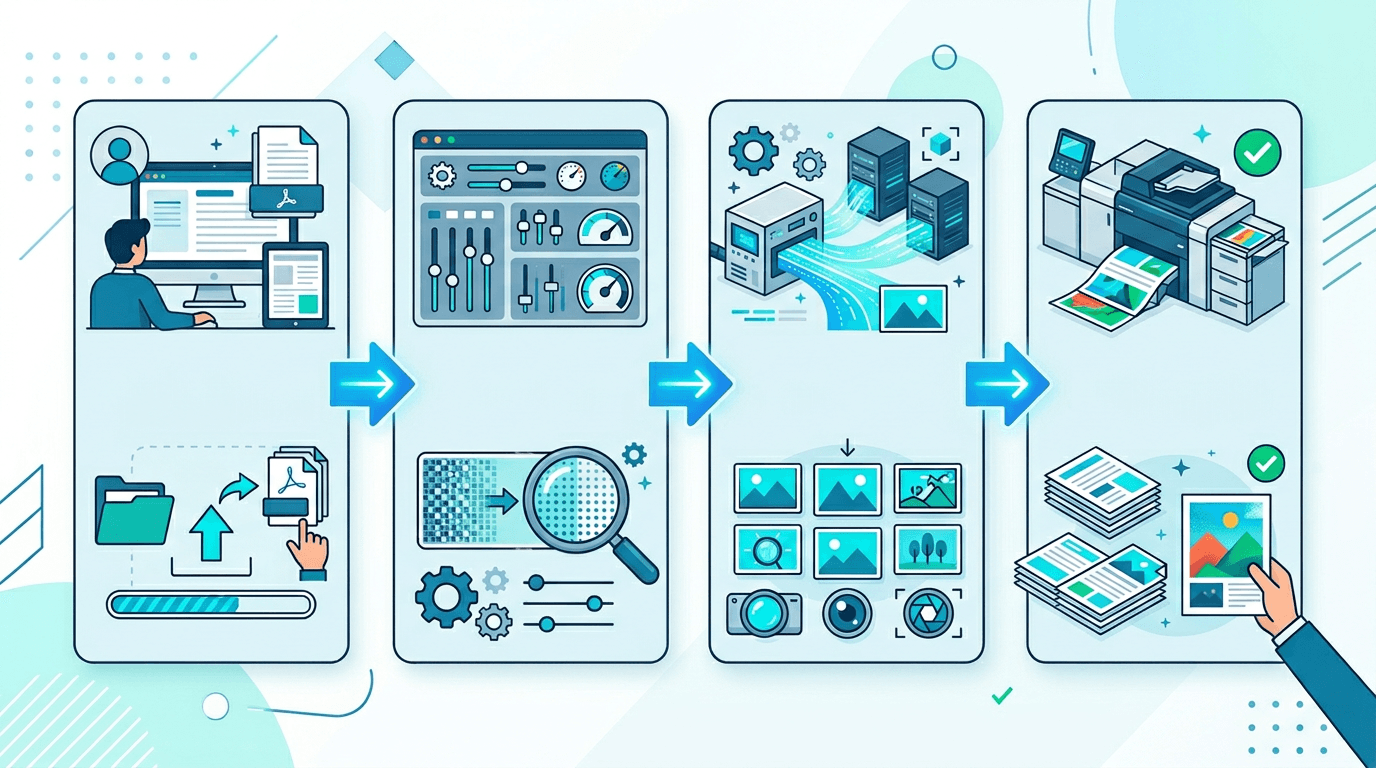
Resolution determines image quality and clarity:
- 72 DPI - Standard screen resolution
- 144 DPI - Good for presentations
- 216 DPI - Quality printing
- 288 DPI - Professional print quality (approaches 300 DPI)
Higher DPI means more pixels, resulting in sharper images.
Why High Resolution Matters
For Printing
Print materials require at least 300 DPI for crisp, professional results.
For Zooming
High resolution images maintain clarity when zoomed.
For Archiving
Preserve maximum detail for future use.
For Editing
Higher resolution provides more flexibility for editing.
How to Convert PDF to High Resolution PNG
Step 1: Open the Converter
Visit our PDF to PNG converter to start.
Step 2: Upload Your PDF
Select your PDF document. Higher quality source PDFs produce better results.
Step 3: Select Maximum Resolution
Choose 4x resolution for highest quality output:
- 1x = 72 DPI
- 2x = 144 DPI
- 3x = 216 DPI
- 4x = 288 DPI (recommended for print)
Step 4: Convert and Download
Process your PDF and download high resolution PNG files.
Resolution Comparison
| Setting | Dimensions (Letter Page) | File Size | Quality |
|---|---|---|---|
| 1x | 612 × 792 px | Small | Basic |
| 2x | 1224 × 1584 px | Medium | Good |
| 3x | 1836 × 2376 px | Large | Excellent |
| 4x | 2448 × 3168 px | Largest | Maximum |
Best Practices for High Resolution
Match Resolution to Purpose
- Web: 1x or 2x is sufficient
- Presentations: 2x works well
- Print: Use 3x or 4x
Consider File Size
High resolution PNG files can be large. Ensure adequate storage.
Verify Source Quality
Output quality depends on input. Use high-quality PDFs for best results.
Use PNG for Text
PNG's lossless compression preserves text clarity at any resolution.
Use Cases for High Resolution PNG
Print Materials
Create print-ready images for brochures, posters, and publications.
Large Displays
Prepare images for large screens or wall displays.
Professional Archives
Maintain maximum quality for long-term document storage.
Design Projects
Extract high-quality elements for graphic design work.
Optimizing High Resolution Output
Check Color Space
Ensure colors match your intended output (screen vs. print).
Verify Text Clarity
Zoom to 100% to confirm text remains sharp.
Test Print Quality
Print a sample page to verify resolution meets requirements.
Balance Quality and Size
For web use, 2x resolution often provides the best balance.
Frequently Asked Questions
What's the maximum resolution available?
Our converter offers up to 4x (288 DPI), which approaches professional print quality.
Will high resolution make a blurry PDF sharp?
No, output quality depends on source quality. High resolution preserves existing detail but can't add detail that isn't there.
How large will the files be?
4x resolution files are approximately 16x larger than 1x. A single page might be 5-10 MB.
Can I print 4x resolution images?
Yes, 288 DPI is suitable for most professional printing needs.
Is PNG better than TIFF for high resolution?
Both preserve quality. PNG offers good compression, while TIFF is traditional for print workflows.
Conclusion
Converting PDF to high resolution PNG ensures your images are ready for printing and professional use. Use our PDF to PNG converter with maximum resolution settings for best results.
Convert PDF to High Resolution PNG →
Related tools: PDF to Image | Image Resizer | PDF to JPG