
PDF to PNG Backgrounds: What Happens to Transparency?
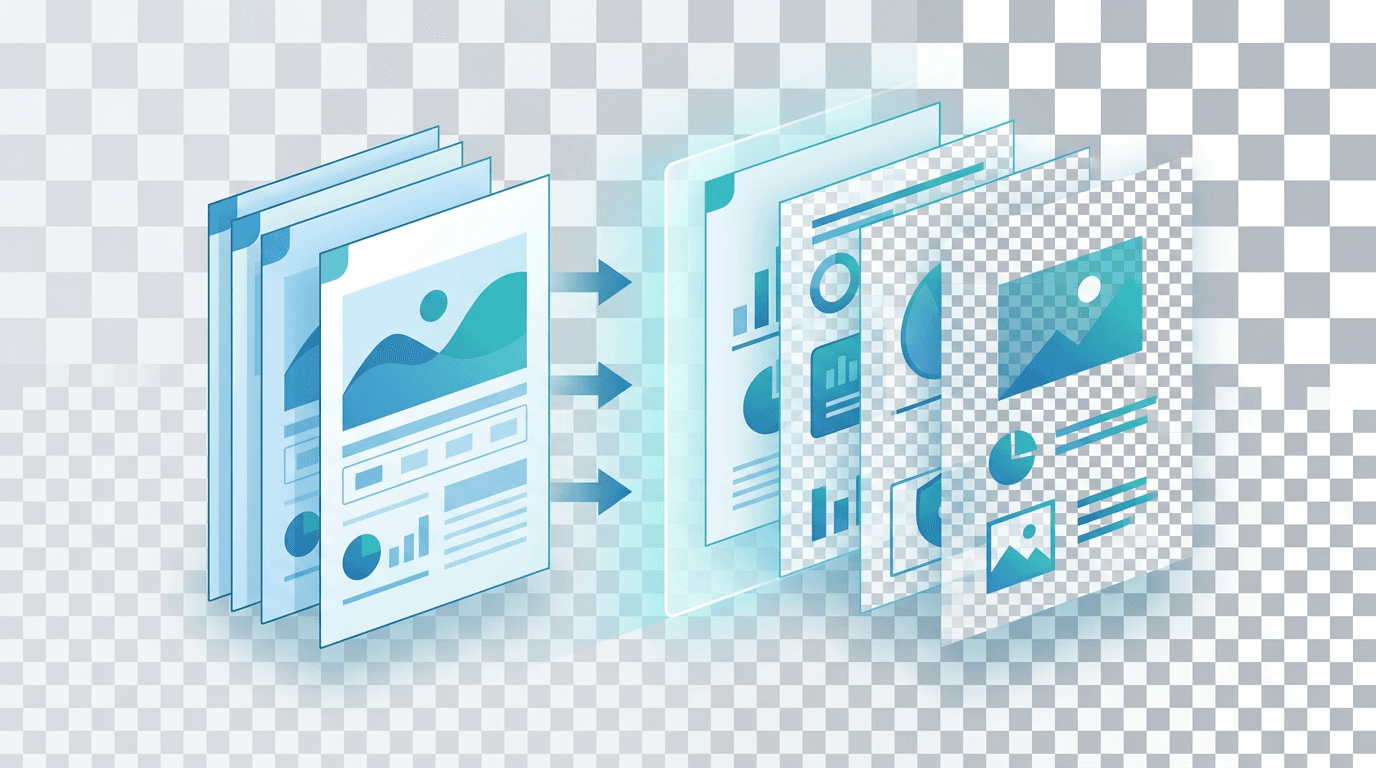
PNG can store transparency, but that does not mean every PDF-to-PNG workflow preserves it. The current PDF to PNG tool renders complete pages onto an opaque page background. It does not export transparent page cutouts or offer an alpha-preservation switch.
Understanding PDF Transparency
PDF is a sophisticated format that supports multiple types of transparency:
- Transparent backgrounds — content without any solid color behind it (the page itself has no fill)
- Semi-transparent objects — graphics, images, or text with partial opacity
- Alpha channels — pixel-level control over opacity, from fully transparent (0%) to fully opaque (100%)
- Layered content — overlapping elements where the transparency of upper layers reveals lower layers
Whether this transparency carries over to your PNG output depends on whether it actually exists in the PDF, and whether your conversion tool preserves it correctly.
Format capabilities and the actual PNG output
PNG is useful for a transparent asset because it can store alpha values as well as color, and its compression is lossless. This is a capability of the format. The current PDF renderer still produces opaque pixels, so choosing PNG does not make its background transparent.
| Format | Transparency | Encoding considerations |
|---|---|---|
| PNG | Can store full alpha | Lossless compression; useful for graphics and text |
| JPG | No alpha channel | Lossy encoding; needs an opaque background |
| WebP | Can store full alpha | Lossy or lossless depending on the encoder |
| GIF | On/off transparency per frame | Limited color palette; smooth opacity is not retained |
| TIFF | Depends on channels and workflow | Encoding and downstream support must be checked |
An 8-bit alpha channel has 256 opacity levels. A PNG without alpha is still a valid PNG. Check the actual output instead of treating the extension as evidence that transparency survived.
What the download contains
Each selected page becomes one static PNG, including its text, images and page background. One page downloads as a PNG; several pages arrive as separate PNGs in a ZIP. The converter does not extract an embedded logo or vector object as a separate asset.
Convert pages with the available controls
- Choose one unencrypted PDF up to 50 MB and 50 pages.
- Select all pages, the first page or a range such as
1,3,5-8. - Keep PNG selected as the output format for this workflow.
- Choose 1×, 1.5×, 2×, 3× or 4× resolution. The default is 2×; 4× corresponds to 288 DPI at the original page size.
- Convert and download the PNG or ZIP from the results list.
The linked converter preselects PNG and also offers JPG, WebP and TIFF. Keep PNG selected for this workflow. There is no transparency or PNG compression selector. Output is limited to 8192 px per side, 40 million pixels per page and 250 million pixels across selected pages.
Common PDF transparency scenarios
Vector graphics and logos
A vector logo inside a PDF can have clean edges when rendered at a suitable scale, but the downloaded page combines it with the page background. If you need an editable logo or its original transparency, ask for the source SVG or transparent PNG. Cropping a page selects a region; it does not separate the logo from other objects in that region.
Illustrations and design elements
PDF illustrations may combine images, paths, masks and opacity effects. The PNG records their rendered appearance as one raster image. Text and paths stop being independently editable, and a shadow already blended with white does not become a reusable transparent shadow.
Watermarks and overlays
A watermark at partial opacity is composited with what lies below it during rendering. It may still look faint in the PNG, but that appearance is not evidence that the exported pixels have partial alpha. Moving the whole PNG over a different background will not recreate the original layering.
Document pages and scans
An opaque page image is useful for previews, reference sheets and screenshots. A white output does not prove that the PDF contained a white rectangle. For scans, increasing the output dimensions cannot reconstruct missing characters or remove compression damage.
If you need a transparent logo or graphic
Prefer the original transparent PNG or SVG from the designer. A PDF page image has already combined the artwork with its rendered background.
If only the PDF is available, render the page, crop the desired region with Image Cropper, then try Transparent Background Maker. Background removal is a new editing operation. It may remove pale details, leave halos or alter soft edges, so inspect the PNG on light and dark backgrounds.
Transparency issues and solutions
The page is white where I expected transparency
This is expected from the current opaque page-rendering workflow. Increasing the resolution or choosing another viewer will not create alpha data. Obtain the original asset or remove the background in a separate editing step.
A cutout has white fringes or missing pale details
If this happens after background removal, compare the cutout over dark and light colors. Pale logos, fine lettering and soft shadows can be mistaken for background. Work from the original where possible, or refine a mask in an editor with manual controls. Repeated automatic removal may damage more of the subject.
Black or unusual colors appear in another application
First identify which file you are viewing: the opaque PDF render or a later edited cutout. Compare the same file in a second viewer and inspect its actual transparency in an image editor. A viewer background is different from black pixels baked into the image. Changing viewers can help diagnosis, but cannot recover missing alpha.
The PNG is too large
Measure the actual download. Page dimensions, detail and compression affect size; no fixed percentage reduction applies. Convert only needed pages and choose a suitable resolution. If a later editing tool has a smaller upload limit, make a resized copy while keeping the original render.
Use Cases for Transparent PNGs from PDFs
The uses below refer to a transparent asset obtained from the original artwork or from separate background removal and editing. They are not promises of direct alpha extraction by the PDF-to-PNG tool. Check the final asset on its actual destination background.
Logo Extraction
Extract logos from PDF brand documents for use across different backgrounds and contexts. A transparent logo PNG can be placed on:
- Dark backgrounds in presentations
- Colored website headers
- Printed materials with any background
- Digital marketing materials
Web Design Assets
Convert PDF design mockups or specifications to extract individual UI elements, icons, and graphics for implementation. Transparent backgrounds allow these elements to be placed directly into CSS/HTML without white boxes.
Print Design
When preparing layered print materials (brochures, posters, business cards), transparent PNG elements can be placed in InDesign, Illustrator, or other layout software with proper layering.
Presentation Assets
Extract clean graphics from PDF reports, presentations, or documentation to insert into PowerPoint or Keynote slides where they'll sit on a slide background.
Prepare and compare the result
Keep the source PDF and any original artwork. Start with one representative page, then compare fine lettering, gradients and soft edges at the intended display size. Increasing scale can improve vector sampling but also increases pixel count and memory needs. Use the same page and change one setting at a time.
For a transparent cutout, leave some space around the subject while cropping so fine edges are not removed. After background removal, compare on white, black and the actual destination color. Save intermediate copies so you can distinguish a rendering difference from a later mask-editing problem. Do not treat a checkerboard drawn into an image as proof of transparency.
What higher resolution can change
More pixels can improve the sampling of text and vector edges. It cannot reconstruct an alpha channel removed during rendering or restore detail missing from a scan. Keep the PDF and any original artwork.
Format alternatives
Keep SVG when you have the original vector asset and need editable paths or different output sizes. Use a transparent PNG for a raster master after editing. A separate WebP copy may suit a web destination that accepts it; measure the size and inspect edges rather than assuming a fixed saving. For print, use the format and color workflow requested by the print service. None of these alternatives reconstructs transparency already flattened into a page image.
FAQ
Does a white PNG prove the PDF had a white rectangle?
No. The page rendering itself can supply the opaque background. A white result does not identify how the source artwork was built.
Can a different viewer restore transparency?
No. A viewer cannot recover alpha data absent from the downloaded image.
Will background removal recreate the original vector logo?
No. It produces an edited raster cutout. Obtain the source vector when exact paths, lettering or brand colors matter.
More tools for your next image task
Explore ImgConvert tools for conversion, PDF files, and GIFs.
- Image converters
- PDF tools
- GIF tools