
Convert PDF to High-Quality Images: The Complete Resolution Settings Guide
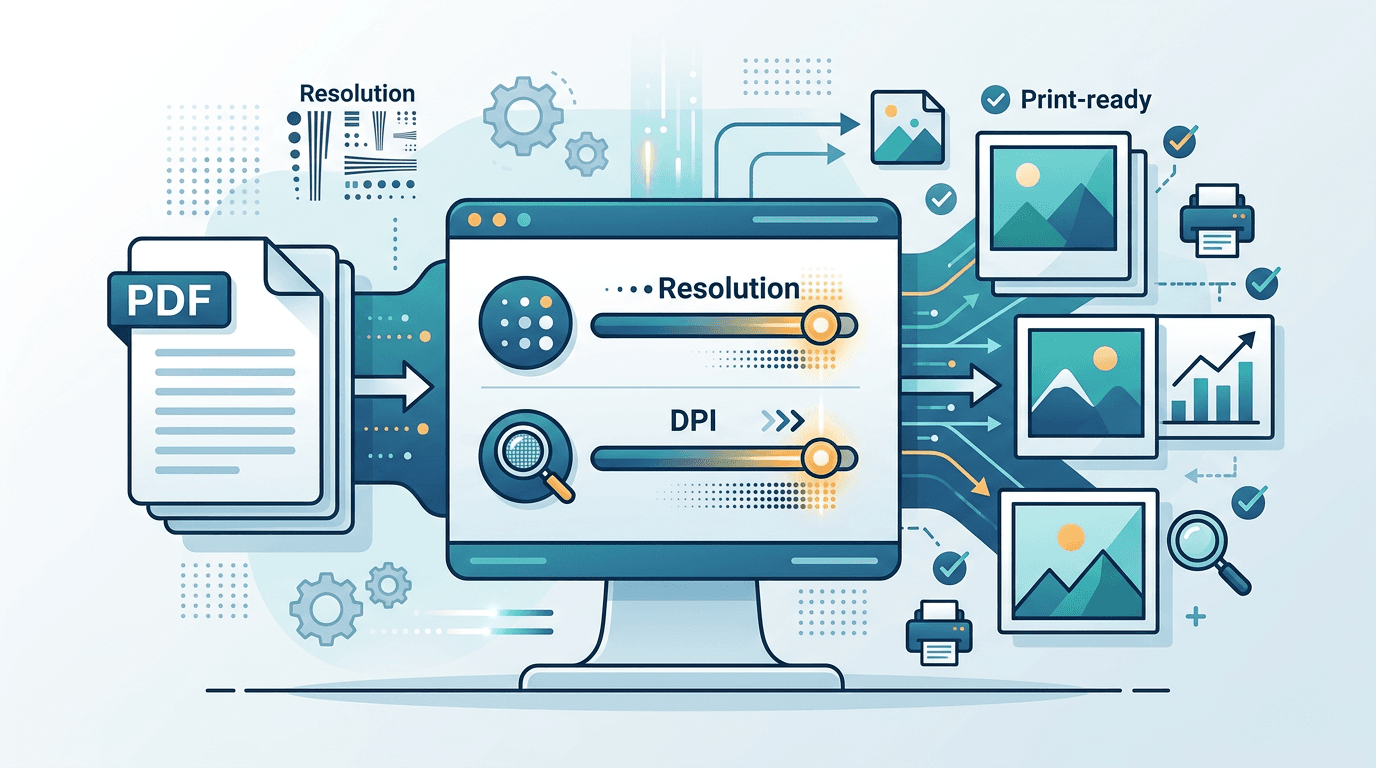
The PDF to Image tool offers rendering scales up to 4×, shown as 288 DPI relative to the original PDF page size. It does not offer an exact 300 DPI preset, and increasing the scale cannot restore detail missing from a scan. This guide explains the available controls and how to check the output for your intended use.
Understanding PDF to Image Quality
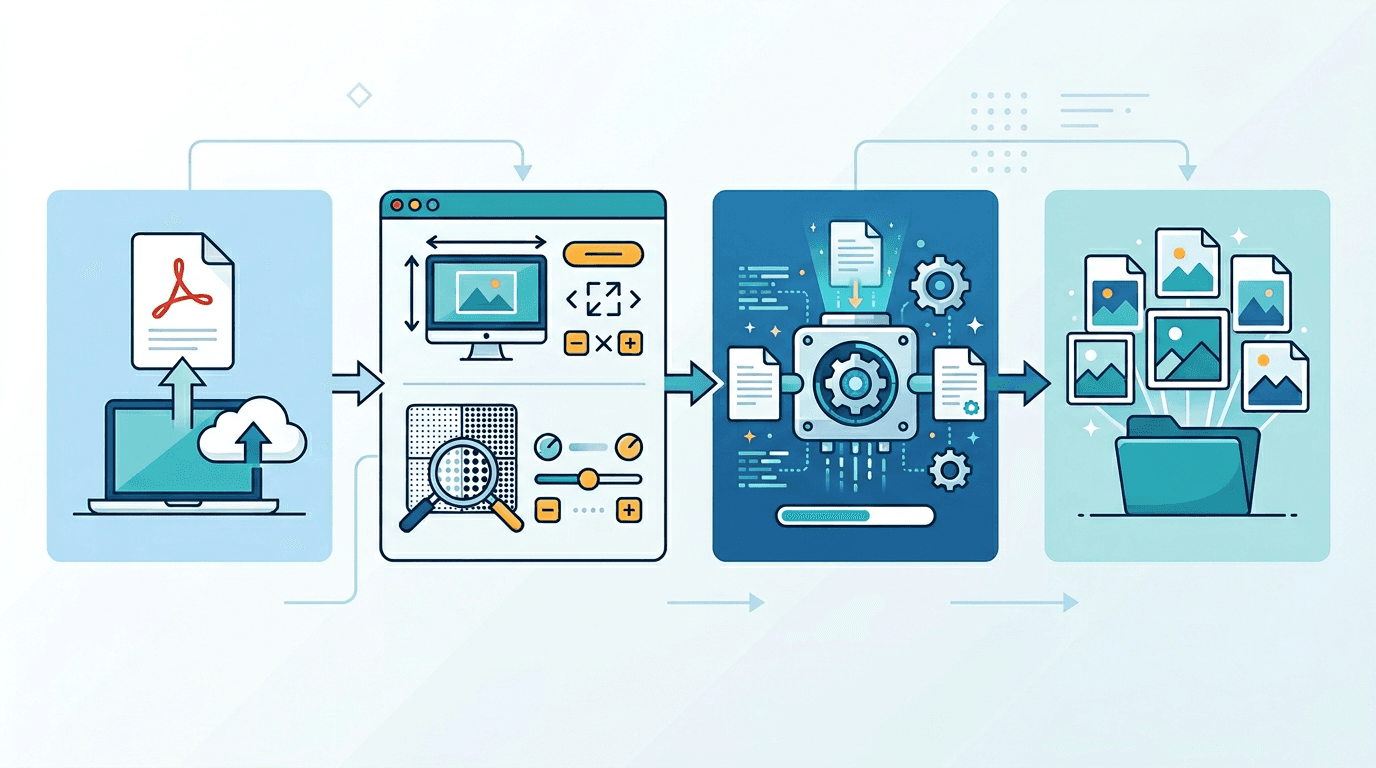
Output depends on the source PDF, rendering scale, and chosen image format. A larger scale gives more output pixels, but it does not make a low-resolution scan more detailed. Keep the original PDF, especially for vector content or future printing.
Doubling the scale quadruples the pixel count for the same page. Encoded file size does not follow a fixed multiplier: compression and page content also matter.
Resolution Settings Explained
| Scale | Density shown in the interface |
|---|---|
| 1× | 72 DPI |
| 1.5× | 108 DPI |
| 2× | 144 DPI |
| 3× | 216 DPI |
| 4× | 288 DPI |
These values describe rendering relative to the PDF's original page size. 4× is 288 DPI, not 300 DPI; 3× is 216 DPI. Neither guarantees print-ready output. Required pixel dimensions depend on the final print size and the printer's requirements. If exactly 300 DPI is required, use a workflow that supports that target and verify the resulting dimensions and print settings.
How to Convert PDF to High-Quality Images
- Open the PDF to Image tool and select a PDF.
- Choose all pages or the available page-range option.
- Select PNG, JPG, WebP, or TIFF. These are the formats in this page's menu.
- Choose 1×, 1.5×, 2×, 3×, or 4× according to the needed output size. The maximum is 4× (288 DPI at the original page size).
- Convert and download the results, then inspect text, images, and page edges at the intended display or print size.
More pixels may increase processing and memory requirements. A high scale alone does not guarantee sharp text, correct color, or suitability for professional printing.
Format Selection Guide
| Available format | What to consider |
|---|---|
| PNG | Lossless encoding of the rendered pixels; useful when avoiding additional lossy artifacts |
| JPG | Lossy encoding; compare the quality setting and inspect text and edges |
| WebP | Compare quality, size, and support in the intended viewer |
| TIFF | Per-page raster images with LZW compression; check that the destination accepts TIFF |
None of these formats recovers source detail or preserves the PDF’s editable vectors. TIFF is also available as a per-page raster output with LZW compression.
Quality Comparison by Format
Separate the rendering step from image encoding. PNG can preserve rendered pixels without lossy compression, but those pixels still depend on the source PDF and selected scale. JPG and WebP settings can introduce further changes.
Compare the downloaded result with the original; there is no universal ranking that guarantees perfect text, color, or a particular file size.
Best Practices for High-Quality Conversion
- Check the source PDF before conversion; seek a better scan if important details are already blurred.
- Test a representative page at the intended output size.
- Keep the original PDF for editing, archiving, or printing workflows that require vectors.
- Ask the print provider for required dimensions and resolution. Do not substitute 216 or 288 DPI for an exact 300 DPI requirement.
- Compare file size and readability before converting a long document.
Common Quality Issues and Solutions
Text or graphics look blurred
Try a higher available scale and compare PNG if lossy artifacts are visible. If the source lacks detail, increasing the scale will not recover it.
Files are too large
Try a lower scale or another available format and inspect the result. File-size savings are not fixed.
Colors differ
Compare the source and output in the intended viewing or printing workflow. Scale and format settings do not guarantee identical color reproduction.
Frequently Asked Questions
Does the tool output exactly 300 DPI?
No. The maximum preset is 4×, labeled 288 DPI relative to the original page size. There is no 300 DPI preset.
Will 4× make every PDF print-ready?
No. Results depend on source detail, final print size, color handling, and the print provider's requirements. Verify the output instead of assuming a resolution label is sufficient.
Can I improve a low-resolution scan by increasing the scale?
You can create more output pixels, but this does not restore detail absent from the scan. Use a higher-quality source where possible.
Which format should I choose?
PNG and LZW-compressed TIFF avoid additional lossy encoding of the rendered pixels. JPG or WebP may suit other size and compatibility needs. Compare actual results.
Does doubling the scale quadruple the file size?
It quadruples the pixel count for the same page, not necessarily the encoded file size. Format, settings, and content affect the bytes.
Summary
Use the PDF to Image converter with its actual 1×–4× presets, up to 288 DPI at the original page size. Choose among PNG, JPG, WebP, and TIFF, then verify the result. Preserve the source PDF and do not assume that a higher scale guarantees 300 DPI or professional print quality.
Related tools: PDF to PNG | Image Resizer | Image Compressor
More tools for your next image task
Explore ImgConvert tools for conversion, PDF files, and GIFs.
- Image converters
- PDF tools
- GIF tools