
How to Convert JPG to WebP: The Complete Guide to Better Web Images

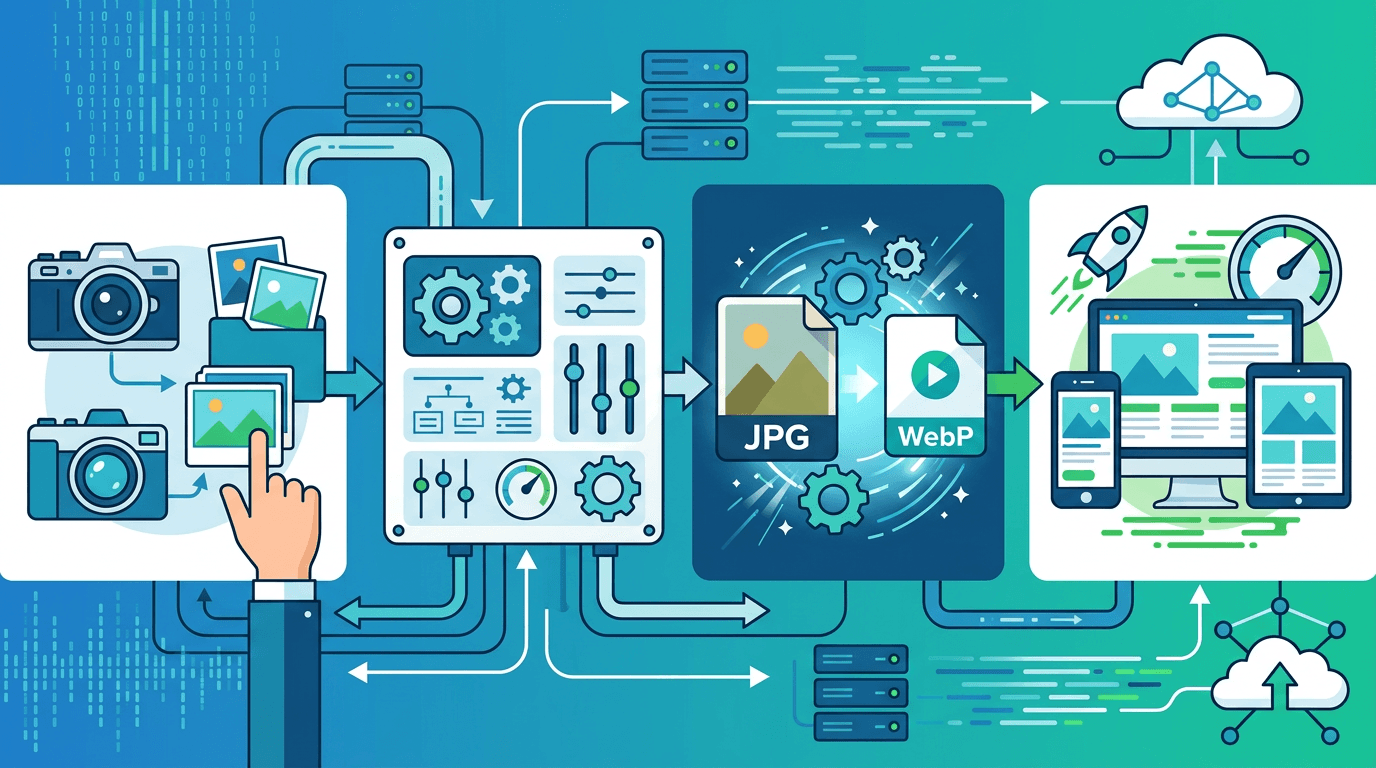
WebP has been around since 2010, but it's only in recent years that it's become the smart default choice for web images. Converting your JPG images to WebP consistently delivers 25-35% smaller files at the same visual quality — a straightforward win for any website that cares about loading speed.
This guide explains exactly how to convert JPG to WebP, when it makes sense to do so, and how to implement it correctly on your website.
Why Convert JPG to WebP?
Significant File Size Reduction
The numbers speak for themselves. At equivalent visual quality, WebP consistently produces smaller files than JPG:
| Quality Level | JPG Size | WebP Size | Savings |
|---|---|---|---|
| High (quality 90) | 400 KB | 280 KB | 30% |
| Medium (quality 80) | 200 KB | 140 KB | 30% |
| Lower (quality 70) | 120 KB | 85 KB | 29% |
These aren't cherry-picked numbers — the ~30% savings is remarkably consistent across different image content and quality levels.
Better Quality at the Same File Size
The comparison above shows equal quality producing smaller files. Flip the comparison: at the same file size, WebP actually produces better visual quality than JPG:
- Fewer visible compression artifacts around edges
- Better handling of fine textures and gradients
- Cleaner color reproduction in mid-tones
- Less blockiness in areas with flat colors
Faster Websites and Better SEO
Every kilobyte removed from your pages translates to faster loading. For websites with many images, converting to WebP can:
- Reduce total page weight by 20-40%
- Improve Largest Contentful Paint (LCP) scores
- Lower Time to First Contentful Paint
- Directly improve Core Web Vitals — which Google uses as a ranking factor
How to Convert JPG to WebP
Using Our Online Converter
The simplest approach for individual files or small batches:
- Go to our JPG to WebP converter
- Upload your JPG file (drag and drop or click to browse)
- Select your quality setting
- Click convert and download the WebP file
Choosing the Right Quality Setting
| Quality Setting | Best Use Case |
|---|---|
| 90–100 | Archival, high-quality showcase images |
| 75–85 | Standard web images (recommended for most uses) |
| 60–70 | Thumbnails, preview images, background textures |
For most web use cases, quality 75-80 is the sweet spot. It produces noticeably smaller files without any visible quality difference at typical viewing distances and screen sizes.
Browser Support for WebP
WebP is now supported across all major browsers, making it safe to use without complex fallback strategies:
| Browser | WebP Support Since |
|---|---|
| Chrome | Version 17 (2012) |
| Firefox | Version 65 (2019) |
| Safari | Version 14 (2020) |
| Edge | Version 18 (2018) |
| iOS Safari | iOS 14 (2020) |
| Android Chrome | Version 25+ |
Global browser coverage: 97%+
The 3% that don't support WebP are primarily older iOS devices (pre-iOS 14) and Internet Explorer. For modern websites targeting current users, the fallback handling is minimal.
Implementing WebP on Your Website
Method 1: HTML Picture Element (Best Practice)
The <picture> element tells the browser to use WebP if supported, and fall back to JPG if not — automatically, without JavaScript:
<picture>
  <source srcset="image.webp" type="image/webp">
  <source srcset="image.jpg" type="image/jpeg">
  <img src="image.jpg" alt="Description">
</picture>
The browser tries each <source> in order. If it can display WebP, it uses the first one. Otherwise it moves to JPG. The <img> tag provides the ultimate fallback and is also what screen readers and crawlers use.
Method 2: Direct WebP (Modern Sites Only)
If you're confident your audience is on modern browsers (97%+ of users), you can simply use WebP directly:
<img src="image.webp" alt="Description">
This is appropriate for modern web applications, dashboards, and sites where you know your audience uses current browsers.
Method 3: CSS Background Images
For WebP background images, use the @supports approach or serve WebP via your backend/CDN:
.hero-section {
  background-image: url('hero.jpg'); /* fallback */
}

@supports (background-image: url('test.webp')) {
  .hero-section {
    background-image: url('hero.webp');
  }
}
Method 4: Server-Side Content Negotiation
Many web servers can automatically serve WebP to browsers that support it, based on the Accept header. If your server is configured for this, you only need to have both file versions available and the server handles the rest.
Real-World Compression Results
Here's how JPG and WebP compare on actual photographs at different quality settings (1920×1080 images):
| Format | Quality | File Size | PSNR (Quality Metric) |
|---|---|---|---|
| JPG | 85 | 380 KB | 42.3 dB |
| WebP | 85 | 265 KB | 42.5 dB |
| JPG | 75 | 240 KB | 40.1 dB |
| WebP | 75 | 170 KB | 40.8 dB |
Notice that WebP at quality 85 is smaller than JPG at quality 85, AND has a slightly higher PSNR (objective quality metric). WebP wins on both size and quality simultaneously.
Batch Converting Multiple JPGs to WebP
For converting multiple images at once:
- Upload all JPG files to our converter
- Set a uniform quality level for the batch
- Convert everything together
- Download all converted files as a single ZIP
This is the recommended approach for:
- Website migrations (converting your entire image library)
- Processing new batches of product photos
- Preparing image assets before deployment
Quality vs. File Size Trade-Off
Finding the Optimal Quality
The relationship between quality and file size isn't linear — gains become smaller at very high quality settings:
| Quality Setting | Typical Size vs. Q100 | Visual Difference from Q100 |
|---|---|---|
| Quality 100 | 100% (baseline) | Perfect |
| Quality 90 | 60-70% of baseline | Imperceptible |
| Quality 80 | 40-50% of baseline | Imperceptible |
| Quality 75 | 30-40% of baseline | Barely noticeable |
| Quality 70 | 25-35% of baseline | Slight in close inspection |
The sweet spot for web delivery is generally 75-80, which cuts file size dramatically while keeping quality invisible to viewers looking at a screen.
Content-Specific Recommendations
| Image Type | Recommended Quality | Rationale |
|---|---|---|
| Above-fold hero images | 80–85 | High visibility, quality impression matters |
| Product photos | 75–80 | Balance between quality perception and load speed |
| Blog post images | 70–80 | Supporting content, speed matters more |
| Thumbnails | 60–70 | Small display, less quality sensitivity |
Performance Impact on Real Websites
The Math for a Typical E-Commerce Site
If your product pages have 20 images averaging 300KB each in JPG format:
- Before WebP: 6MB of images per page
- After WebP (quality 80): ~4.2MB of images per page
- Savings: 1.8MB per page load
For a site with 1,000 daily visitors each viewing 5 product pages, that's:
- ~9GB of daily bandwidth savings
- Meaningful reduction in hosting/CDN costs
- Faster pages across the board
Core Web Vitals Improvement
Google's Core Web Vitals are directly affected by image loading:
- LCP (Largest Contentful Paint): Often the hero image or large product photo. WebP's smaller size loads it faster.
- CLS (Cumulative Layout Shift): No direct impact, but faster loading images reduce the window for layout shifts.
- FID/INP: Smaller images free up bandwidth for critical page scripts.
Troubleshooting Common Issues
WebP Images Not Displaying in Older Browsers
Problem: Some users see broken image icons
Cause: Very old browsers (IE, pre-2020 Safari) don't support WebP
Fix: Implement the <picture> element with a JPG fallback (as shown in the implementation section)
Colors Look Different After Converting
Problem: The converted WebP has slightly different colors than the original JPG Cause: Color profile handling differences during conversion Fix: Ensure source images are in sRGB color space before converting. Convert embedded color profiles to sRGB.
File Size Didn't Decrease Much
Problem: The WebP is only slightly smaller than the original JPG, or even larger Possible causes:
- The source JPG was already highly compressed (low quality JPG)
- Quality setting is too high (try lowering to 75-80)
- Image content has characteristics that JPG handles well (very simple, flat images)
Fix: Try reducing the quality setting. If the JPG is already very compressed, further gains are limited.
Loading Times Didn't Improve
Problem: Switching to WebP didn't noticeably speed up page loading Possible causes:
- Other assets (JavaScript, CSS) are the actual bottleneck
- CDN caching means old JPG files were already being served fast
- Images weren't the actual performance problem
Approach: Use browser DevTools to identify where time is actually being spent.
WebP vs JPG: Technical Deep Dive
Compression Algorithm Differences
| Aspect | JPG | WebP |
|---|---|---|
| Base algorithm | DCT (discrete cosine transform) | DCT + predictive coding |
| Color space | YCbCr | YCbCr |
| Maximum dimensions | 65,535 × 65,535 | 16,383 × 16,383 |
| Animation support | No | Yes |
| Lossless mode | No | Yes |
| Transparency (alpha) | No | Yes |
WebP's predictive coding analyzes blocks of the image and predicts the content of each block based on neighboring areas. This prediction step — combined with DCT for the prediction residuals — is why WebP achieves better compression than JPG's pure DCT approach.
When WebP Wins Clearly
- Any image that would previously be served as a JPG
- Photographs of real-world scenes (people, landscapes, products)
- Images that need to be fast-loading on mobile
- High-volume websites where bandwidth costs matter
When to Keep JPG
- Universal compatibility needed: Older printers, some enterprise software, email clients
- Printing workflows: Many professional print services still prefer JPG
- Very old software integration: Some CMS plugins may not handle WebP well
- If you're not serving via web: JPG is fine for storage, archiving, sharing files offline
Advanced WebP Options
Lossy vs. Lossless WebP
WebP supports both modes, unlike JPG which is always lossy:
- Lossy WebP (default): Best for photographs. Produces much smaller files.
- Lossless WebP: Best for graphics, screenshots, images with text. Lossless but smaller than PNG.
For JPG conversions, lossy WebP is almost always the right choice. You're already working with data that has been through lossy compression, so lossless WebP doesn't add quality — it just produces larger files.
Near-Lossless Mode
WebP offers a "near-lossless" encoding option that applies only very slight, nearly invisible quality changes while still achieving significant size reduction compared to lossless. This is useful when you need to minimize visual changes but still want smaller files than true lossless.
Frequently Asked Questions
Is WebP quality worse than JPG?
No — at the same file size, WebP quality is actually better than JPG. At the same quality setting, WebP produces smaller files. WebP is strictly better than JPG for web delivery in every measurable way.
Is WebP supported everywhere?
97%+ of global browser traffic supports WebP. Using a <picture> element with a JPG fallback gives you 100% compatibility while still serving WebP to those who can use it.
How much smaller will my images be?
Expect approximately 25-35% smaller files at equivalent visual quality. Results vary by image content — photographs with complex detail typically compress better than very flat or simple images.
Should I convert all my JPGs to WebP?
For web delivery, yes — it's one of the highest-ROI optimizations available. Keep original JPG files for editing and archival. Use WebP for everything you serve from your website.
Can I convert back from WebP to JPG?
Yes, but avoid doing so unless necessary. Converting from WebP (lossy) to JPG (lossy) compounds quality loss. Use WebP for delivery and keep JPG as your master file.
Does WebP affect SEO?
Positively. WebP images load faster, which improves Core Web Vitals scores. Google uses Core Web Vitals as a ranking factor. Additionally, Google Image Search indexes WebP images normally.
Summary
Converting JPG to WebP is one of the most impactful and easiest performance optimizations you can make for a website. The combination of 25-35% smaller files, equal or better visual quality, and near-universal browser support makes it a straightforward choice.
The implementation is simple: convert your JPGs using our online converter, implement the <picture> element with a JPG fallback, and enjoy faster pages.
Related tools: Image Compressor | WebP to JPG | AVIF Converter