
JPG to GIF Converter: How to Create Animated GIFs from JPEG Photos
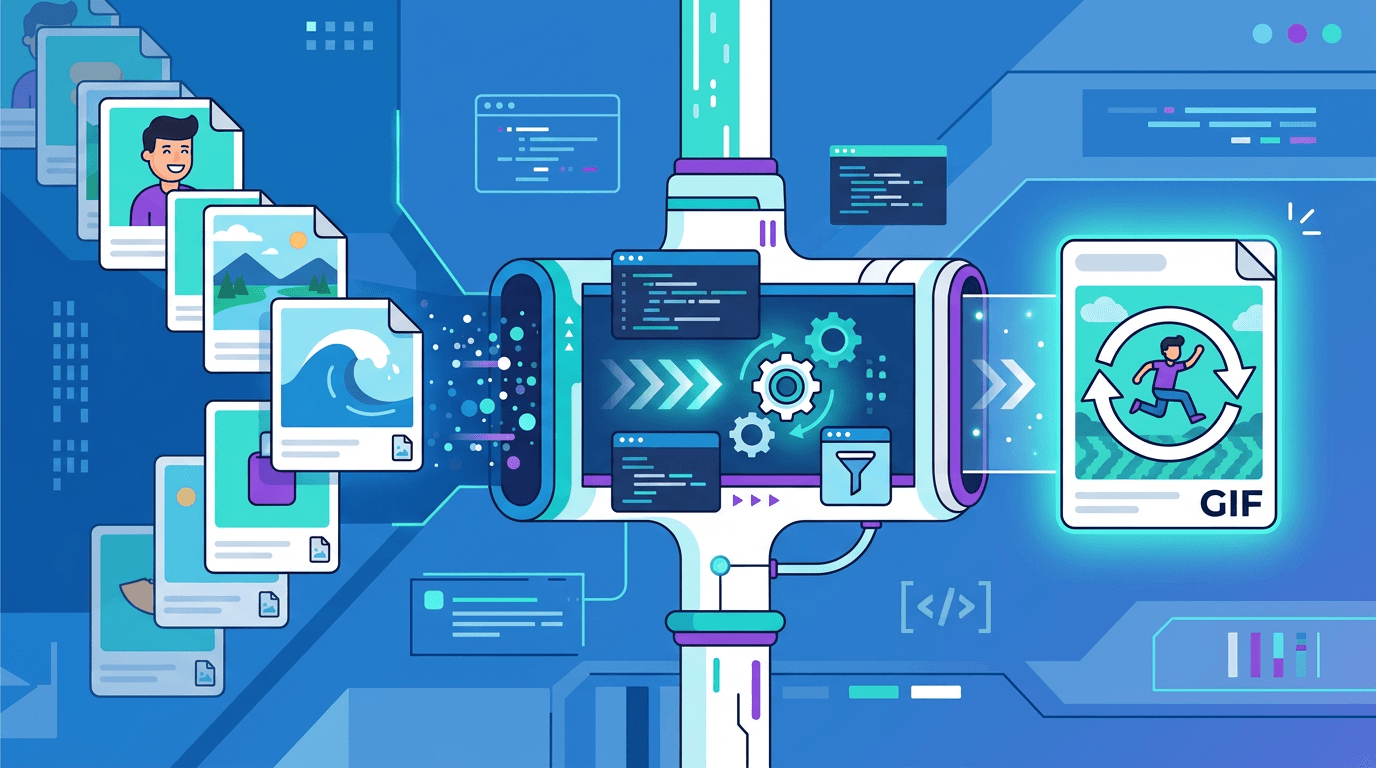
Turning your JPG photos into animated GIFs is one of the most creative things you can do with still images. Whether you're building a product showcase, creating a photo slideshow, or making something fun to share on social media, converting JPG to GIF opens up a world of possibilities that a static image simply can't provide.
This guide walks you through everything you need to know about converting JPG images to animated GIFs — including the tools, techniques, and tips that make the difference between a mediocre animation and one that looks great.
Why Convert JPG to GIF?
JPG (JPEG) is the most common format for photographs, but it only stores static images. By converting multiple JPG frames into a single GIF, you gain capabilities that no single photo can offer:
- Create animations from photo sequences — bring a series of moments to life
- Build automatic slideshows — let images cycle without any user interaction
- Showcase products from multiple angles — create 360° product views
- Share dynamic moments — capture motion from burst shots
- Grab attention on social media — animated content stops scrollers in their tracks
- Show transformations — before/after comparisons loop continuously
Understanding JPG vs GIF: Key Differences
Before you start converting, it helps to understand what each format does well:
| Feature | JPG | GIF |
|---|---|---|
| Animation | No | Yes |
| Transparency | No | Yes (1-bit) |
| Color depth | 16.7 million colors | Maximum 256 colors |
| Compression | Lossy | Lossless |
| Best for | Photographs | Animations and graphics |
| File size | Small to medium | Medium to large |
The critical trade-off: GIF supports animation and transparency, but is limited to 256 colors per frame. This means photographic images with subtle gradients and color variations will experience some quality reduction when converted to GIF. For cartoon-like content, simple graphics, and images with limited color variation, the result looks excellent. For photographs, expect some color banding.
How to Convert JPG to GIF Online
Our free GIF maker handles the entire process:
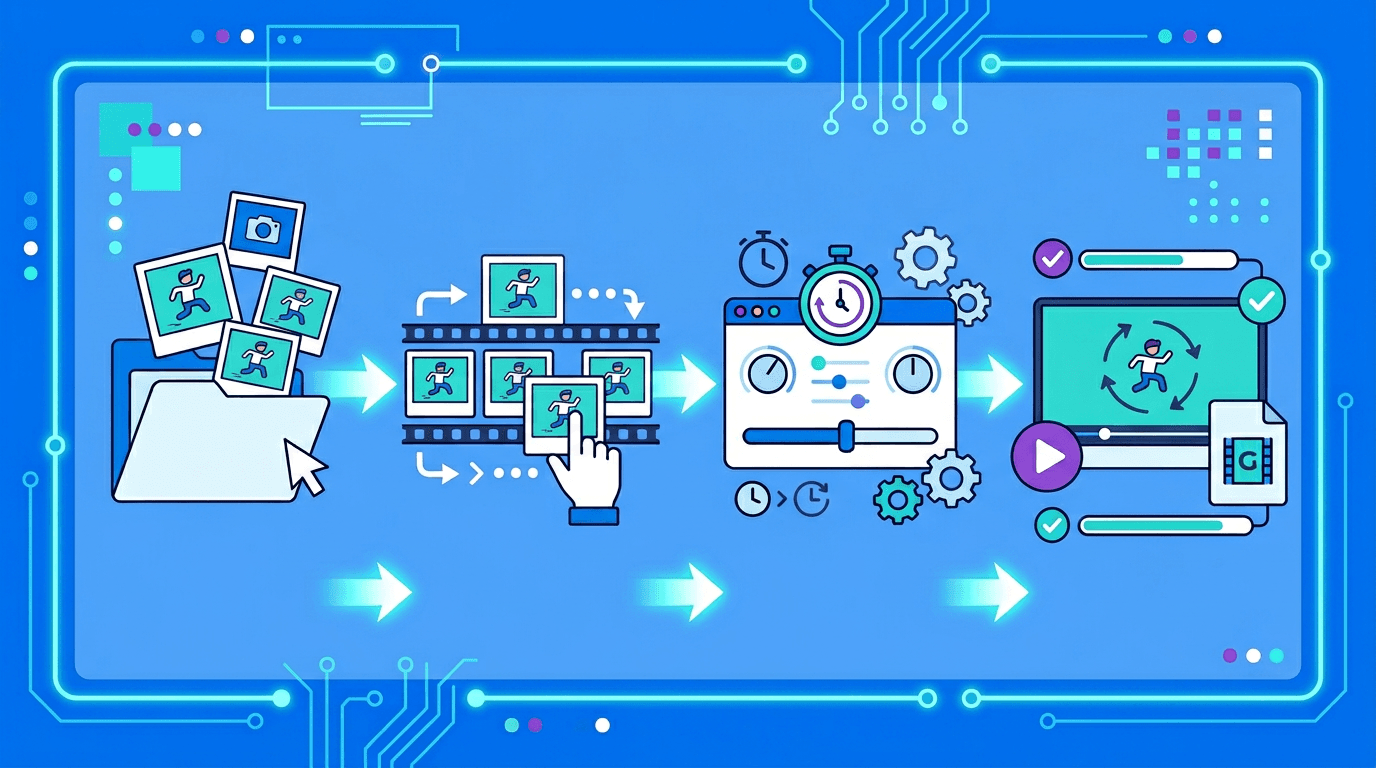
Step 1: Prepare Your JPG Images
Before uploading, take a moment to organize your photos:
- Select images that form a logical sequence or tell a story
- Use consistent image dimensions for the smoothest results
- Name files sequentially if you want them in a specific order (01.jpg, 02.jpg, etc.)
- Edit or crop images beforehand if needed — it's easier to adjust JPGs than individual GIF frames
Step 2: Upload Your JPG Files
Choose 2–50 JPG photos for one task. Each JPG supplies one frame; the task accepts at most 50 source files in total.
- Visit our GIF Maker
- Click the image selection area and choose your JPG files.
- Select multiple images at once
- Images appear in the order they were uploaded
Step 3: Arrange and Configure
Once uploaded, you have full control over the animation:
- Reorder frames by dragging them to the desired sequence
- Set frame delay to control how long each image displays
- Preview the animation before committing to conversion
Step 4: Create and Download
- Click "Create GIF"
- Wait for processing (typically a few seconds)
- Download your animated GIF file
Choosing the Right Frame Delay
Frame delay is one of the most important settings for a good-looking GIF. It controls how long each frame is displayed before advancing to the next one:
| Delay | Animation Speed | Best Use Cases |
|---|---|---|
| 50ms | Very fast | Action sequences, fast motion |
| 100ms | Fast | Smooth rotations, quick demos |
| 250ms | Medium | Product showcases, demonstrations |
| 500ms | Slow | Casual slideshows, step-by-step |
| 1000ms | Very slow | Reading content, text slides |
| 2000ms | Extremely slow | Before/after comparisons |
For most slideshows, 500ms to 1000ms works well. For product rotations, 100ms to 200ms creates a smooth spinning effect.
Creative Uses for JPG to GIF Conversion
Photo Slideshows
Turn vacation photos, event pictures, or any collection into an automatic slideshow:
- Use 500-1000ms frame delay for comfortable viewing
- Include 5-15 photos for optimal file size
- Great for sharing memories on messaging apps or embedding in websites
- Works excellently in email newsletters (always check client support)
Product 360° Views
Showcase products from every angle — one of the most powerful uses for GIFs in e-commerce:
- Photograph the product rotating in 10-15 degree increments
- Use 100-200ms delay for a smooth rotation effect
- 24-36 frames give a complete 360° rotation
- Helps customers understand product dimensions and design
Before and After Comparisons
Demonstrate transformations dramatically and effectively:
- Two images with a clear visible difference
- Use 1000-2000ms delay so viewers can compare each state
- Works for design changes, photo edits, home renovations, fitness progress
- The looping nature reinforces the transformation
Stop Motion Animation
Create charming handmade-feeling animations:
- Move objects slightly between each photo
- Use 100-200ms delay for smooth playback
- More frames = smoother, more professional-looking animation
- Great for product unboxing, food styling, or craft projects
Time-Lapse Effect
Compress hours or days of change into a short animation:
- Use photos taken at regular intervals (every few minutes or hours)
- Fast delay (50-100ms) condenses time effectively
- Excellent for showing weather changes, plant growth, construction progress
- Works best with a static camera position
Optimizing JPG Images Before Creating GIFs
The quality and size of your source JPG files directly impacts your GIF output. A little preparation goes a long way:
Recommended Image Specifications
| Aspect | Recommendation | Why |
|---|---|---|
| Width | 400-800px | Balances quality and file size |
| Aspect ratio | Consistent across all frames | Prevents jarring jumps |
| File size | Under 2MB per JPG | Keeps processing fast |
| Color palette | Fewer colors = smaller GIF | GIF's 256-color limit compresses better |
Tips for Better Results
Choose practical dimensions: Start near the intended display size. Larger frames can add bytes without helping a small on-page animation.
Keep lighting consistent: Uneven lighting between frames creates a "flickering" effect that looks unprofessional. If photographing objects for rotation, use consistent, fixed lighting.
Match dimensions exactly: If frame 1 is 800×600 and frame 2 is 790×605, the GIF will look strange. Make sure all JPGs have identical dimensions.
Simplify when possible: Images with solid areas, limited backgrounds, and fewer distinct colors compress better to GIF format and show less color banding.
Understanding GIF File Size
GIF size depends on image content, dimensions, frame count and encoding. A fixed number of JPGs does not predict the output bytes. Make a small sample, measure its download and inspect the palette. Smaller dimensions or fewer frames may help, but no percentage reduction is guaranteed. The maker fits frames on a white canvas; it does not preserve source transparency.
Common JPG to GIF Problems and Solutions
Color Banding in Gradients
Problem: Smooth gradients appear blocky or banded Cause: GIF can only use 256 colors per frame, so smooth color transitions are approximated Solution: Accept some quality reduction for photographic content, or avoid using GIF for images heavily dependent on smooth gradients. GIF works best for images with limited, flat color areas.
GIF File Too Large to Share
Problem: The resulting GIF exceeds platform limits or takes too long to load Solutions:
- Reduce image dimensions (this is the biggest lever)
- Use fewer frames
- Reduce the complexity of each image's colors
- Trim unnecessary frames from the beginning or end
Blurry Output
Problem: The GIF looks blurry or low-resolution Cause: Source JPG images were too small, causing the GIF to appear pixel-stretched at display size Solution: Use higher resolution source JPGs that match or exceed your intended display size
Wrong Frame Order
Problem: The animation plays in the wrong sequence Solution: Number your files sequentially before uploading (01.jpg, 02.jpg...) or use the drag-to-reorder feature after uploading to arrange frames correctly
GIF vs Video: When to Choose Which
GIF is useful for short silent animations where the destination accepts animated images. It uses a limited palette. Video is often more efficient for detailed or longer motion and can include audio. Playback, looping and upload support depend on the file and destination; neither format has a universal size advantage or guaranteed autoplay. Compare the actual exports for your use case.
Platform Compatibility and Size Limits
Check the receiving app’s current GIF, dimension and file-size requirements. Limits can vary by account and upload location. Play the downloaded file in the intended destination; a static preview does not prove animation support. Keep a copy of the source images for another export.
Batch Conversion Tips
Organize up to 50 JPGs for one GIF:
- Organize first — put all files in a dedicated folder with clean filenames
- Verify ordering — numbered names help identify frames; check the imported list and drag to reorder.
- Match sizes beforehand — resize all to the same dimensions before uploading
- Test with a small set — try 3-5 frames first to dial in your settings
- Iterate on quality — adjust delay and frame count based on output quality
Frequently Asked Questions
How many JPGs can I use?
Use 2–50 JPG photos. The tool accepts at most 50 source files and 2–240 animation frames in total, including frames imported from GIF files; 240 frames does not mean 240 JPG files. Each source must be no larger than 25 MB, and sources total at most 50 MB. Output width and height are each 50–1920 px, with width × height × frame count at most 60 million pixels. All limits apply together.
How do I set frame order?
Inspect the frame list after import and drag frames into order. Numbered filenames help you recognize the sequence but do not trigger automatic filename sorting.
Can I change timing and looping?
Yes. Set frame delays, apply a delay to all frames or edit individual delays. A loop count of 0 requests continuous looping; check playback in the destination.
Will the result preserve photo quality and transparency?
GIF palette conversion can lose color detail. The maker places frames on a white canvas, so source transparency is not retained. Inspect the downloaded animation rather than relying only on the source-frame preview.
Can I add text?
Add text to the JPGs in an editor before importing them. Text GIF Maker creates a separate text animation rather than captioning the imported photo sequence.
Summary
Converting JPG images to animated GIFs is a straightforward process with the right tool. Our GIF Maker handles everything from frame ordering to delay settings, and the results can be downloaded immediately with no watermarks.
Key things to remember:
- Use consistent image dimensions across all frames
- Choose appropriate frame delay for your content type
- Optimize source JPG sizes to control output file size
- Test on a few frames before committing to a full batch
Related tools: Image Resizer | Image Compressor | PNG to GIF
More tools for your next image task
Explore ImgConvert tools for conversion, PDF files, and GIFs.
- Image converters
- PDF tools
- GIF tools