
JPG to PNG Lossless Conversion: The Complete Quality Guide
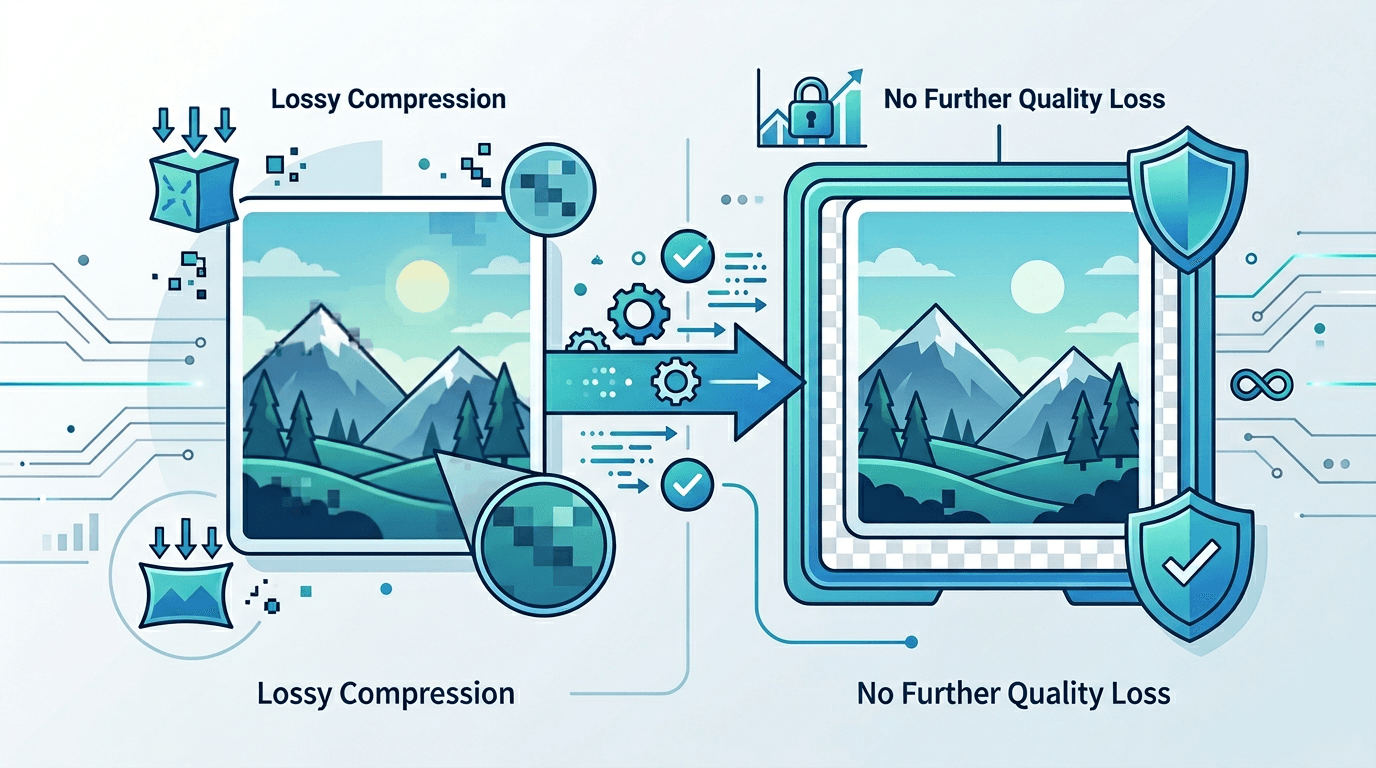
One of the most common questions about image conversion is whether converting JPG to PNG will improve quality or cause additional loss. The answer is nuanced, and understanding it will help you make smarter decisions about your image workflow.
Understanding Compression: JPG vs PNG
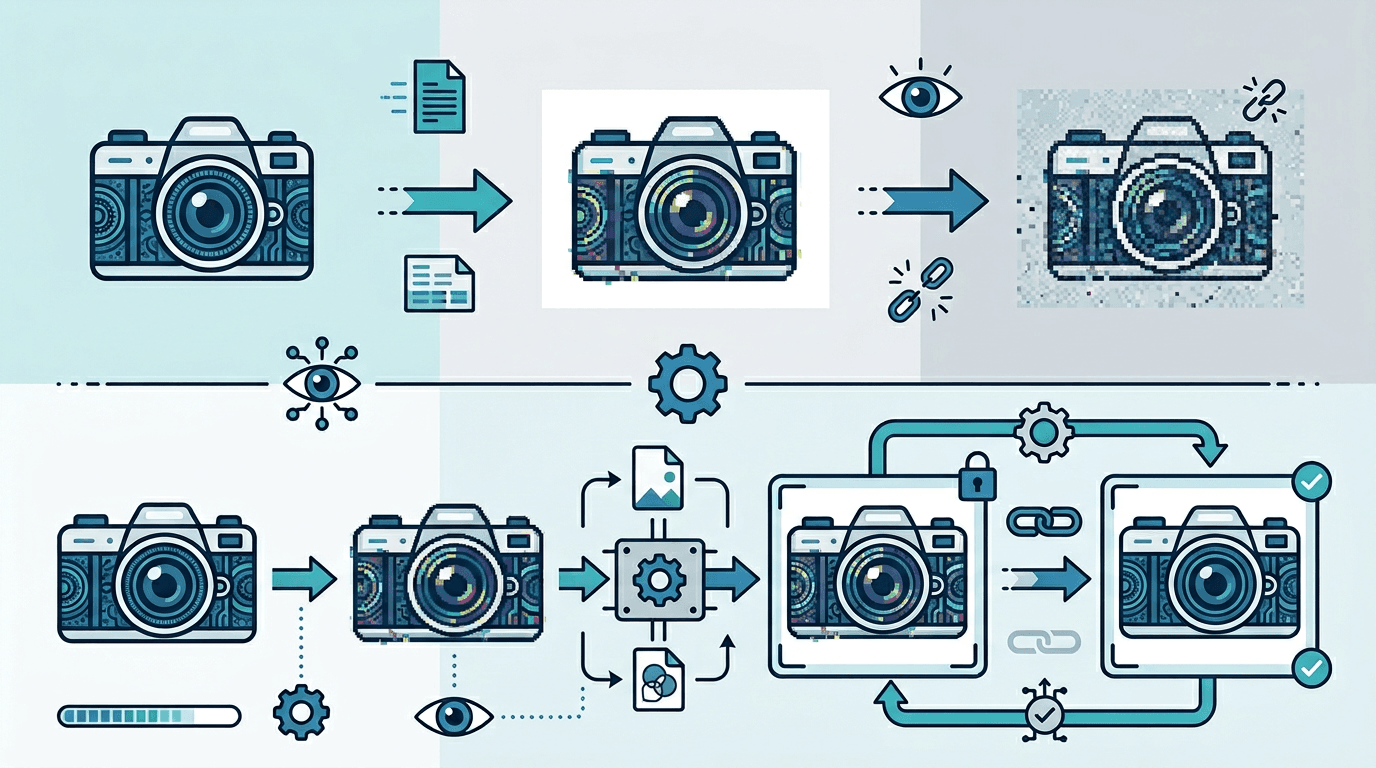
Before diving into conversion details, it's essential to understand how these two formats handle image data differently.
How JPG Compression Works
JPG (also written as JPEG) uses lossy compression — a technique that achieves smaller file sizes by permanently discarding image data:
- Compression irreversibly removes pixel information
- Quality loss happens at the moment of saving as JPG
- Once data is removed, it cannot be recovered
- Repeated saves compound the quality loss
- Excellent for photographs where small imperfections are invisible
How PNG Compression Works
PNG uses lossless compression — a fundamentally different approach:
- Every pixel of data is preserved exactly
- Compression only reorganizes data more efficiently
- Opening and resaving a PNG never degrades quality
- Files are larger because more information is stored
- Ideal for graphics, screenshots, and archival purposes
Can You Convert JPG to PNG Without Losing Quality?
Here's the honest answer: Yes and No.
Converting JPG to PNG is technically a lossless operation — meaning the conversion process itself introduces zero additional quality loss. Every pixel in your JPG file is preserved perfectly in the resulting PNG.
However, the quality that was already removed during JPG compression cannot be recovered. The PNG format doesn't add back information that was discarded when the JPG was originally saved.
The Quality Chain Explained
| Stage | Quality Retained |
|---|---|
| Original photo (RAW or uncompressed) | 100% |
| After JPG compression | 85–95% (varies by settings) |
| After converting JPG → PNG | 85–95% (identical to source JPG) |
The key insight: PNG conversion locks in whatever quality currently exists in your JPG. It won't improve quality, but it guarantees you won't lose any more.
How to Maximize Quality During Conversion
Step 1: Start with the Best Source JPG
The single most important factor is the quality of your source file:
- Use the original camera JPG (never a re-saved copy)
- Export at maximum quality from editing software (90-100%)
- Avoid images downloaded from social media (these are heavily compressed)
- Don't use screenshots of images as your source
Step 2: Convert Without Re-compression
Use our JPG to PNG converter for a clean, direct conversion:
- Upload your source JPG file
- Select PNG as the output format
- Download the result — no additional compression is applied
The conversion reads the JPG data and writes it directly to PNG format without any intermediate processing that could reduce quality.
Step 3: Verify the Conversion
After converting, take a moment to compare the results:
- View both files at 100% zoom in an image viewer
- Look for existing JPG artifacts (blocky areas, color banding)
- Confirm the PNG matches the JPG source visually
- Check that colors appear accurate and consistent
Practical Reasons to Convert JPG to PNG
If conversion doesn't improve quality, why do it? There are actually several compelling reasons:
1. Enable Transparency Support
This is the most common reason. PNG supports alpha channels, while JPG does not:
- Create transparent backgrounds for logos and icons
- Remove backgrounds from product photos
- Layer images over other content without white boxes
- Export graphics for web use with transparent areas
2. Prevent Future Quality Loss
Once you have a PNG, repeated editing and saving is completely safe:
- Edit the image as many times as needed
- Save without any quality degradation
- Use as a safe working format for ongoing projects
- The quality stays locked at whatever level the original JPG had
3. Better for Graphics with Text and Sharp Edges
JPG compression creates visible artifacts around high-contrast edges. For certain content types, converting and working in PNG is beneficial:
- Screenshots with text (PNG shows crisp characters)
- Interface elements and UI screenshots
- Graphics with logos, icons, or sharp lines
- Images where text legibility matters
4. Archive Your Edited Images
If you've edited a JPG image, saving back to JPG degrades quality further. Convert to PNG instead:
- Preserve the edited state without additional loss
- Future re-edits won't cause compounding quality reduction
- Keep both the original JPG and the edited PNG archive
Common Myths Debunked
Myth: "Converting to PNG Restores JPG Quality"
Reality: PNG preserves all existing quality but cannot recover what JPG already removed. Think of it like photocopying a document — the copy is identical to what you started with, but can't restore faded text from the original.
Myth: "A Larger PNG File Means Better Quality"
Reality: PNG files are larger due to the lossless compression format, not because they contain more image information. A 3MB PNG from a 500KB JPG doesn't have more detail — it just stores the same pixels less efficiently.
Myth: "Round-Trip Conversion Loses Quality"
Reality: Converting JPG → PNG → JPG will cause quality loss, but only in the final step when converting back to JPG. The JPG to PNG direction is entirely lossless.
Understanding PNG Quality Settings
No Quality Slider Needed
Unlike JPG, PNG doesn't have a quality setting because there's no quality trade-off:
| Format | Quality Setting | Effect |
|---|---|---|
| JPG Export | Required (e.g., 75%, 85%, 95%) | Higher = better quality, larger file |
| PNG Export | Not applicable | Always lossless, size varies by content |
Bit Depth Options
PNG offers different bit depth settings that affect color reproduction:
| Bit Depth | Colors Available | Best For |
|---|---|---|
| 8-bit | 256 colors | Simple graphics, icons |
| 24-bit | 16.7 million colors | Photographs without transparency |
| 32-bit | 16.7 million + alpha | Photos with transparency |
Standard JPG to PNG conversion produces 24-bit output (or 32-bit if transparency is needed).
Real-World Workflow Examples
Workflow 1: Preparing Images for Extended Editing
- Start with your best original JPG
- Convert to PNG before beginning edits
- Make all adjustments in PNG format (saves are always lossless)
- Export final version in whatever format you need
Workflow 2: Creating Product Images with Transparent Backgrounds
- Photograph product with a plain background (saved as JPG)
- Convert to PNG
- Remove the background using editing software
- Save with transparent background — impossible without PNG
Workflow 3: Archiving Important Edited Photos
- Keep original JPG files untouched
- Make all edits in a photo editor
- Export edited version as PNG
- Both the original JPG and edited PNG are preserved with no additional loss
File Size Expectations
Converting JPG to PNG typically increases file size significantly:
| Source JPG | Resulting PNG | Size Increase |
|---|---|---|
| 200 KB | 800 KB – 1.5 MB | 4–7× |
| 500 KB | 2–4 MB | 4–8× |
| 1 MB | 4–8 MB | 4–8× |
| 2 MB | 8–16 MB | 4–8× |
This increase is completely normal. It doesn't mean the image has more quality — it means PNG stores every pixel without throwing anything away.
When to Keep JPG Instead
JPG remains the better choice in several scenarios:
Keep as JPG when:
- File size is critical (email attachments, web page loading)
- The image is already in its final form and won't be edited
- You're sharing on social media or platforms that recompress anyway
- Storage space is limited
- Transparency is not needed
- The image is purely photographic with no text or graphics
Tips for Best Results
Always Work from the Original
Never convert from a copy of a copy. Each generation of a JPG loses quality, so your source should always be the earliest available version.
Avoid Re-compression Cycles
The most damaging workflow is: JPG → edit → save as JPG → edit → save as JPG. Break this cycle by converting to PNG early in your workflow.
Keep Both Versions
After converting an important image, keep the original JPG and the new PNG. The JPG serves as your historical archive; the PNG is your working file.
Frequently Asked Questions
Does converting JPG to PNG improve image quality?
No — the conversion preserves existing quality perfectly but cannot improve it. The quality cap was set when the original JPG was saved.
Why is my PNG file so much larger than the original JPG?
PNG uses lossless compression, which stores every pixel precisely. JPG achieves smaller sizes by discarding data. The PNG file is larger because it contains more complete information about each pixel.
Should I keep the original JPG after converting to PNG?
Yes, always. Keep both files. The JPG is your original source; the PNG is your working or archival copy.
Can I convert back from PNG to JPG without losing quality?
Not possible. Converting to JPG applies lossy compression, which permanently reduces quality. Only the JPG-to-PNG direction is lossless.
Is there ever a reason to convert a high-quality JPG to PNG?
Absolutely. The main reasons are: adding transparency, preventing future quality loss during editing, working with software that handles PNG better, and archiving edited versions.
What if my JPG already has visible compression artifacts?
Those artifacts will be preserved exactly in the PNG. Converting to PNG doesn't remove existing artifacts — it just prevents new ones from being added.
Does the converter at imgconvert.cloud add any compression?
No. Our JPG to PNG converter performs a direct format conversion without applying any additional compression or processing.
Summary
Converting JPG to PNG is a completely lossless process — no additional quality loss occurs during conversion. The resulting PNG file will look identical to your source JPG, with the added benefits of lossless future saves and transparency support.
The key takeaway: Use PNG as your working and archival format. Use JPG for final outputs where file size matters.
Related tools: PNG to JPG | Image Compressor | Image Resizer