
How to Batch Convert JPG to AVIF - Complete Bulk Conversion Guide
Converting a collection of JPG images to AVIF requires a workflow that matches the tool. ImgConvert currently accepts one image per submission. For automated multi-file conversion, use external software that supports batch processing and AVIF output. This guide distinguishes those workflows and explains how to evaluate results.
Why Batch Convert JPG to AVIF?
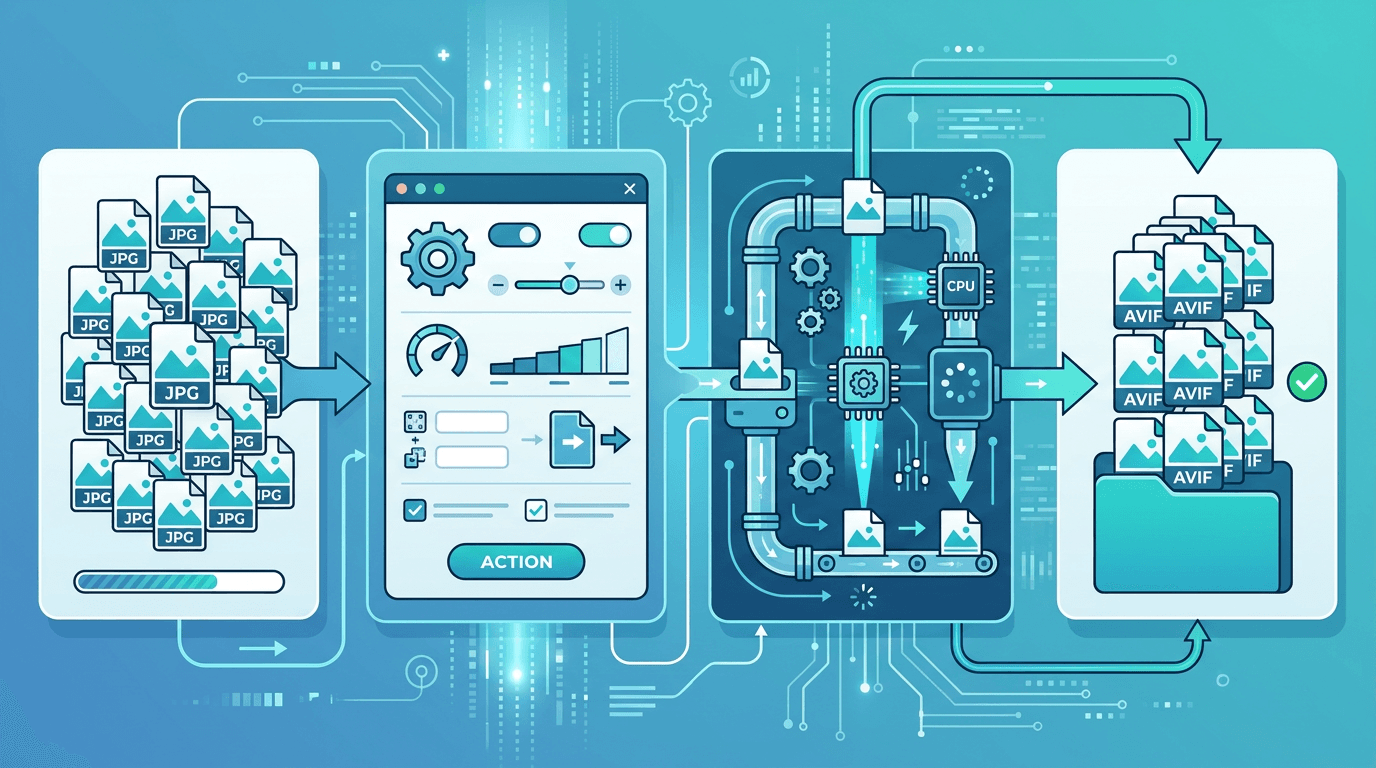
AVIF may reduce the size of some JPG images, but the result depends on source compression, image content, dimensions, and encoder settings. There is no fixed reduction percentage or guarantee that every AVIF will be smaller.
Batch-capable software can apply a chosen configuration to many files. That can reduce repeated setup, but it does not guarantee uniform visual quality, file size, or completion time. Keep the original JPGs and test samples first.
Method 1: Convert One JPG at a Time on ImgConvert
Step 1: Upload one image
Open the JPG to AVIF converter and select one JPG or JPEG. The upload field does not accept a folder or a multi-file selection.
Step 2: Choose the available controls
In lossy mode, the quality menu offers “Strong compression”, “Moderate compression”, “Balanced”, “Prioritize detail”, “High quality”, and “Highest quality”. The default is “Balanced”. These are encoder presets, not percentages of file-size reduction. The page also offers lossless mode and optional width and height settings; the lossy-quality menu is not used in lossless mode.
Step 3: Submit and download
Start the conversion and download the result when processing finishes. Repeat for each additional image. A list of results from separate submissions is not batch upload, and this workflow does not promise a single ZIP of multiple inputs.
File and request-rate limits apply. Follow the page message if a limit is reached; waiting and processing time depend on the file and service load.
Method 2: Command Line with ImageMagick
These examples use ImageMagick 7 in Bash with lowercase .jpg inputs. Test in a working folder without existing same-name AVIF outputs.
These are external ImageMagick commands, not ImgConvert controls. Check AVIF write support in your installation with magick identify -list format (format documentation). Command-line quality values do not describe the online menu.
For technical users or anyone processing very large numbers of files, command-line tools offer speed and scriptability.
Basic ImageMagick Batch Conversion
# Convert all JPG files in the current directory to AVIF at quality 80
for file in ./*.jpg; do
  [ -f "$file" ] || continue
  magick "$file" -quality 80 "${file%.jpg}.avif"
done
With Resize (Optimize for Web at the Same Time)
# Fit within 1200x1200 pixels, preserve aspect ratio, do not enlarge; quality 75
for file in ./*.jpg; do
  [ -f "$file" ] || continue
  magick "$file" -resize "1200x1200>" -quality 75 "${file%.jpg}.avif"
done
Pros: Very fast for large batches, fully automatable Cons: Requires ImageMagick installation, some technical knowledge needed
Method 3: Desktop Applications
For an external batch workflow, use a desktop application whose installed version supports both AVIF output and multiple input files. Confirm those capabilities before preparing a large job.
- Add a few representative JPGs.
- Choose AVIF and inspect that application's own encoding options.
- Select a separate output folder.
- Compare sample results before adding the rest.
These controls belong to the desktop application, not the ImgConvert form. Do not assume that quality numbers are equivalent across different encoders.
Optimal Quality Settings by Use Case
For the online converter, begin at the default “Balanced” and inspect the result. Try “Prioritize detail”, “High quality”, or “Highest quality” if important edges or textures need more detail, or “Moderate compression” and “Strong compression” when smaller files matter more. None of these presets guarantees a particular size or an invisible difference.
For product photos, compare labels and textures; for portfolios, retain the originals and inspect fine detail. For web images, choose dimensions suited to their actual display size. The form does not expose a separate color-profile selector.
Lossless mode avoids lossy AVIF encoding of the processed pixels, but it cannot restore details already lost in the source JPG. Requested resizing still changes the pixels, and lossless output may be larger.
Expected File Size Results
Measure the result for your own files. Source JPGs that are already heavily compressed may show little benefit or produce larger outputs.
Convert a representative sample, compare it with the original, and record the chosen mode, quality preset, dimensions, and resulting bytes. Only then estimate a larger collection. Do not assume a fixed percentage saving, a target KB value, or identical quality.
Batch Conversion Best Practices
Keep JPG originals and AVIF outputs in separate folders. Use representative samples before starting a large job in external batch software, and confirm that its naming rules avoid overwriting originals.
Reuse settings for a consistent process, not a promise of identical visual results. Check each failed file and review varied image types. For websites, keep a JPG fallback and test on the browsers and devices your visitors use.
The desktop or command-line tool manages a batch locally; ImgConvert's online form remains a one-image-per-submission workflow.
Handling Large Batches
For many images or recurring jobs, use external batch-capable software rather than repeatedly attempting a multi-file upload here. Verify AVIF support, available resources, output naming, and error handling before starting.
For a small number of files or sample comparisons, submit images individually on ImgConvert. There is no promised batch count or completion time for the online converter.
Troubleshooting Common Batch Issues
Conversion takes longer than expected
AVIF processing depends on the source, dimensions, encoding mode, and current load. Follow the task status. For repeated large jobs, use external batch software with suitable resources.
Fine details look worse
Try a higher available preset, including “Highest quality” in this tool, or compare lossless mode. Keep the JPG if the result is unsuitable. Do not assume that a particular setting is visually identical.
The AVIF is not smaller
Compare a lower available lossy preset or smaller dimensions, and inspect the output. Some source images will not benefit; keep the original when that is the better result.
A device cannot display the AVIF
Check the intended viewer and provide a JPG alternative. Compatibility varies by application and version; conversion alone does not ensure support.
Frequently Asked Questions
How many files can I convert at once here?
One JPG or JPEG per submission. Upload and submit the next image separately, or use external batch-capable software for multiple inputs.
Will batch conversion maintain identical quality?
No. Even with one encoder setting, image content affects visible artifacts and output size. Compare representative samples before processing more files.
Should I resize during conversion?
Use the optional width and height fields only when a different output size is needed. Resizing changes the pixels; leave them blank to retain the source dimensions.
Can converting a JPG add transparency?
No. A JPG has no transparency to preserve. Use a transparent PNG with the PNG to AVIF converter when needed.
Which quality settings does this tool offer?
Lossy mode offers “Strong compression”, “Moderate compression”, “Balanced”, “Prioritize detail”, “High quality”, and “Highest quality”; “Balanced” is the default. Lossless mode is separate. Choose by comparing the actual results, not by expecting a fixed percentage reduction.
Is AVIF always smaller than JPG or WebP?
No. Compare the same source, dimensions, and acceptable visual quality. Results depend on the file and encoder, and the best format also depends on where it will be used.
Conclusion
Use the JPG to AVIF converter for single images and sample comparisons. Use an external batch workflow for collections, keeping the original JPGs and checking results before scaling up.
Neither format conversion nor a quality preset guarantees fixed savings or an identical image.
Related tools: JPG to WebP | Image Compressor | Image Resizer
More tools for your next image task
Explore ImgConvert tools for conversion, PDF files, and GIFs.
- Image converters
- PDF tools
- GIF tools