
How to Rotate Images Online - Free Image Rotation Tool Guide
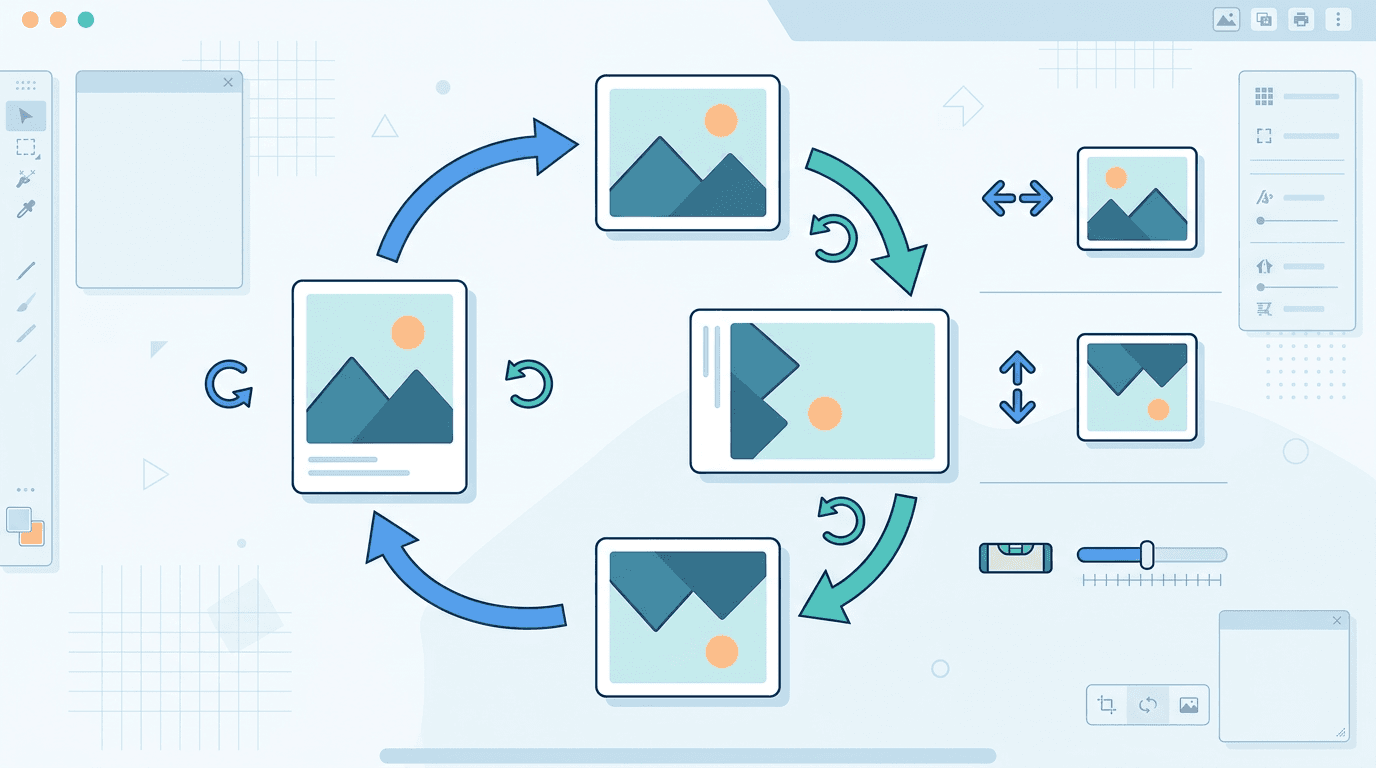
Is your photo displaying sideways or upside down? Whether it's a smartphone photo with the wrong orientation, a scanned document that came out tilted, or a selfie that needs a mirror correction, rotating images online is a quick fix that takes seconds. This guide covers everything you need to know about using our free Image Rotator tool.
Why Do Images Need Rotation?

Image orientation issues are more common than you'd think. Here are the typical reasons you might need to rotate a photo:
- Correcting camera orientation — smartphones and DSLRs sometimes save photos sideways or upside down when EXIF orientation data isn't read properly by the destination platform
- Fixing tilted horizons — a slightly crooked landscape photo is immediately improved by a 1–3° rotation adjustment
- Document scanning — scanned pages often come out rotated 90° or 180° from the correct reading direction
- Selfie mirror correction — front-facing cameras mirror images, which looks wrong for certain photos
- Creative effects — diagonal compositions, tilted text, or artistic rotations for design purposes
- Matching layout requirements — some platforms or templates need photos in a specific orientation
How to Rotate Images Online
Using our Image Rotator is a three-step process:
Step 1: Upload Your Image
Drag and drop your image onto the tool, or click to browse and select a file. Supported formats include JPG, PNG, WebP, GIF, and more.
Step 2: Choose Your Rotation
Select the rotation or flip you need:
- Rotate 90° clockwise — turns the image to the right
- Rotate 90° counter-clockwise — turns the image to the left
- Rotate 180° — flips the image completely upside down
- Custom angle — enter any angle from 0° to 360°
- Flip horizontal — creates a left-right mirror image
- Flip vertical — creates an upside-down mirror image
Step 3: Download the Result
Click rotate and download your image. The original file is untouched.
Understanding Each Rotation Option
Standard Rotations
| Rotation | Effect | Common Use Case |
|---|---|---|
| Clockwise 90° | Turns right | Portrait to landscape, landscape to portrait |
| Counter-clockwise 90° | Turns left | Portrait to landscape, landscape to portrait |
| 180° | Completely inverted | Fix photos taken upside down |
Flip Options
| Flip | Effect | Common Use Case |
|---|---|---|
| Horizontal | Left-right mirror | Correct selfie mirroring |
| Vertical | Top-bottom mirror | Reflection effects |
Custom Angle Rotation
For angles other than the standard 90° increments:
- Use small angles (1–10°) to correct slightly tilted photos
- Use medium angles (10–45°) for artistic diagonal effects
- Use any angle from 0° to 360° for specific design requirements
Note: custom angle rotations add white (or transparent for PNG) corner fill to maintain the original canvas size.
Common Rotation Problems and Solutions
Photo Displays Sideways
Why this happens: When you take a photo with your phone held vertically, the camera records it as a landscape image but adds EXIF metadata saying "rotate 90° when displaying." Some platforms read this metadata and display the photo correctly; others ignore it and show the raw (sideways) version.
Solution: Rotate 90° clockwise or counter-clockwise depending on which way it's tilted. Once the rotation is baked into the image data (not just metadata), it will display correctly everywhere.
Photo Is Upside Down
Why this happens:
- Phone held upside down while shooting
- Some scanner software
- Copied from a source that had its own orientation issue
Solution: Rotate 180°.
Horizon Is Tilted
Why this happens:
- Camera wasn't perfectly level when shooting
- Fast, spontaneous shot without time to level the frame
- Action or sports photography
Solution: Use custom angle rotation. For most slightly tilted photos, a 1–5° correction is all you need. Use the horizon or a known vertical element (building edge, door frame) as your reference.
Selfie Looks Like a Mirror Image
Why this happens: Front-facing cameras deliberately mirror the preview (so it matches how you see yourself in a mirror), and some apps save the mirrored version.
Solution: Use horizontal flip to correct the mirror effect.
Quality Considerations
Lossless Rotations
The good news about standard rotations: 90° and 180° rotations are mathematically lossless for JPEG files. The pixels are rearranged without any recalculation, meaning no quality loss occurs.
Custom Angle Rotations
Custom angle rotations (anything other than multiples of 90°) require pixel interpolation — essentially recalculating each pixel's position after the rotation. This causes a slight softening effect, especially noticeable in:
- Text and sharp edges
- High-frequency detail
- Images that have already been compressed
For maximum quality when doing custom angle rotations:
- Start with the original source file, not a previously processed version
- Do all your rotations in one step rather than multiple successive rotations
- Accept the slight quality cost as a necessary trade-off for the correction
File Format Impact
- PNG: Rotation is always lossless since PNG uses lossless compression
- JPG: 90°/180° rotations are lossless; custom angles are not
- WebP: Similar to JPG — standard rotations are clean, custom angles involve reprocessing
- GIF: All frames are rotated simultaneously; animation timing is preserved
EXIF Orientation Data Explained
What EXIF Orientation Is
Modern digital cameras and smartphones record a small piece of metadata alongside each photo — including an "orientation" flag that tells software how to display the image correctly. The raw pixel data might be stored "sideways," but the EXIF tag says "rotate 90° when displaying."
Why Photos Sometimes Look Wrong
The problem is inconsistency in how different platforms handle this metadata:
- Some apps read and apply the EXIF orientation automatically (photos look correct)
- Some apps ignore EXIF and display raw pixels (photos look sideways or upside down)
- EXIF data can be stripped during editing or uploading
How Our Tool Handles It
Our Image Rotator physically rotates the pixel data and updates the EXIF orientation flag to match, ensuring the photo displays correctly in any application — even ones that don't read EXIF properly.
Rotation by Use Case
Social Media
Different platforms favor different orientations:
- Instagram feed: Square (1:1) or portrait (4:5) work best for engagement
- Instagram Stories / TikTok: Portrait (9:16) is required
- YouTube thumbnails: Landscape (16:9) is the standard
- Pinterest: Portrait images get significantly more visibility than landscape
- Twitter/X: Landscape or square works well
Print Photography
For physical prints, orientation affects the final product significantly:
- Landscape orientation for panoramic scenes, group photos
- Portrait orientation for individual portraits, architectural shots
- Always check the print dimensions match the rotated image's aspect ratio
Document Scanning
Scanned documents often need orientation correction:
- 90° rotation is common for documents scanned from the wrong edge
- 180° rotation for documents scanned upside down
- Verify text reads in the correct direction after rotation
Web Design
- Hero images are almost always landscape
- Product photography may be portrait or square depending on the product shape
- Ensure rotated images maintain adequate resolution for the display size
Rotation vs. Flip: Understanding the Difference
People sometimes confuse rotation with flipping. They're related but different operations:
Rotation moves the image around a central point. A 90° clockwise rotation means the top of the image becomes the right side. The image looks tilted or turned.
Flip creates a mirror image. Horizontal flip (left-right mirror) means the left side becomes the right side. Text becomes reversed and unreadable; faces look slightly "off" compared to how we normally see them in photos.
When to Use Each
| Situation | Use Rotation | Use Flip |
|---|---|---|
| Photo taken sideways | ✓ | |
| Photo taken upside down | ✓ | |
| Slightly tilted horizon | ✓ | |
| Selfie mirror correction | ✓ | |
| Mirror/reflection effect | ✓ | |
| Artistic reversal | ✓ |
Batch Rotation
Need to rotate multiple photos the same way? Upload several files at once and apply the same rotation to all of them simultaneously. The results download as individual files or packaged in a ZIP archive.
This is useful for:
- Correcting a set of photos from a single shooting session
- Fixing orientation on a batch of scanned documents
- Preparing product photos for an e-commerce listing
Frequently Asked Questions
Does rotation reduce image quality?
For 90° and 180° rotations of JPG files: no quality loss. These are mathematically lossless operations. For custom angle rotations: there is a slight softening effect due to pixel interpolation, but it's usually imperceptible for small corrections (1–5°).
Does rotating change the image dimensions?
90° rotations swap the width and height (a 1920×1080 image becomes 1080×1920). 180° rotations keep dimensions the same. Custom angle rotations may slightly enlarge the canvas to accommodate the corners of the rotated image.
Can I rotate animated GIFs?
Yes — the tool rotates all frames simultaneously, preserving the animation timing and loop count. The resulting animated GIF will play in the correct orientation.
Is my data secure?
All processing happens locally in your browser. Images are never uploaded to any server, ensuring complete privacy.
What's the difference between EXIF rotation and actual rotation?
EXIF rotation is metadata-only — it tells software how to display the photo but doesn't change the actual pixel data. Some platforms ignore EXIF, causing the photo to appear sideways. Our tool performs actual pixel rotation and updates the EXIF to match, solving the problem permanently.
Conclusion
Rotating images online doesn't need to be complicated. Whether you're correcting a sideways photo, fixing a tilted horizon, or creating a mirror effect, the right tool makes it a one-click operation.
Our free Image Rotator handles every type of rotation — standard 90° and 180° increments, custom angles for precision corrections, and horizontal/vertical flips — with no account creation and no software to install.
Need more image editing tools? Check out: Image Cropper | Image Resizer | Image Compressor