
How to Convert ICO to PNG - Free Online Conversion Guide
Need to extract images from an ICO file? Whether you want to edit a favicon, use an icon as a regular image, or extract specific sizes from a multi-resolution icon, converting ICO to PNG is the fastest and most compatible approach. This guide walks through the entire process using our free ICO to PNG converter.
Why Convert ICO to PNG?
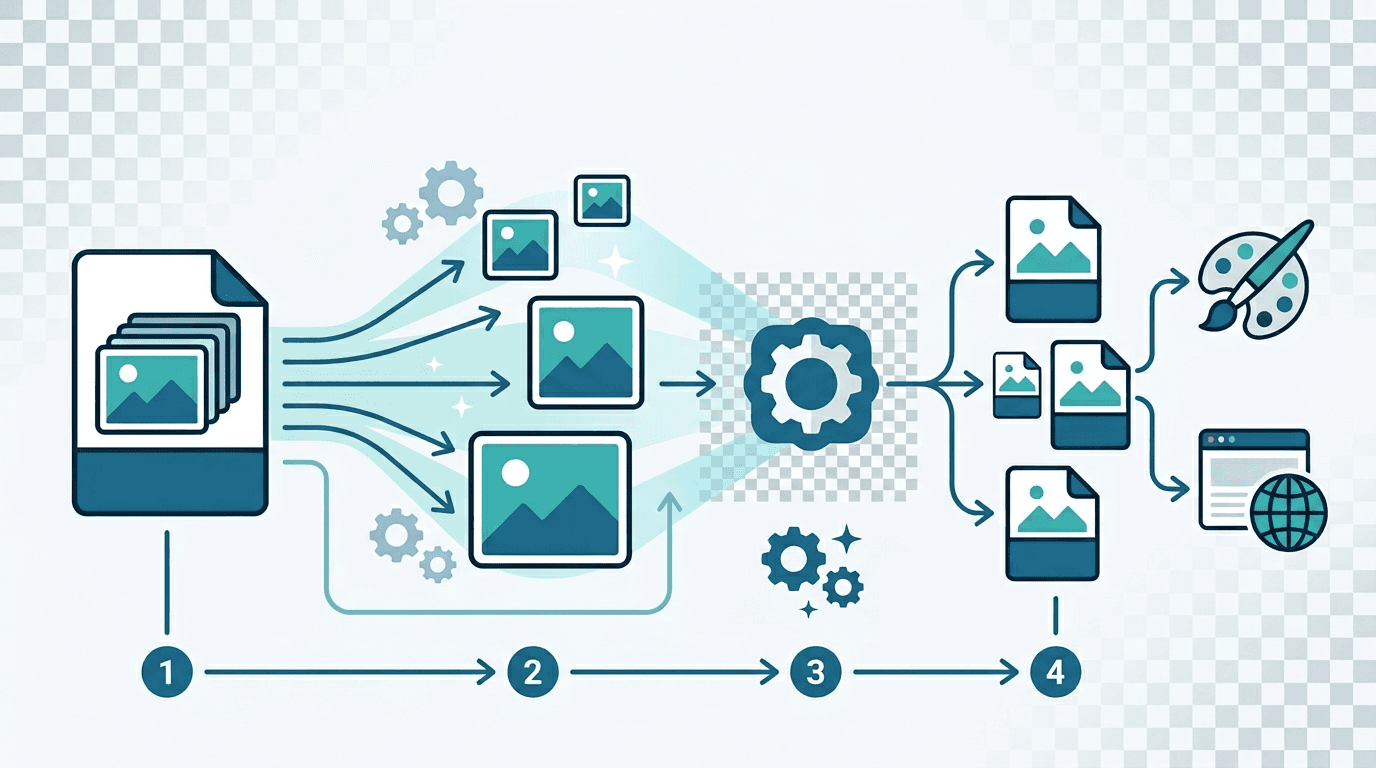
ICO is a specialized container format primarily designed for Windows and browser icons. PNG is a universal image format supported everywhere. There are several practical reasons to convert between them:
- Edit the icon — PNG opens in every image editor; ICO support is limited in most design tools
- Extract a specific size — pull out just the 32×32 or 256×256 version from a multi-size ICO
- Use as a regular image — display an icon anywhere a standard image is accepted
- Higher compatibility — PNG works in documents, presentations, social media, and more
- Full transparency support — PNG preserves the full alpha channel for clean compositing
- Web development — use extracted PNGs as PNG favicons or general UI icons
How to Convert ICO to PNG Online
Using our ICO to PNG Converter takes just a few seconds:
Step 1: Upload Your ICO File
Drag and drop your ICO file onto the converter, or click to browse and select it. The converter handles both single-size and multi-size ICO files.
Step 2: Choose Your Extraction Option
For ICO files with multiple embedded sizes, you have three options:
- Extract all sizes — converts every embedded size to a separate PNG file
- Select specific size — choose exactly which size you need (16×16, 32×32, 48×48, etc.)
- Largest available — automatically extracts the highest-resolution version for best quality
Step 3: Download Your PNG
Click convert and download the PNG file(s). For multiple sizes, they're packaged in a ZIP archive for convenient downloading.
Understanding ICO File Structure
Before converting, it helps to understand what's inside an ICO file.
What an ICO File Contains
A single ICO file is actually a container that can hold multiple images:
| Common Size | Typical Use |
|---|---|
| 16×16 | Browser tab favicon, small icon views |
| 32×32 | Taskbar icons, shortcuts |
| 48×48 | Desktop icons |
| 64×64 | Larger icon displays |
| 128×128 | macOS Dock style |
| 256×256 | High-DPI displays, Windows Vista+ large icons |
Each embedded image can be independently optimized for its size. A 16×16 version might simplify details that are visible in the 256×256 version. This is why providing all sizes matters — and why you might want to extract a specific size rather than just taking the first one.
How Many Sizes Does Your ICO Have?
When you upload an ICO to our converter, it shows you all available sizes. Common favicon.ico files typically contain 2–3 sizes (16×16, 32×32, and sometimes 48×48). Comprehensive Windows application icons might include 6 or more sizes.
Best Use Cases for ICO to PNG Conversion
Editing a Favicon
This is the most common reason to convert ICO to PNG. The workflow is:
- Convert the ICO to PNG using our converter
- Open the PNG in your preferred image editor (Photoshop, GIMP, Figma, etc.)
- Make your changes — update colors, adjust the design, fix issues
- Save as PNG
- Convert back to ICO using our PNG to ICO tool when ready
Extracting Icon Assets for Design Documentation
When you need icon assets for brand guidelines, style guides, or design documentation:
- Extract the 256×256 or largest available PNG for use in documents
- The large PNG renders crisply at any size in design tools
- Use the extracted PNG as a reference or source for creating other sizes
Building PNG Favicon Sets for Modern Websites
Modern websites often use PNG favicons instead of (or alongside) ICO. Convert your existing ICO to get the individual PNG sizes:
<!-- Use extracted PNG sizes for modern favicon implementation -->
<link rel="icon" type="image/png" sizes="32x32" href="/favicon-32.png">
<link rel="icon" type="image/png" sizes="16x16" href="/favicon-16.png">
<link rel="apple-touch-icon" sizes="180x180" href="/apple-touch-icon.png">
Creating Icon Variants
Starting from an extracted PNG, you can:
- Create color variations (dark mode, light mode, inverted)
- Generate different color scheme versions
- Build a complete icon set based on the existing design
Quality and Transparency
Lossless Conversion
Converting ICO to PNG is completely lossless — no quality is sacrificed in the process:
- Pixel-perfect extraction — every pixel from the source ICO appears exactly in the PNG
- Exact color matching — no color shifts or adjustments
- Full transparency preserved — the complete alpha channel is maintained
ICO Transparency Types
Different ICO files handle transparency differently:
| Transparency Type | ICO Format | Result in PNG |
|---|---|---|
| Full alpha (modern) | PNG-32 inside ICO | Perfect 8-bit alpha channel |
| Binary (1-bit) | Older ICO format | Hard-edged transparency only |
| None | Solid background | Solid background preserved |
Modern ICO files use PNG-32 encoding internally, which means they support full 256-level transparency. Older ICO files from the early 2000s might use 1-bit transparency — converted PNGs from these will have hard-edged transparency rather than smooth anti-aliased edges.
Choosing the Right Size to Extract
For different purposes, extract different sizes:
| Purpose | Recommended Size |
|---|---|
| Editing and modification | Largest available (256×256 if present) |
| Standard web favicon | 32×32 |
| Small web favicon | 16×16 |
| Mobile touch icon | 180×180 (if available) |
| Print or large display | 256×256 |
Always extract the largest available size for editing, since you can always scale down but can't add detail that isn't there.
Batch Conversion
Need to convert multiple ICO files at once? Our converter supports batch uploads:
- Upload all your ICO files at once
- Select the extraction option (all sizes, specific size, or largest)
- Convert all files simultaneously
- Download a ZIP archive containing all extracted PNGs
This is particularly useful for:
- Icon library migration — converting an entire set of icon assets from ICO to PNG
- Website redesign — extracting all favicon assets for updating
- Application development — preparing icon resources in multiple formats
ICO vs PNG: Understanding the Difference
| Feature | ICO | PNG |
|---|---|---|
| Multiple sizes in one file | Yes | No (one size per file) |
| Transparency support | Yes | Yes (better quality) |
| Universal editor support | Limited | Full |
| Web display context | Favicons only | Anywhere |
| Design tool support | Poor | Excellent |
| File organization | Single container | Individual files |
ICO excels when you need multiple sizes bundled together for Windows or browser use. PNG excels for everything else — editing, displaying in web pages, using in documents, and general-purpose image work.
Handling Specific Scenarios
"I Only Need the Favicon for My Website"
If you're migrating to PNG favicons:
- Upload your
favicon.ico - Select "Extract all sizes"
- Use the extracted 16×16 and 32×32 PNGs for your HTML
"I Want to Update My App Icon Design"
- Extract the 256×256 (or largest available) PNG
- Open it in your design tool
- Redesign or update as needed
- Export as PNG
- Convert to ICO using PNG to ICO with all required sizes
"I Need All Sizes as Separate Files"
- Upload the ICO
- Select "Extract all"
- Download the ZIP containing
icon-16.png,icon-32.png,icon-48.png, etc. - Each file is named with its dimensions for easy identification
Troubleshooting
Only One Size Was Extracted
Some ICO files only contain a single embedded size. This is common with:
- Simple web favicons that were created with only 16×16 or 32×32
- ICO files generated by basic conversion tools that don't embed multiple sizes
If you need multiple sizes, you'll need to convert the single PNG back to ICO using a tool that generates all sizes from the source.
Extracted PNG Looks Low Quality
If the extracted PNG looks blurry or pixelated, it means the ICO file only contained small sizes. The 256×256 size isn't always present. If quality is critical, you may need to recreate the icon from the original vector source.
Transparency Appears Incorrectly
This can happen when:
- The original ICO uses 1-bit (binary) transparency — the converted PNG will show hard edges
- The ICO has a white or colored background baked in (no transparency at all)
Check the original ICO in a dedicated icon viewer to see its actual transparency format.
Frequently Asked Questions
How many sizes are in my ICO file?
Our converter shows all available sizes when you upload the file. Most favicon.ico files have 2–3 sizes; comprehensive application icons may have 6 or more. There's no fixed standard — it depends on who created the ICO and what tool they used.
Which size should I extract?
For editing, always extract the largest available size (usually 256×256) — you'll get the most detail and can scale down as needed. For specific display purposes, extract the size that matches how the image will be displayed.
Is transparency preserved when converting?
Yes — PNG fully supports all transparency levels from ICO files. Modern ICO files with PNG-32 encoding will produce PNGs with smooth, full alpha-channel transparency.
Can I convert animated cursor (.ani) files?
No — animated cursor files (.ani) are a different format from .ico files. Our converter handles standard ICO files only.
Is my data private and secure?
Yes. All conversion processing happens locally in your browser. Your ICO files are never uploaded to any server, which means complete privacy and instant processing.
Can I convert the PNG back to ICO afterward?
Absolutely. Use our PNG to ICO converter to go back to ICO format. If you want the resulting ICO to contain multiple sizes, upload your PNG and select all the sizes you need — the tool will generate them automatically.
Conclusion
Converting ICO to PNG unlocks your icon assets for editing, broader use across tools and platforms, and modern favicon implementation. The conversion is lossless and takes seconds, preserving every pixel and the full transparency channel.
Whether you need to edit a favicon, extract assets for documentation, or prepare PNGs for a modern multi-format favicon setup, our free converter handles everything without requiring account creation or software installation.
Need other conversions? Check out: PNG to ICO | ICO to JPG | Image Resizer