
ICO File Creation Guide - How to Make Windows Icons and Favicons
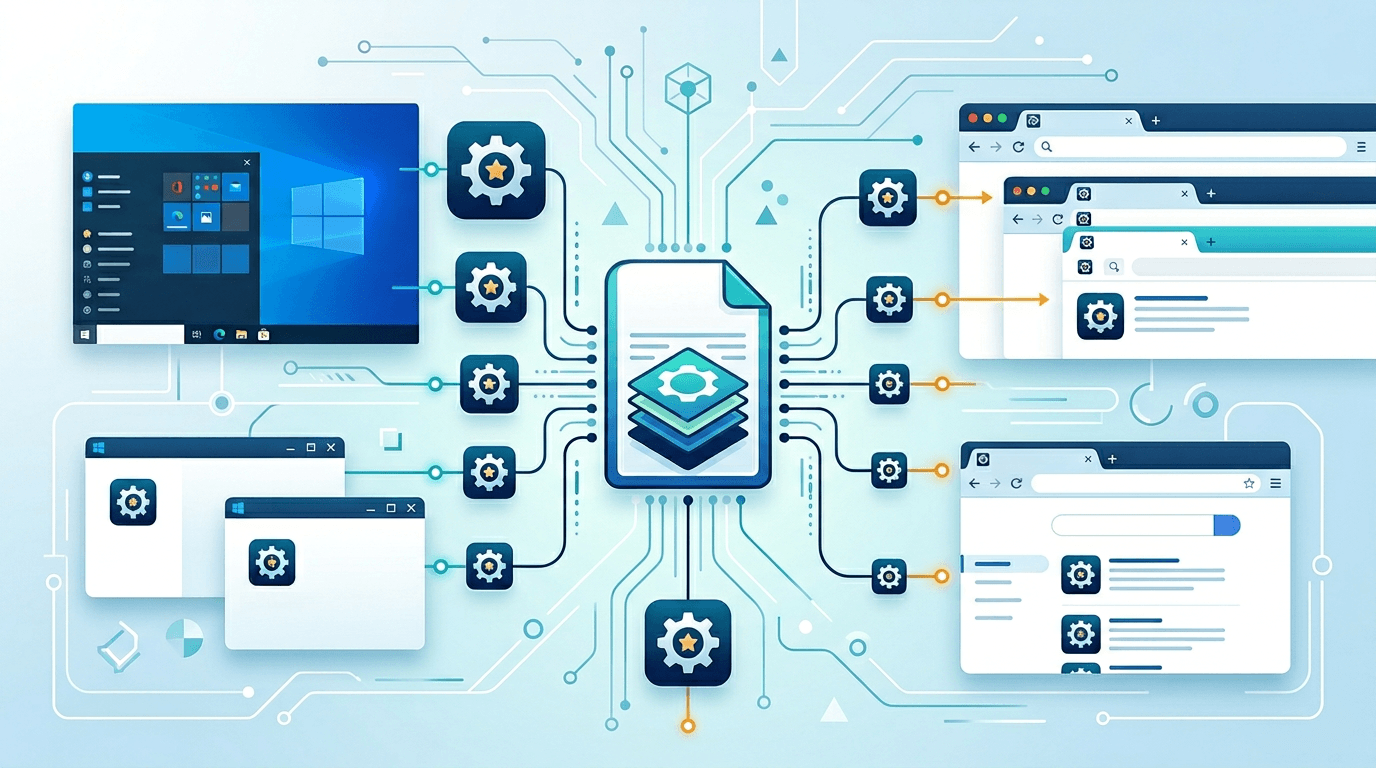
ICO files are the backbone of Windows application icons and website favicons. Unlike other image formats that contain a single image, an ICO file can bundle multiple sizes in one file — which is exactly what Windows and browsers need to choose an icon closer to the requested display size. This guide covers everything from the basics of the ICO format to creating professional icons step by step.
What Is the ICO Format?
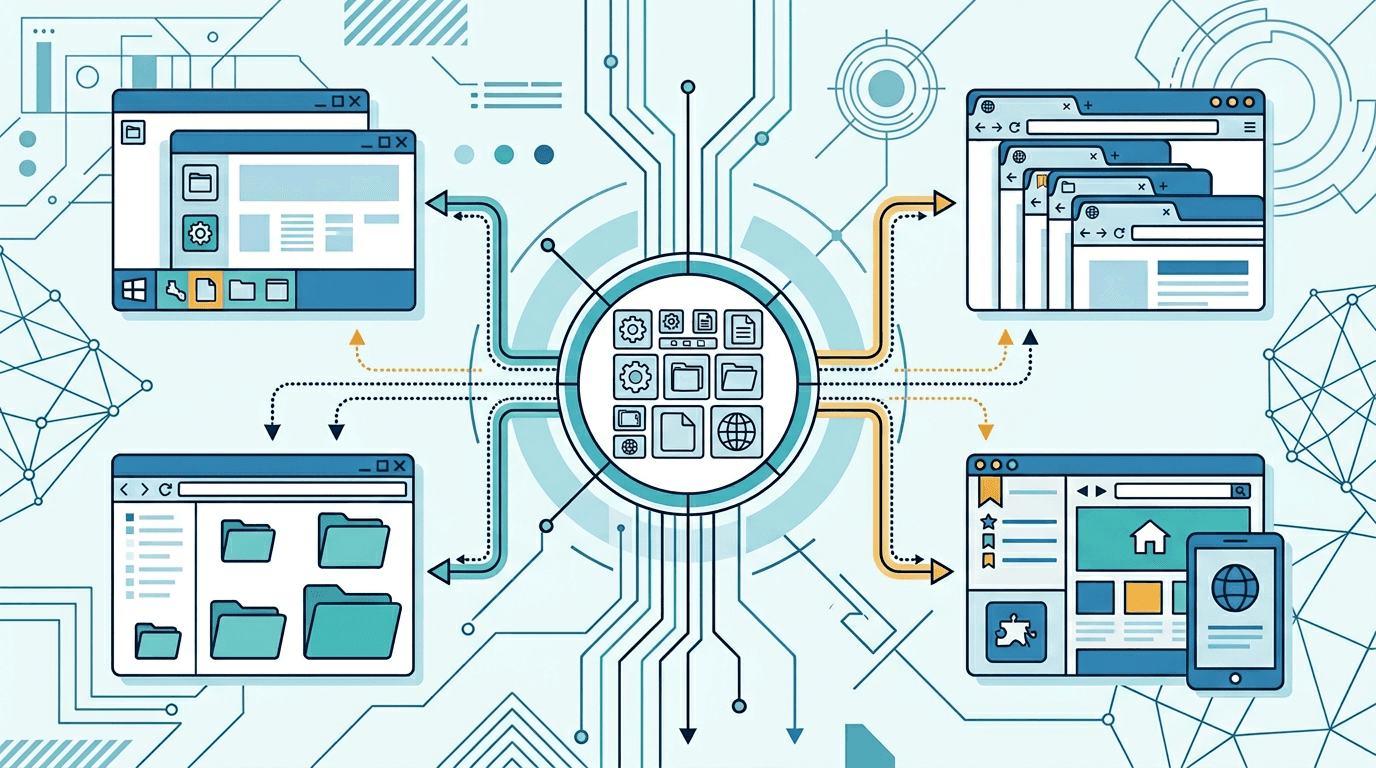
ICO is a container format developed by Microsoft specifically for icons. Its defining characteristic is that a single .ico file can store multiple images at different sizes and color depths — all packaged together.
When Windows or a web browser needs to display an icon, it looks inside the ICO file, finds the image that best matches the required size, and uses that. Providing several sizes can reduce scaling. Check the design at 16×16, 32×32 and 256×256; fine detail can still become unclear at smaller sizes.
Key characteristics of ICO:
- Container for multiple embedded images
- Each embedded image can be a different size and color depth
- Supports full transparency via PNG-32 encoding
Check that the destination accepts ICO and the sizes you provide.
Why You Need ICO Files
For Windows Applications
Windows uses ICO files pervasively across the operating system:
- Desktop shortcuts and application icons
- Taskbar icons
- Start menu icons
- File association icons (the icon shown for a specific file type)
- Alt+Tab switcher icons
Without proper ICO files, your application will display the default Windows generic icon — an immediate sign of an unfinished product.
For Website Favicons
Every website needs a favicon — the small icon that appears in:
- Browser tabs
- Bookmark lists
- Browser history
- Home screen shortcuts (when saved to a mobile device)
- Address bar
Check that the destination accepts ICO and the sizes you provide.
How to Create an ICO File
For a PNG source and selectable icon sizes, use PNG to ICO:
- Upload one PNG up to 20 MB.
- Select 16, 32, 48, 64, 128 or 256 px; 32, 64 and 128 are initially selected.
- Convert, download and extract icons.zip.
- Choose an individual-size ICO or favicon.ico containing all selected sizes.
Rectangular sources fit proportionally inside the square with transparent padding. Prepare a square crop first if you want the subject to fill more of the icon. For a fixed website package including PNGs and a manifest, Favicon Generator takes one image and does not offer size selection.
Required Sizes by Use Case
Choose sizes for the actual destination. This site offers 16, 32, 48, 64, 128 and 256 px; it does not offer 24 px. Include the sizes your application or browser layout needs and inspect the smallest one. No size set guarantees compatibility or sharpness in every context.
Design Best Practices for Icons
Prioritize Simplicity
Icons are displayed at tiny sizes. A design that looks detailed and sophisticated at 512×512 can become an unrecognizable blur at 16×16. Effective icon design follows different rules than other visual design:
- Use strong, simple shapes — think bold geometric forms, not intricate illustrations
- High contrast — the icon needs to be readable against both light and dark backgrounds
- Clear silhouette — the overall shape should be recognizable even without color details
- Limited colors — 3–5 colors is usually enough; too many colors create confusion at small sizes
Design for the Smallest Size First
The most common mistake is designing a beautiful large icon and then expecting it to scale down well. Instead:
- Start your design by thinking about how it will look at 16×16
- Create the design with that constraint in mind
- Use the larger sizes to add detail and polish
- Verify all sizes look correct before finalizing
Avoid Fine Details
At small sizes, certain elements become problematic:
- Thin lines — disappear or become muddy at small sizes; use 2px minimum stroke width
- Tiny text — unreadable below about 32px; avoid text in icons when possible
- Gradients — can look great at large sizes but turn into flat blobs at small sizes
- Drop shadows — often make icons look muddy at small sizes
Converting Existing Images to ICO
From PNG (Most Common)
PNG is the ideal source format for ICO conversion:
- Square PNG with transparent background
- High resolution (512×512 or larger)
- Clean, smooth edges
- No compression artifacts
From JPG
JPG can work but has limitations:
- No transparency — any areas meant to be transparent need to be handled manually
- Crop to square if not already square
- JPG compression artifacts may become visible at small sizes
From SVG
SVG is actually an excellent starting point because it's infinitely scalable:
- Export the SVG to a high-resolution PNG first (512×512 or 1024×1024)
- Then convert the PNG to ICO
- Inspect the exported PNG and each ICO size; a vector source does not guarantee that fine details survive small output sizes
Website Favicon HTML Implementation
Basic Implementation
A basic favicon link:
<link rel="icon" type="image/x-icon" href="/favicon.ico">
Place this in the <head> section of your HTML. Most browsers will also automatically find a favicon.ico file in the root directory without any HTML — but including the link tag is more reliable.
Modern Multi-Format Implementation
For the best results across all platforms and devices, use multiple formats:
<!-- Standard favicon -->
<link rel="icon" type="image/x-icon" href="/favicon.ico">
<!-- PNG favicons for modern browsers -->
<link rel="icon" type="image/png" sizes="32x32" href="/favicon-32x32.png">
<link rel="icon" type="image/png" sizes="16x16" href="/favicon-16x16.png">
<!-- Apple touch icon for iOS home screen -->
<link rel="apple-touch-icon" sizes="180x180" href="/apple-touch-icon.png">
Upload each referenced file and test the icon in your target browsers and devices.
Web App Manifest
For Progressive Web Apps (PWAs), also add a manifest file:
<link rel="manifest" href="/site.webmanifest">
The manifest references larger icon sizes (192×192 and 512×512) used when the site is installed as a home screen app.
Windows Application Icon Integration
Embedding in Application Resources
For desktop application developers, the ICO file is embedded directly in the application:
- In Visual Studio, add the .ico file as a resource
- Select the ICO in your project's application icon settings or add it as a Win32 icon resource. For Visual Studio C#/VB projects, follow Microsoft's instructions.
- Windows uses the appropriate size automatically based on display context
File Type Associations
When you want a specific icon for a file type (like .myapp files):
- Register the file extension in the Windows Registry
- Point to the application executable or a separate ICO file
- The icon appears in File Explorer for all files of that type
Quality Troubleshooting
Blurry Icons
Cause: The ICO file is missing the specific size being requested, so Windows scales from the nearest available size.
Fix: Include all commonly needed sizes (16, 32, 48, 256). Check what sizes your ICO contains using a tool like IcoFX or Resource Hacker.
Jagged or Aliased Edges
Cause: Using binary transparency (1-bit) instead of full alpha transparency.
Fix: Use PNG-32 source files with a full alpha channel. The modern ICO format supports PNG-32 encoding inside the container.
Favicon Not Showing in Browser
Cause: Browser cache, incorrect HTML, or wrong file path.
Fix:
- Clear browser cache and hard refresh (Ctrl+Shift+R or Cmd+Shift+R)
- Verify the
<link>tag is in<head>and the href path is correct - Check that the file is actually accessible (test by navigating directly to the URL)
- Ensure the file is correctly formatted (use a favicon validator tool)
Testing Your Icons
Before shipping, verify your icons look correct in all contexts:
Windows Display Contexts
- Taskbar (small, typically 24×24 scaled from 32×32)
- Desktop shortcut (medium, typically 48×48)
- Large icon view in File Explorer (96×96 or 128×128)
- Extra-large icons (256×256)
- Windows 11 Start menu (various sizes)
Browser Contexts
- Browser tab (16×16 or 32×32)
- Bookmarks bar
- Browser history list
- On mobile: home screen shortcut icon
Background Testing
- Light backgrounds (the most common context)
- Dark mode / dark backgrounds (increasingly important)
- Colored taskbars and toolbars
Frequently Asked Questions
What sizes should an ICO file contain?
Choose sizes for the actual destination. This site offers 16, 32, 48, 64, 128 and 256 px; it does not offer 24 px. Include the sizes your application or browser layout needs and inspect the smallest one. No size set guarantees compatibility or sharpness in every context.
Can I use PNG instead of ICO for favicons?
Yes, modern browsers support PNG favicons with <link rel="icon" type="image/png" ...>. However, ICO provides the broadest compatibility — especially with older browsers, email clients, and some third-party tools that look for favicon.ico in the root directory by default.
Why does my icon look blurry?
Your ICO file is missing the size that Windows or the browser is actually trying to display. Include all necessary sizes. You can verify the contents of an ICO file with tools like IcoFX, Resource Hacker, or online ICO inspectors.
Should icons always be square?
Rectangular images fit proportionally inside the square with transparent padding. They are not automatically cropped or stretched by this converter.
How do I make a transparent icon?
Start with a PNG that already contains transparency. This converter retains the source alpha without a separate switch. Inspect the individual sizes after extracting the ZIP; small edges can change during resizing.
Conclusion
Creating a proper ICO file is straightforward once you understand that the format is a container for multiple sizes rather than a single image. Start with a clean, square, high-resolution PNG source, include all the necessary sizes for your use case, test across different display contexts, and inspect the result at each intended display size.
To create ICO files from a JPEG, PNG, WebP, GIF or BMP image, use our ICO Converter and select the icon sizes you need.
Related tools: Favicon Generator | Image Resizer | PNG Converter
More tools for your next image task
Explore ImgConvert tools for conversion, PDF files, and GIFs.
- Image converters
- PDF tools
- GIF tools