
How to Convert JPG to ICO - Free Online Favicon Generator
Need to create a favicon from a JPG photo? This guide shows you how to convert JPG to ICO in seconds using our free JPG to ICO converter, perfect for website favicons and Windows icons.
Why Convert JPG to ICO?
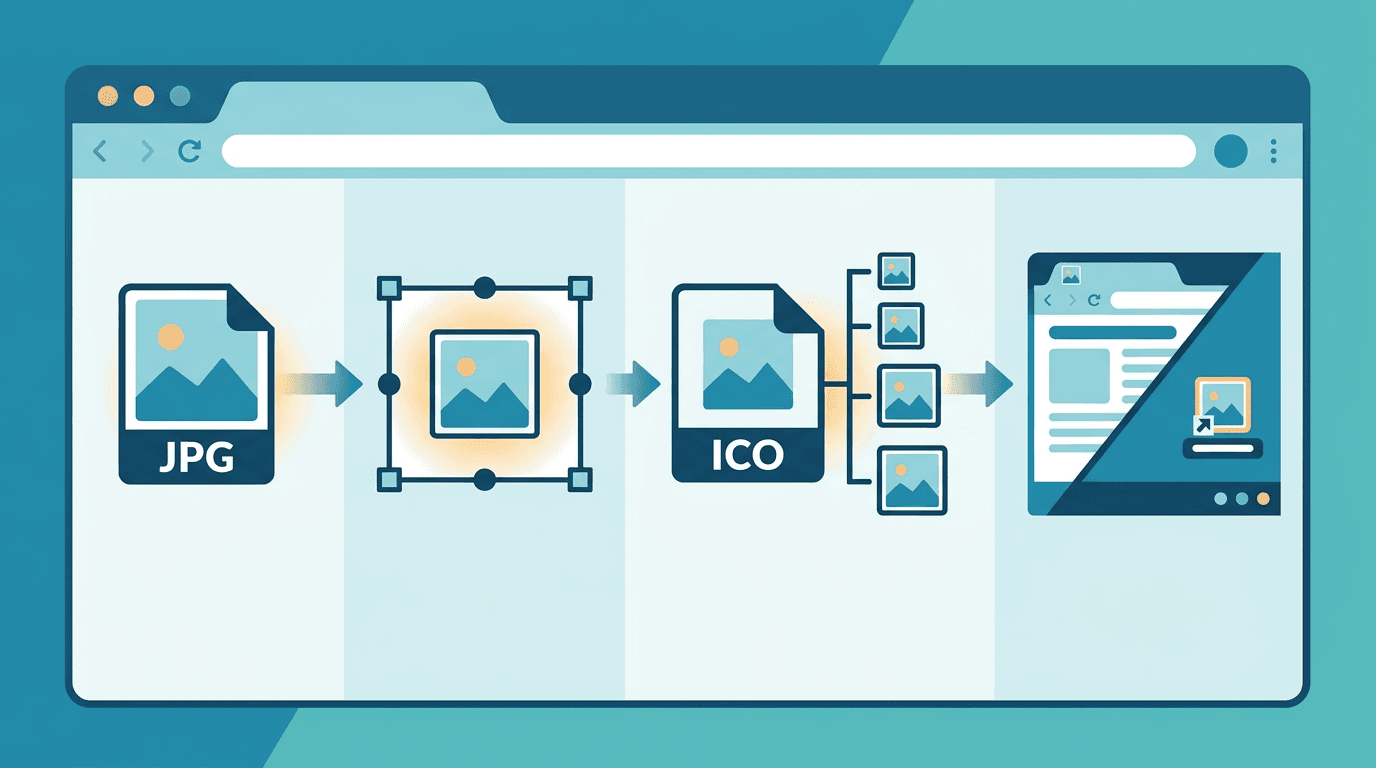
Common reasons to convert:
- Create website favicon - The icon in browser tabs
- Windows application icons - Desktop shortcuts
- System icons - Custom Windows icons
- Bookmark icons - Browser bookmark display
- Branding - Professional website presence
How to Convert JPG to ICO Online
Use our JPG to ICO converter - it takes just 3 steps:
Step 1: Upload Your JPG
Drag and drop your JPG file into the converter. For best results, use a square image or our tool will crop it.
Step 2: Select Icon Sizes
Choose which sizes to include:
- 16×16 - Browser tabs, small icons
- 32×32 - Standard favicon, taskbar
- 48×48 - Windows desktop icons
- 64×64 - Large icons
- 128×128 - High-DPI displays
- 256×256 - Extra large, Windows 10+
Step 3: Download Your ICO
Click convert and download your multi-size ICO file.
JPG to ICO: Key Considerations
Transparency Note
JPG doesn't support transparency:
- Converted ICO will have solid background
- Use PNG to ICO for transparent icons
- Choose background color carefully
Best Source Image
| Factor | Recommendation |
|---|---|
| Aspect Ratio | Square (1:1) |
| Minimum Size | 256×256 pixels |
| Content | Simple, clear design |
| Colors | Bold, high contrast |
Favicon Size Requirements
Essential Sizes
| Size | Purpose |
|---|---|
| 16×16 | Browser tabs, address bar |
| 32×32 | Windows taskbar, shortcuts |
| 48×48 | Windows desktop |
Recommended Additional
| Size | Purpose |
|---|---|
| 64×64 | Windows larger icons |
| 128×128 | macOS Dock |
| 256×256 | High-DPI displays |
Creating Good Favicons from Photos
Design Tips
- Crop to focus area - Show only the key element
- Simplify - Complex photos don't work at 16×16
- High contrast - Make sure it's visible
- Test small - View at actual favicon size
- Consider alternatives - Logos work better than photos
Photo Selection
Best photos for icons:
- Simple subject matter
- Clear focal point
- High contrast
- No small details
Photos to avoid:
- Group photos
- Landscapes with detail
- Text-heavy images
- Low contrast scenes
Installing Your Favicon
Basic HTML
<link rel="icon" href="/favicon.ico" type="image/x-icon">
Complete Setup
<!-- Standard favicon -->
<link rel="icon" href="/favicon.ico" sizes="any">

<!-- PNG favicons for modern browsers -->
<link rel="icon" type="image/png" href="/favicon-32.png" sizes="32x32">
<link rel="icon" type="image/png" href="/favicon-16.png" sizes="16x16">

<!-- Apple devices -->
<link rel="apple-touch-icon" href="/apple-touch-icon.png">
File Placement
Put favicon.ico in your website root:
- Location:
/favicon.ico - Browsers check this automatically
- No HTML required if in root
Multi-Size ICO Benefits
Why Include Multiple Sizes?
Windows and browsers select appropriate size:
- 16×16 for browser tabs
- 32×32 for shortcuts
- 48×48 for desktop
- 256×256 for large icon view
File Size Considerations
| Sizes Included | Typical ICO Size |
|---|---|
| 16, 32 | 3-8 KB |
| 16, 32, 48 | 8-15 KB |
| All sizes | 50-100 KB |
Include what you need; more isn't always better.
JPG vs PNG for Icons
| Aspect | JPG Source | PNG Source |
|---|---|---|
| Transparency | No | Yes |
| Best for | Photos | Logos, graphics |
| Background | Solid color | Can be transparent |
| Edge quality | May have artifacts | Clean edges |
For transparent icons, use PNG to ICO instead.
Common Use Cases
Website Favicon from Photo
Converting a photo to favicon:
- Choose photo with clear subject
- Crop to square focusing on key element
- Convert to ICO with multiple sizes
- Test at small sizes
Personal Brand Icon
For personal websites:
- Professional headshot crop
- Signature or initials
- Brand symbol from photo
Company Logo from JPG
If you only have JPG logo:
- Use highest resolution available
- Ensure clean background
- Convert with appropriate sizes
- Consider recreating as PNG/SVG
Quality Tips
Avoiding Pixelation
- Start with 256×256 minimum
- Higher resolution = better quality
- Let converter handle downscaling
Color Considerations
- JPG compression may affect colors
- Check icon colors match brand
- Test on different backgrounds
Edge Quality
JPG artifacts may show at edges:
- Use high-quality JPG source
- Test small sizes carefully
- Consider PNG if edges matter
Batch Creating Icons
For multiple icons:
- Upload multiple JPG files
- Set sizes for all
- Convert in batch
- Download as ZIP
Useful for:
- Multiple favicon variants
- Icon sets
- Different brand versions
Testing Your Favicon
Browser Testing
- Upload to website
- Clear browser cache
- Check in different browsers
- View on mobile devices
Quick Local Test
- Open ICO in image viewer
- View at different sizes
- Check for clarity
- Verify colors
Troubleshooting
Favicon Not Showing
- Clear browser cache (Ctrl+Shift+Delete)
- Verify file is named
favicon.ico - Check it's in root directory
- Confirm HTML link is correct
Icon Looks Blurry
- Source JPG may be too small
- Try higher resolution source
- Include appropriate size in ICO
Background Wrong Color
- JPG has no transparency
- Background becomes solid color
- Use PNG source for transparency
Frequently Asked Questions
Can JPG icons have transparency?
No. JPG doesn't support transparency, so your ICO will have a solid background. Use PNG for transparent icons.
What size JPG should I use?
At least 256×256 pixels. Larger is better for quality when scaling down.
How many sizes should I include?
Minimum: 16×16 and 32×32. Recommended: add 48×48 and 256×256 for comprehensive support.
Will my photo look good as a favicon?
Simple photos with clear subjects work best. Complex scenes don't display well at 16×16 pixels.
Is my data safe?
Absolutely. All processing happens in your browser. Your images are never uploaded to our servers.
Conclusion
Converting JPG to ICO is straightforward for creating website favicons and Windows icons. While JPG works for simple conversions, remember that transparent icons require PNG source files.
No signup, no watermarks, no software to install. Just upload, select sizes, and download.
Try our free JPG to ICO converter now →
Need other conversions? Check out: PNG to ICO, ICO to PNG, Image Resizer, and more.