
Optimize iPhone Photos for Your Website - HEIC to WebP Complete Guide

Using iPhone photos on your website? HEIC files simply don't work in web browsers, but converting to JPG isn't the optimal solution either. This guide shows you how to properly optimize iPhone photos for the web by converting HEIC to WebP — a modern format that delivers exceptional compression without sacrificing image quality.
Why iPhone Photos Need Optimization for the Web
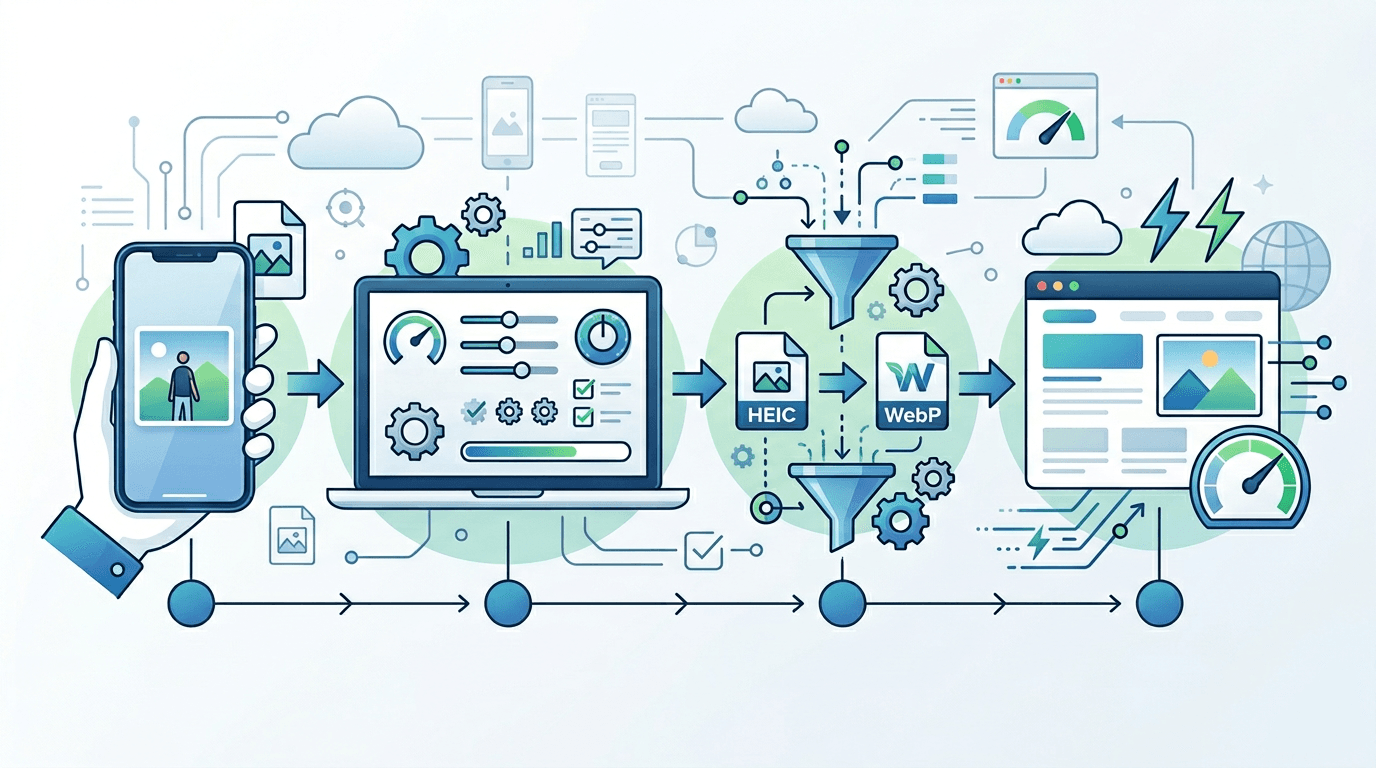
When you take photos with an iPhone, they're saved in HEIC format (High Efficiency Image Container). It's a brilliant format for on-device storage, but it creates real problems the moment you try to use these photos online:
- No browser support — HEIC cannot be displayed in any web browser
- Files are too large — raw iPhone photos typically run 2–5MB each
- Slow page loading — heavy images directly impact page speed and SEO rankings
- Poor user experience — visitors abandon pages that take too long to load
The solution is to convert HEIC to WebP before uploading to your website.
Why WebP Is the Best Format for Web Images
WebP offers a compelling combination of small file sizes, excellent quality, and broad browser support that no other format matches:
| Format | File Size | Quality | Browser Support | Transparency |
|---|---|---|---|---|
| HEIC | Smallest | Excellent | None | Yes |
| WebP | Very small | Excellent | 97%+ | Yes |
| JPG | Medium | Good | 100% | No |
| PNG | Large | Excellent | 100% | Yes |
WebP's key advantages:
- 25–35% smaller than JPG at equivalent visual quality
- 26% smaller than PNG when transparency is needed
- Supported by Chrome, Firefox, Safari, Edge, and all modern mobile browsers
- Explicitly recommended by Google for improving Core Web Vitals scores
Step-by-Step: Optimizing iPhone Photos for Your Website
Step 1: Transfer Photos from Your iPhone
First, get your HEIC photos onto your computer without quality loss.
On Mac:
- Use AirDrop for wireless transfer — files stay in HEIC format
- Or import via the Photos app (File > Import)
- Both methods preserve the original HEIC file
On Windows:
- Connect iPhone via USB
- Import through the Photos app or File Explorer
- Note: Windows may automatically convert to JPG depending on settings — check "Keep originals" in iPhone Settings > Photos
Best practice: Always transfer HEIC files and convert them yourself for full control over output quality.
Step 2: Convert HEIC to WebP
Use our HEIC to WebP Converter for the best results:
- Upload your HEIC photos — drag and drop or click to browse
- Set the quality level based on your use case:
- General web use: 75–85%
- High-quality portfolios and galleries: 85–90%
- Thumbnails and previews: 60–75%
- Download the WebP files — ready to use on your website
Step 3: Resize for Web Dimensions
Never upload full-resolution iPhone photos to your website. iPhone 15 Pro captures 48-megapixel images at up to 8064×6048 pixels — that's far more detail than any screen needs to display. Resizing to appropriate dimensions dramatically reduces file size.
| Use Case | Recommended Width | Target File Size |
|---|---|---|
| Hero / banner images | 1920px | 150–300KB |
| Blog content images | 1200px | 80–150KB |
| Thumbnail grids | 400px | 20–50KB |
| Photo galleries | 1600px | 100–200KB |
Use our Image Resizer to resize images before or after conversion.
Quality Settings by Use Case
Different types of web content have different quality requirements. Here's what works best for each:
Product Photography
For e-commerce product images where details matter:
- Quality: 85–90%
- Priority: Sharpness and color accuracy
- Typical file size: 100–200KB per image
- Customers zoom in on product photos, so keep quality high
Blog and Content Images
For editorial illustrations and article photos:
- Quality: 75–85%
- Priority: Balance of quality and loading speed
- Typical file size: 50–150KB
- Most readers won't zoom in, so slightly lower quality is fine
Background Images
For hero sections and full-width backgrounds:
- Quality: 70–80%
- Priority: Fast loading
- Typical file size: 100–250KB
- Background images are often partially obscured by text or overlays, so perfect detail isn't critical
Thumbnails and Previews
For image grids, card components, and previews:
- Quality: 60–75%
- Priority: Speed above all
- Typical file size: 15–50KB
- Small display sizes mean quality differences aren't visible
Real-World Optimization Results
Here's what typical iPhone photo optimization looks like in practice:
| Stage | Format | Dimensions | File Size |
|---|---|---|---|
| Original | HEIC | 4032×3024 | 3.2MB |
| After WebP conversion | WebP | 4032×3024 | 1.1MB |
| After resizing (1920px) | WebP | 1920×1440 | 185KB |
| Final web-optimized | WebP | 1200×900 | 95KB |
Result: 97% file size reduction while maintaining excellent visual quality.
Implementing WebP on Your Website
Basic Implementation
For modern browsers (97%+ of users), a simple <img> tag works perfectly:
<img src="photo.webp" alt="Photo description" width="1200" height="800">
With JPG Fallback for Older Browsers
For maximum compatibility with the remaining 3% of users on older browsers:
<picture>
  <source srcset="photo.webp" type="image/webp">
  <source srcset="photo.jpg" type="image/jpeg">
  <img src="photo.jpg" alt="Photo description" width="1200" height="800">
</picture>
Responsive Images
For sites where images display at different sizes depending on screen width:
<picture>
  <source
    srcset="photo-400.webp 400w, photo-800.webp 800w, photo-1200.webp 1200w"
    type="image/webp"
    sizes="(max-width: 600px) 400px, (max-width: 1000px) 800px, 1200px">
  <img src="photo-1200.jpg" alt="Photo description">
</picture>
This tells the browser which image size to download based on the actual display size, avoiding unnecessary data transfer on mobile devices.
Impact on Website Performance
Page Speed Improvements
Optimizing iPhone photos typically achieves:
- 50–70% faster image loading compared to unoptimized HEIC-converted-to-JPG
- 2–4 second improvement in overall page load time for image-heavy pages
- Measurably better Core Web Vitals scores
SEO Benefits
Google uses page speed as a direct ranking factor, and image optimization has measurable impact:
- Better LCP (Largest Contentful Paint) scores — images load faster
- Improved mobile experience scores — crucial since Google uses mobile-first indexing
- Lower bounce rate from slow loading — faster pages keep visitors engaged longer
User Experience
Fast-loading images directly affect whether visitors stay or leave:
- Users are 53% more likely to abandon a page that takes more than 3 seconds to load
- Lower bounce rates mean more pageviews per session
- Better engagement leads to higher conversion rates
Common Mistakes to Avoid
Mistake 1: Uploading Full-Resolution Photos
The iPhone 15 Pro captures 48-megapixel images. Uploading these directly to a website means serving 50× more pixels than any visitor needs.
- ❌ 8064×6048 pixels = massive file that loads slowly on every page view
- ✅ Resize to 1200–1920px for web content
Mistake 2: Using PNG for Photographs
PNG is excellent for graphics with flat colors and sharp edges, but it's the wrong choice for photographs.
- ❌ PNG photograph = 3–5MB even after optimization
- ✅ WebP photograph = 100–200KB with identical visual quality
Mistake 3: Over-Compressing
Setting quality too low creates visible compression artifacts — blocky edges, color banding, and blurriness that make images look unprofessional.
- ❌ 40% quality = visible artifacts, looks cheap
- ✅ 75–85% quality = excellent visual balance
Mistake 4: Ignoring Mobile Users
Mobile devices account for over 60% of web traffic globally, and mobile connections are often slower than desktop.
- Always provide appropriately sized images for mobile
- Use responsive image techniques so mobile users don't download desktop-sized images
- Test on real mobile devices with throttled network connections
Efficient Batch Optimization Workflow
For multiple iPhone photos, this workflow saves time:
- Collect all HEIC photos in a single folder
- Batch convert to WebP using our converter
- Resize to appropriate dimensions for each use case
- Organize by size category (thumbnails, content images, hero images)
- Upload to your site with descriptive, SEO-friendly filenames
Good filenames matter: product-red-running-shoes-side-view.webp is infinitely better than IMG_4721.webp for both SEO and organization.
Testing Your Optimization Results
After optimizing, verify the improvements:
Google PageSpeed Insights
- Test your page at PageSpeed Insights
- Look for image-related recommendations (Serve images in next-gen formats, Properly size images)
- Target green scores on LCP and image metrics
Browser Developer Tools
- Open developer tools (F12)
- Go to the Network tab
- Filter by "Img"
- Check file sizes and loading times for each image
Cross-Browser WebP Verification
Confirm WebP displays correctly in:
- Chrome (desktop and mobile)
- Firefox
- Safari (desktop and iOS)
- Edge
- Samsung Internet (important for Android)
Frequently Asked Questions
Does converting to WebP reduce image quality?
With appropriate settings (75–85%), quality loss is imperceptible to the human eye. WebP's compression algorithm is significantly more sophisticated than JPG's, meaning it preserves more visual detail at the same file size — or achieves smaller files at equivalent visual quality.
Do all browsers support WebP?
Over 97% of web browsers support WebP. For the remaining 3%, use the <picture> element with a JPG fallback. Realistically, if you're building a new site in 2026, going straight to WebP without a fallback is also perfectly reasonable.
Should I convert all my iPhone photos to WebP?
For web use, yes — the performance benefits are substantial. For personal storage and backup, keep the original HEIC files. Always maintain original files in case you need to re-export at different quality or size settings later.
How much will my website speed improve?
Image loading typically improves by 50–70%. Total page load time improvement depends on how image-heavy your current site is and how unoptimized your existing images are. Sites with many large unoptimized photos see the most dramatic improvements.
Can I automate this process for a CMS like WordPress?
Yes. WordPress plugins like Imagify, ShortPixel, and WebP Express can automatically convert uploaded images to WebP. For static sites or custom setups, batch convert before upload using our HEIC to WebP Converter.
Conclusion
Optimizing iPhone photos for the web is about more than just changing the file format — it's about delivering the best possible visual experience to your visitors while keeping your site fast and SEO-friendly.
By converting HEIC to WebP, resizing to appropriate dimensions, and using the right quality settings, you can reduce image file sizes by 90%+ while keeping photos looking great. The result is a faster website, better Core Web Vitals, improved search rankings, and visitors who stay and engage rather than bouncing.
Related tools: HEIC to JPG | HEIC to PNG | Image Resizer | Image Compressor