
How to Convert GIF to PDF - Complete Guide

Need to include GIF images in a PDF document? Whether you're building a technical report, creating presentation handouts, or archiving animated content, converting GIF to PDF is a straightforward process once you understand your options. This guide covers everything you need to know — from basic single-image conversion to handling multi-frame animations.
Why Convert GIF to PDF?
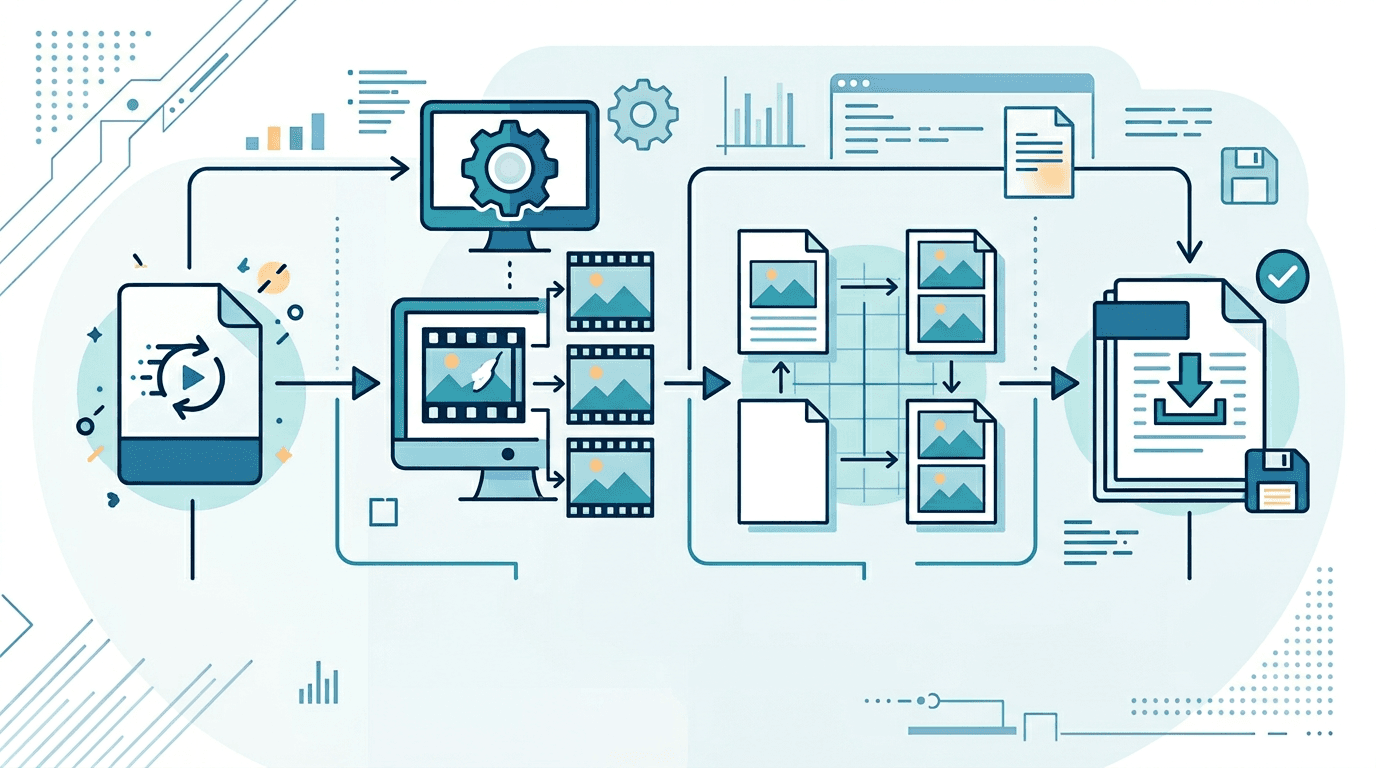
GIF files are great for web use, but PDF is the standard format for documents and professional sharing. Here are the most common reasons to make the conversion:
- Document creation — embed screenshots or diagrams in reports and manuals
- Presentation handouts — create printable versions of slides containing GIF images
- Archiving — preserve image content in a universally readable, long-lasting format
- Professional sharing — distribute visual assets as part of structured documents
- Print output — prepare images for high-quality physical printing
Understanding GIF to PDF Conversion
Before you start, it helps to understand how GIF files translate into PDF:
| GIF Type | PDF Result |
|---|---|
| Static GIF | Single-page PDF with one embedded image |
| Animated GIF | Options: first frame only, selected frame, or all frames as pages |
Important: PDF does not natively support animation. When you convert an animated GIF to PDF, the motion is lost — you're working with static frames. Depending on your needs, you can choose which frame(s) to include.
How to Convert GIF to PDF Online
The fastest way is to use our free GIF to PDF Converter:
- Open the GIF to PDF Converter
- Upload your GIF file (or drag and drop it)
- Configure your output settings (page size, orientation, frame selection)
- Click Convert
- Download your PDF
The entire process takes less than a minute for most files.
Converting a Static GIF to PDF
Static GIFs (single-frame) are the simplest case. The process is essentially embedding an image into a PDF page.
Step-by-step:
- Upload your GIF file
- Set the page size (A4, US Letter, Legal, or custom dimensions)
- Choose orientation (portrait, landscape, or auto-fit)
- Set margins if needed
- Convert and download
Page Layout Options
| Setting | Options |
|---|---|
| Page size | A4, US Letter, Legal, custom |
| Orientation | Portrait, landscape, auto |
| Margins | None, normal, wide |
| Image placement | Centered, fit to page, original size |
For most documents, centering the image with normal margins on A4 or US Letter paper works well. If you need the image to fill the entire page, use "fit to page" with no margins.
Converting an Animated GIF to PDF
Animated GIFs require an extra decision: which frames do you want to include? There are three main approaches:
Option 1: First Frame Only
The simplest approach — converts just the first frame of the animation.
Best for:
- Quick conversions where animation content isn't critical
- Thumbnail and preview documents
- When file size is a priority
Limitation: The first frame may not be the most visually representative moment in the animation.
Option 2: Select the Best Frame
Preview the animation and manually pick the frame that best represents the content.
Best for:
- Documents where visual quality matters
- Presentations where you want to show the "best moment"
- Any case where the first frame is a blank or transitional state
How to use it: The GIF to PDF Converter lets you preview all frames and select which one to export.
Option 3: All Frames as Separate Pages
Each frame of the animation becomes its own PDF page, creating a multi-page document.
Best for:
- Storyboards and animation breakdowns
- Technical documentation showing each step of an animated process
- Archiving where you want to preserve all frames
Trade-off: File size grows significantly with animations that have many frames.
Quality Settings
Getting the quality right depends on how the PDF will be used.
Resolution (DPI)
| Quality | DPI | File Size | Best For |
|---|---|---|---|
| High | 300 DPI | Large | Printing |
| Medium | 150 DPI | Medium | General use |
| Screen | 72 DPI | Small | On-screen viewing |
For anything that will be printed, always use 300 DPI. For digital-only documents like email attachments or web downloads, 72–150 DPI is sufficient and keeps file sizes manageable.
Compression
- No compression: Maximum quality, largest file
- JPEG compression: Good for photographic GIFs; some quality loss
- PNG compression: Lossless; better for GIFs with solid colors and sharp edges
Most GIFs use flat colors and sharp edges (logos, diagrams, pixel art), so PNG compression typically gives better results than JPEG for these types.
Batch Converting Multiple GIFs
If you need to convert several GIFs at once, our converter handles batch uploads:
- Select all your GIF files and upload them together
- Choose whether to create separate PDFs or merge everything into one
- Apply consistent settings across all files
- Download individually or as a ZIP archive
Multi-GIF Layout Options
| Layout | Description | Best For |
|---|---|---|
| One per page | Each GIF gets its own full page | Documentation, separate assets |
| Grid layout | Multiple GIFs arranged in a grid per page | Comparison sheets, catalogs |
| Collage | Artistic free-form arrangement | Creative presentations |
Common Use Cases and Recommended Settings
Technical Documentation
When converting screenshots or diagram GIFs for technical manuals:
- Use 150–300 DPI depending on whether it will be printed
- Set consistent margins to match document standards
- Use A4 or US Letter to match office documents
- Keep image quality high to ensure small text and details remain readable
Printable Presentation Handouts
For handouts from presentations containing GIF images:
- Use 300 DPI for crisp printing
- Match paper size to your printer (usually US Letter in North America, A4 elsewhere)
- Center images on the page
- Preview the print layout before batch converting
Archiving Animated Content
When the goal is long-term preservation of animated GIFs:
- Export all frames as separate pages
- Use 300 DPI and no compression
- Consider saving as PDF/A format (designed for long-term archiving)
- Add page numbers for easy reference
PDF Format Options
Standard PDF
- Widest compatibility with all PDF viewers
- Suitable for general sharing and distribution
- Supports all standard features
PDF/A (Archival)
- Designed for long-term preservation
- Self-contained (all fonts and resources embedded)
- No external dependencies — guaranteed to open correctly in the future
- Recommended for archiving important documents
PDF/X (Print-Ready)
- Optimized for professional printing
- Includes color management information
- Required by some professional print workflows
For most everyday conversions, standard PDF is sufficient. Use PDF/A when long-term preservation matters.
Frequently Asked Questions
Can I preserve animation in a PDF?
No — PDF does not support animation. The closest you can get is exporting each frame as a separate page, creating a "flipbook" style document. For web use where animation matters, keep the original GIF format.
What happens to GIF transparency during conversion?
Transparency is handled correctly during conversion — transparent areas in the GIF will show the page background color (typically white). If you need a specific background color, set it in the converter settings.
Can I merge multiple GIFs into a single PDF?
Yes. Our GIF to PDF converter supports multi-file uploads. You can merge all uploaded GIFs into a single PDF, with each GIF on its own page or arranged in a grid layout.
What resolution should I use?
For on-screen viewing only: 72–150 DPI is sufficient. For printing: always use 300 DPI. Higher DPI means larger file sizes but better print quality. When in doubt, use 150 DPI as a solid middle ground.
Can I edit the GIF images after converting to PDF?
The resulting PDF contains embedded images. You can add text, annotations, or other elements using a PDF editor, but you cannot edit the embedded GIF image itself. If you need to modify the image, edit the original GIF first, then re-convert.
How large will the output PDF be?
File size depends on the GIF dimensions, number of frames included, DPI setting, and compression. A single static GIF at 150 DPI typically produces a PDF under 500KB. An animated GIF with all frames exported at 300 DPI could be several megabytes.
Tips for Best Results
Before Converting
- Review the GIF quality — a low-resolution GIF won't improve after conversion
- For animated GIFs, preview all frames and decide which to include
- Think about the final use case: screen-only documents need lower DPI than printed ones
Settings Summary by Use Case
| Purpose | DPI | Compression | Page Size |
|---|---|---|---|
| Screen sharing | 150 | Medium | Letter/A4 |
| Printing | 300 | Low/none | Match printer |
| Email attachment | 72 | High | Letter/A4 |
| Archiving | 300 | None | Original ratio |
After Converting
- Open the PDF and verify image quality looks correct
- Check that page layout (margins, orientation) matches expectations
- Test print a page if the document will be physically printed
- Confirm the file size is acceptable for your sharing method
Conclusion
Converting GIF to PDF is simple with the right tool, but understanding your options — especially around animated GIFs and quality settings — makes the difference between a usable result and one that needs rework.
For most everyday needs, upload your GIF, choose your page size and quality, and download the result. For more complex scenarios like archiving all animation frames or batch-converting dozens of files, our converter handles those cases just as easily.
Related tools: PNG to PDF | JPG to PDF | Image to PDF