
How to Convert GIF to PNG While Preserving Transparent Background
Converting a GIF with a transparent background to PNG sounds simple, but it's easy to end up with white boxes where your transparency should be — or jagged edges that look unprofessional. Understanding how GIF and PNG handle transparency differently is the key to getting perfect results every time.
Understanding the Transparency Difference
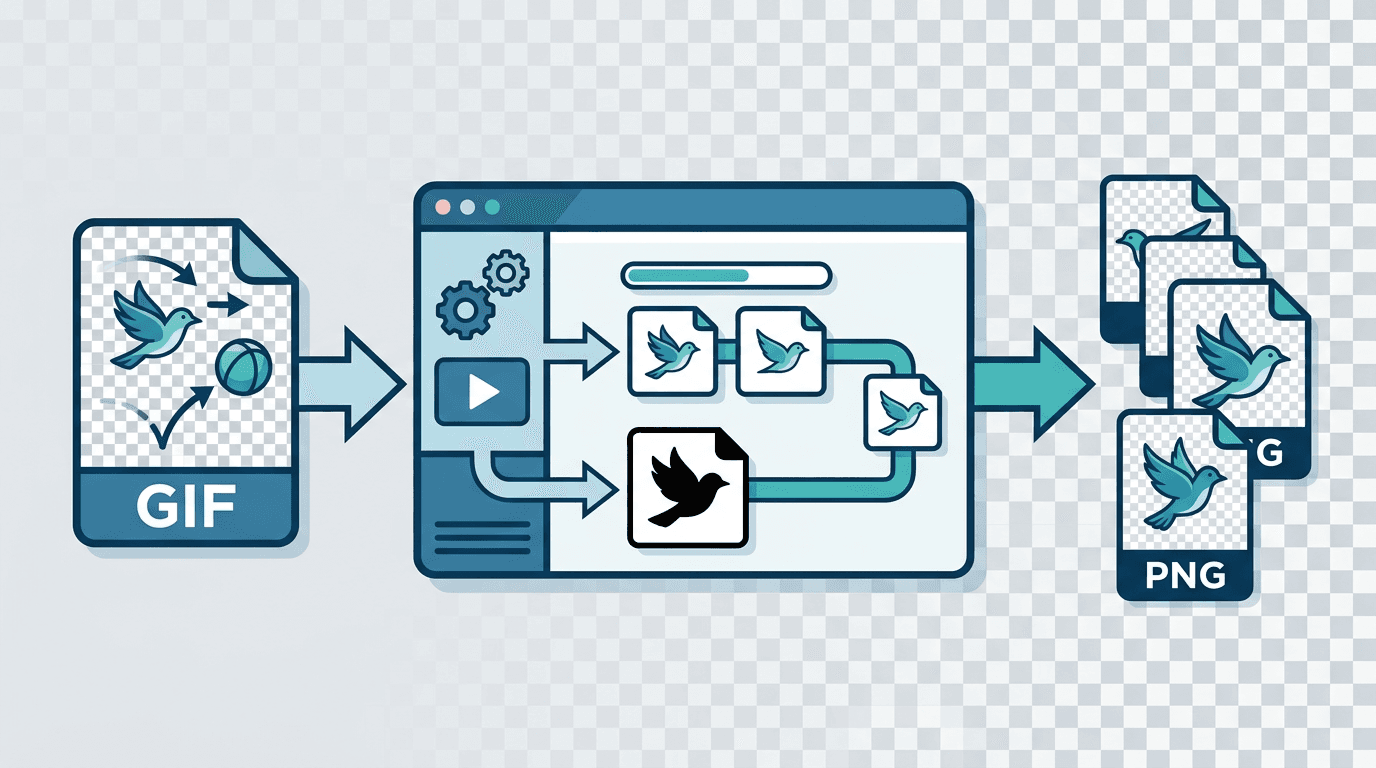
How GIF Handles Transparency
GIF transparency is a 1-bit system: each pixel is either transparent or it isn't. Here's how it works technically:
- GIF uses an indexed color palette with up to 256 entries
- One palette entry (any of the 256) can be designated as the "transparent index"
- Every pixel that references this palette index becomes fully transparent
- Every other pixel is fully opaque — no gradients, no partial transparency
The consequence is binary transparency: no smooth edges, no partial opacity. When a curved shape appears against a transparent background in a GIF, the edge pixels must choose — fully transparent or fully opaque — creating the characteristic "staircase" jagged effect.
How PNG Handles Transparency
PNG uses an Alpha channel — an independent grayscale layer that specifies the opacity of each pixel:
- Alpha = 0 means fully transparent
- Alpha = 255 means fully opaque
- Any value between enables partial transparency
This makes PNG transparency fundamentally different: a curved edge can have pixels at 50% opacity, 25% opacity, or any value, allowing for smooth anti-aliased edges that blend naturally against any background color.
The Core Challenge
When you convert GIF transparency to PNG transparency, you're converting from binary (on/off) to graduated (0-255). This is generally lossless — the conversion process simply maps GIF's transparent pixels to PNG Alpha = 0 and opaque pixels to Alpha = 255.
The problem occurs when:
- The conversion tool doesn't map transparency correctly
- A "matte" background color is merged with the transparency
- The source GIF has anti-aliased edges designed for a specific background color
Why Convert GIF to PNG?
Even beyond transparency, PNG offers significant advantages over GIF:
| Aspect | GIF | PNG |
|---|---|---|
| Colors | 256 maximum | 16.7 million |
| Transparency | Binary (on/off) | 8-bit Alpha (smooth) |
| Edge quality | Jagged on curves | Can be smooth |
| File size | Smaller for simple images | Larger for simple; smaller for complex |
| Compression | LZW (lossless) | DEFLATE (lossless) |
| Animation | Yes (multiple frames) | Partial (APNG only) |
For static images with transparency, PNG is the better format in virtually every scenario. The only reason to use GIF is for animated content or legacy compatibility.
How to Convert GIF to PNG Preserving Transparency
Method 1: Our GIF to PNG Converter (Recommended)
Our GIF to PNG converter preserves transparency automatically:
- Navigate to the converter at gif-to-png
- Upload your transparent GIF — drag and drop or click to upload
- Transparency is preserved by default — no special settings required
- Click Convert
- Download your PNG — transparency intact
Verifying the Result
After converting, always verify the transparency was preserved:
- Open the PNG in an image editor (Photoshop, GIMP, Preview)
- Look for the checkerboard pattern behind the image — this indicates transparency
- Check the layer/channel panel — you should see an Alpha channel
- Place it on a colored background — test on red, green, and blue to confirm edges look correct
Method 2: Browser-Based Test
A quick test to verify transparency:
- Upload the converted PNG to a web page or HTML file
- Set a background color that differs from any color in the image
- If transparent areas show the background color, transparency is working
- If transparent areas show white or another color, transparency was lost
Common Transparency Problems and Solutions
Problem 1: Transparent Areas Turn White
What you see: Areas that should be transparent appear as a solid white background.
Why this happens: The most common cause is that the converter "flattened" the GIF onto a white canvas before saving, essentially compositing the transparency with white. This is the default behavior in many basic image tools.
How to fix it:
- Use a conversion tool that specifically supports Alpha channel output
- Look for a "preserve transparency" or "transparent background" option
- Our GIF to PNG converter handles this correctly by default
Problem 2: Transparent Areas Turn Gray or Black
What you see: Transparent areas appear as gray or black instead of transparent.
Why this happens: The converter composited onto a black (0,0,0) canvas or didn't properly map the GIF transparency index to the PNG Alpha channel.
How to fix it:
- Same solution — use a proper transparency-aware converter
- Verify the output has an Alpha channel (PNG-32 or PNG-24 with transparency, not PNG-8)
Problem 3: Jagged/Aliased Edges
What you see: Curved edges on logos, text, or rounded objects look staircase-jagged.
Why this happens: This isn't a conversion failure — it's an accurate representation of the source GIF's binary transparency. The GIF itself had jagged edges; the PNG conversion just preserves them accurately.
How to fix it:
- Re-create the graphic with proper anti-aliasing in vector software
- Apply edge smoothing in an image editor after conversion
- Use the APNG format instead if you need animation (APNG supports full transparency)
Problem 4: "Halo" Effect on Edges
What you see: A faint colored outline (often white or gray) surrounds the image's edges against your background.
Why this happens: The original GIF was created with anti-aliasing designed for a specific background color (e.g., white). When the background was removed, those semi-transparent edge pixels retained a blend of the original color and the intended background.
How to fix it:
- Remove the halo using "defringe" or "matting" tools in Photoshop/GIMP
- For web use, match the PNG background to the page background when anti-aliasing was designed for a specific color
Best Practices for Converting GIF to PNG
Before Conversion
- Verify the source GIF has transparency — Open it and check for transparent areas
- Identify the transparent regions — Note which areas should remain transparent
- Note edge quality — Accept that jagged GIF edges will remain jagged in PNG
During Conversion
- Enable Alpha channel output — Select PNG-32 or PNG-24 format with Alpha
- Don't apply any background color — Leave the matte/background setting empty or transparent
- Preserve original dimensions — Don't scale during conversion to avoid interpolation issues
After Conversion
- Verify transparency in an image editor — Check for the checkerboard pattern
- Test on multiple background colors — Put the image on dark and light backgrounds
- Check file format — Confirm it's saved as PNG (not accidentally as JPEG)
- Compare file size — PNG is typically larger than GIF; if it's the same size, something may have gone wrong
Converting Animated GIF with Transparency to PNG
For animated GIFs with transparent frames, you have two options:
Option A: Extract Individual Frames as PNGs
- Use our converter to extract each frame
- Each frame becomes an individual PNG with correct transparency
- Useful for sprite sheets or when you need individual frame images
Option B: Convert to APNG (Animated PNG)
- Convert the entire animated GIF to APNG format
- Preserves both animation and transparency
- APNG supports full 8-bit Alpha per frame
- Our GIF to PNG converter supports APNG output
For animated images that need both motion and transparency, APNG is the superior format.
Technical Details: The Conversion Process
How a Good Converter Handles GIF Transparency
A proper GIF-to-PNG converter should:
- Read the GIF's transparent index from the GCE (Graphic Control Extension) block
- For each pixel, check if its palette index matches the transparent index
- If yes: Set the corresponding PNG pixel to RGBA(R, G, B, 0) — any color, Alpha = 0
- If no: Set the corresponding PNG pixel to RGBA(R, G, B, 255) — original color, Alpha = 255
- Save the output as PNG-32 (8 bits per channel RGBA) to preserve the Alpha channel
File Format Matters
Not all PNG files support transparency the same way:
- PNG-8 (indexed): Similar to GIF — binary transparency only, 256 colors
- PNG-24 (RGB): No transparency at all
- PNG-32 (RGBA): Full 8-bit Alpha channel, 16.7M colors — this is what you want
When converting a transparent GIF, always save as PNG-32 (RGBA) to ensure proper transparency support.
Use Cases for GIF to PNG Conversion
Logos and Brand Assets
Converting a company logo from GIF to PNG:
- Higher color quality for gradient logos
- Sharper appearance at different sizes
- Proper transparency on any background color
- Better for print and high-DPI screens
UI Elements and Icons
Interface graphics benefit from PNG transparency:
- Smooth rendering at any size
- Correct appearance on dark and light themes
- Better support in modern CSS frameworks
- Higher fidelity in high-DPI (Retina) displays
Print Materials
PNG is preferred for print because:
- Higher color depth (24-bit vs. 8-bit)
- Better transparency handling
- Wider color gamut support
- Professional print software prefers PNG over GIF
When GIF Transparency Might Be Good Enough
Despite PNG's advantages, GIF transparency is sometimes acceptable:
- Email campaigns: Some older email clients handle GIF better
- Very simple logos: If the logo only uses flat colors with no gradients, the quality difference is minimal
- Legacy systems: If recipients use software that may not support PNG well
- Extremely small file size: For very simple images, GIF may be smaller
Frequently Asked Questions
Will transparent areas stay transparent after converting?
Yes, when using a proper converter like our GIF to PNG tool. Transparent pixels in the GIF become transparent pixels in the PNG through correct Alpha channel mapping.
Why is my PNG larger than the original GIF?
PNG stores more color information (24-bit vs. 8-bit) and a full Alpha channel. This extra data increases file size but improves quality. For simple images with few colors, you can use PNG-8 mode to keep sizes comparable, though you lose the Alpha transparency advantage.
Can I convert an animated GIF to PNG while keeping transparency?
Yes — either as individual frame PNGs or as an APNG (Animated PNG). Our GIF to PNG converter supports APNG output, which preserves both animation and full 8-bit transparency.
Why are my PNG edges still jagged after conversion?
Jagged edges come from the source GIF's binary transparency — the GIF itself had jagged edges. PNG accurately reproduces what was in the GIF. To get smooth edges, you need to re-create the graphic with anti-aliasing, or apply post-processing smoothing in an image editor.
What's the difference between PNG-8, PNG-24, and PNG-32?
- PNG-8: 256 indexed colors, binary transparency (like GIF)
- PNG-24: 16.7M colors, no transparency channel
- PNG-32: 16.7M colors + 8-bit Alpha channel (what you need for smooth transparency)
Always use PNG-32 when you need proper transparent backgrounds.
Summary
Converting a transparent GIF to PNG is straightforward when you understand the underlying transparency models and use the right tool. The key points:
- Use PNG-32 (RGBA) — not PNG-8 or PNG-24 — to preserve proper transparency
- Don't apply a matte background — leave the background transparent during conversion
- Jagged edges are expected — they come from the source GIF, not the conversion
- Verify after conversion — always check the result on multiple backgrounds
The result is a PNG that maintains your transparent regions, works correctly on any background, and provides significantly better color quality than the original GIF.
Ready to convert? Use our GIF to PNG converter to preserve your transparency perfectly.
Related tools: PNG to GIF | GIF to WebP | Background Remover