
How to Convert GIF to APNG (Animated PNG) - Complete Guide
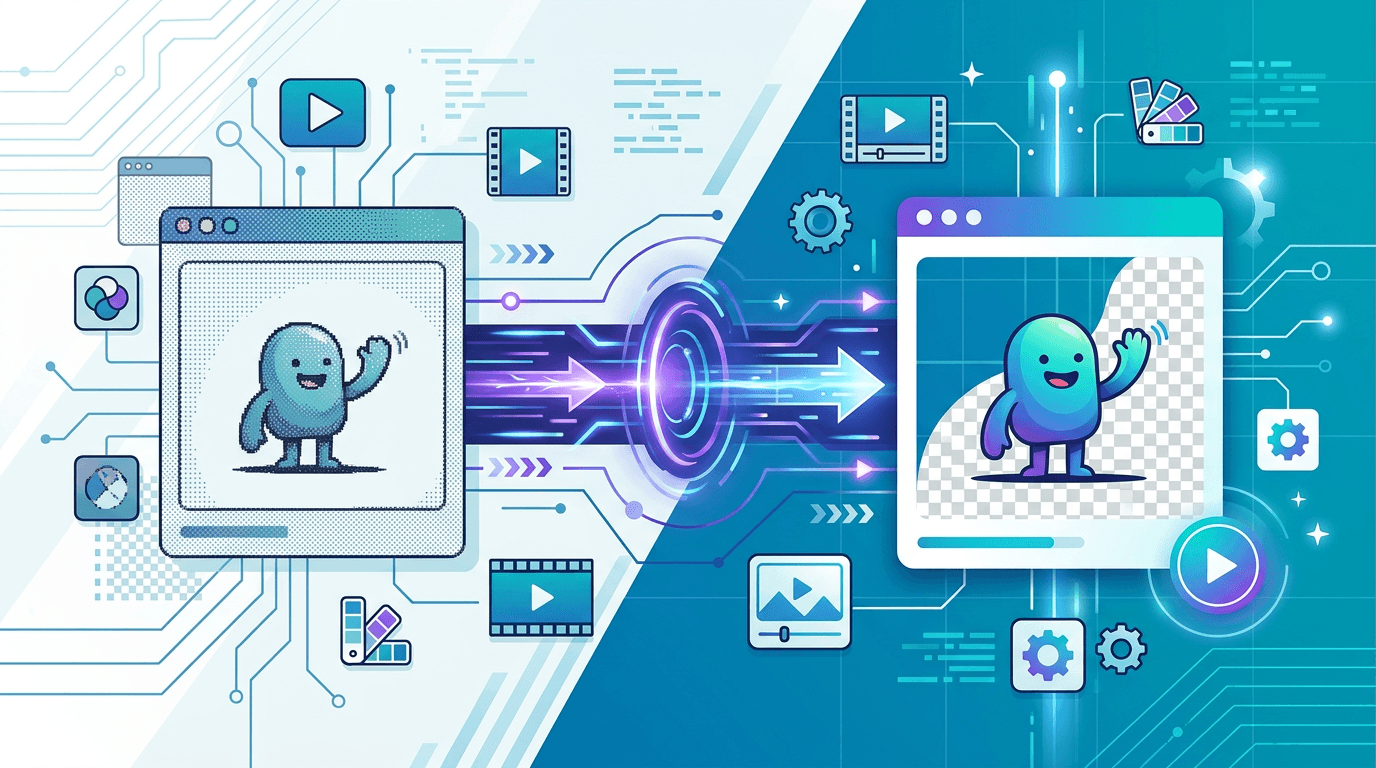
If you've been using GIF for your web animations, it might be time to consider an upgrade. APNG (Animated Portable Network Graphics) offers significantly better image quality, true alpha transparency, and often smaller file sizes — all while maintaining nearly universal browser support. This guide covers everything you need to know about converting GIFs to APNG and when to make the switch.
What Is APNG?
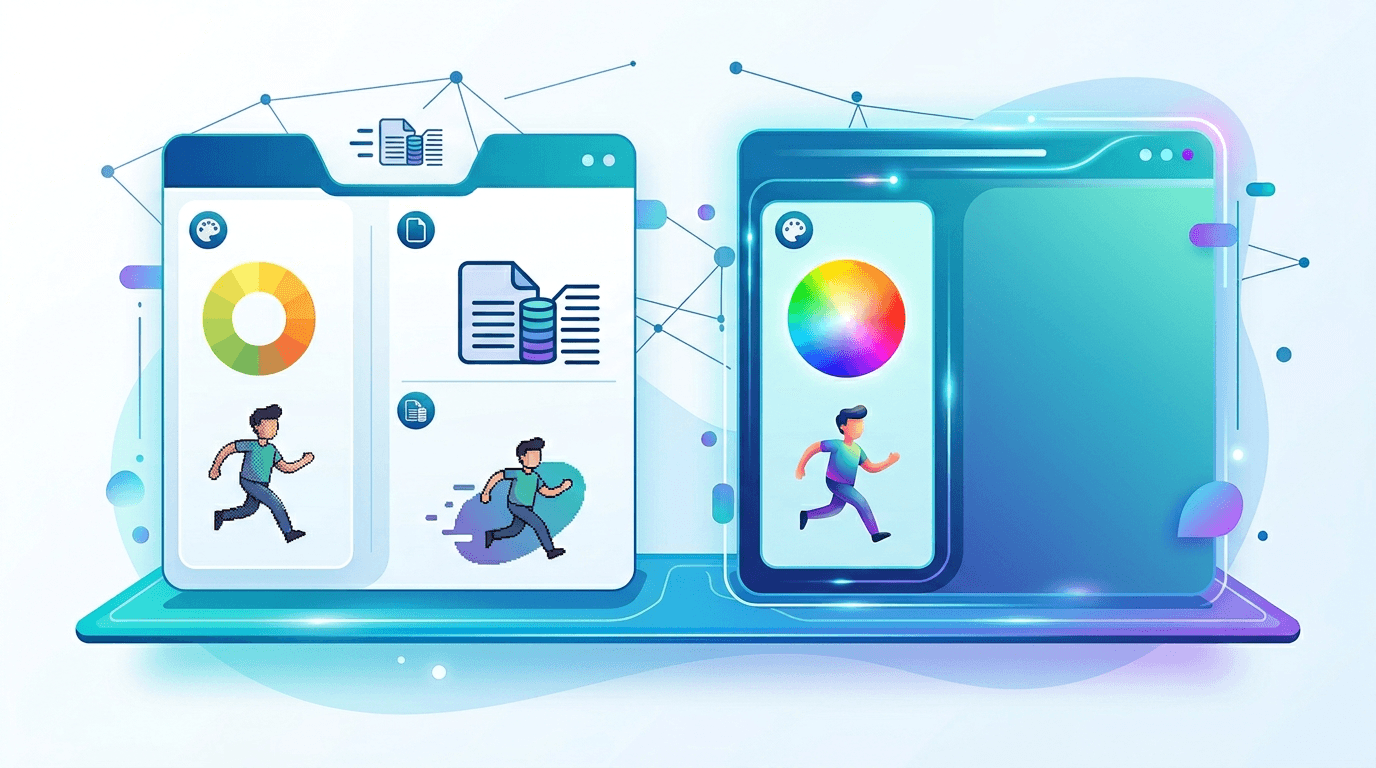
APNG (Animated Portable Network Graphics) is an extension of the PNG format that adds animation support. It was introduced by Mozilla in 2004 as a PNG-compatible alternative to GIF animation, and it improves on GIF in nearly every technical aspect.
Key characteristics:
- Full 24-bit color — 16.7 million colors vs. GIF's 256
- 8-bit Alpha channel — Smooth, graduated transparency at every pixel
- Better compression — Often smaller than equivalent GIF
- Backwards compatible — Non-supporting viewers display the first frame as a static PNG
- Open standard — No patents or licensing restrictions
GIF vs. APNG: Detailed Comparison
| Feature | GIF | APNG |
|---|---|---|
| Color depth | 8-bit (256 colors per frame) | 24-bit (16.7 million) |
| Transparency | Binary on/off | 8-bit Alpha (smooth) |
| File size | Often larger | Often smaller |
| Browser support | Universal | 97%+ |
| Animation quality | Limited | Excellent |
| Color banding | Common | Rare |
| Aliased edges | Yes | No (smooth anti-aliasing) |
Why Convert GIF to APNG?
Better Image Quality
GIF's 256-color limit creates visible problems:
Color banding: Any image with gradients — a sky transitioning from blue to orange, a skin tone, a product background — will show visible "bands" of color where GIF is forced to approximate the original.
Dithering: To simulate more colors, GIF applies dithering (a pattern of dots), which creates a noisy, textured appearance in smooth areas.
APNG uses full 24-bit color, eliminating both issues entirely. The result is animation that looks like the original source image.
True Transparency
GIF transparency is binary: each pixel is either 100% transparent or 100% opaque. There's no middle ground. This creates jagged edges around curved shapes and objects — the "GIF anti-aliasing problem" that web designers have lived with for decades.
APNG supports an 8-bit Alpha channel, meaning each pixel can have any transparency level from 0 (fully transparent) to 255 (fully opaque). This enables:
- Smooth, anti-aliased edges on curved objects
- Soft drop shadows
- Gradual fade effects within animation frames
- Proper rendering on any background color
Competitive File Sizes
For many animation types, APNG produces smaller files than GIF:
- Photo-based animations: APNG 20-50% smaller
- Gradient-heavy animations: APNG 30-60% smaller
- Simple flat-color graphics: Similar sizes (GIF may be slightly smaller)
The compression difference comes from PNG's more efficient algorithm for photographic content.
Modern Web Standard
APNG has near-universal browser support and is increasingly the preferred format for high-quality web animations that don't need the extreme compression of AVIF.
Browser Support for APNG
| Browser | APNG Support | Since Version |
|---|---|---|
| Chrome | Yes | Version 59 |
| Firefox | Yes | Version 3 |
| Safari | Yes | Version 8 |
| Edge | Yes | Version 79 |
| Opera | Yes | Version 46 |
| iOS Safari | Yes | Version 8 |
| Android Chrome | Yes | Version 59 |
Coverage: ~97% of web users can view APNG animations.
The 3% without support (primarily very old browser versions) see the first frame displayed as a static PNG — a graceful, functional fallback.
How to Convert GIF to APNG
Using Our Online Tool (Easiest Method)
Our GIF to PNG converter supports APNG output:
- Open the converter at gif-to-png
- Upload your animated GIF — drag and drop or click to browse
- Select APNG output in the format options
- Configure settings:
- Color depth: 24-bit (recommended) or 8-bit
- Compression: Maximum for smallest file size
- Frame timing: Preserve original GIF timing
- Click Convert and wait for processing
- Download your APNG file
Step-by-Step Settings Guide
Step 1: Prepare Your GIF Source
Before converting, consider:
- Is this the highest quality version of the GIF available?
- Does it contain transparency areas?
- What's the target use case (web, app, email)?
Step 2: Choose Conversion Settings
| Setting | Recommendation |
|---|---|
| Color depth | 24-bit for photos/gradients; 8-bit for simple graphics |
| Compression level | Maximum (PNG compression is lossless) |
| Frame delay | Preserve original timing |
| Loop count | Match original (usually infinite) |
Step 3: Validate the Output
After conversion, verify:
- Animation plays correctly with proper timing
- Transparency is preserved where expected
- File size is acceptable
- Colors appear accurate
- No unexpected artifacts
Optimizing APNG Output
Reducing File Size When APNG Is Larger Than GIF
APNG can sometimes be larger than the source GIF, especially for simple animations. Options to reduce size:
Reduce color depth to 8-bit: Works well for animations with flat colors, icons, and simple graphics. Uses the same 256-color palette as GIF but with APNG's better compression algorithm.
Reduce frame count: If the animation has more frames than visually necessary, removing redundant frames can significantly reduce size.
Optimize compression: Use maximum PNG compression (level 9) and compression filters. Modern APNG optimizers can achieve better results than basic conversion.
Use indexed color mode: For animations that truly only need 256 colors, indexed mode is more efficient.
Quality vs. File Size Decision Matrix
| Priority | Recommended Settings |
|---|---|
| Minimum file size | 8-bit color, maximum compression |
| Best visual quality | 24-bit color, standard compression |
| Balanced | 24-bit color, maximum compression |
Technical Deep Dive: How APNG Works
APNG File Structure
APNG extends PNG by adding three new chunk types:
acTL(Animation Control Chunk): Contains the number of frames and loop countfcTL(Frame Control Chunk): Per-frame timing, dimensions, and disposal methodfdAT(Frame Data Chunk): Compressed pixel data for each frame
The first frame of an APNG is stored as a standard PNG image (using IDAT chunks), which ensures backwards compatibility — a browser that doesn't understand APNG simply displays this first frame as a normal static PNG.
Color Depth Comparison
| Mode | GIF | APNG |
|---|---|---|
| Maximum colors | 256 indexed | 16.7M (24-bit true color) |
| Color model | Indexed palette | Full RGB per pixel |
| Gradients | Require dithering | Native support |
| Smooth transitions | Impossible | Native support |
Transparency Comparison
GIF transparency:
- One palette entry is designated as "transparent"
- Each pixel either uses this palette entry (transparent) or another entry (opaque)
- No partial transparency possible
- Curved edges appear jagged
APNG transparency:
- Each pixel has independent RGBA values (Red, Green, Blue, Alpha)
- Alpha ranges from 0 (fully transparent) to 255 (fully opaque)
- Any pixel can be any transparency level
- Curved edges appear smooth
When to Use APNG vs. GIF
Choose APNG When:
- Transparent backgrounds required: Clean anti-aliased transparency is a significant upgrade
- Animation contains gradients or photos: Eliminates color banding entirely
- Quality matters more than maximum compatibility: 97% support is enough for almost all cases
- Target audience uses modern browsers: Safe for any website built after 2018
Keep GIF When:
- Universal compatibility is critical: Email clients, very old software, specialized viewers
- Animation is extremely simple: Pure flat-color with hard edges where GIF is as good as APNG
- Working with legacy systems that may not support APNG
- File recipients may use non-browser software with unknown APNG support
Creating APNG Directly (Instead of Converting)
If you're creating a new animation rather than converting an existing GIF, consider authoring directly in APNG:
- Design individual frames at your target size (usually 32-800px)
- Export each frame as PNG — maintain transparency where needed
- Use an APNG assembler to combine frames with timing information
- Optimize the final file using an APNG optimizer
This approach avoids the quality loss inherent in using GIF as an intermediate format.
Common Conversion Issues and Solutions
Issue: Output APNG Is Larger Than Source GIF
Cause: APNG stores more color information per pixel and uses different compression
Solutions:
- Use 8-bit indexed color mode for simple graphics
- Apply maximum PNG compression
- Reduce frame count where possible
- Accept the size tradeoff if quality improvement justifies it
Issue: Animation Timing Changes After Conversion
Cause: GIF frame delays are specified in centiseconds; rounding occurs during conversion
Solution: Manually verify and adjust frame timing in your conversion tool settings. Check the source GIF's timing before converting.
Issue: Colors Look Different Between GIF and APNG
Cause: Color space or gamma correction differences
Solution: Ensure both files use the sRGB color space. If using command-line tools, specify -srgb or equivalent color space flags.
Issue: Transparency Not Preserved
Cause: Converter not handling GIF transparency index correctly
Solution: Use our GIF to PNG converter which properly maps GIF palette transparency to APNG Alpha channel values.
Batch Converting GIF to APNG
For multiple files:
- Collect all GIF files into a single directory
- Use our conversion tool for each file, or use batch processing tools
- Apply consistent settings across all files
- Verify each output — especially transparency and timing
- Organize outputs with clear naming conventions
Frequently Asked Questions
Is APNG better than GIF?
In terms of image quality, yes — significantly. APNG provides full 24-bit color (16.7 million vs. 256), smooth transparency, and generally better compression for photographic content. GIF has slightly broader compatibility but APNG's 97%+ support makes it suitable for virtually all web use cases.
Can all browsers display APNG?
Approximately 97% of browsers support APNG. Browsers that don't support it (very old versions) display the first frame as a static PNG — a graceful fallback that ensures content is always visible.
Does APNG work in email clients?
Email client support for APNG varies. Many modern clients support it, but GIF remains safer for email use. For web pages and apps, APNG is recommended over GIF.
How much smaller is APNG than GIF?
It depends on content. Photo-based or gradient animations as APNG are typically 20-50% smaller. Simple flat-color animations may be similar in size or slightly larger as APNG. The quality improvement often justifies using APNG even when file sizes are comparable.
Can I convert APNG back to GIF?
Yes, but quality will be lost due to GIF's color limitations. The conversion is lossy — you'll lose the smooth transparency and may see color banding in areas that were smooth gradients.
Summary
Converting GIF to APNG delivers meaningful quality improvements with virtually no compatibility tradeoff for modern web projects. The combination of 24-bit color, smooth alpha transparency, and 97% browser support makes APNG the superior choice for high-quality web animations.
Key benefits of switching to APNG:
- Eliminated color banding — Full 24-bit color
- Smooth transparency — 8-bit Alpha channel
- Often smaller files — Better compression for complex content
- Near-universal support — 97%+ browser coverage
- Graceful fallback — Static PNG for non-supporting viewers
Ready to upgrade your animations? Use our GIF to PNG converter to create high-quality APNG files from your animated GIFs.
Related tools: GIF to WebP | GIF to JPG | PNG to GIF