
How to Create a Favicon from PNG - Complete Tutorial
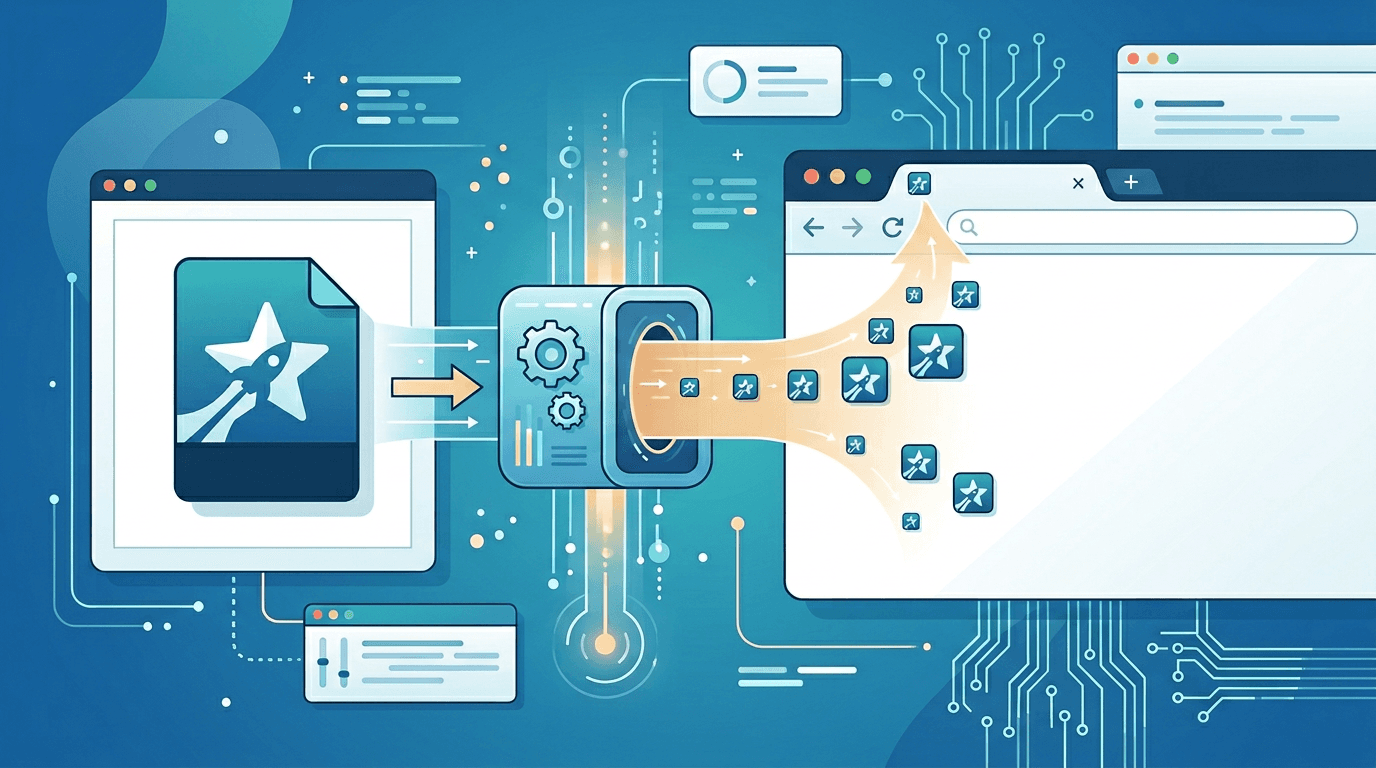
A favicon is the small icon that appears in browser tabs, bookmarks, and mobile home screens. Creating a perfect favicon from your PNG logo or image is essential for brand recognition. This guide walks you through the process step by step.
What Is a Favicon?
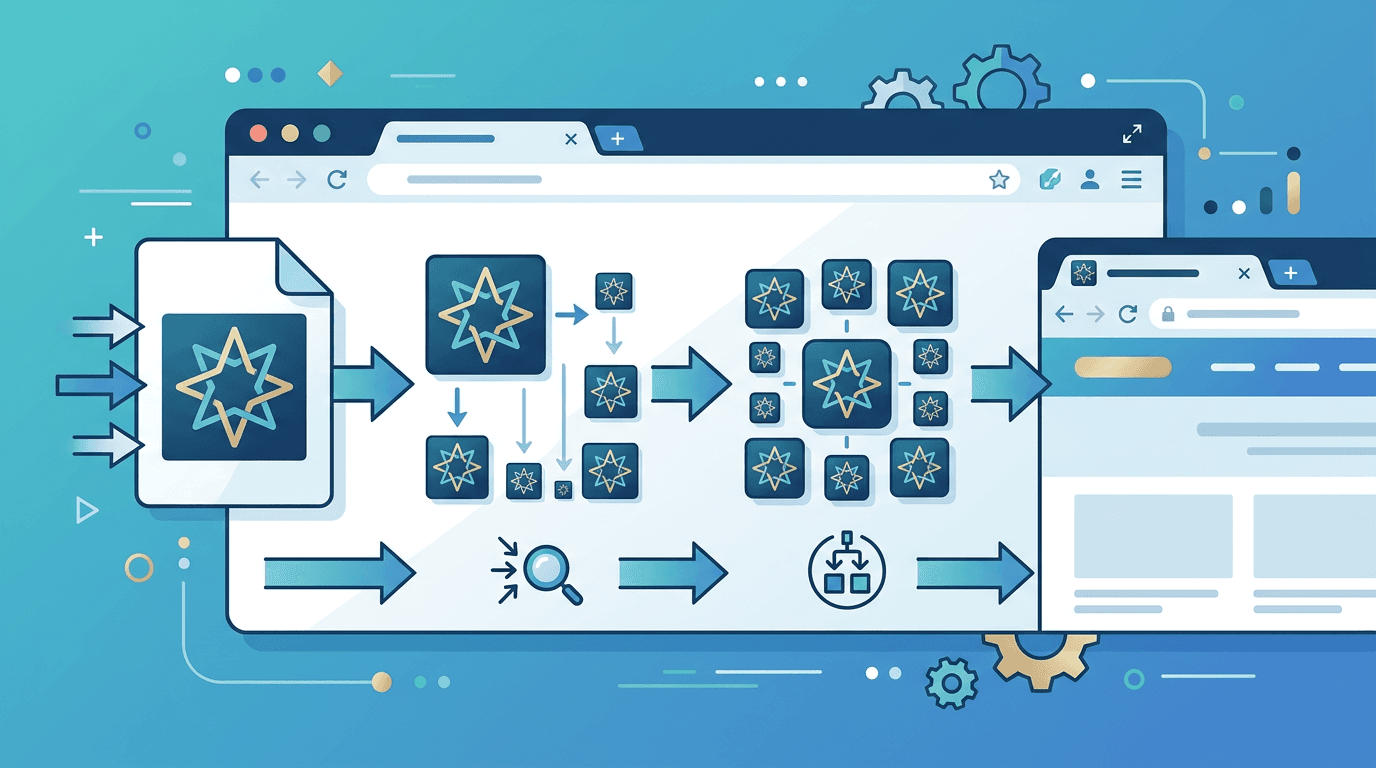
A favicon (favorites icon) is a small icon associated with your website:
- Browser tabs — Identifies your site among many open tabs
- Bookmarks — Helps users find your site in their favorites
- Mobile home screen — Displays an app-like icon when saved to the home screen
- Search results — May appear next to your URL
Preparing Your PNG for Favicon Conversion
Ideal Source Image
For best results, start with a PNG that meets these specs:
| Requirement | Recommended | Minimum |
|---|---|---|
| Resolution | 512×512 px | 260×260 px |
| Shape | Square | Square |
| Background | Transparent | Solid or transparent |
| File format | PNG-24 | PNG-8 or PNG-24 |
Favicon Design Tips
Favicons are tiny, so:
- Keep it simple — Complex logos don't work at 16×16
- Use bold lines — Thin lines vanish at small sizes
- High contrast — Ensure visibility on any background
- Test at small sizes — Preview at 16×16 before converting
How to Create a Favicon from PNG
Step 1: Prepare Your Image
Open your logo or icon in an image editor and:
- Crop to a square aspect ratio
- Resize to 512×512 pixels
- Save as a PNG with transparency (if needed)
Step 2: Convert PNG to ICO
Use our PNG to ICO converter:
- Upload your square PNG image
- Select the multi-size ICO option (includes 16×16, 32×32, 48×48)
- Convert and download your .ico file
Step 3: Add to Your Website
Place the favicon in your site's root directory and add it to your HTML:
<!-- Basic favicon -->
<link rel="icon" href="/favicon.ico">

<!-- Modern approach (recommended) -->
<link rel="icon" href="/favicon.ico" sizes="any">
<link rel="icon" href="/favicon.svg" type="image/svg+xml">
<link rel="apple-touch-icon" href="/apple-touch-icon.png">
Creating Multi-Size Favicons
Modern browsers require multiple sizes:
| Size | Purpose |
|---|---|
| 16×16 | Browser tab (standard) |
| 32×32 | Browser tab (Retina) |
| 48×48 | Windows taskbar |
| 180×180 | Apple Touch Icon |
| 192×192 | Android Chrome |
| 512×512 | PWA splash screen |
Our PNG to ICO converter automatically generates the essential sizes.
Complete Favicon Package
For full coverage, create these files:
1. favicon.ico (Multi-Size)
Contains 16×16, 32×32, and 48×48 in one file:
<link rel="icon" href="/favicon.ico">
2. Apple Touch Icon
For iOS Safari and Apple devices:
<link rel="apple-touch-icon" href="/apple-touch-icon.png">
Size: 180×180 pixels
3. Android Chrome Icons
For the Android home screen:
<link rel="icon" type="image/png" sizes="192x192" href="/android-chrome-192x192.png">
<link rel="icon" type="image/png" sizes="512x512" href="/android-chrome-512x512.png">
4. Web App Manifest
For Progressive Web Apps:
{
  "icons": [
    { "src": "/android-chrome-192x192.png", "sizes": "192x192", "type": "image/png" },
    { "src": "/android-chrome-512x512.png", "sizes": "512x512", "type": "image/png" }
  ]
}
Common Favicon Mistakes
Mistake 1: Using a Complex Image
Problem: Logo detail is lost at small sizes.
Solution: Simplify or use just the logo mark, not the full logo with text.
Mistake 2: Wrong Aspect Ratio
Problem: Favicon appears stretched or cropped.
Solution: Always use a square image (1:1 ratio).
Mistake 3: Missing Sizes
Problem: Favicon looks blurry on some devices.
Solution: Generate all required sizes or use our converter to create a multi-size ICO.
Mistake 4: No Transparency
Problem: Favicon has an ugly white background.
Solution: Use a PNG with a transparent background before converting.
Testing Your Favicon
After implementation, verify on:
- Chrome — Check the browser tab
- Firefox — Check the browser tab
- Safari — Check the tab and bookmarks
- Mobile Safari — Add to the home screen
- Android Chrome — Add to the home screen
Testing Tools
- Real Favicon Generator — Comprehensive preview
- Favicon Checker — Verify all sizes are present
- Browser DevTools — Check for 404 errors
Favicons for Different Platforms
Windows
Windows may use larger taskbar icons:
- 48×48 in the ICO file
- Optional: 64×64, 128×128, 256×256
macOS
Safari and Finder use:
- 16×16, 32×32 standard
- 64×64, 128×128 for Retina displays
iOS
Requires an Apple Touch Icon:
- 180×180 PNG
- No transparency (add a background color)
- Rounded corners applied automatically
Android
Uses the web app manifest:
- 192×192 for standard
- 512×512 for splash screen
Advanced: SVG Favicons
Modern browsers support SVG favicons:
<link rel="icon" href="/favicon.svg" type="image/svg+xml">
Pros:
- Infinite scaling
- Smaller file size
- Can use CSS to support dark mode
Limitations: Not supported in Safari or older browsers (use ICO as a fallback).
Favicon Best Practices
- Start with high resolution — 512×512 minimum
- Keep the design simple — Recognizable at 16×16
- Use transparency wisely — Consider dark mode
- Generate all sizes — Don't rely on browser scaling
- Test everywhere — Check multiple browsers and devices
- Include a fallback — ICO for older browsers
FAQ
What size should a favicon PNG be?
At least 512×512 pixels. The converter will create all the smaller sizes you need.
Can I use a photo as a favicon?
Technically yes, but photos don't work well at small sizes. Use a simplified graphic or icon instead.
Why is my favicon blurry?
Either your source image is too small or the browser is scaling a low-resolution version. Generate the proper sizes.
Do I need both ICO and PNG favicons?
Yes, for best compatibility. ICO for older browsers, PNG for modern browsers and mobile devices.
How do I make a transparent favicon?
Start with a PNG that has a transparent background. Use our PNG to ICO converter to convert it.
Summary
Creating a favicon from PNG is straightforward with the right tools. Use our PNG to ICO converter to generate a professional multi-size favicon in seconds.
Related tools: Favicon Generator | Image Resizer | PNG to JPG