
Extract Frames from GIF - Get Individual Images
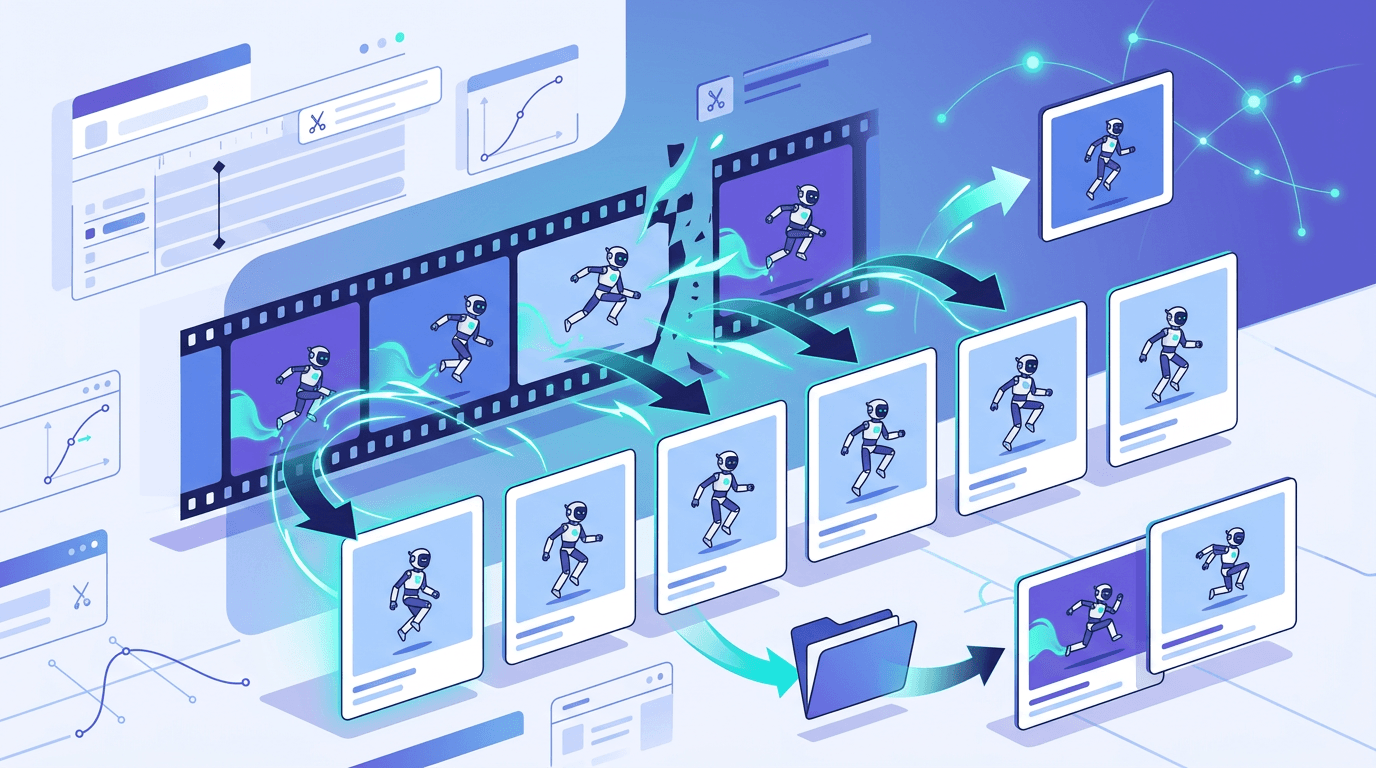
Extracting frames from GIFs lets you save individual images from animations. This is useful for editing, creating stills, or repurposing content.
Why Extract GIF Frames?

Common Reasons
- Get a specific still image
- Edit individual frames
- Create new animations
- Analyze animation timing
- Save best frame as photo
Use Cases
- Capture perfect moment
- Fix animation issues
- Create thumbnails
- Extract for editing
- Documentation
How to Extract Frames
Using Our Tool
- Visit GIF Frame Extractor
- Upload GIF file
- View all frames
- Select frames to save
- Download images
Output Options
Export as:
- PNG (lossless)
- JPG (smaller)
- Individual files
- All frames zip
Understanding GIF Structure
Frame Basics
GIF animations contain:
- Multiple images
- Timing information
- Disposal methods
- Transparency data
Frame Properties
Each frame has:
- Duration (delay)
- Position
- Dimensions
- Transparency
Extraction Options
All Frames
Export everything:
- Complete frame sequence
- Numbered files
- Original quality
- Zip download
Specific Frames
Select particular:
- By frame number
- By time position
- Preview before export
- Multiple selection
Single Frame
Just one image:
- Best moment
- Key frame
- Thumbnail creation
Frame Preview
Viewing Frames
Before extraction:
- Scroll through frames
- Preview each image
- Check timing
- Identify best frames
Navigation
Tools for viewing:
- Frame slider
- Next/previous
- Jump to frame
- Timeline view
Output Quality
Format Choice
| Format | Best For | Quality |
|---|---|---|
| PNG | Editing, transparency | Lossless |
| JPG | Sharing, small files | Lossy |
Resolution
Frames maintain:
- Original dimensions
- Full quality
- Color depth
Use Cases in Detail
Creating Thumbnails
From GIF:
- Find representative frame
- Export as image
- Use as preview
Fixing Animations
Editing workflow:
- Extract all frames
- Edit needed frames
- Reassemble GIF
Meme Creation
Content creation:
- Find perfect expression
- Export single frame
- Add text in editor
Documentation
Screen recordings:
- Extract key moments
- Use in tutorials
- Create guides
Handling Large GIFs
Many Frames
For long animations:
- Preview first
- Export selectively
- Batch download
File Size
Considerations:
- Each frame is separate file
- Total size adds up
- Organize well
Transparency Handling
Preserving Transparency
When extracting:
- Use PNG format
- Transparency maintained
- Clean edges
Background Issues
If transparency lost:
- Check export format
- Use PNG, not JPG
- Verify original has transparency
Batch Operations
All Frames
For complete extraction:
- One-click export all
- Automatic numbering
- Zip download
Selected Frames
Multiple specific:
- Ctrl/Cmd click
- Range selection
- Grouped export
After Extraction
Editing Frames
With individual images:
- Photoshop/GIMP
- Color correction
- Retouching
- Effects
Reassembly
Creating new GIF:
- Import edited frames
- Set timing
- Export new animation
Frequently Asked Questions
What format should I export frames as?
PNG for quality and transparency, JPG for smaller files.
Can I extract just one frame?
Yes, select and export any single frame.
Will extraction reduce quality?
No, frames are extracted at original quality.
How many frames do GIFs have?
Varies widely. Simple GIFs: 10-30. Complex: 100+.
Can I put frames back into a GIF?
Yes, use a GIF maker to reassemble frames.
Conclusion
Extracting frames from GIFs is useful for editing, creating thumbnails, or capturing specific moments. Export as PNG for best quality or JPG for smaller files.
Extract GIF frames with our Frame Extractor.
Related tools: GIF Maker | GIF Editor | Image Editor