
How to Create a Thumbnail from GIF - Quick Guide

Creating a thumbnail from a GIF is essential for previews, social media posts, and website galleries. This guide shows you how to extract the perfect frame and optimize it as a thumbnail.
Why Create GIF Thumbnails?
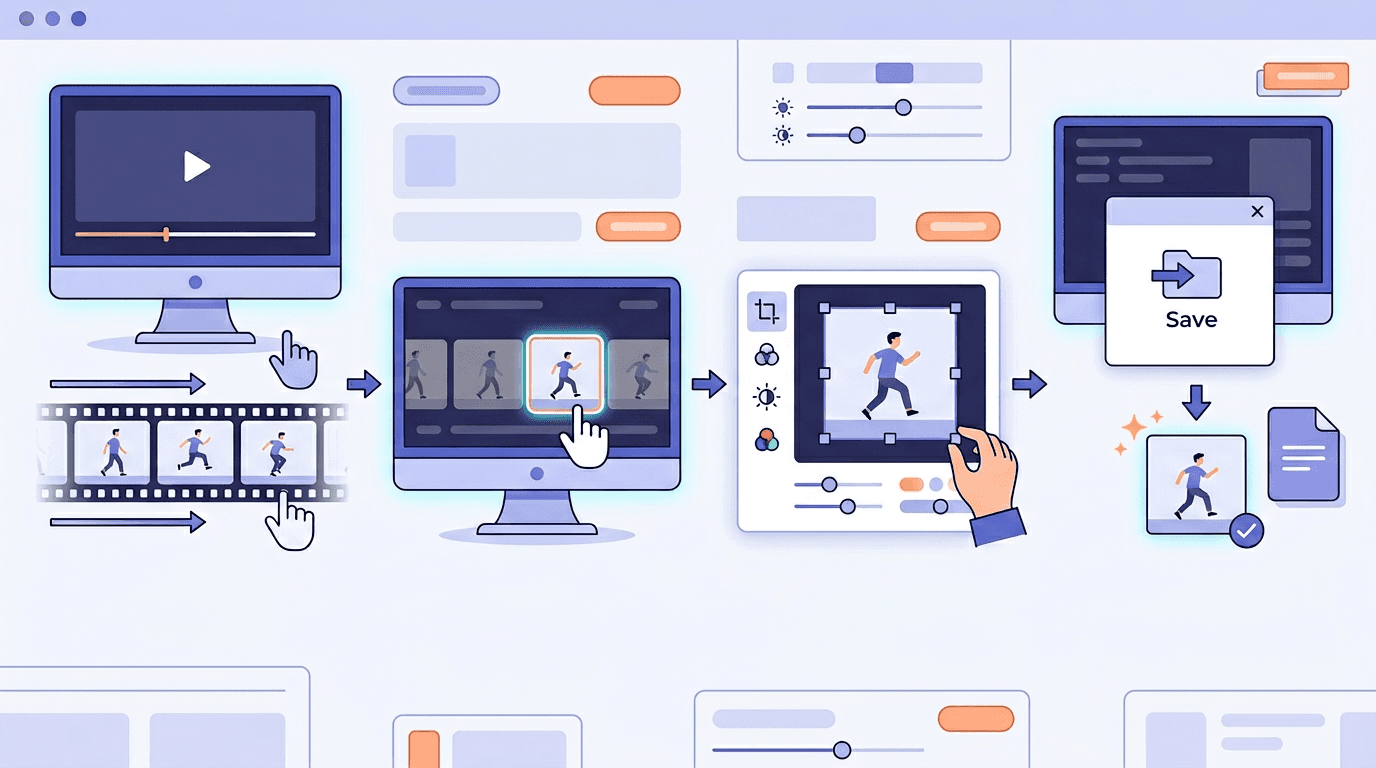
GIF thumbnails serve important purposes:
- Faster loading - Static images load instantly vs. animated GIFs
- Preview images - Show what the animation contains before playing
- Social media - Many platforms need static preview images
- SEO benefits - Search engines can index static images more easily
- Email compatibility - Email clients often don't play animations
- Bandwidth savings - Reduce data usage for users
How to Create a GIF Thumbnail
Method 1: Using Our Online Tool
The fastest way is using our GIF to JPG converter:
- Upload your GIF to the converter
- Select single frame mode
- Choose the best frame for your thumbnail
- Download the extracted image
- Resize if needed using our Image Resizer
Method 2: Choosing the Right Frame
Not all frames make good thumbnails. Consider:
| Frame Type | Best For |
|---|---|
| First frame | Simple animations, loops |
| Middle frame | Action sequences |
| Peak action frame | Sports, movement |
| Most colorful frame | Attention-grabbing thumbnails |
| Clear/sharp frame | Professional use |
Best Practices for GIF Thumbnails
Optimal Thumbnail Sizes
Different platforms have different requirements:
| Platform | Recommended Size |
|---|---|
| YouTube | 1280 x 720 px |
| 1200 x 630 px | |
| Twitter/X | 1200 x 675 px |
| 1080 x 1080 px | |
| Website preview | 400 x 300 px |
| 600 x 400 px |
Choosing the Right Format
JPG thumbnails:
- Smaller file sizes
- Best for photographs and complex images
- No transparency support
PNG thumbnails:
- Larger file sizes but sharper
- Supports transparency
- Better for graphics and text
Use our tool to convert GIF to PNG if you need transparency.
Step-by-Step: Creating the Perfect Thumbnail
Step 1: Analyze Your GIF
Watch your GIF and identify:
- The most visually appealing frame
- Frames with clear, focused content
- The frame that best represents the animation
Step 2: Extract the Frame
Visit our GIF converter:
- Upload your GIF file
- Select the frame number you identified
- Choose JPG or PNG format
- Download the extracted frame
Step 3: Optimize the Thumbnail
For the best results:
- Crop to focus on the main subject
- Resize to your target dimensions
- Compress to reduce file size
- Sharpen slightly if the image is soft
Step 4: Add Enhancements (Optional)
Consider adding:
- Play button overlay to indicate it's a video/GIF
- Text overlay describing the content
- Brand watermark for protection
Creating Thumbnails for Different Purposes
For Video Platforms
Video platforms like YouTube need eye-catching thumbnails:
- Choose a high-energy or emotional frame
- Ensure faces are visible when possible
- Use bright, contrasting colors
For Websites and Galleries
Website thumbnails should be consistent:
- Use the same aspect ratio for all thumbnails
- Maintain consistent sizing
- Consider lazy loading for performance
For Social Media
Social media thumbnails need to grab attention:
- Select the most interesting frame
- Ensure the image makes sense without animation
- Test visibility at small sizes
Common Thumbnail Mistakes to Avoid
- Blurry frames - Avoid frames with motion blur
- Transition frames - Skip frames between scenes
- Low contrast - Choose frames with good visual contrast
- Cut-off content - Ensure important elements are fully visible
- Wrong aspect ratio - Match the platform requirements
Batch Creating Thumbnails
For multiple GIFs, streamline your workflow:
- Extract first frames from all GIFs
- Review and select the best frame for each
- Batch resize to your required dimensions
- Apply consistent naming conventions
Technical Considerations
File Size Optimization
Keep thumbnails lightweight:
- JPG quality: 70-85% for web
- PNG: Use compression tools
- Target size: Under 100KB for web thumbnails
Resolution vs. File Size
| Use Case | Resolution | Target Size |
|---|---|---|
| Web preview | 400 x 300 px | 30-50 KB |
| Social media | 1200 x 630 px | 80-150 KB |
| High-res display | 1920 x 1080 px | 150-300 KB |
Frequently Asked Questions
Which frame makes the best thumbnail?
Usually the frame that best represents your content. For action GIFs, choose the peak moment. For loops, the first frame often works well.
Should I use JPG or PNG for thumbnails?
Use JPG for photographs and complex images (smaller files). Use PNG when you need transparency or for graphics with text.
How do I extract a specific frame?
Use our GIF to JPG tool, select single frame mode, enter the frame number, and download.
Can I create thumbnails from animated WebP?
Yes, our tools also support WebP animations. Convert using similar methods.
What's the ideal thumbnail file size?
For web use, keep thumbnails under 100KB. For high-quality social media posts, up to 200KB is acceptable.
Conclusion
Creating effective GIF thumbnails is straightforward with the right approach. Choose a representative frame, optimize for your platform, and ensure the image conveys what the animation contains.
Ready to create your thumbnail? Use our GIF to JPG converter to extract the perfect frame.
Related tools: GIF to PNG | Image Resizer | Image Cropper