
Batch Convert PDF to JPG - Convert Multiple PDFs at Once
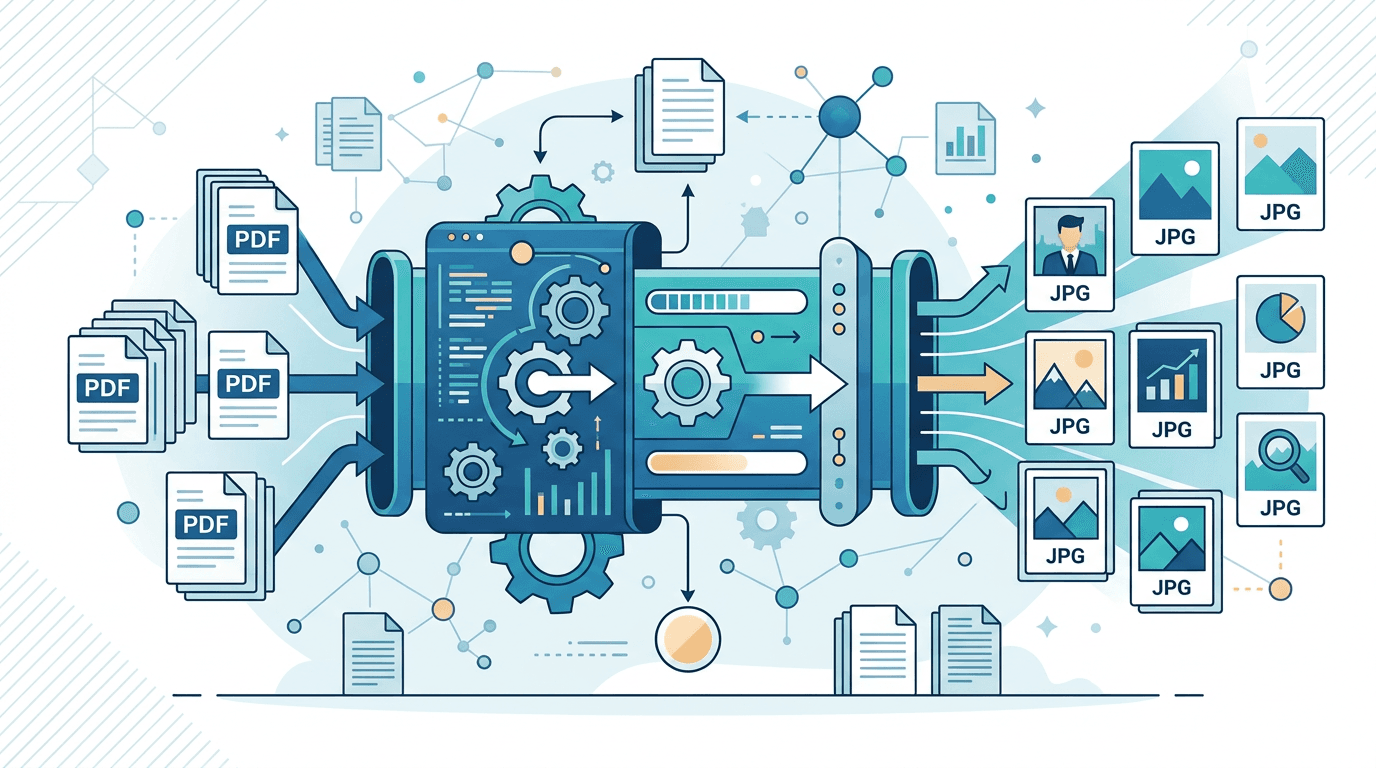
Need to convert multiple PDF pages or entire documents to JPG images? Batch conversion saves time when dealing with multi-page documents or multiple PDF files. This guide shows you how to efficiently convert PDFs to JPG in bulk.
Why Batch Convert PDF to JPG?
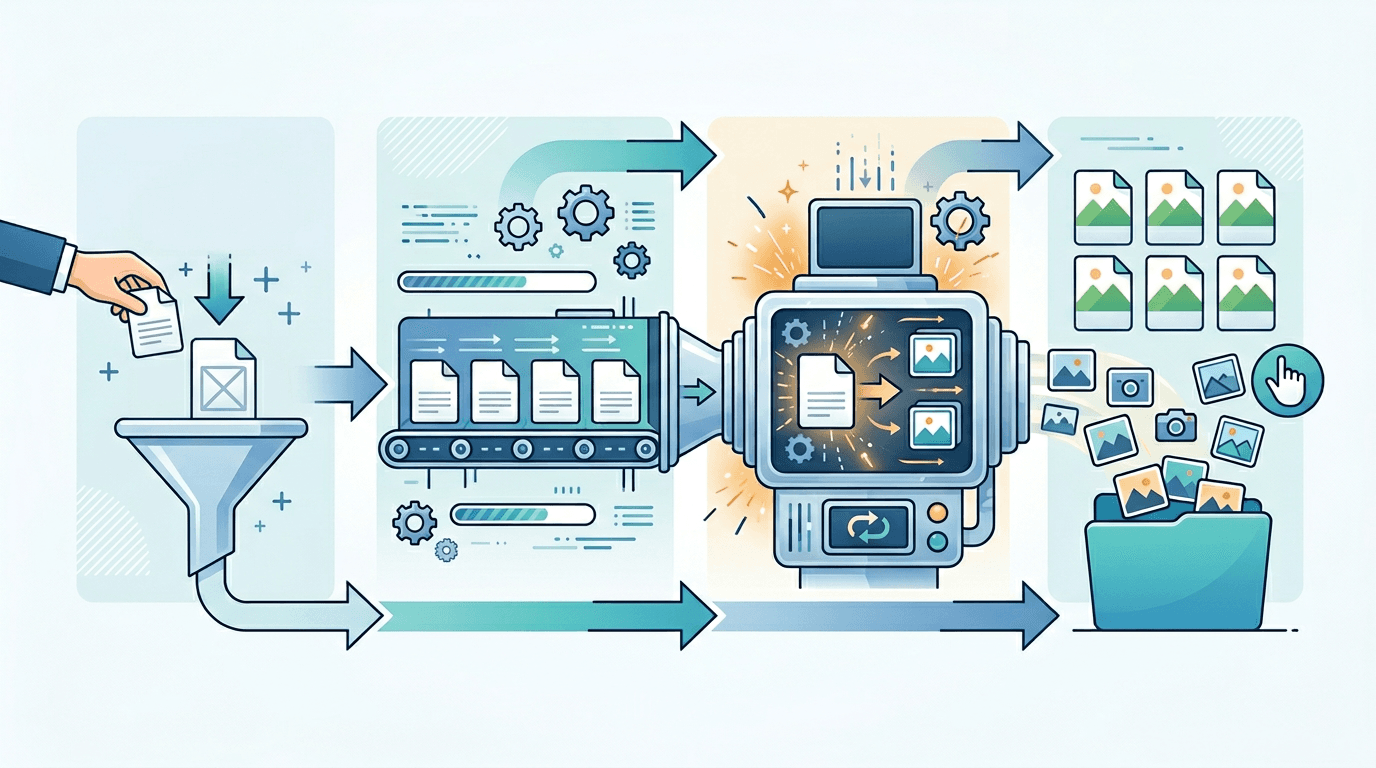
Batch conversion is essential when you have:
- Multi-page documents - Convert all pages at once instead of one by one
- Document collections - Process multiple PDFs simultaneously
- Regular workflows - Automate repetitive conversion tasks
- Large projects - Handle hundreds of pages efficiently
How to Batch Convert PDF to JPG
Method 1: Multi-Page PDF Conversion
Use our PDF to JPG converter for multi-page documents:
- Upload your PDF - Select your multi-page document
- Choose "All Pages" - Convert every page in one go
- Set quality - Select resolution (1x to 4x)
- Download ZIP - Get all JPG images in a single archive
Method 2: Page Range Conversion
For specific pages from a large document:
- Upload PDF - Load your document
- Enter page range - Specify pages like "1-10" or "5,7,9,12"
- Convert - Process only selected pages
- Download - Get your selected pages as JPG
Batch Conversion Settings
| Setting | Options | Best For |
|---|---|---|
| Pages | All, Range, Custom | Complete documents or selections |
| Quality | 1x, 2x, 3x, 4x | Web (1x), Print (4x) |
| Format | JPG | Universal compatibility |
Tips for Efficient Batch Conversion
Organize Before Converting
Know which pages you need before starting. This saves time with large documents.
Choose Appropriate Quality
- Web/Email: Use 1x or 2x quality for smaller files
- Presentations: Use 2x for good balance
- Printing: Use 3x or 4x for best results
Use Page Ranges Wisely
Instead of converting a 100-page PDF entirely, select only the pages you need.
Download as ZIP
Always download multiple images as a ZIP archive for easier organization.
Managing Batch Converted Files
File Naming
Our converter automatically names files by page number (page-1.jpg, page-2.jpg, etc.) for easy sorting.
Folder Organization
Create dedicated folders for each converted document to keep files organized.
Quality Check
Spot-check a few converted images to ensure quality meets your needs before using all files.
Common Batch Conversion Scenarios
Converting Reports
Turn quarterly reports or annual documents into shareable images for presentations.
Creating Image Archives
Convert important documents to JPG format for backup and easy access.
Preparing Social Media Content
Extract specific pages from brochures or catalogs for social media posts.
Document Distribution
Convert PDFs to images for recipients who don't have PDF readers.
Frequently Asked Questions
How many pages can I convert at once?
There's no strict limit. Our tool handles documents with dozens or hundreds of pages.
Will all pages be the same quality?
Yes, all pages are converted with the same quality settings you select.
Can I convert specific pages only?
Yes, use the page range feature to select specific pages like "1,3,5-10".
How are the files organized?
Multiple images are provided in a ZIP file with pages numbered sequentially.
Is batch conversion still free?
Yes, batch converting multi-page PDFs is completely free with no watermarks.
Conclusion
Batch converting PDF to JPG saves significant time when working with multi-page documents. Use our PDF to JPG converter to process entire documents or specific page ranges efficiently.
Related tools: PDF to PNG | PDF to Image | Merge Images