
Image Aspect Ratios: Plan 16:9, 4:3 and Square Crops
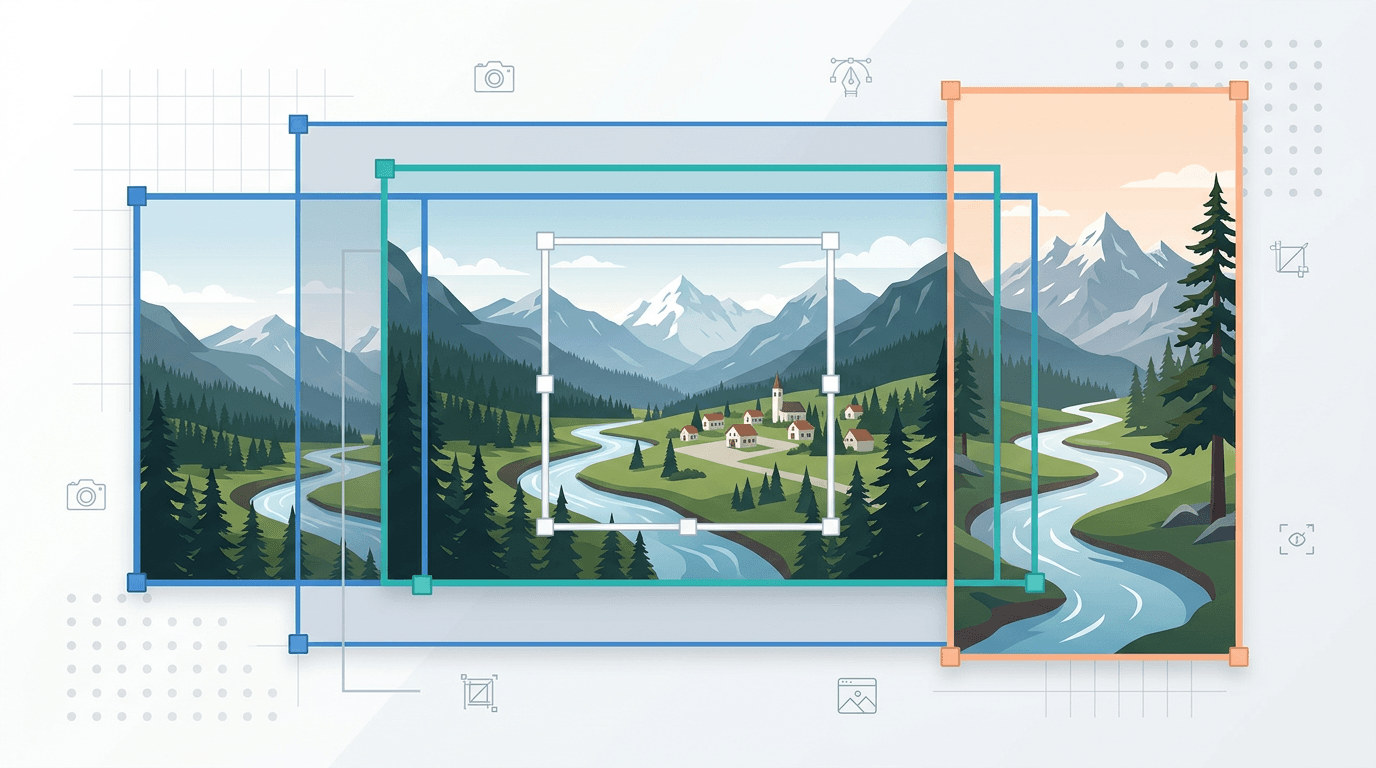
An aspect ratio describes width compared with height. It does not specify resolution: 1600×900 and 1920×1080 are both 16:9. Choose the ratio required by your layout before deciding which part of the photo to keep.
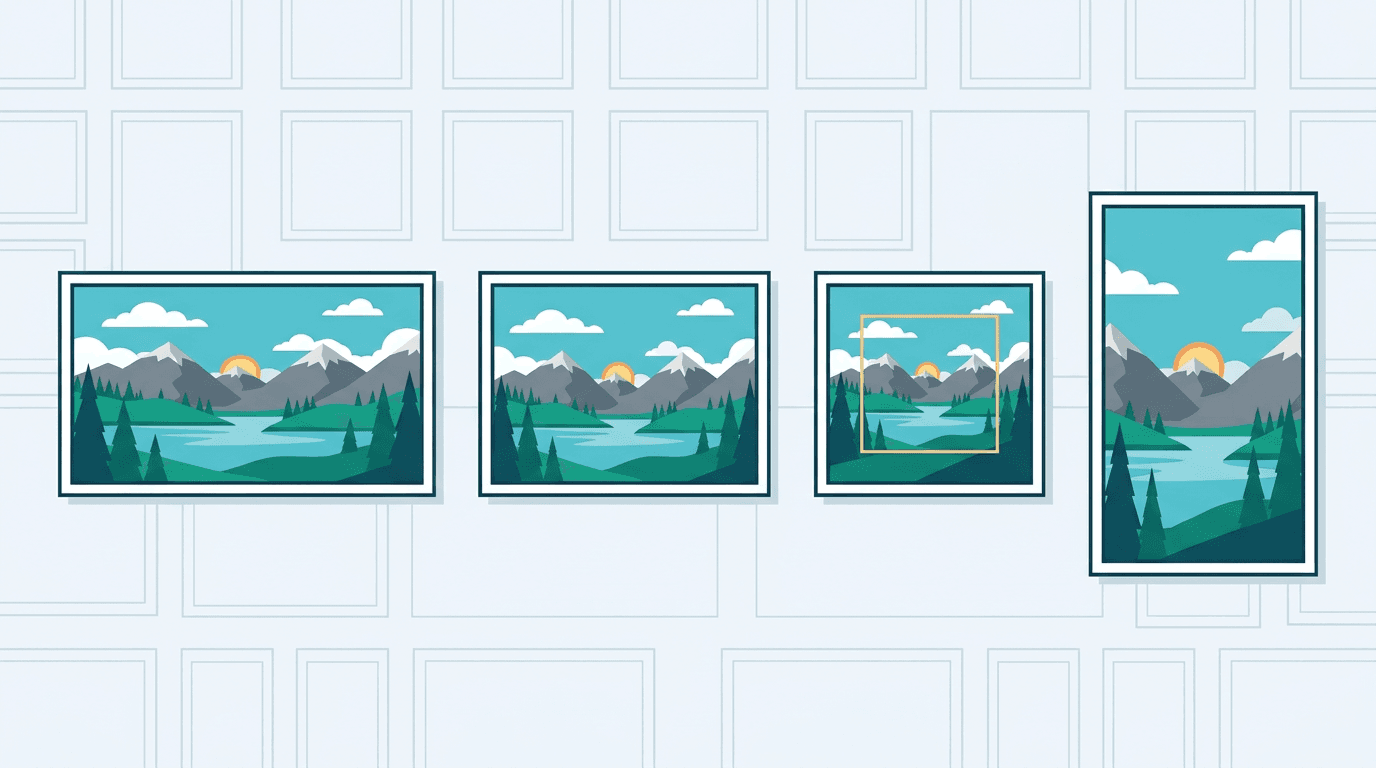
Common ratios and example dimensions
| Ratio | Example pixels | Shape |
|---|---|---|
| 16:9 | 1600×900 | Wide landscape |
| 4:3 | 1200×900 | Landscape |
| 1:1 | 1000×1000 | Square |
| 4:5 | 1080×1350 | Portrait |
| 9:16 | 1080×1920 | Tall portrait |
| 3:2 | 1800×1200 | Landscape photo |
These are mathematical examples, not current upload requirements for a particular platform. Check the destination’s format, dimensions and safe areas. For print, orientation matters: a 6×4-inch photo is 3:2, while 4×6 inches is 2:3.
The Most Common Aspect Ratios Explained
The examples below illustrate shapes and possible uses, not current upload limits or guaranteed display behavior. Check the destination’s actual slot and safe areas. Physical dimensions are written width × height.
16:9 — Widescreen Standard
What it looks like: Significantly wider than tall, classic "cinematic" proportions.
Used for:
- YouTube thumbnails and video content
- Presentation slides (PowerPoint, Google Slides)
- TV screens and computer monitors
- Website hero banners and background images
- Twitch stream thumbnails
Common pixel dimensions:
- 1920 × 1080 (Full HD)
- 1280 × 720 (HD)
- 3840 × 2160 (4K UHD)
- 2560 × 1440 (QHD)
4:3 — Traditional Photo Format
What it looks like: Slightly wider than tall, the classic "photo" proportion.
Used for:
- Instagram landscape posts
- Older monitor formats
- Standard print photos (6×4 roughly equals 3:2, but 4:3 is common for 8×6)
- Some presentation formats
- Product photos with slight height
Common pixel dimensions:
- 1024 × 768
- 1200 × 900
- 2048 × 1536
1:1 — Perfect Square
What it looks like: Equal width and height.
Used for:
- Instagram feed posts
- Profile pictures in square layouts
- App icons
- Thumbnail images in grid layouts
- Square print photographs
Common pixel dimensions:
- 1080 × 1080
- 500 × 500 (smaller web use)
- 1200 × 1200 (high-res)
9:16 — Vertical/Portrait
What it looks like: Taller than wide — essentially a rotated 16:9.
Used for:
- Instagram Stories and Reels
- TikTok videos and thumbnails
- YouTube Shorts
- Smartphone wallpapers
- Pinterest pins and idea pins
Common pixel dimensions:
- 1080 × 1920 (Full HD portrait)
- 720 × 1280 (HD portrait)
4:5 — Vertical Post
What it looks like: Slightly taller than wide, a gentle portrait orientation.
Used for:
- Instagram vertical feed posts
- Portrait photography prints
- Magazine-style posters
- Pinterest images
Common pixel dimensions:
- 1080 × 1350
- 1600 × 2000
3:2 — Photography Standard
What it looks like: The classic 35mm film proportions, slightly wider than tall.
Used for:
- DSLR and mirrorless camera photos
- 35mm film photography
- Standard print photos (6×4 prints)
- Photo gallery displays
- Editorial photography
Common pixel dimensions:
- 1800 × 1200
- 3000 × 2000
- 6000 × 4000 (high-res DSLR)
Calculate a crop before editing
To keep a width of 1600 pixels at 16:9, calculate height as 1600 × 9 ÷ 16 = 900. If the source is 1600×1200, that removes 300 pixels of height in total; you choose where to place the crop.
Cropping cannot add source pixels. A 1200×900 image can yield a square no larger than 900×900 without enlargement. To make a portrait crop from a square source, narrow the crop; increasing the canvas height would be a different operation.
What this site’s cropper provides
The Image Cropper offers a free rectangular selection for one image. It does not have ratio presets, a ratio lock or fields for entering crop width and height.
- Select an image that the browser can preview.
- Drag the selection around the subject and inspect the displayed source-pixel width and height.
- Compare that ratio with your target and adjust the rectangle manually.
- Choose PNG, JPG or WebP, submit and download. Check the result’s dimensions.
For an exact ratio or pixel-precise crop, use an editor with numeric crop controls. The Image Resizer can change final dimensions afterward, but forcing a new ratio stretches the picture instead of selecting a new crop.
Composition Tips for Better Crops
The Rule of Thirds
When positioning your crop, apply the rule of thirds:
- Mentally divide the frame into a 3×3 grid (9 equal sections)
- Place your main subject at one of the four intersection points
- Position horizon lines along one of the horizontal thirds
- Keep faces/eyes on the upper third line
This creates naturally balanced, visually interesting compositions.
Leave Breathing Room
Before finalizing your crop:
- Text overlay space: If you'll add text later, leave empty space in corners or edges
- Subject breathing room: Don't crop too tightly around a person's face
- Safe areas: Leave space around important content and inspect the destination’s actual overlays and cropping; there is no universal 10% margin.
Handling Orientation Changes
Landscape to Square (16:9 → 1:1):
- Focus on the central subject
- Center the most important element
- Crop equally from both sides when the subject is centered
- For off-center subjects, crop more from the empty side
Portrait to Landscape (9:16 → 16:9):
- This removes a significant amount of vertical content
- Center the most important region (usually faces)
- Consider whether the ratio change works for your content
- Some images may not crop well across very different ratios
Square to Vertical (1:1 → 4:5):
- Narrow the selected width while keeping the available height
- Ensure the subject remains centered
- Works well when the subject has vertical presence
Keep the composition usable
Keep faces, text and logos away from edges that the destination may cover or crop. Compare wide and tall versions using separate copies of the original. A tightly cropped export cannot bring removed content back.
Cropping removes part of the scene; output encoding can also affect quality. JPG and WebP exports use lossy quality presets. Avoid repeatedly saving lossy copies, and inspect small text and edges at the final display size.
Resolution and common cropping scenarios
Source pixels and output pixels
A crop selects existing pixels. It cannot make a 900-pixel-tall source contain 1080 pixels of original vertical detail. Separate the crop operation from any later enlargement:
| Source | Largest square crop without enlargement | What changes |
|---|---|---|
| 4000×3000 | 3000×3000 | Remove part of the width |
| 1200×900 | 900×900 | Remove part of the width |
| 800×600 | 600×600 | A larger export requires resampling |
These examples assume you can position the square around the intended subject. A face near an edge may require a smaller selection. Check the actual cropped dimensions before deciding to resize for delivery.
Thumbnails and presentation slides
Start from the destination’s frame shape, then leave room for titles and overlays. A wide scene can work well for a landscape thumbnail, while a portrait subject may need a different source photo. Keep important text inside the visible area and inspect the final composition in its real slot. A ratio alone does not determine whether the crop is effective.
Portrait and square versions of one photo
Make each version from the original rather than repeatedly cropping the last export. For a square-to-portrait crop, keep the available height and remove width. For a portrait-to-landscape crop, expect to lose vertical content; a full-body shot may no longer fit. Use the rule of thirds as a composition aid, not a requirement to cut through the subject.
Print photos
Match the intended print shape first, then ask the printer how many pixels are needed at that physical size. A 6×4-inch landscape print has a 3:2 ratio; 8×10 inches is 4:5. Increasing a DPI label cannot restore pixels removed by cropping. Preview the final frame before sending a file to print.
Multiple images and exact layouts
This page processes one image per task. Repeat the process and check each composition. For many exact-ratio crops, use dedicated software with those controls and batch support. A shared ratio does not guarantee that every subject will remain inside the crop.
More tools for your next image task
Explore ImgConvert tools for conversion, PDF files, and GIFs.
- Image converters
- PDF tools
- GIF tools