
Animated Favicons and Static ICO Fallbacks
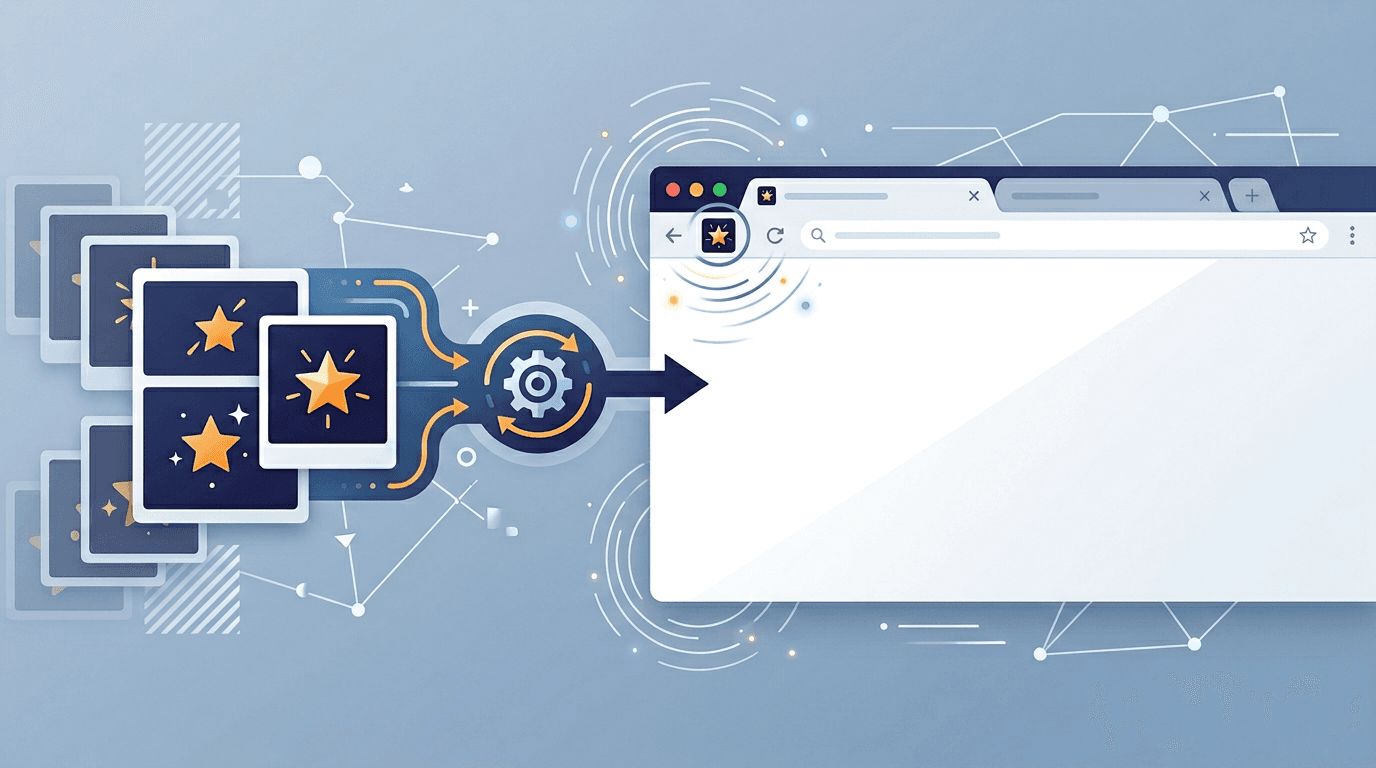
An animated favicon is a website behavior that must be checked in its target browsers. ImgConvert can prepare a static ICO fallback from a GIF’s first frame. It has no animation-preservation option and does not generate an animated ICO.
What Is an Animated Favicon?
A favicon (short for "favorite icon") is the small icon displayed in your browser tab, bookmarks, and address bar. An animated favicon takes this one step further by cycling through multiple frames, creating motion effects visible in the browser tab.
Common use cases include:
- Notification indicators — Pulsing or blinking to signal new messages
- Loading animations — A spinning icon while content processes
- Brand expression — A subtle logo animation that communicates personality
- Seasonal events — Temporary animated icons for holidays or promotions
Prepare a useful first frame
Choose a simple mark that remains recognizable at 16×16 or 32×32. If the GIF begins with an empty frame or a fade-in, select a better still in an image editor first. The converter has no frame picker.
Animation Design Principles
These are starting points for designing animation in a separate editor, not limits or controls of the ICO converter. Adjust timing to the actual motion and avoid unnecessary flashing.
Keep It Simple
The best animated favicons use restraint. At 16×16 to 32×32 pixels, complexity becomes visual noise:
- 2-4 frames maximum for most effects
- Simple motion — pulse, blink, rotate, or slide
- Clear silhouette at every frame
- Slow timing — 500ms or more per frame cycle
Design Timing by Animation Type
| Animation Type | Recommended Timing |
|---|---|
| Subtle pulse | 800-1200ms per cycle |
| Notification blink | 500-700ms per cycle |
| Loading spinner | 2000-3000ms per cycle |
| Color transition | 1000-1500ms per cycle |
The First Frame Rule
The converter uses the first frame for its static ICO output. That frame must work on its own, whether or not an independently implemented animation plays:
- Recognizable brand mark without context
- Clear at both 16×16 and 32×32 pixel sizes
- Good contrast against both light and dark browser chrome
- No text (unreadable at favicon sizes)
Step-by-Step Creation Process
These are starting points for designing animation in a separate editor, not limits or controls of the ICO converter. Adjust timing to the actual motion and avoid unnecessary flashing.
Step 1: Design Your Frames
Create 2-4 distinct frames for your animation:
For a notification pulse:
- Frame 1: Normal icon (base state)
- Frame 2: Icon with subtle glow or larger appearance
- Frame 3: Return to normal (for smooth loop)
For a loading animation:
- Frame 1: Icon at 12 o'clock position
- Frame 2: Icon at 3 o'clock position
- Frame 3: Icon at 6 o'clock position
- Frame 4: Icon at 9 o'clock position
Step 2: Export Individual Frames
Export each frame as a PNG at 32×32 pixels:
- Export PNG with an alpha channel when a transparent frame is needed.
- Keep transparent backgrounds where needed
- Aim for under 5KB per frame
Step 3: Assemble the GIF
Combine frames into an animated GIF:
| Setting | Value |
|---|---|
| Dimensions | 32×32 or 16×16 pixels |
| Color depth | 256 colors (GIF maximum) |
| Loop | Infinite |
| Frame delay | Based on timing table above |
| Optimization | Maximum |
Create the static ICO package
- Open GIF to ICO and select one GIF up to 20 MB.
- Select the sizes you need: 16, 32, 48, 64, 128 or 256 px. The initial selection is 32, 64 and 128.
- Convert, download and extract
icons.zip. - Use an individual icon or the included
favicon.ico, which contains every selected size. These are size variants of one still, not animation frames.
Rectangular images fit inside the square with transparent padding. An opaque background inside the source stays opaque. For a website package with PNG icons and a manifest, use Favicon Generator.
Install the fallback on your website
After deploying the extracted file at your website root, reference it in the page head:
<link rel="icon" href="/favicon.ico">
Adjust the path to your deployment. The converter does not install files or edit your website. MDN’s icon reference describes the HTML declaration.
If the favicon must move
Keep the original animation. Using an animated image as a favicon or changing icon frames with website JavaScript is a separate implementation task. Do not assume that a file which animates in an image viewer will animate in a browser tab, bookmark or shortcut. Test each required browser and provide a readable static fallback.
Website JavaScript example
A website author can experiment with changing the URL of an existing favicon link. This is separate website code; uploading a GIF here does not add it to a website or install animation. Keep static files for every frame and start with a useful static icon.
The example below swaps two PNG URLs every 500 ms while the page is visible. It stops when the page is hidden or reduced motion is requested. This demonstrates the update mechanism, not a guarantee that every browser tab, bookmark or operating-system shortcut will animate. Test the actual destination before relying on it.
<link id="favicon-demo" rel="icon" type="image/png" href="/icon-1.png">
<script>
  const icon = document.getElementById('favicon-demo');
  const frames = ['/icon-1.png', '/icon-2.png'];
  const motion = window.matchMedia('(prefers-reduced-motion: reduce)');
  let timer = null;
  let frameIndex = 0;

  function stopAnimation() {
    if (timer !== null) window.clearInterval(timer);
    timer = null;
    frameIndex = 0;
    icon.href = frames[0];
  }

  function syncAnimation() {
    stopAnimation();
    if (document.hidden || motion.matches) return;
    timer = window.setInterval(() => {
      frameIndex = (frameIndex + 1) % frames.length;
      icon.href = frames[frameIndex];
    }, 500);
  }

  document.addEventListener('visibilitychange', syncAnimation);
  motion.addEventListener('change', syncAnimation);
  syncAnimation();
</script>
When to Use (and Not Use) Animated Favicons
Good Use Cases
| Use Case | Why It Works |
|---|---|
| Notification badge | Draws attention to important updates |
| Loading indicator | Communicates processing status |
| Brand micro-animation | Expresses personality subtly |
| Special events | Creates temporary seasonal experiences |
Poor Use Cases
| Use Case | Why It Doesn't Work |
|---|---|
| Continuous flashy animation | Distracts and annoys users |
| Complex storytelling | Too small to convey detail |
| Critical brand messaging | The message must remain clear in a static fallback |
| Always-on decoration | Performance and attention drain |
Optimization for Performance
Keep the frame set small, stop an animation when its notification is no longer relevant, and test the page with it enabled and disabled. A faster timer is not necessarily a better favicon. Avoid running several timers for the same icon. If this is integrated into a component, remove listeners and stop its timer when the component is disposed. The example is standalone page code.
MDN’s Page Visibility API guide explains the visibility signal used here. Visual animation should supplement an accessible on-page status message, since an icon alone may not be seen or announced.
Check the result
- Open the deployed icon URL and check small sizes.
- Check existing icon declarations and browser caching if the old icon remains.
- Test animation separately from the static ICO download.
Check each browser and device you actually support, including a fresh session and a cached session. Test the first frame, any separately implemented motion, reduced-motion preference and returning from a hidden tab. Inspect the mark at 16×16 and 32×32 on light and dark browser chrome. If animation does not work reliably, retain the static fallback. File-size targets are project budgets, not universal browser limits.
FAQ
Does selecting several ICO sizes preserve the GIF animation?
No. All sizes come from the first frame. There is no Preserve Animation switch.
Can I choose another frame here?
No. Prepare the desired still elsewhere, then use PNG to ICO if you saved it as PNG.
Why does an old favicon still appear?
Check that the deployed file URL loads, inspect competing icon declarations, and compare a fresh browser session with a cached one. Tab icons, bookmarks and installed shortcuts may use different assets or caches. Updating a link in one page does not replace all saved icons.
Can CSS alone animate the tab icon?
CSS animation of an image inside a webpage does not animate the browser’s tab icon. Treat a directly linked animated file or a JavaScript URL-swapping experiment as separate implementations and test the required browser behavior.
How much motion should I use?
Use only enough to communicate the intended status. A static badge can sometimes communicate it more clearly. Avoid rapid flashing, retain a recognizable still and check reduced-motion behavior. Test timing at the actual tiny display size rather than judging a large preview.
More tools for your next image task
Explore ImgConvert tools for conversion, PDF files, and GIFs.
- Image converters
- PDF tools
- GIF tools