
How to Give a JPG Image a Transparent Background
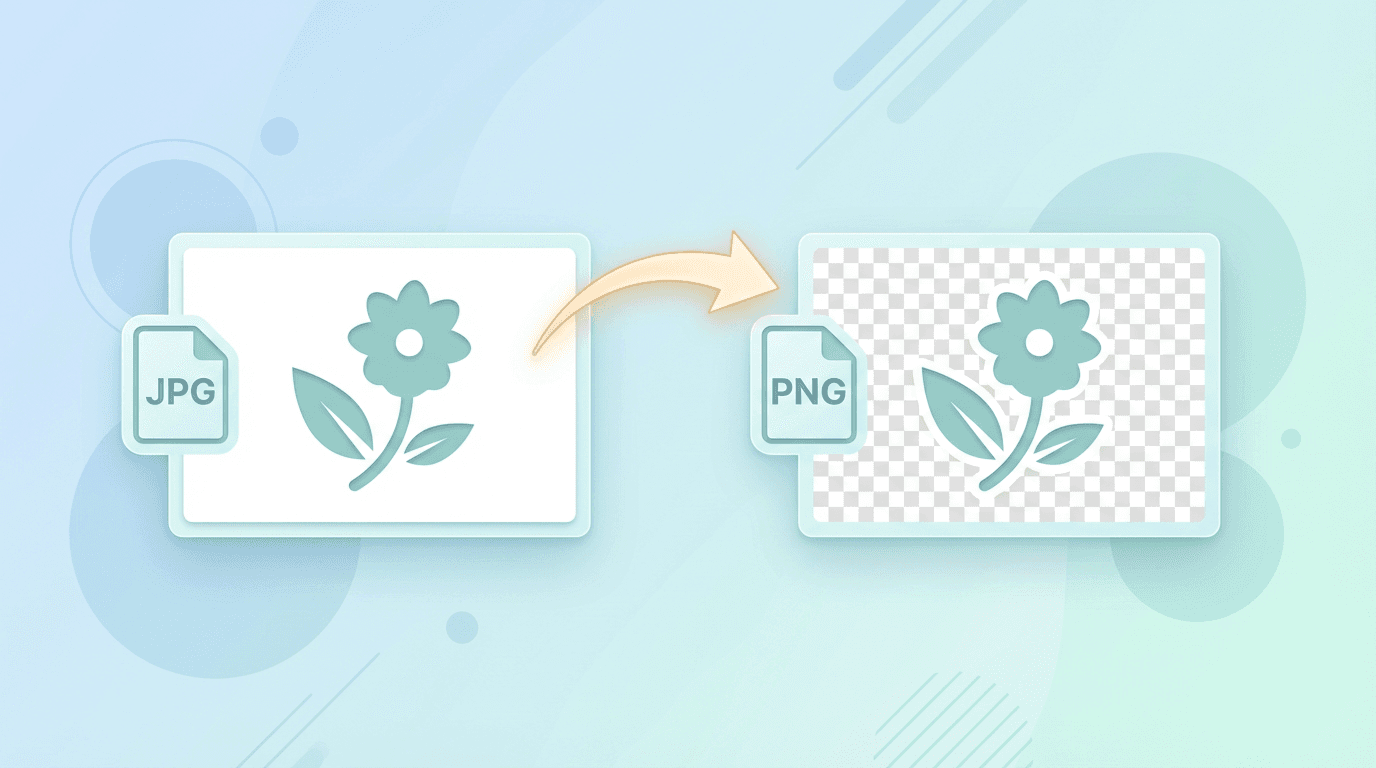
JPG does not store transparency. To create a cutout, remove the background and save the result in a format that supports an alpha channel, such as PNG. You do not need to convert the JPG before using our Transparent Background Maker: it accepts JPG directly.
Why JPG Doesn't Support Transparency
JPG was designed for photographs with these characteristics:
- Lossy compression - Optimized for photos
- No alpha channel - Cannot store transparency data
- Solid backgrounds - All areas have color values
To add transparency, you need a format that supports it:
- PNG - Most common choice
- WebP - Modern alternative
- GIF - Limited (1-bit transparency)
Remove the background from a JPG
- Select one JPG or JPEG image up to 20 MB. Selection starts the upload immediately; keep a copy of the original.
- Wait for the upload to finish, then submit the already uploaded image for automatic background removal on the server.
- Inspect the result, especially hair, fine edges, shadows and areas similar in color to the background.
- Download the PNG. Test it against both a light and a dark background in your destination editor.
The tool also accepts PNG, WebP and SVG. It processes one image at a time and does not offer a manual erase or restore brush. If automatic removal cuts away part of the subject or leaves a halo, refine the mask in an editor that supports manual selection.
Conversion and background removal do different jobs
| Task | Suitable tool | Result |
|---|---|---|
| Change JPG to PNG while keeping the picture | JPG to PNG | The original background remains |
| Isolate a subject from its background | Transparent Background Maker | A PNG with the automatically selected background removed |
| Repair difficult edges by hand | An editor with mask or selection tools | A manually refined cutout |
A checkerboard is usually a transparency indicator in an editor. A checkerboard painted into the image itself is ordinary image content and will not disappear when you place the image elsewhere.
Improve the source before processing
Use the clearest original available. JPG compression can leave blocks or colored fringes around the subject; saving it as PNG cannot recover details already lost. A distinct subject and background are easier to separate than overlapping objects, glass, smoke or similarly colored surfaces.
For a logo, use the original transparent PNG or vector source if available. Removing a background from a compressed JPG copy can damage small lettering and thin strokes. For product photos, check that the removal has not erased white parts of the product or desirable shadows.
Tips for Better Background Removal
The selection, feathering and edge-cleanup techniques below apply in an editor with those features. ImgConvert’s automatic background remover does not expose manual masks or brushes. Work on a copy and compare the edge at its intended display size.
1. Start with Good Source Images
Easier removal with:
- High contrast between subject and background
- Solid color backgrounds
- Good lighting
- Sharp edges
2. Choose the Right Tool
| Background Type | Best Tool |
|---|---|
| Solid color | Magic Wand |
| Simple gradient | AI remover |
| Complex scene | Manual selection |
| Hair/fur | Specialized AI |
3. Refine Edges
After initial removal:
- Feather edges slightly (1-2 pixels)
- Use Refine Edge in Photoshop
- Check for halos around subject
4. Verify on Different Backgrounds
Test your transparent PNG on:
- White background
- Black background
- Your actual use background
Dealing with JPG Artifacts
PNG conversion does not erase artifacts already present in the JPG. The following cleanup methods are options in a separate editor; compare before and after so that smoothing does not remove useful edge detail.
JPG compression can leave artifacts that show after removing backgrounds:
Common Issues
- Noise around edges - JPG compression creates visible squares
- Color fringing - Slight color halos around subjects
- Block artifacts - Visible squares in solid areas
Solutions
- Use high-quality JPG sources - Less compression = fewer artifacts
- Expand selection slightly - Include a pixel or two extra
- Apply slight blur to edges - Hides minor artifacts
- Use Defringe in Photoshop - Removes color halos
Choose an output for the destination
Keep the transparent PNG as your working copy. PNG files can be larger than JPG files; the size depends on dimensions and content. Resize a copy only when you know the destination dimensions.
If you need a solid backdrop, use Change Background Color and inspect the result. Converting a transparent PNG to JPG removes transparency; our PNG to JPG converter fills transparent regions with white.
File Size Considerations
For simple logos, reducing the color palette in a suitable editor may reduce file size, but it can alter gradients and soft edges. Keep a full-color PNG with alpha as the master copy when these details matter. The background remover does not offer PNG-8/PNG-24 mode controls.
For web delivery, PNG to WebP can create another copy with transparency. Compare the actual file size and appearance: WebP is not guaranteed to be smaller for every source. Check the destination’s accepted formats before replacing the PNG. Resizing should follow the intended display size, not an arbitrary compression target.
Alternatives to Background Removal
Using White Backgrounds
If transparency isn't essential:
- Keep white background
- Matches most white webpage backgrounds
CSS Blend Modes
For web use:
- Use mix-blend-mode in CSS
- Simulate transparency effects
- Works with JPG (no conversion needed)
A CSS blend mode changes how pixels mix with the page beneath; it does not create an alpha channel in the JPG. Test the actual page background and the subject’s colors. Keeping a solid background can be reasonable, but it does not guarantee a smaller file.
Frequently asked questions
Does renaming .jpg to .png make the background transparent?
No. Renaming does not change the encoded image or remove background pixels. Even a proper format conversion keeps those pixels unless another operation removes them.
Must I convert my JPG to PNG first?
No. Upload the JPG directly to the background remover and download its PNG result.
Will every background disappear cleanly?
No. Automatic separation can miss fine details or keep parts of the background. Inspect the cutout at its intended display size and use manual editing when needed.
More tools for your next image task
Explore ImgConvert tools for conversion, PDF files, and GIFs.
- Image converters
- PDF tools
- GIF tools